Regenerating Custom Patterns
Generated AI-based patterns can be shared across workgroup members to maintain consistent design distribution and motifs. This ensures that the unified content is derived from the original design.
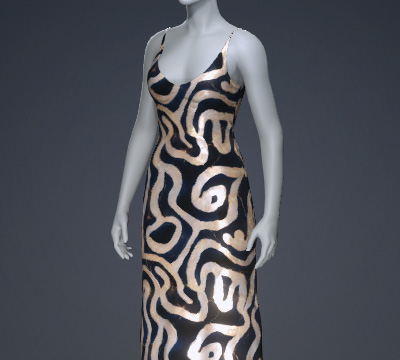 | Before regenerating patterns, ensure the following conditions are met:
|
Follow these steps to regenerate the pattern:
- Ensure that ComfyUI and associated AI models are installed and that FashionGen is successfully connected to ComfyUI to enable AI Generation features.
- Navigate to the Custom folder in the Content Manager.
Right-click the desired pattern and choose Regenerate.
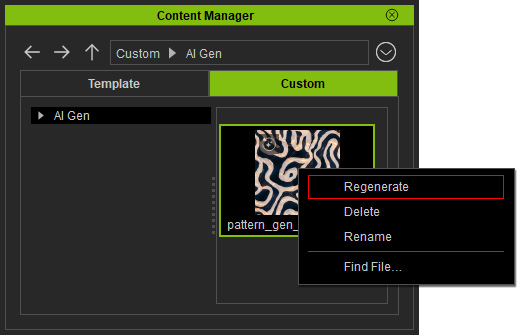
A content thumbnail with an icon in the upper-left corner indicates that the item can be regenerated via AI Generation.
- The AI Generation panel opens in the Pattern tab, displaying the prompts and reference images used to create the content.
It's parameters include the Seed, Steps, and CFG values in the Sampler section, allowing you to reproduce consistent results.
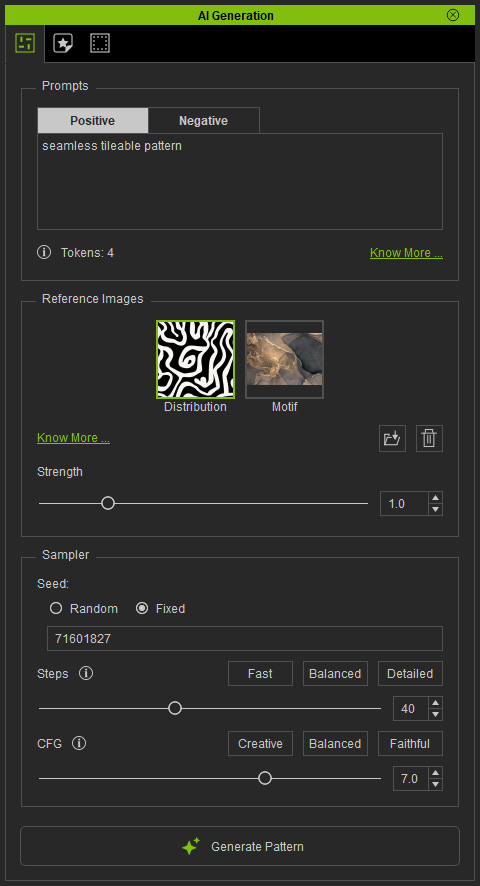
- Keep the Seed number fixed by activating its checkbox.
Click Generate Pattern button at the bottom of the panel to regenerate the design.
After generation, the pattern is automatically applied to the clothing.
Use the Layer Transform tools in the Texture Editor to adjust tiling, position, and orientation as needed.
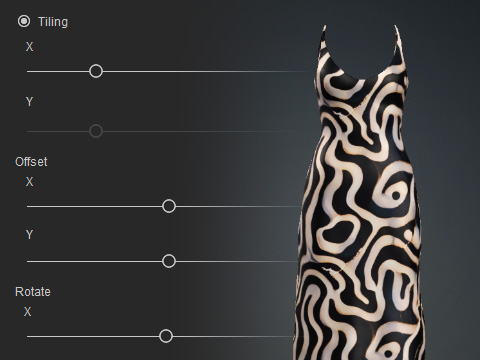
The output image is also saved in the Custom library of the Content Manager for future regeneration.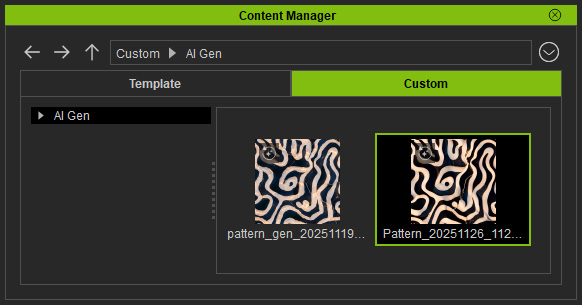
- A new pattern layer will appear in the Layer Manager.
Use the eye icon to show or hide the layer and compare the before-and-after results.
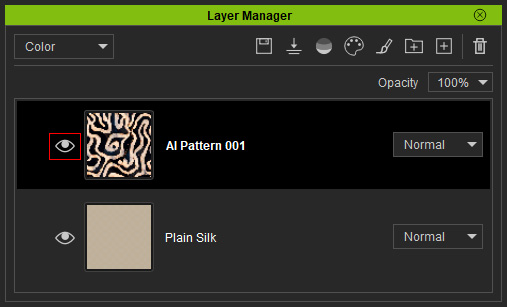
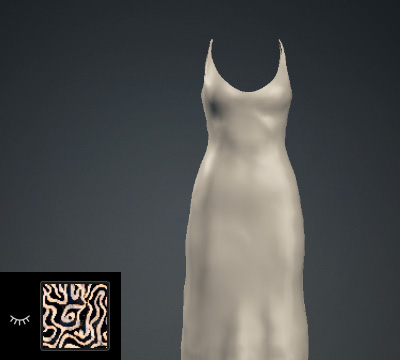
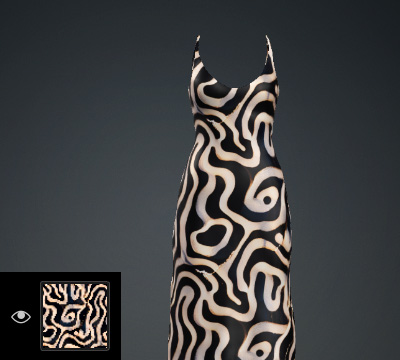
Base or previous layer (Plain Silk).
After applying the regenerated pattern.
- Send the AI-generated result to CC and save it in the Custom library of the Content Manager.