


Main Menu - Edit
The Edit menu on the main menu bar contains all the commands for
manipulating 3D entities in the scene.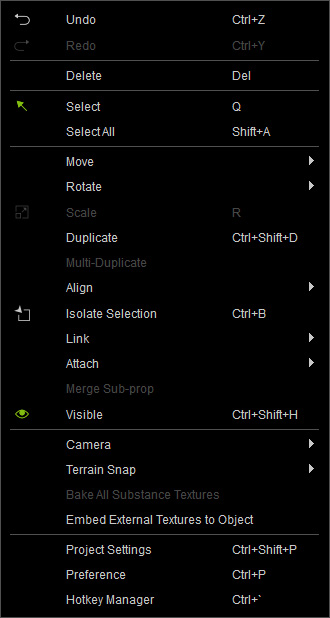
 Undo / Redo
(Ctrl + Z / Ctrl + Y)
Undo / Redo
(Ctrl + Z / Ctrl + Y)
Undo/redo the last action.
Delete (Del)
Deletes one or more selected objects.
Select / Select All (Q)
- Select: Switches to select mode for selecting objects.
- Select All: Selects every 3D entity in the scene.
Move / Rotate / Scale (W / E / R)
Transforms the selected objects. However, the Scale tool does not work on characters.
Duplicate
(Ctrl + Shift + D
Duplicates the currently selected object(s), including character, prop, light, lens flare, tree, particle, path, etc.
Multi-Duplicate
Duplicates a prop into multiple copies with identical settings.
Align
This item contains a sub-menu with two features.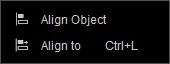
- Align Object: This command aligns objects such as props, accessories and trees in an aligned position. You may also space objects within a fixed distance. This is useful when you need to re-locate scattered objects in order.
- Align to (Ctrl + L): This command align and snap a 3D entity to another targeted object without moving the object.
Isolate Selection (Ctrl + B)
Shows the selected objects on the 3D viewport, and nothing else.
Link
This item contains a sub-menu with two features.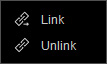
- Link: Sets a key or keys to connect one or more objects to another.
- Unlink: Sets a key or keys to disconnect one or more objects that have been linked together.
Attach
This item contains a sub-menu in which two features reside.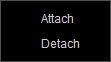
- Attach: Fastens one or more objects to another one.
- Detach: Disconnects one or more objects that have been attached to another one.
Merge
Sub-prop
Merges a set of parent-child props that is composed by the Attach command into a single prop.
Visible
(Ctrl + Shift + H)
Sets a key or keys to show or hide one or more 3D objects.
Camera
Contains a sub-menu with two features.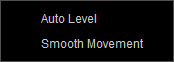
- Auto Level: Keeps the camera up-right (Z-up) when you rotate it.
- Smooth Movement: Curves the camera's linear panning path that is generated by different transforming keys.
Terrain Snap
This item contains a sub-menu with three features.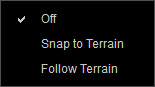
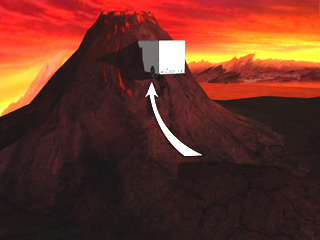
- Snap to Terrain: Forces 3D objects to be align on the
ground, even if it is manually moved.
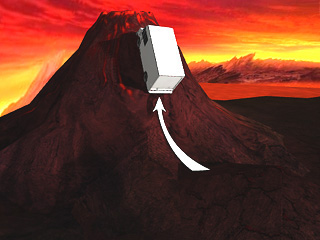
- Follow Terrain: Forces 3D objects to be aligned
on the ground when it is manually moved and rotates the objects to ensure they are
perpendicular to the surface of the terrain.
- Off: This command turns off the Terrain Snap off.
Bake All Substance Textures
Bakes the substance texture to the eight channels of the prop.
Embed External Textures to Object
This command will embed all external textures of the selected object.
Real-time Smooth
Tessellates a prop with low polygons into a prop with 3-time-higher polygons.
Project Settings... (Ctrl + Shift + P)
Displays the Project Settings panel for you to adjust the Time Unit, Global Sound Settings, Global Physics Settings, 2D Background and shows the Information about the current project.
Preference (Ctrl + P)
Displays the Preference panel in which you may adjust the authoring environment of iClone to your customized one.
Hotkey Manager
(Ctrl + `)
Opens the Hotkey Manager for customizing the hotkeys.
