Introducing the Direct Puppet Panel
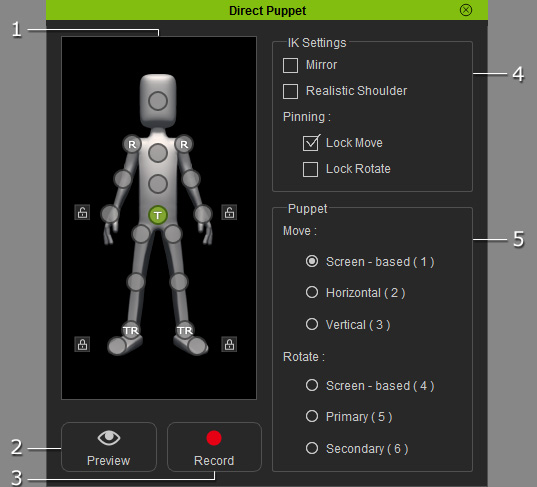
|
1. Dummy Pane |
Select one of the effector points for puppeteering. icons:
Please refer to the Locking Bones section for more information on how pinning works. |
|
2. IK Settings |
|
|
3. Triggering Methods |
Switch tabs to define a triggering method for character motions. Please refer to the Direct Puppeteering - Move and Direct Puppeteering - Rotate sections for more information. |
|
4. Preview
|
Click this button and then press the Space bar to preview the motions triggered by your input device (Mouse by default). |
|
5. Record
|
Click this button and then press Space bar to start recording a motion clip. When you move your mouse during recording, the results will be captured as a clip and stored into the Motion track. |
 : A selected effector point. You may use it to lock the corresponding body part or puppeteer the effector point to produce movements for the corresponding body part.
 : A free effector point. Auto-update the location and orientation of the corresponding body part when you are puppeteering another body part.
 : A move-locked effector point. It causes the corresponding body part not to move when you are puppeteering another body part.
 : A rotate-locked effector point. It causes the corresponding body part not to rotate when you are puppeteering another body part.
 : A locked effector point. It causes the corresponding body part not to move nor rotate when you are puppeteering another body part.
 : A quick lock. Use it to quickly lock or unlock the T and R (
 : Lock the translation of the selected effector point.
 : Lock the Rotation of the selected effector point.
 : Lock translation and rotation on both legs.
 : Lock translation and rotation on both hands.
 : Lock translation and rotation on all limbs.
 : Lock translation and rotation on both toes.
 : Remove all pin