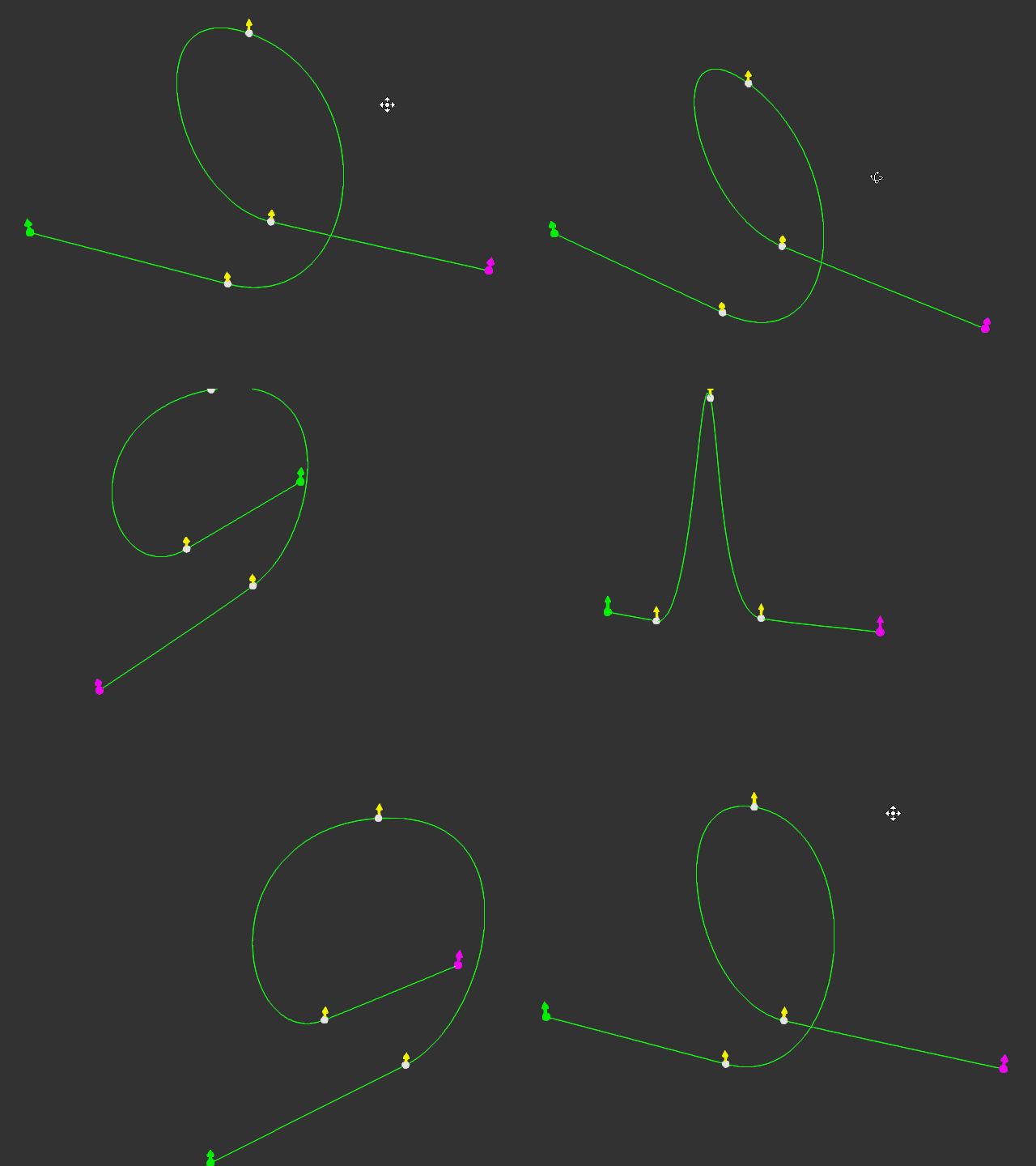
Basic Modifications of Path
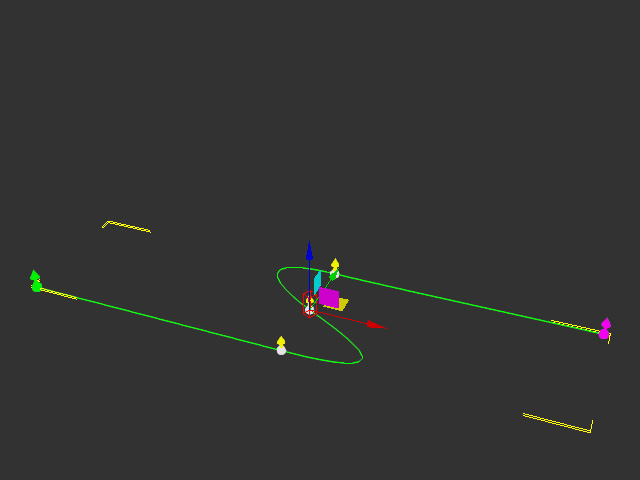
A path can still be modified after creation. Take the path shown below as an example: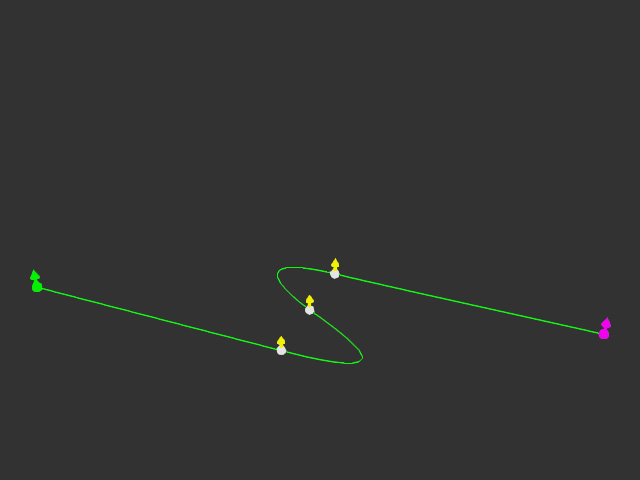
-
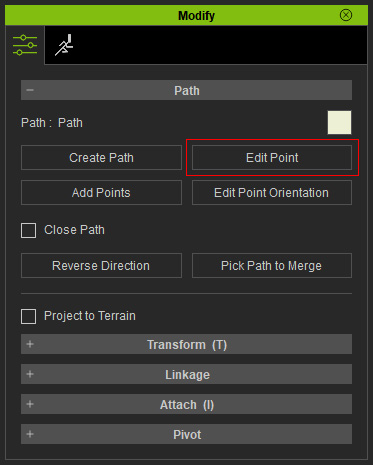
Select the path and click the Edit Point button on the Modify panel to go into path
edit mode.
Alternatively, you can right-click on the path and choose Path >> Edit Path to enter the path edit mode.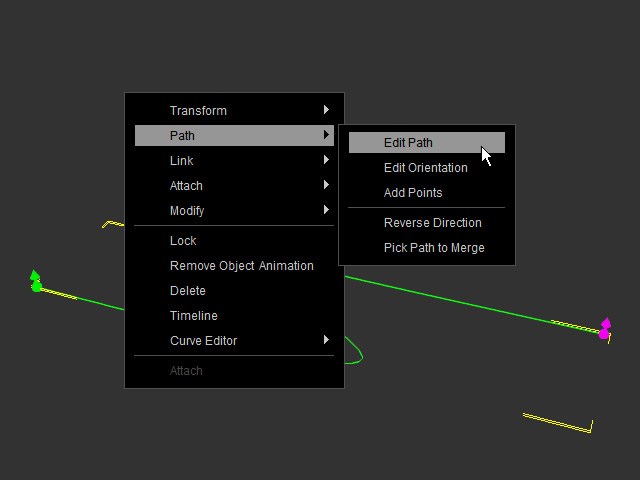
- Select one of the control points you want to edit (the bezier handles are hidden for better observation).
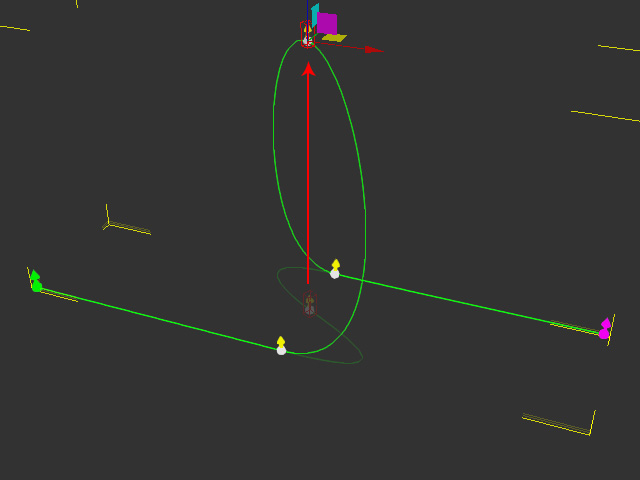
- Transform the control point.
-
Show the bezier handles of the control point.
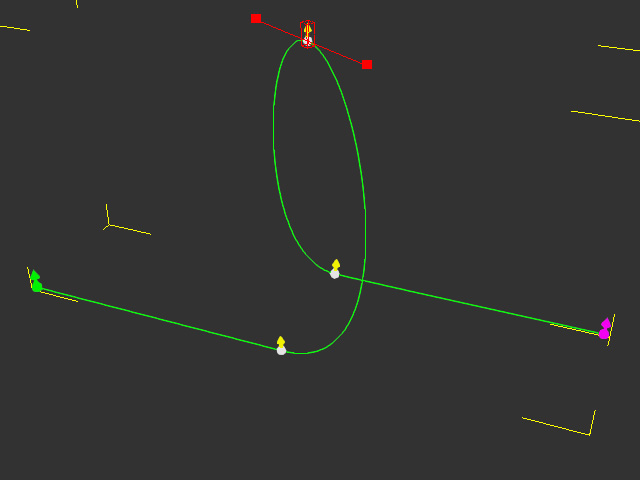
- Pick either one red box of the bezier handles and show the transform gizmo.
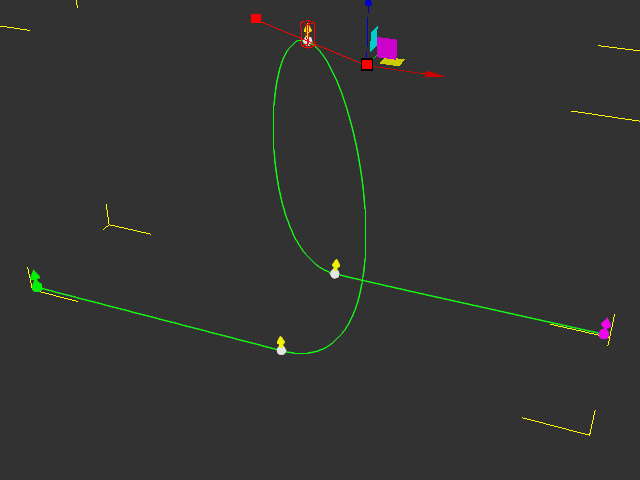
- Move the red box to influence the shape of the curve.
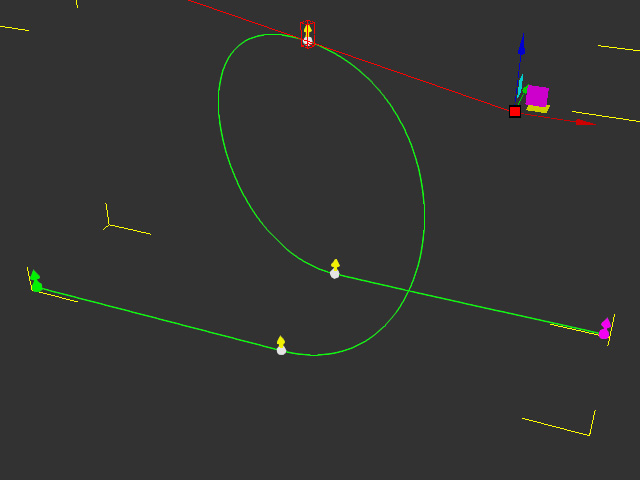
- Press ESC key to leave the edit mode.
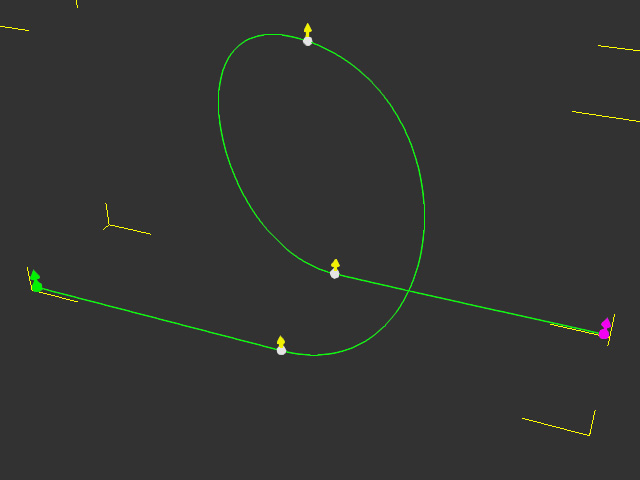
- Orbit the camera to view the result of the path. Edit it again if it is necessary.