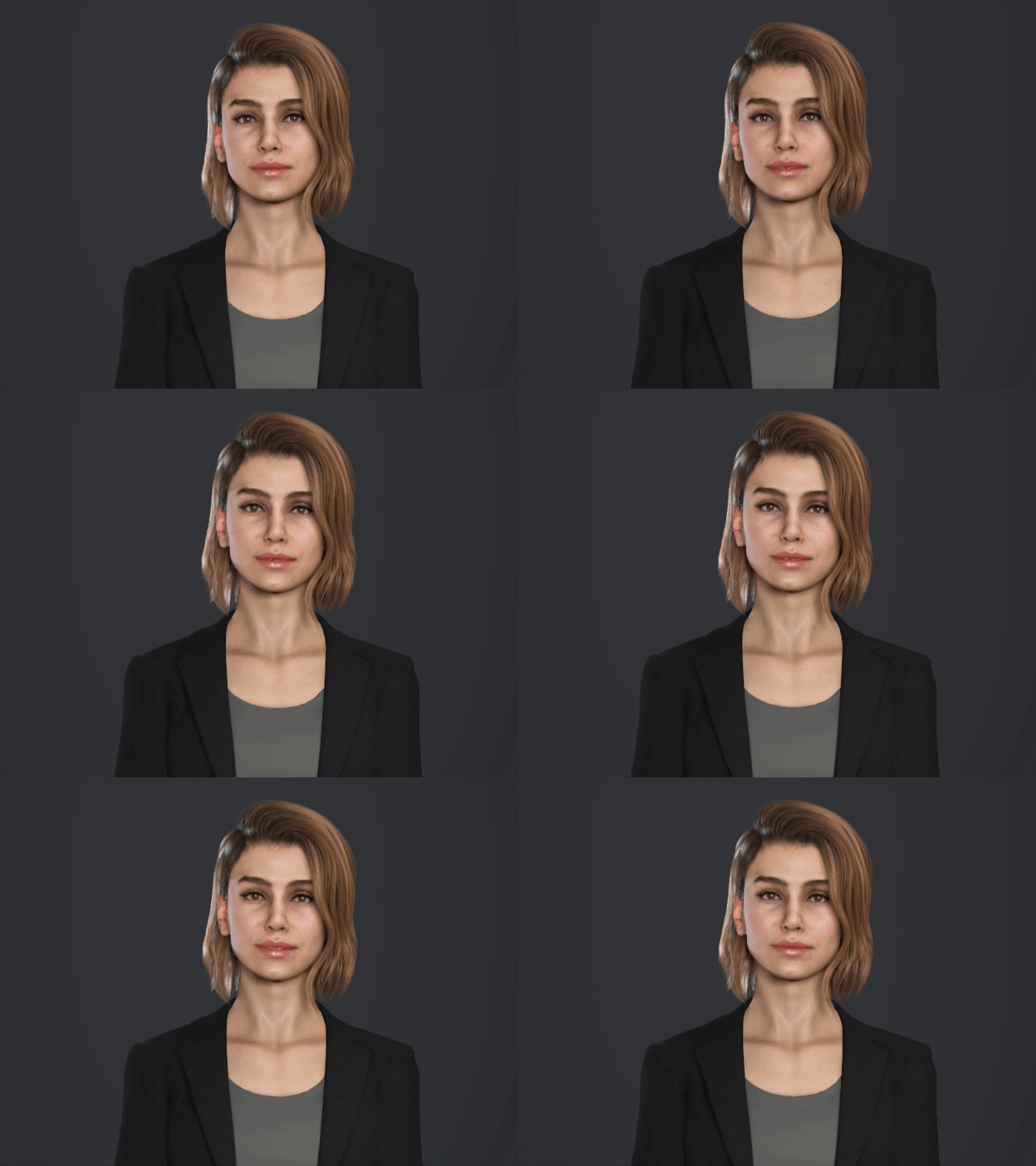
Creating Idle Animation
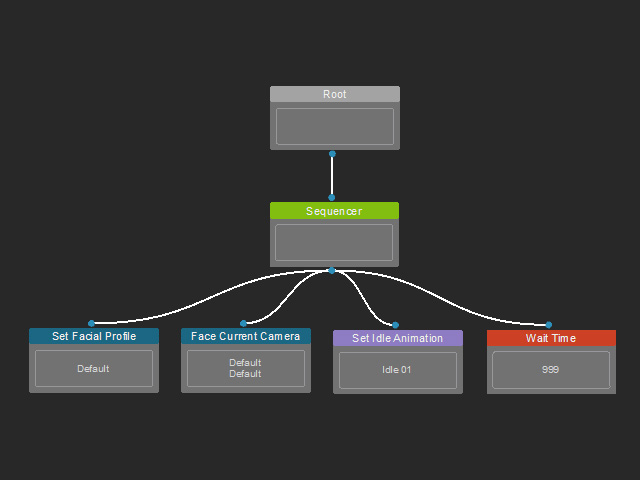
An idle animation is necessary for your character in the beginning and loops as it transitions to other states. To initiate an idle state, you need to set up the following three nodes:
- Facial Profile: Relaxes the character's facial muscle.
- Facing Camera: Adjusts the character's sight and focus.
- Idle Animation: Makes the character's body move.
Refer to the instruction below to create an idle animation for your character.
- Click Load Default Project near the bottom of the Behavior Tree panel to import the embedded assets.
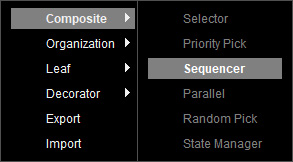
- In the Behavior Tree graph, right-click on the empty area and select Composite > Sequencer.
Connect the Sequencer node to the Root.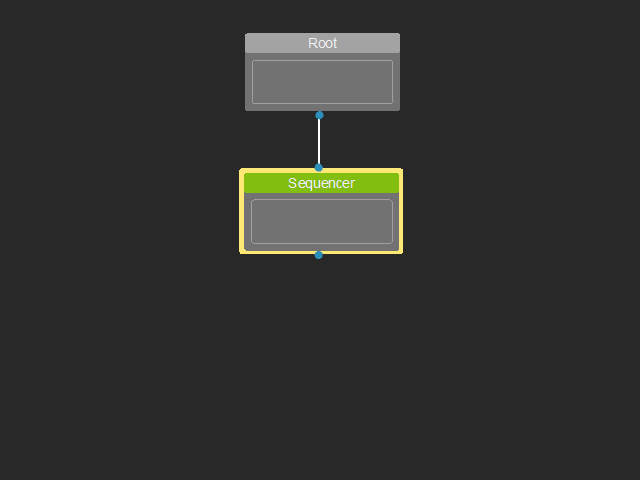
- Create a Set Facial Profile node by right-clicking and select Leaf > Animation > Set Facial Profile.
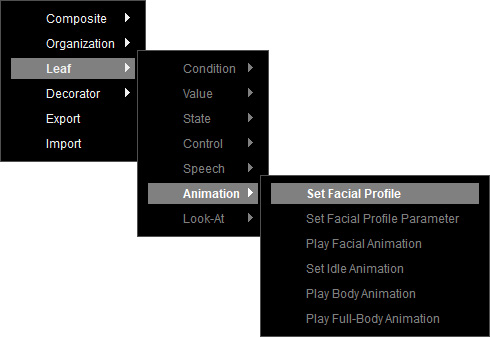
Select the Set Facial Profile node to show options in the Parameters section. Choose "Default" from the Facial Profile drop-down list to load the presets for the character to perform auto facial animation.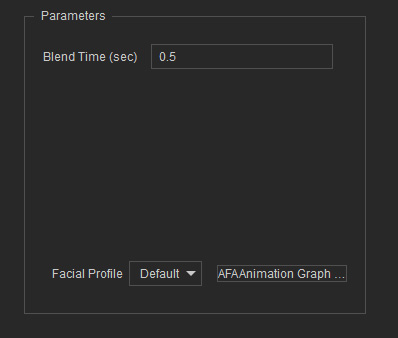
* By clicking the AFA Animation Graph... button, you can modify the presets such as saccade and blink in the Idle Expression Graph. - Create a Face Current Camera node by right-clicking and select Leaf > Look-At > Face Current Camera.
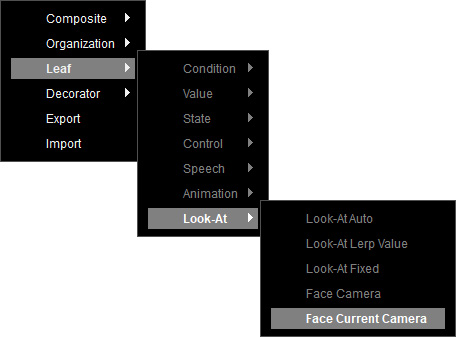
Select the Face Current Camera node to show options in the Parameters section. Choose "Default" from the Look-At drop-down list to determine how the character's head and eyes to perform Look-At.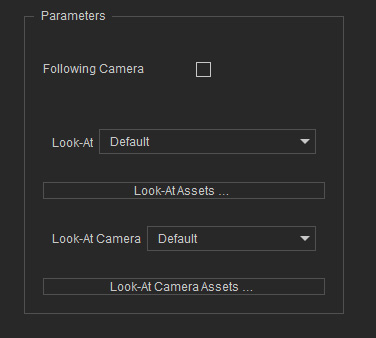
* By clicking the Look-At Asset... button, you can adjust the Look-At presets such as speed and motion curve in the Third-Party > Look-At Asset tab.
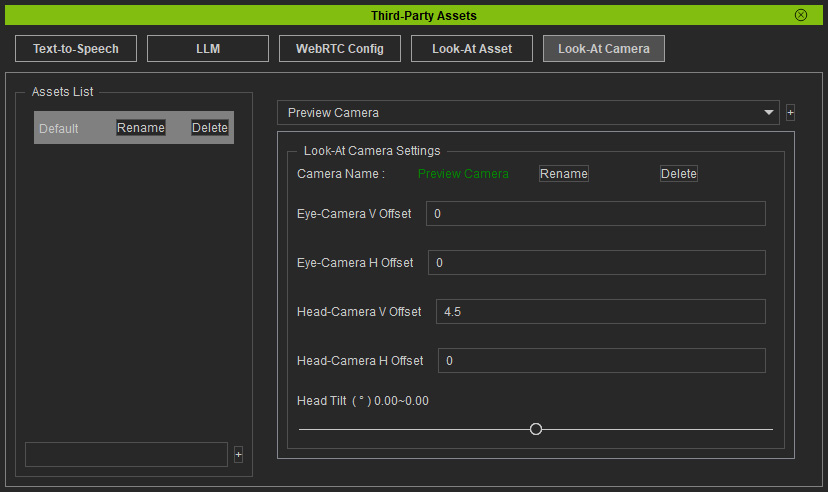
Choose "Default" from the Look-At Camera drop-down list to allow the audience to perceive the character is precisely looking at the camera. By clicking the Look-At Camera Asset... button, you can correct the offset of the character's head and eyes when looking at the target camera in the Third-Party > Look-At Camera tab. - Select the camera in used in your viewport, and click the + button.
If you are using the Camilla character from the IAA Resource Pack, the Head-Camera V Offset will be 4.5.
- Create a Set Idle Animation node by right-clicking and select Leaf > Animation > Set Idle Animation.
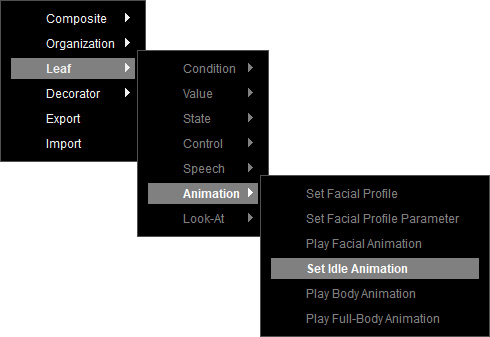
Select the Set Idle Animation node to show options in the Parameters section. Choose "Idle 01" from the Animation drop-down list for the character to perform the idle motion continuously in a loop.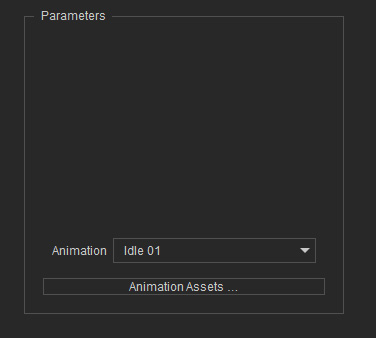
- To prevent nodes from repeatedly executing, create a Wait Time node by right-clicking and select Leaf > Control > Wait Time.
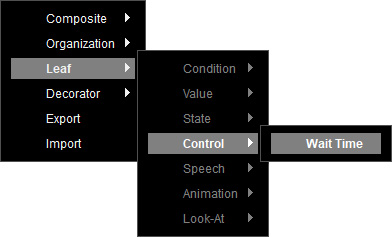
Select the Wait Time node to define the waiting time in seconds in the Parameters section.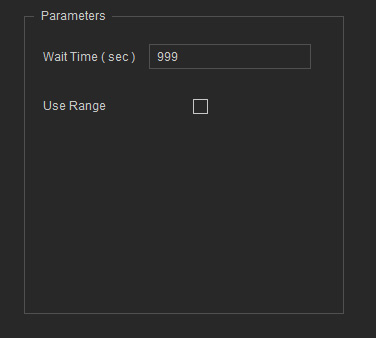
- Connect the Set Facial Profile, Face Current Camera, Set Idle Animation and Wait Time nodes to the Sequencer.
- Create a Comment node by right-clicking and select Organization > Annotation > Comment.
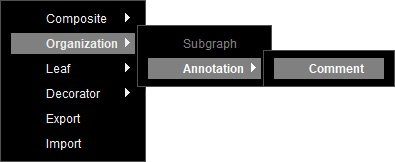
Drag the Comment node over the other nodes to group them. Rename the group, for example, Starter Setting.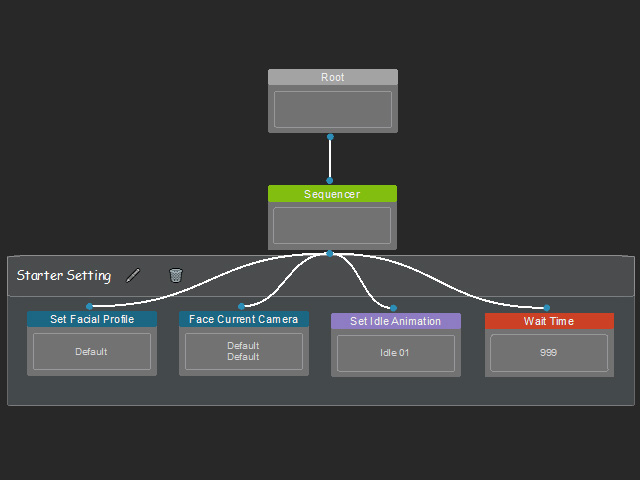
- Click on Preview near the bottom of the main panel to observe the idle animation of your character.