Launching AI Assistant
Launch the AI Assistant plug-in from the main menu of iClone by executing Plugins > AI Assistant > Behavior Tree Editor. The AI Assistant Main Panel Release Build, Behavior Tree and Chat windows will appear simultaneously.
AI Assistant Main Panel Release Build
-
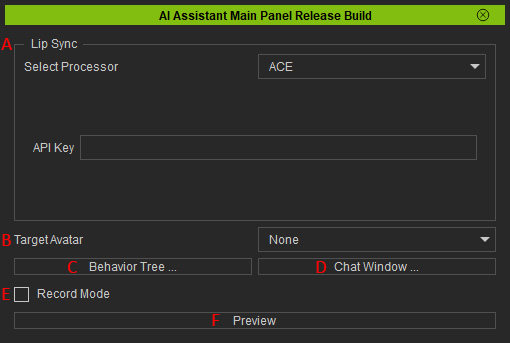
 Lip Sync
Specifies the lip-sync technology provider from the Select Processor drop-down list, and enter the API key. The "NVIDIA ACE (Avatar Cloud Engine)" option is chosen by default.
Lip Sync
Specifies the lip-sync technology provider from the Select Processor drop-down list, and enter the API key. The "NVIDIA ACE (Avatar Cloud Engine)" option is chosen by default. -
Target Avatar
Applies a CC3+ Base character, and then choose one from the Target Avatar drop-down list.
-
Behavior Tree
Opens the Behavior Tree panel.
-
Chat Window
Opens the Chat dialog window.
-
Record Mode
When enabled, saves animation data in the related tracks on timeline, including the facial expression, body animation, and speaking voice, for debugging, further editing or rendering.
-
Preview
Enters the Preview mode in order to observe whether each node in the behavior tree functions properly.
Behavior Tree
-
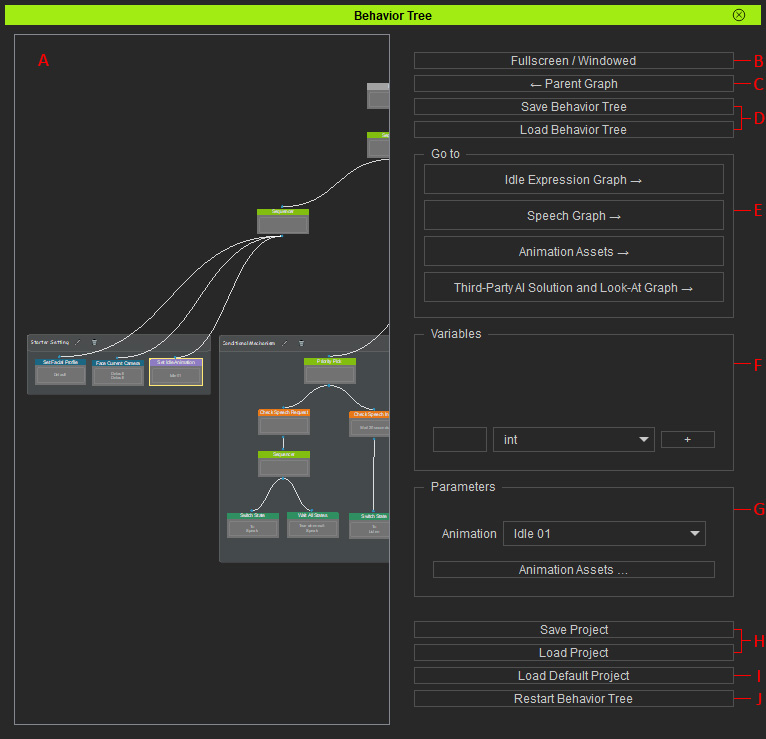
Node Canvas
The main workspace for editing and arranging nodes in behavior tree.
-
Fullscreen / Windowed
Toggles full-screen mode.
-
Parent Graph
Returns to one level up when working on a sub-graph.
-
Save and Load Behavior Tree
- Saves the current the behavior tree (*.btree).
- Imports an existing behavior tree (*.btree).
-
Go to
- Idle Expression Graph: Displays the structure and settings for auto facial animation.
- Speech Graph: Displays the structure and settings for Drive and Driven facial animation.
- Animation Assets: Shows the available facial and body animation assets to control.
- Third-Party AI Solution and Look-At Graph: Integrate the third-party resources, and configure the Look-At settings.
-
Variables
The variables in this section are used to create attributes required by nodes. There are four types of attributes you can create: Int (Integer), Float, Str (String), and Bool (Boolean).
-
Parameters
The controllable options and parameters in this section change according to the selected node in the Behavior Tree.
-
Save and Load Project
- Saves all current system parameters and settings as a complete project file in a JSON format.
- Loads a previously saved project (*.json) into the system, overwriting the current unsaved parameters and settings.
-
Load default Project
Loads the embed presets to the Idle Expression, Speech and Look-At Graphs, and pre-load the motion clips to Animation Assets.
-
Restart Behavior Tree
Re-executes the behavior tree logic from the beginning.
Chat
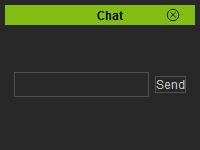
The Chat window is used to input and send messages to the character. You can click the Chat Window... button on the main panel to open this dialog window.
