The Behavior Tree
The character behavior is controlled by a variety of nodes in the Behavior Tree. By utilizing these nodes, you can create required components for each working state, design the behavior loop, and perform specific functions.
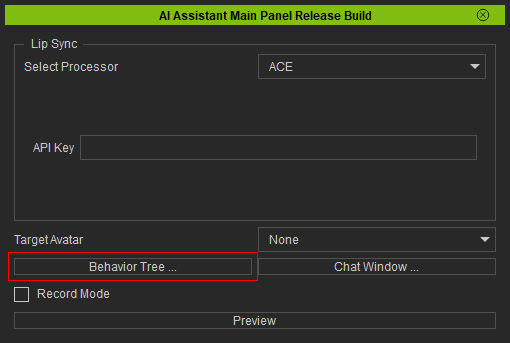
Click the Behavior Tree... button in the main panel to open the Behavior Tree.
Nodes in Behavior Tree
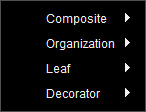
There are four types of nodes available for diverse functions in the Behavior Tree: Organization, Composite, Leaf, and Decorator.
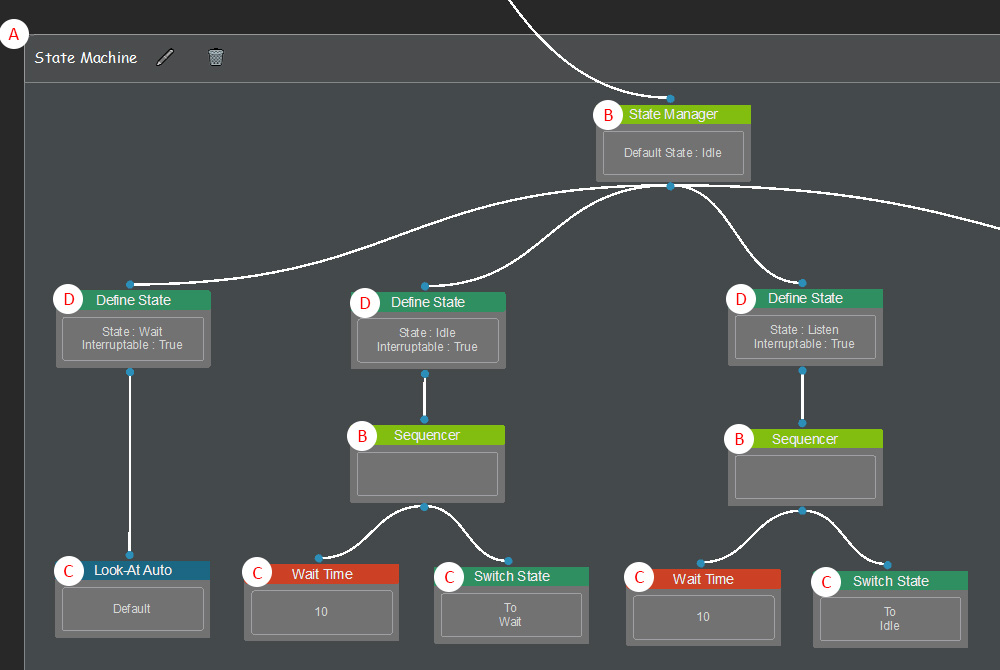
- Organization Node: Manages nodes on the panel, ensuring that the organization, classification, and scheduling of nodes align with the design requirements.
- Composite Node: Manages and dispatches its child nodes. You can create a state manager and decide the node priority with this node.
- Leaf Node: Executes actions or evaluates conditions to load various resources, such as auto facial animation profiles, speech animations, look-at animations, and motion clips.
- Decorator Node: Modifies or controls the execution conditions and results of child nodes.
Behavior Tree Manipulation
-
 Fullscreen
Click the Fullscreen / Windowed button on the top-right corner to toggle full screen to expand the panel to cover the whole screen.
Fullscreen
Click the Fullscreen / Windowed button on the top-right corner to toggle full screen to expand the panel to cover the whole screen.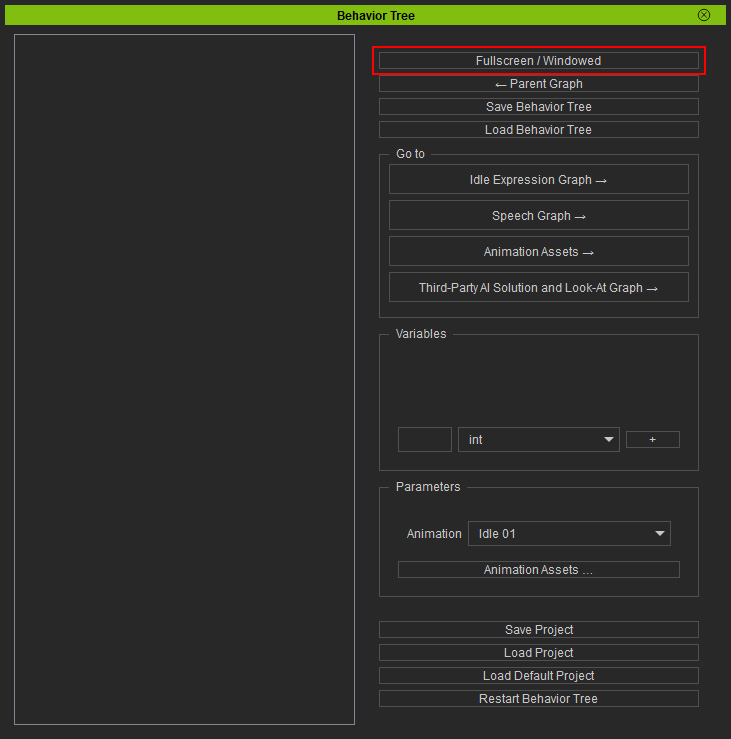
-
Navigation
You can use the hotkey combination or mouse wheel to move or zoom the graph.
- Zoom: While holding the Alt key, roll the mouse wheel to zoom in/off around the cursor.
- Pan: Press the mouse wheel or middle button to pan anywhere. Roll the mouse wheel to pan vertically.
-
Creating a Node
Right-click on the empty area of the graph to select a required node from the context menu.
-
Connecting Nodes
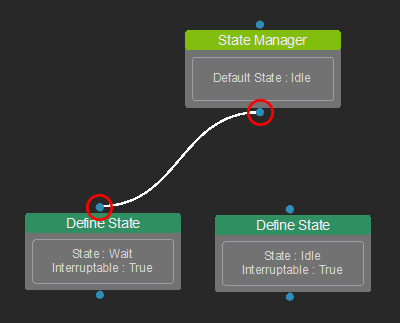
Click on the blue connecting point above the lower-level node and below the higher-level node sequentially to build a hierarchy between the nodes.
-
Removing a Connection
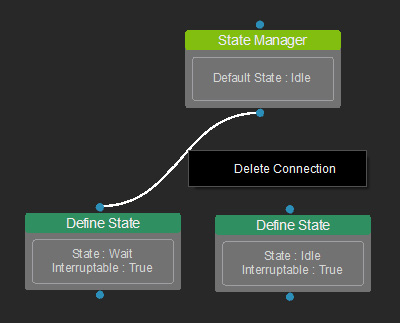
Right-click on the connecting line between the nodes, and click on Delete Connection.
-
Moving a Node
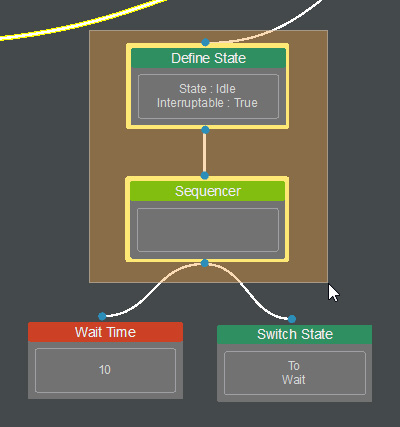
Move a node elsewhere by dragging. You can also select multiple nodes by dragging the cursor to a range, and then reposition them at once.
-
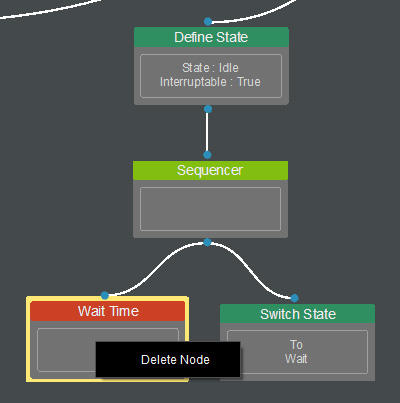
Removing a Node
Right-click on the selected node and click on Delete Node. You can drag a selection box to multi-select nodes and delete them at once.