Introduction of Speech Graph
A speech animation can be designed in the Drive and Driven Animation Graph.
Click the Speech Graph → button in the Behavior Tree panel to open the Drive and Driven Animation Graph.
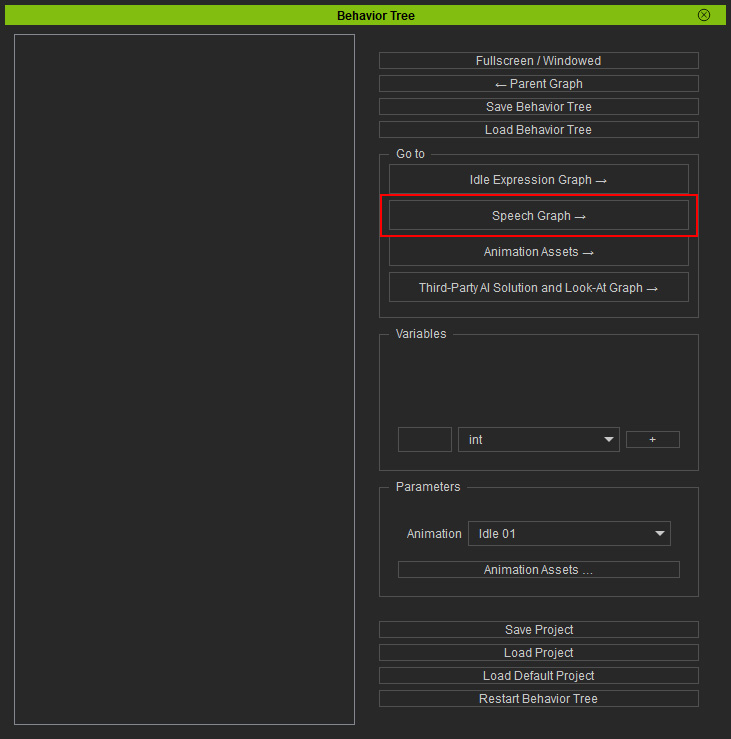
Nodes in Speech Graph
Configure the three major features influencing a speech animation before loading them into the Speech Gen related nodes in the behavior tree.
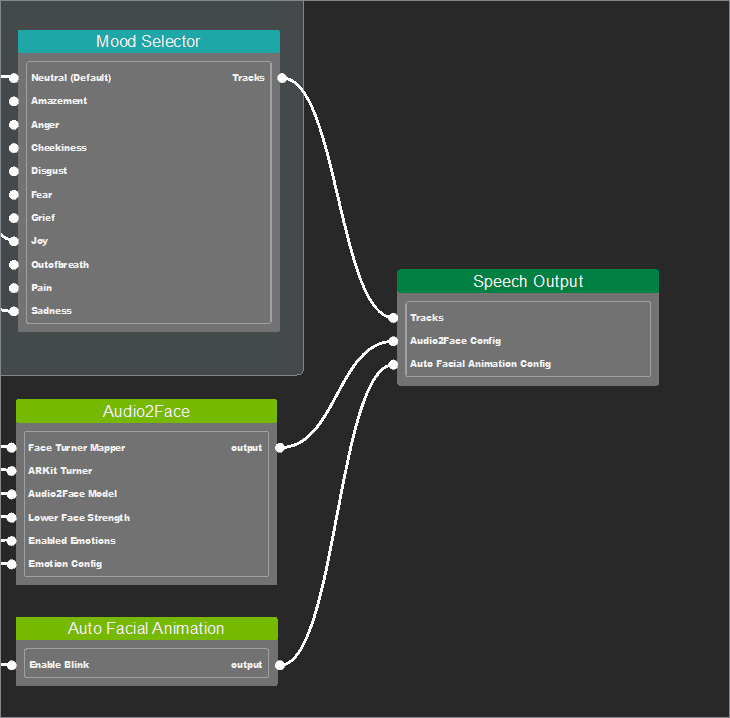
- Tracks: Design the trigger conditions and their driven animations and emotions.
- Audio2Face Config: Configure the Audio2Face Lip-sync animation and morph key mapping.
- Auto Facial Animation Config: Enable the Blink feature in the Auto Facial Animation Graph for natural blinking during speech.
Speech Graph Manipulation
-
 Fullscreen
Click the Fullscreen / Windowed button on the top-right corner to toggle full screen to expand the panel to cover the whole screen.
Fullscreen
Click the Fullscreen / Windowed button on the top-right corner to toggle full screen to expand the panel to cover the whole screen.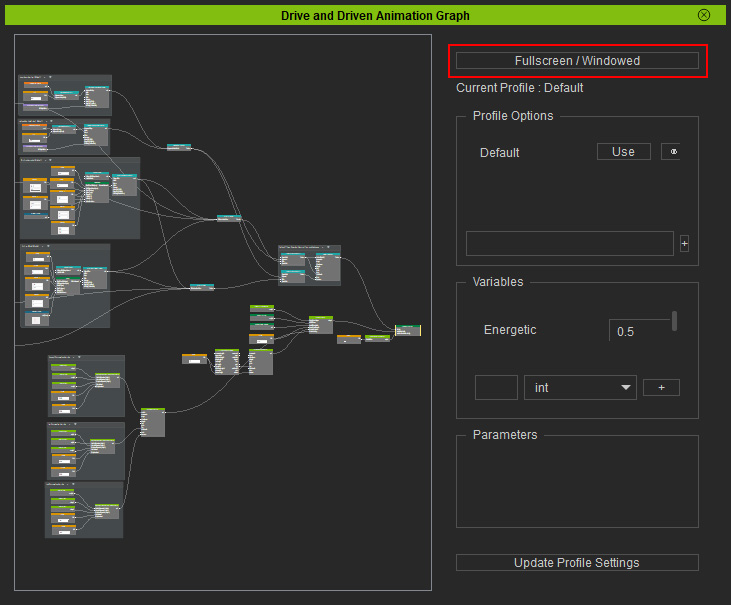
-
Navigation
You can use the hotkey combination or mouse wheel to move or zoom the graph.
- Zoom: While holding the Alt key, roll the mouse wheel to zoom in/off around the cursor.
- Pan: Press the mouse wheel or middle button to pan anywhere. Roll the mouse wheel to pan vertically.
-
Creating a Node
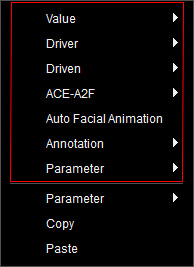
Right-click on the empty area of the graph to select a required node from the context menu.
-
Connecting Nodes
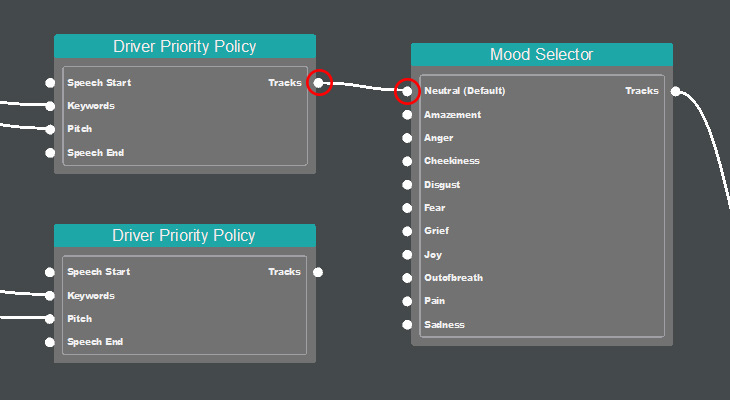
Click on the white connecting point on the right side of the lower-level node and left side of the higher-level node sequentially to build a hierarchy between the nodes.
-
Removing a Connection
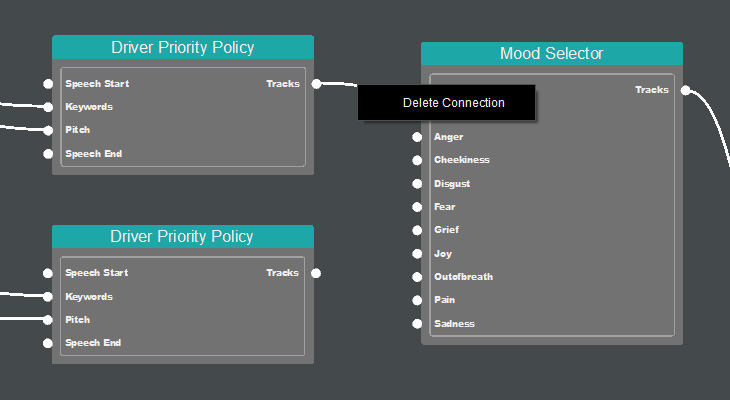
Right-click on the connecting line between the nodes, and click on Delete Connection.
-
Moving a Node
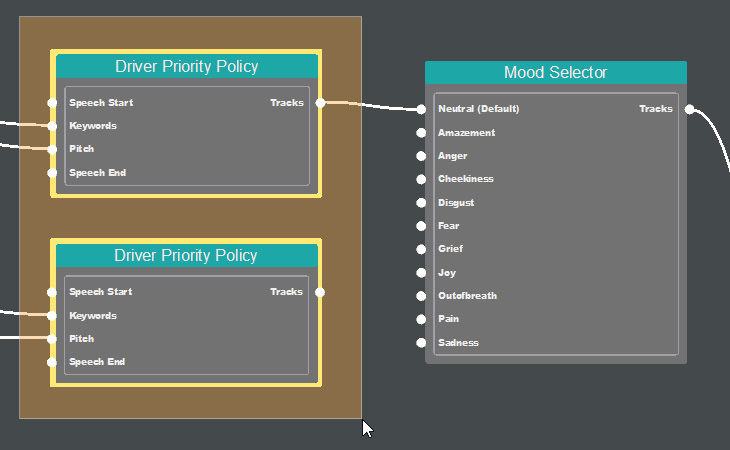
Move a node elsewhere by dragging it. You can also select multiple nodes by dragging the cursor to a range, and then reposition them at once.
-
Deleting, Copying and Pasting a Node
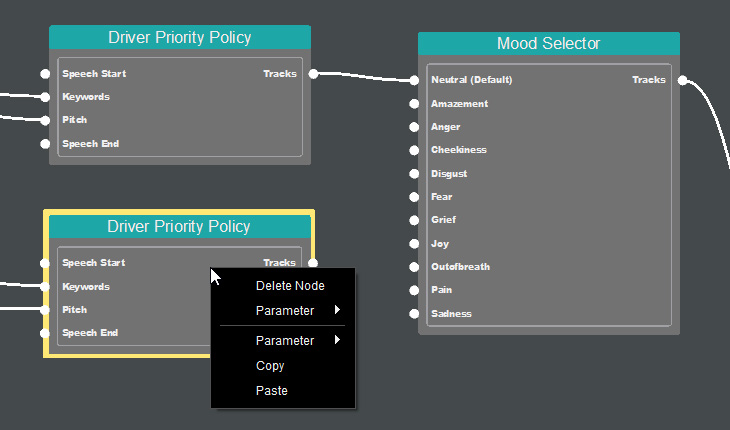
Right-click on the selected node and find the option from the context menu. You can drag a selection box to multi-select nodes and remove or copy them at once.
-
Creating a Parameter
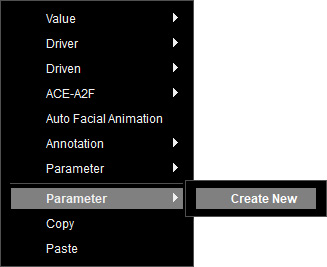
- Right-click on the empty area of the graph and select Parameter > Create New.
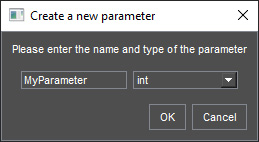
- Name the parameter in the text field, and specify a data type from the drop-down list.
Click OK.
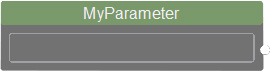
- The created parameter appears as a node.
The new parameter is also created in the context menu for quick access.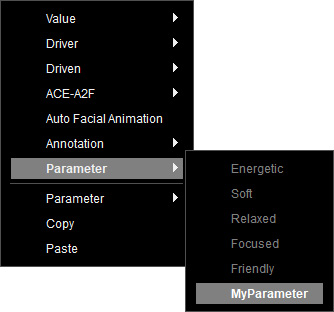
- To delete a custom parameter, go to the Parameters section on the right, and click the button on the side of the parameter to remove it from the list.
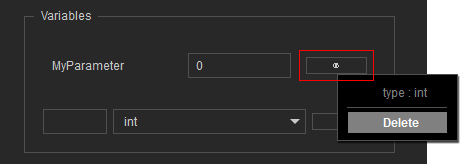
You can also create parameters in this section by specifying the name and data type, and clicking the + button.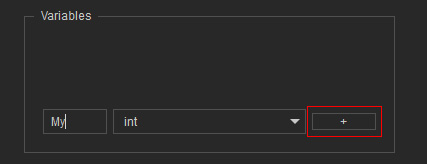
- Right-click on the empty area of the graph and select Parameter > Create New.
