Adding Switch Condition
In addition to self-state switching, a conditional mechanism is necessary for switching to the Listen and Speak states to respond to user interactions.
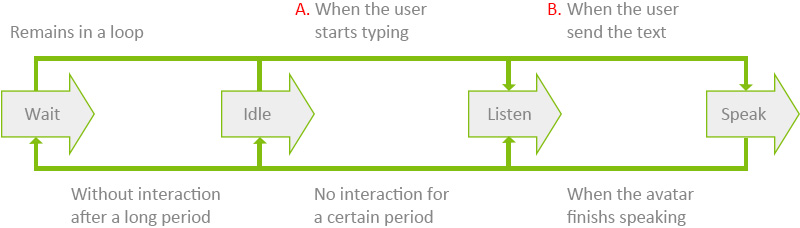
- Idle state switches the Listen state when a user starts typing.
- Listen state switches to the Speak state when the user sends the text.
Follow the instruction below to add the two switch conditions in the Behavior Tree.
- In the Behavior Tree graph, right-click on the empty area and select Composite > Priority Pick.
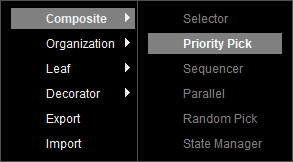
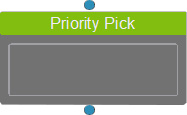
- A Priority Pick node is created.
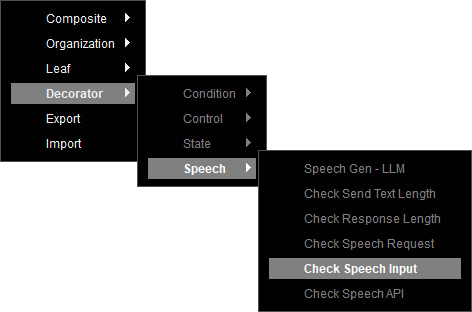
- To add a trigger condition of clicking the Send button from the Chat window, create a Check Speech Request node by right-clicking on the empty area and selecting Decorator > Speech > Check Speech Request.
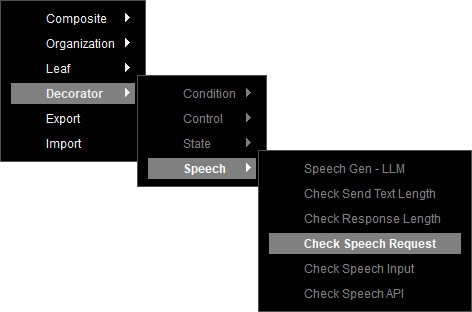
- To add a trigger condition of keyboard typing from the text field of the Chat window, create a Check Speech Input node by right-clicking on the empty area and selecting Decorator > Speech > Check Speech Input.
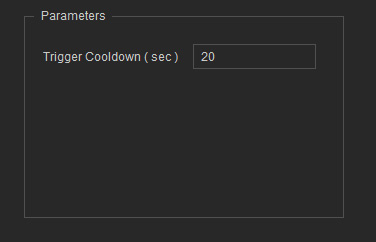
- Select the Check Speech Input node, and set a Trigger Cooldown period in the Parameters section to prevent the duplicate execution.
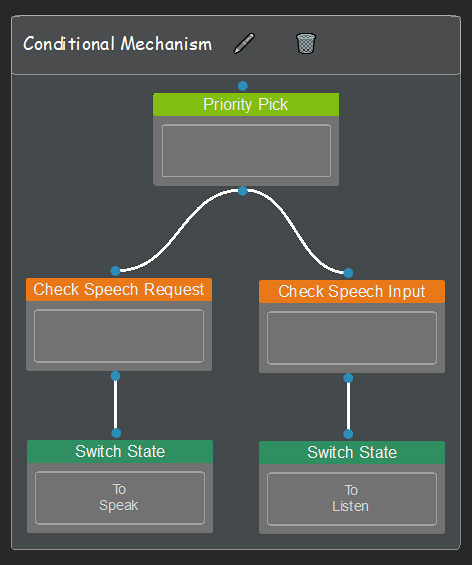
- Connect the two conditional nodes to the Priority Pick node.
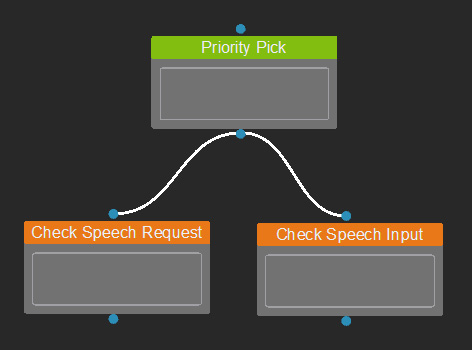
* Under the Priority Pick node, the left one has a higher priority than the right one (when both nodes are executable). - Create a Switch State node for each conditional node, and select a proper state in the Parameters section to complete the state switching.
- When a user starts typing, switches to the Listen state.
- When a user sends out text, switches to the Speak state.
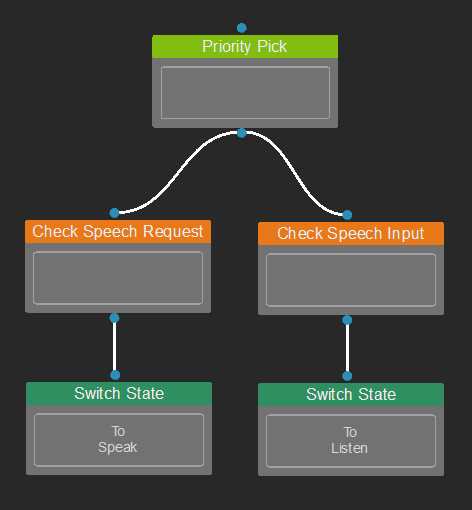
- Use a Comment node to place these nodes in a group, renamed as Conditional Mechanism.
- Configure the Speak state to generate a speech animation to chat with users.
