Setting Speak State
When the Listen state switches to Speak (user sending out text), a speech animation must be generated to respond to user interaction. Make sure the ACE Audio2Face lip-sync, TTS and LLM settings are adjusted in earlier sections:
Import these resources to the nodes in the Behavior Tree with the instruction below.
- Remove the Wait Time node created in the Deploying Test Tasks section, as we're going to replace it with speech-related nodes.
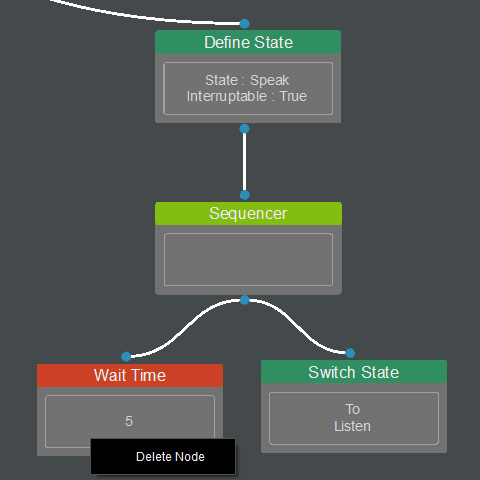
- Right-click on the empty area and select Leaf > Speech > Speak Gen > Speech Gen - LLM.
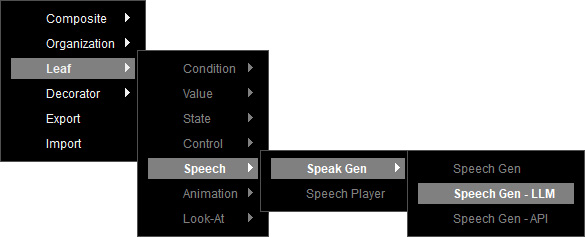
- A Speech Gen - LLM node is created.
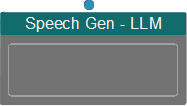
Select the node to show its corresponding settings in the Parameters section on the right.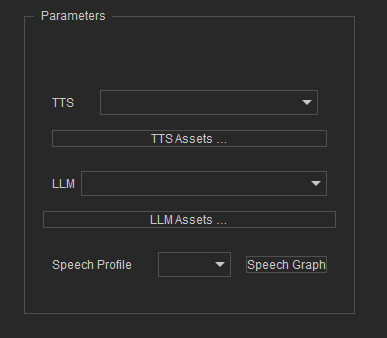
- Select the prepared resources from the drop-down list for the node to function properly.
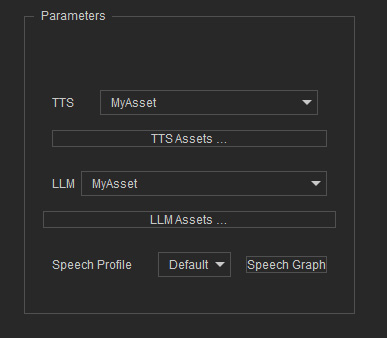
- A TTS asset created for voice generation.
- An LLM asset created for dialogue content generation.
- A Speech profile to process the Audio2Face for lip-sync animation and generate the driven facial animations and a variation of emotions by volume.
Choose "Default" from the Speech Profile drop-down list to load the presets for the character to perform speech animation.
* By clicking the Speech Graph button, you can modify the presets in the Drive and Driven Animation Graph.
- Right-click on the empty area and select Leaf > Speech > Speech Player.
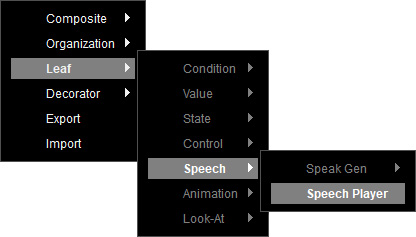
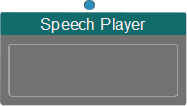
- A Speech Player node is created to play speech animation generated by LLM.
- Connect the Speech Gen - LLM and Speech Player nodes to the Sequencer node in a left to right order.
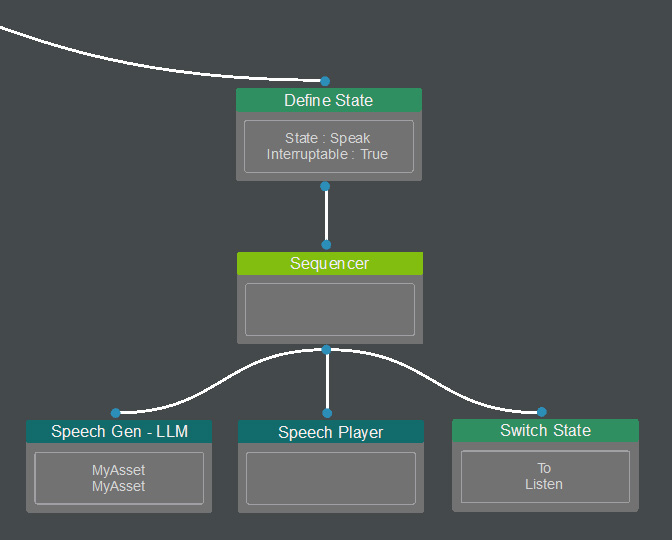
Add a state node in the Conditional Mechanism to ensure that user typing does not interrupt the character during speech.
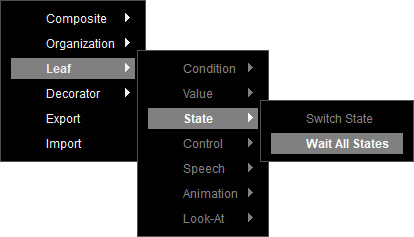
- Right-click on the empty area and select Leaf > State > Wait All States.
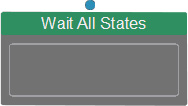
- A Wait All States node is created to check whether the current state is running.
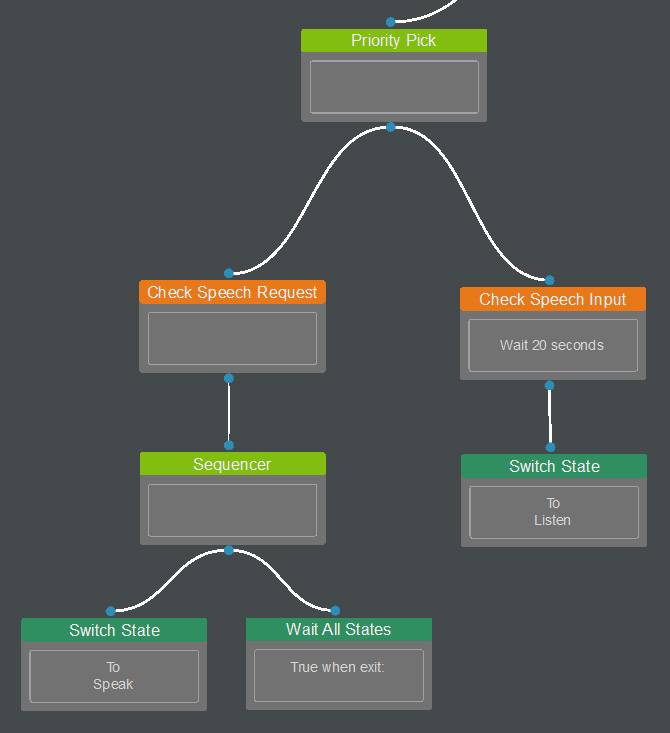
- Connect the Switch State and Wait All States node to a Sequencer node in a left to right order.
Then link the Sequencer node to the Check Speech Request node.
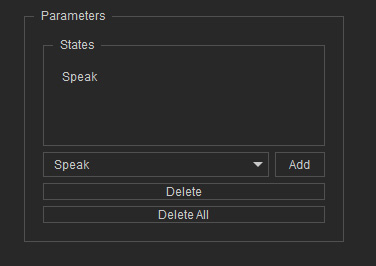
- Select the Wait All States node to show its corresponding settings in the Parameters section on the right.
Choose the Speak state from the drop-down list and click on Add to the right.
This operation blocks the Check Speech Input node interrupting the Speak state when the Check Speech Request node is still running.
* When the Speak state is finished, the Priority Pick node will restart to detect the child nodes. - After combining the State Machine and Conditional Mechanism with the Starter Setting, you can then chat with the character.
