Saving Motion
The generated motions from Video Mocap will be automatically saved to a custom folder when applied.
Applying Motion
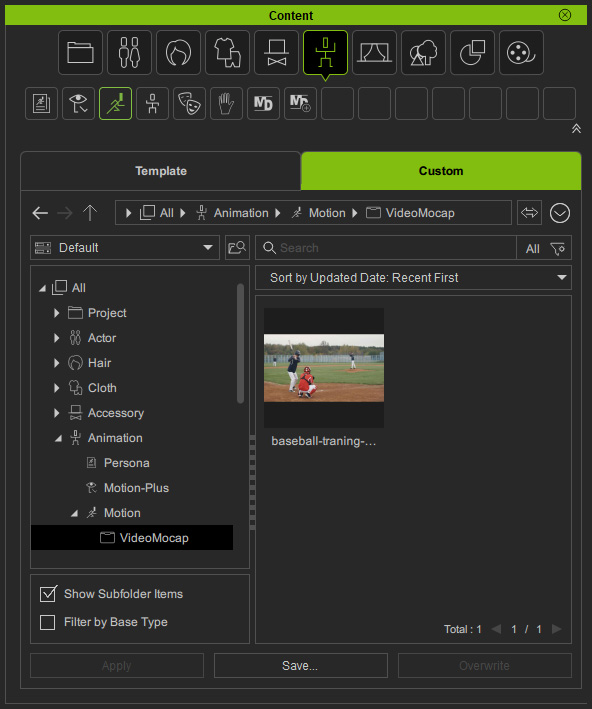
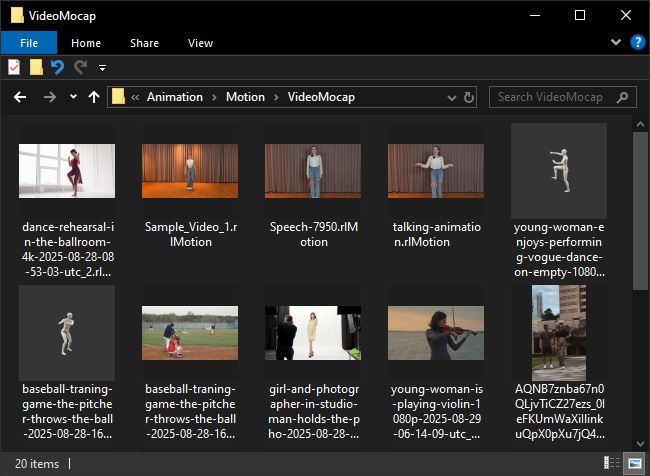
Generated motions are automatically saved to the default motion path in the Content Manager: Animation > Motion > VideoMocap.
Locating Motion
You can locate a generated motion in Content Manager by right-clicking on the finished task (when status is "Applicable"), and selecting Find Motion File from the context menu.
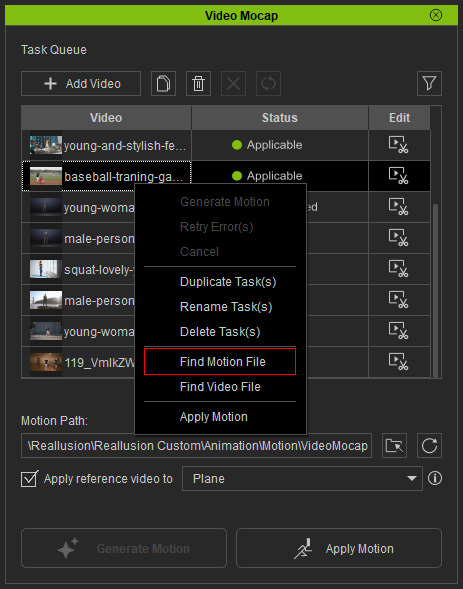
The default folder containing the rlMotions will display in the Content Manager.
 Content Thumbnail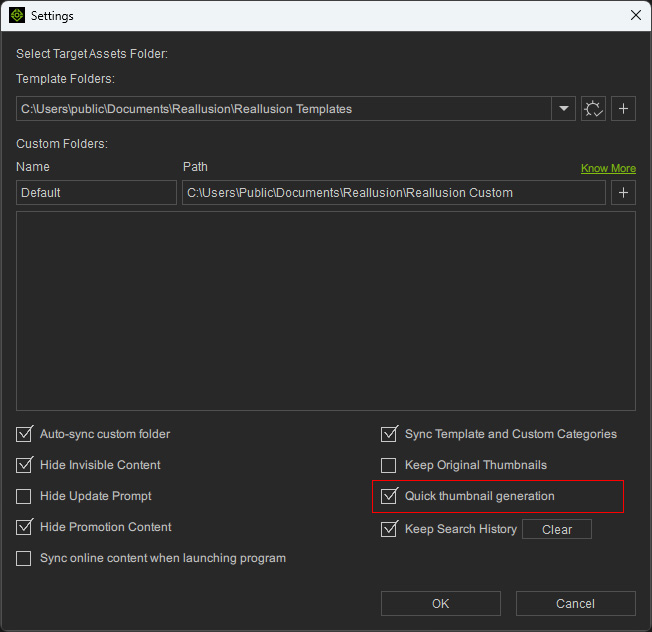
- When Quick Thumbnail Generation is enabled, the thumbnail will be captured from the Edit Video panel.
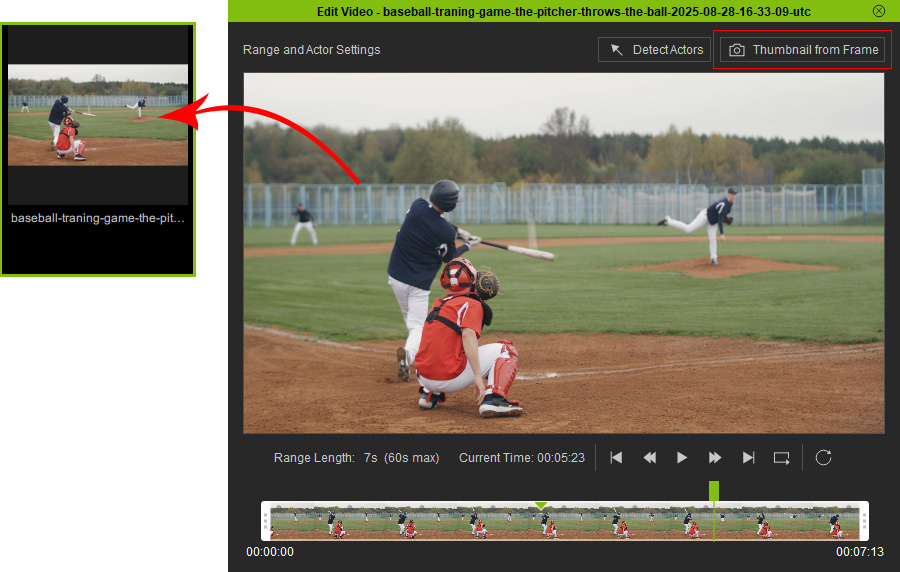
- When Quick Thumbnail Generation disabled, the item thumbnail will capture from the character or dummy with a pose detected from the Edit Video panel.
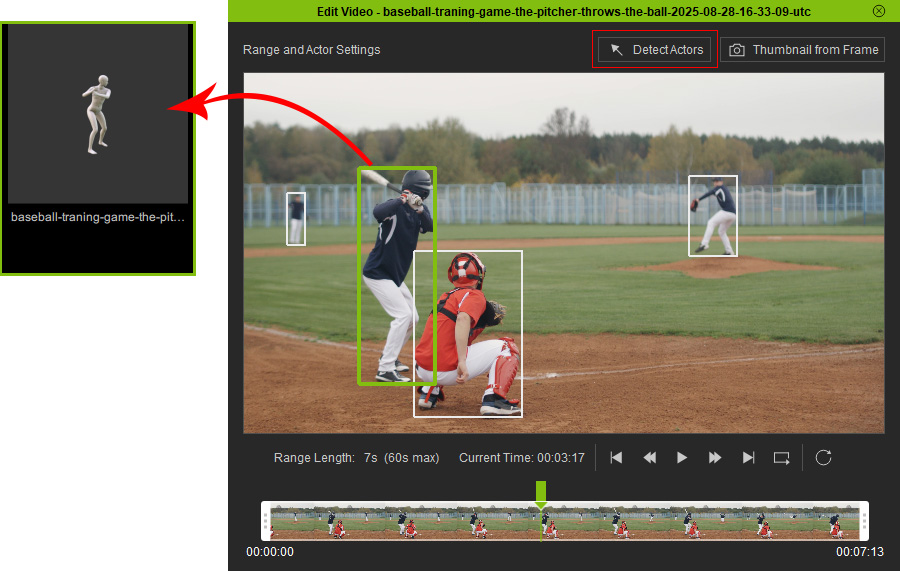
Storing Motion
The default motion path for storing the generated motion is displayed near the bottom of the Video Mocap panel.
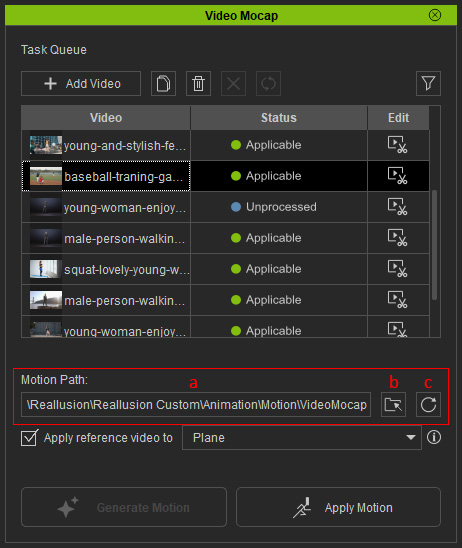
You can click on the path (a) to open the preset motion path with your file explorer:
C:\Users\Public\Documents\Reallusion\Reallusion Custom\Animation\Motion\VideoMocap
You can also use the buttons on the right to change the motion path.
- Click the Folder button (b) to select a new folder for storing the generated motions.
- Click the Reset button (c) to restore to the default motion path.
