Edit Video Panel
The Edit Video panel is used to set the processing range and detect figures in the video. You can trim clips to capture full or upper body motions from a target actor.
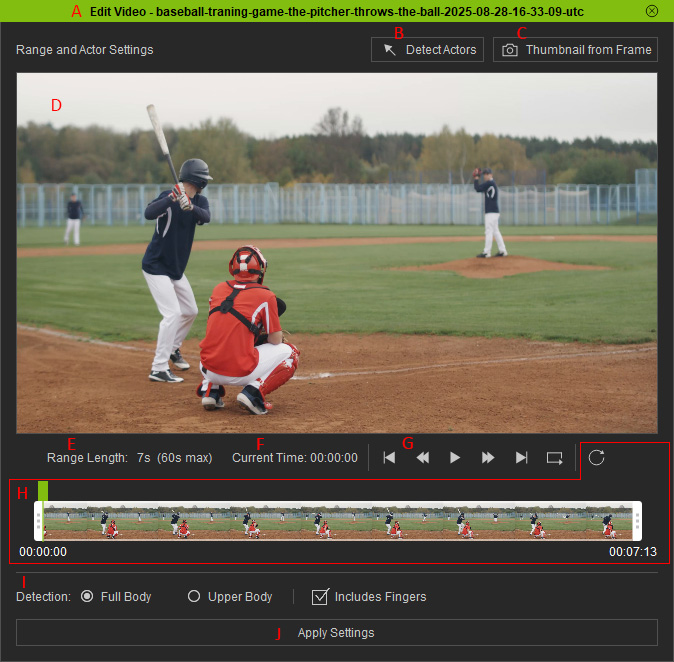
- Task in Editing: Shows the title of the task you are editing with the panel.
- Detect Actors: Frames the detected actors in the footage.
- Thumbnail from Frame: Captures a thumbnail from the current frame for display in the Task Queue. The same thumbnail is used in the Content Manager after motion generation.
- Preview: Displays the imported video and detected actors for motion capture.
- Range length: Indicates the length of the processing region (video length after trimming). The maximum allowable length is 60 seconds.
- Current Time: Displays the current time of the playhead position in minute : second : frame format. Depending on the video FPS, 30 for example, the next frame for 00:00:29 will be 00:01:00.
- Playback Controls: Previews the video.
- Timeline: Used for scrubbing the video, and setting the Start Time and End Time for the processing region.
- Detection: Determines which part of the actor to generate motion for.
- Full Body: Tracks the full body motion of the target actor (default).
- Upper Body: Tracks the upper body motion of the target actor.
- Includes Fingers: Enables or disables to track finger motions during generation the body motion.
- Apply Settings: Finalizes all the settings and edits in this panel.
Only the processed region of the video can be previewed after a motion has been generated.
