Detecting Actors
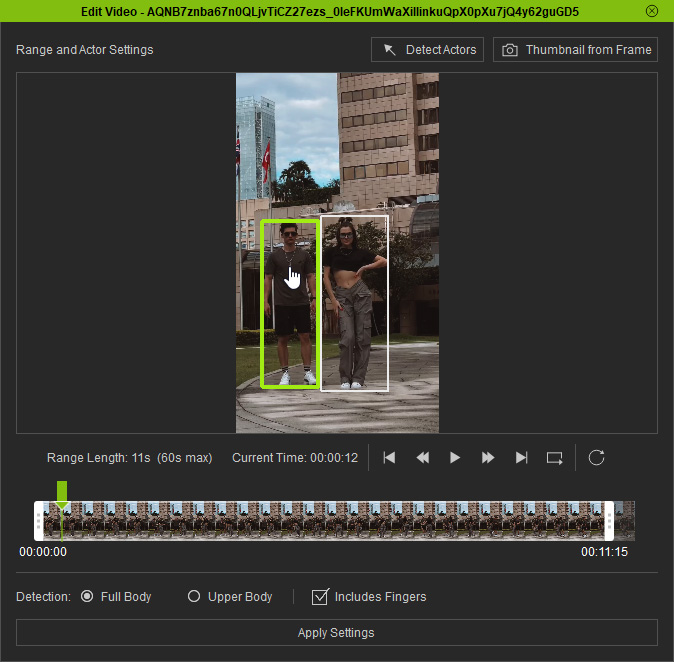
The Detect Actors feature in the Edit Video panel helps you to choose a tracking target in the video. It benefits you in the following ways:
- Used to track body motion from a desired figure in the video.
- When there are multiple actors in the video, it can focus on separate actors for separate tasks.
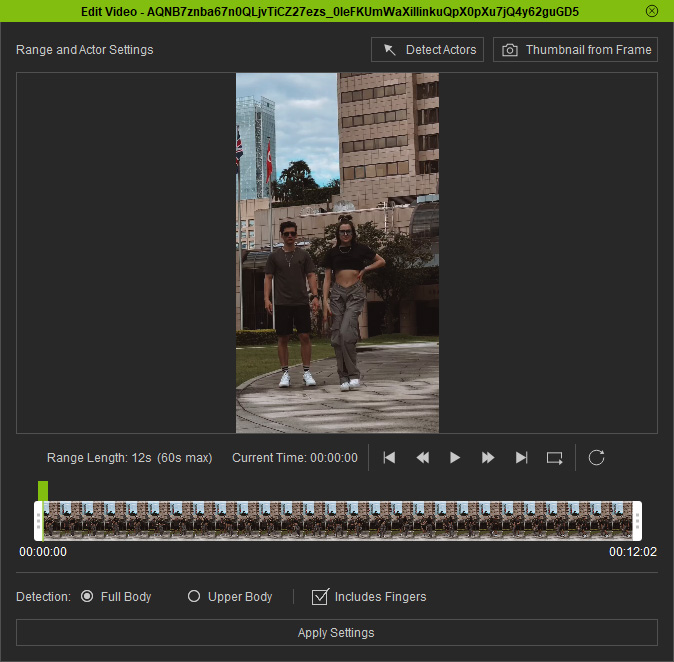
Follow the instruction below to capture motions from the two actors in the video:
- Preview the imported video.
- Determine the Processing Region of the video.
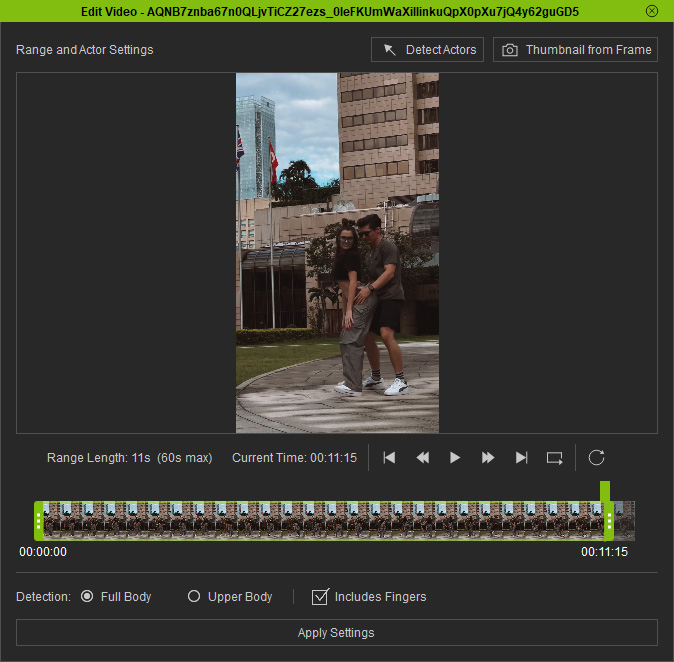
- Go to a frame where the actors are clear visible.
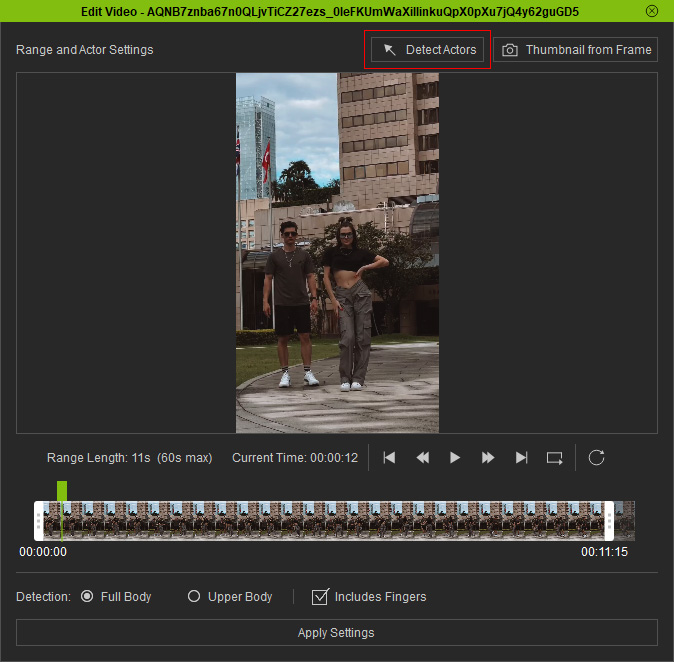
Click the Detect Actors button above the preview.
- The detected actors will be framed, with green indicating the focused actor for this task.
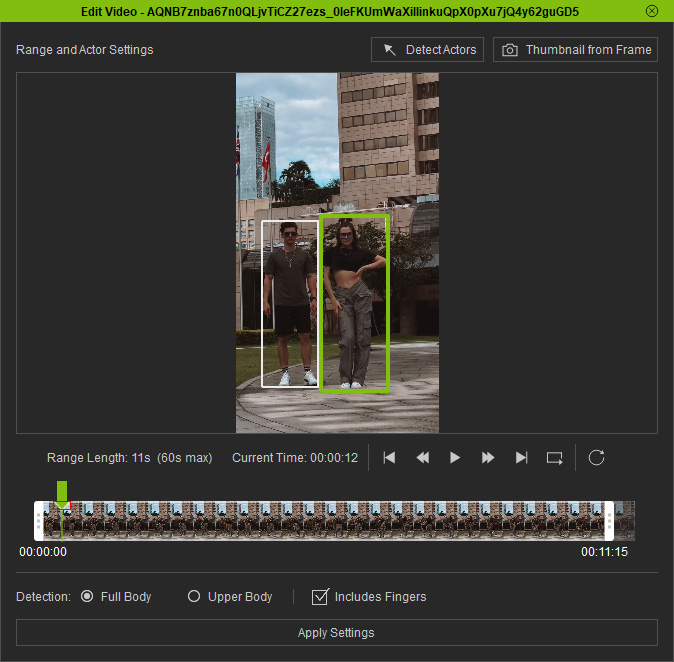
* The green inverted triangle displayed on the timeline indicates the frame set for actor detection.
 - Pick the target actor for motion capture in this task.
Click the Apply Settings button near the bottom of the panel.
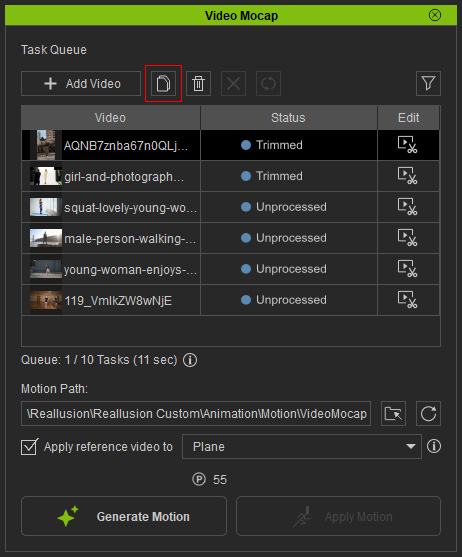
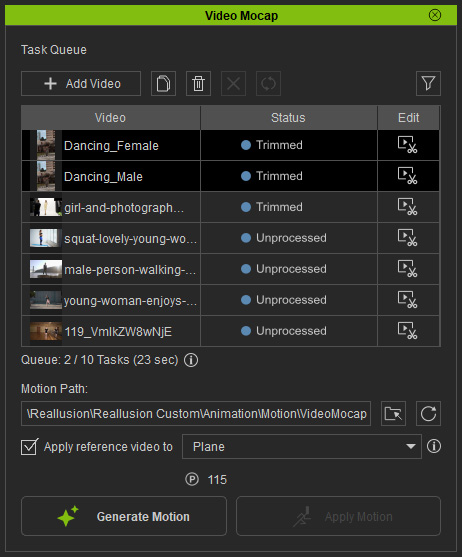
- In the Video Mocap panel, select the task and click on Duplicate Task(s) above the list.
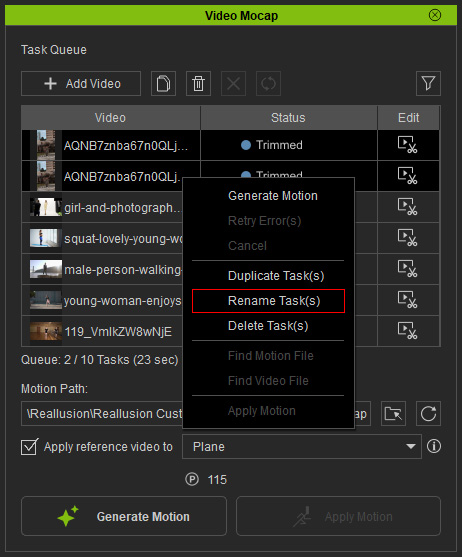
- Rename the two tasks for better identification by choosing Rename Task(s) from the right-click context menu or press F2.
- Open the Edit Video panel for the newly duplicated task, and repeat the steps from 3 to 5 to pick another actor for motion capture.
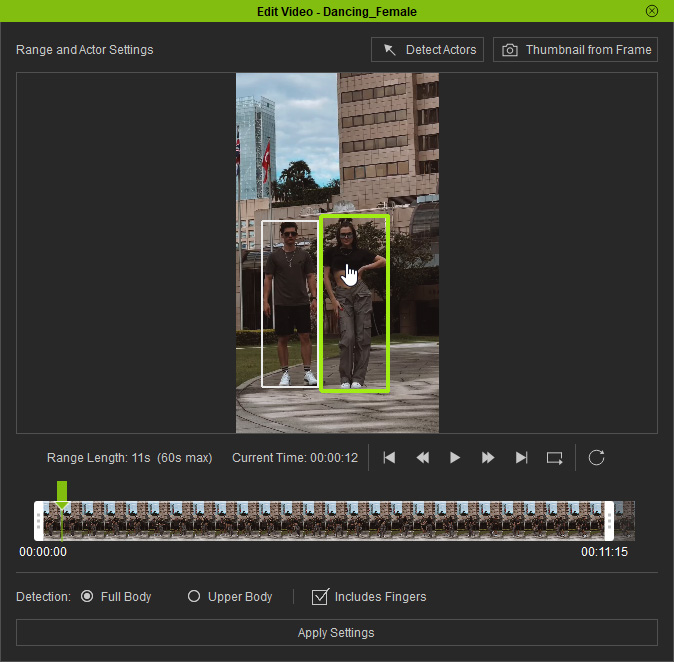
- Now the two tasks are ready for motion generation and you can submit them in one batch.
A single batch submission can process a maximum of 10 video files.
- Apply the generated motion to different characters in the scene to create group motion.
