Setting Processing Region
The Edit Video panel helps you to determine a processing region for the target actor's movement.
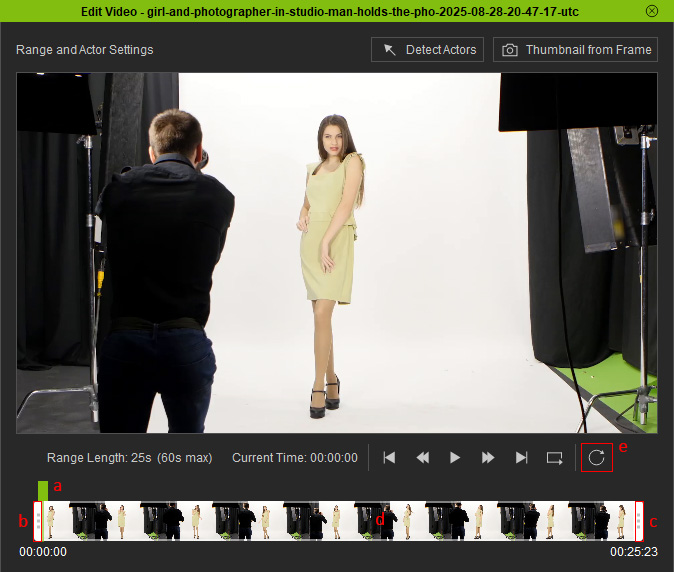
You can trim the video to set the processing region.
- Preview the imported video.
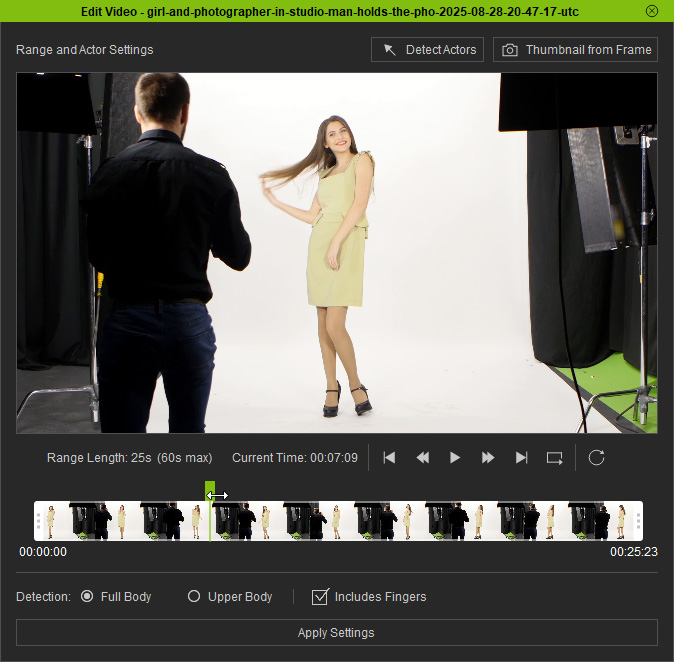
- Drag the playhead (a) to any frame or directly click on a specific frame to check the image.
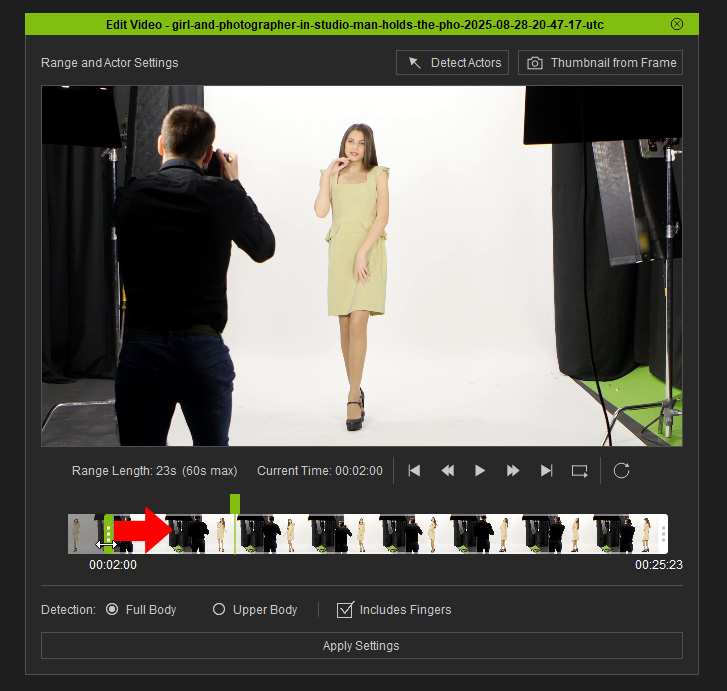
- Drag the Start Time handle (b) to the right to define the initial frame of the processing region while monitoring the timecode below (in MM:SS:FF format).
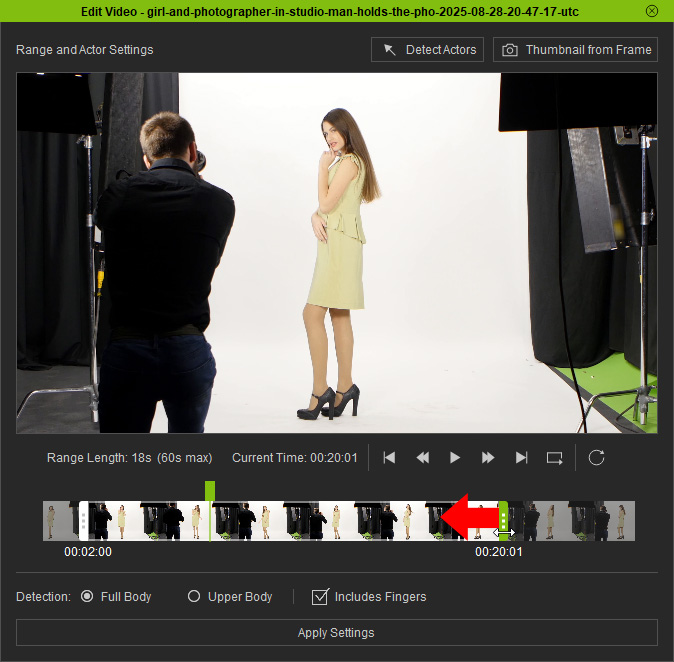
- Drag the End Time handle (c) to the left to define the end frame of the processing region while monitoring the timecode below (in MM:SS:FF format).
* If there are segments in the video where no person appears, it is highly recommended to trim out those parts to avoid affecting the AI generation result. - Hover over the processing range and drag the processing region (d) forward or backward to adjust the start and end frames of a fixed range.
The actor motion outside of the processing region won't be tracked.
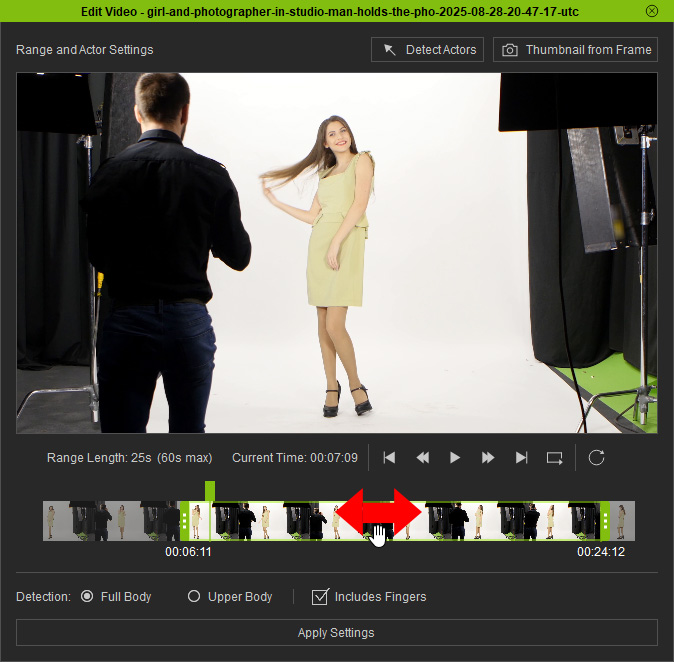
- Playback the processing region to preview the settings.
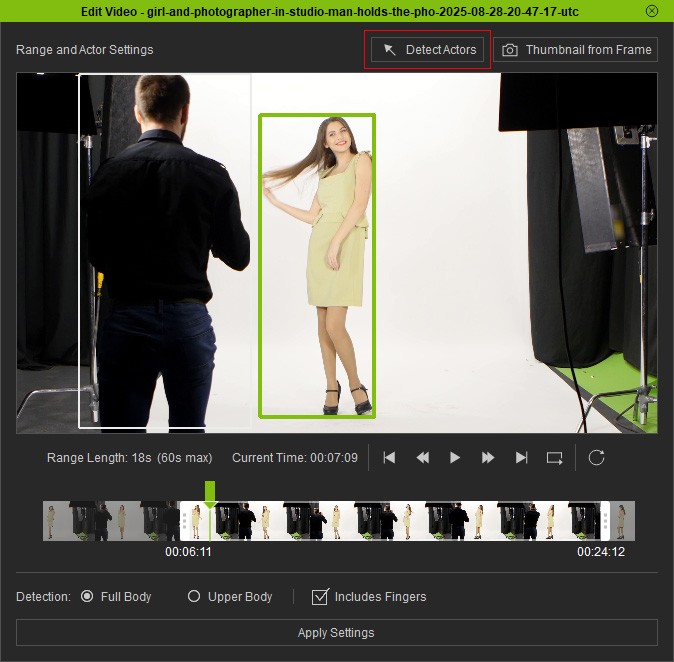
- When there is more than one actor in the video, click the Detect Actors button above the preview to pick your target actor.
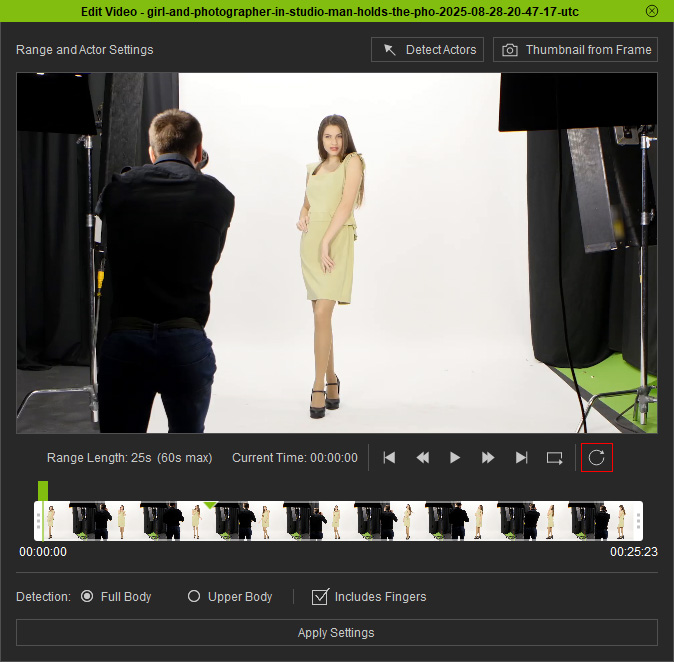
- To resume the processing region to the initial range, click the Reset Range button (e) above the timeline.
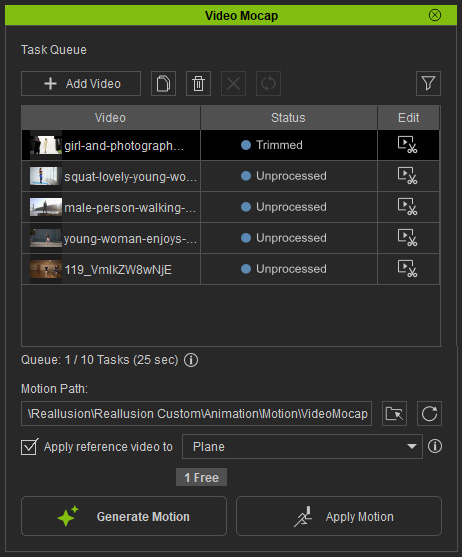
When the region is confirmed, click the Apply Settings button near the bottom of the panel.
- The task status display "Trimmed", meaning it's ready for motion generation.
Only the processed region of the video can be previewed after a motion has been generated.
