Motion Library
The categorized catalog of the motion library can help you quickly find the suitable animation sequences for the rigged actors.
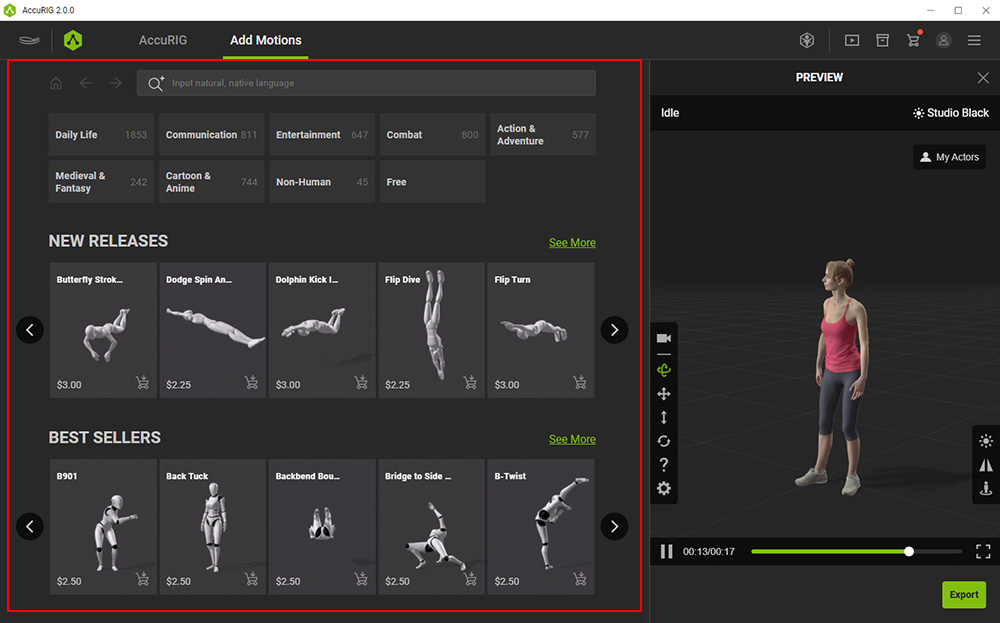
There are several search ways to explore the ActorCore motion library.
- Navigating from main to sub-categories.
- Setting filters and tags under each category.
- Inputting queries with natural languages.
- Deep searching similar motions.
- Picking from group interaction motions.
-
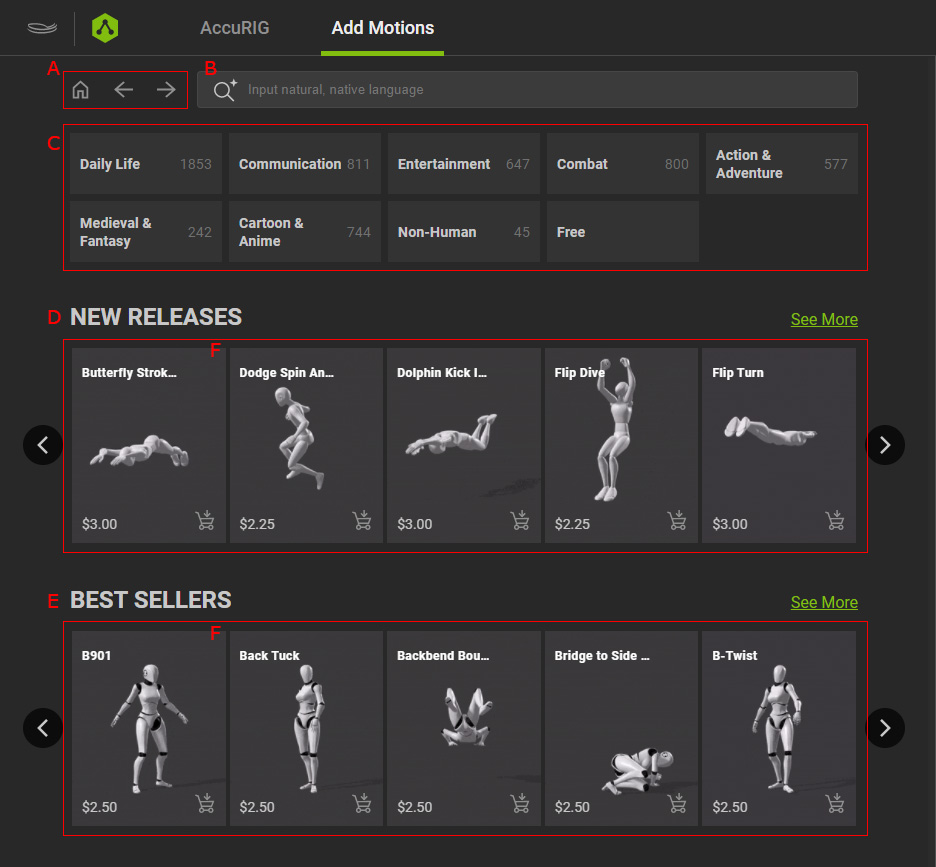
 Navigation Buttons
- Home button: Goes back to the initial page of the tab.
- Back button: Moves to the previous page you have visited.
- Forward Moves to the last page you have visited.
-
Search Field
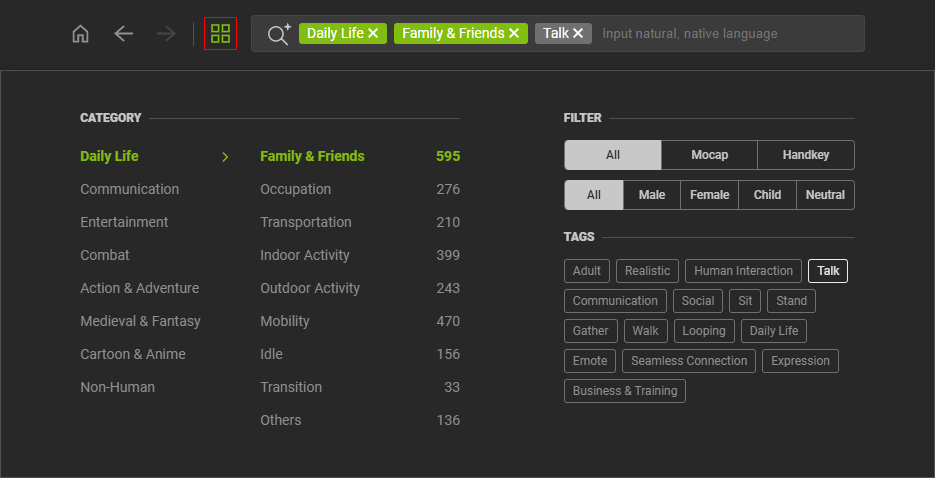
- Displays the selected main and sub-categories you have chosen.

- Click the Category button to expand the category list with number of hits listed to the side.
In the list, you can switch to different categories, set filters for motion type or gender, and add a tag to narrow down the search results.
- Click the empty area in the search field to view your input record.
New entries will appear at the top and latter entries beyond 10 are removed.
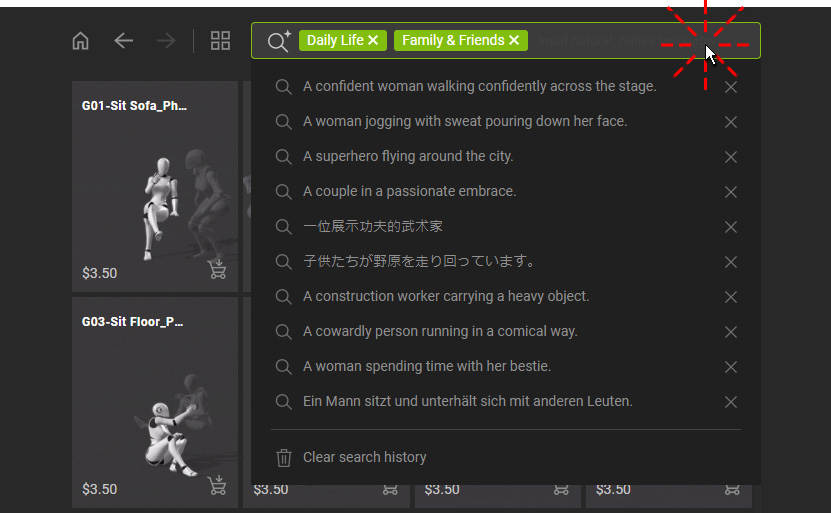
You can the click the corresponding X button to the right of an entry to remove one search record in the history list. Otherwise, clear the entire search history by clicking the Clear search history button near the bottom of the list. - Input an animation sequence and press Enter to query with natural language.
This will start a new search session and without prior categories, filters and tags.
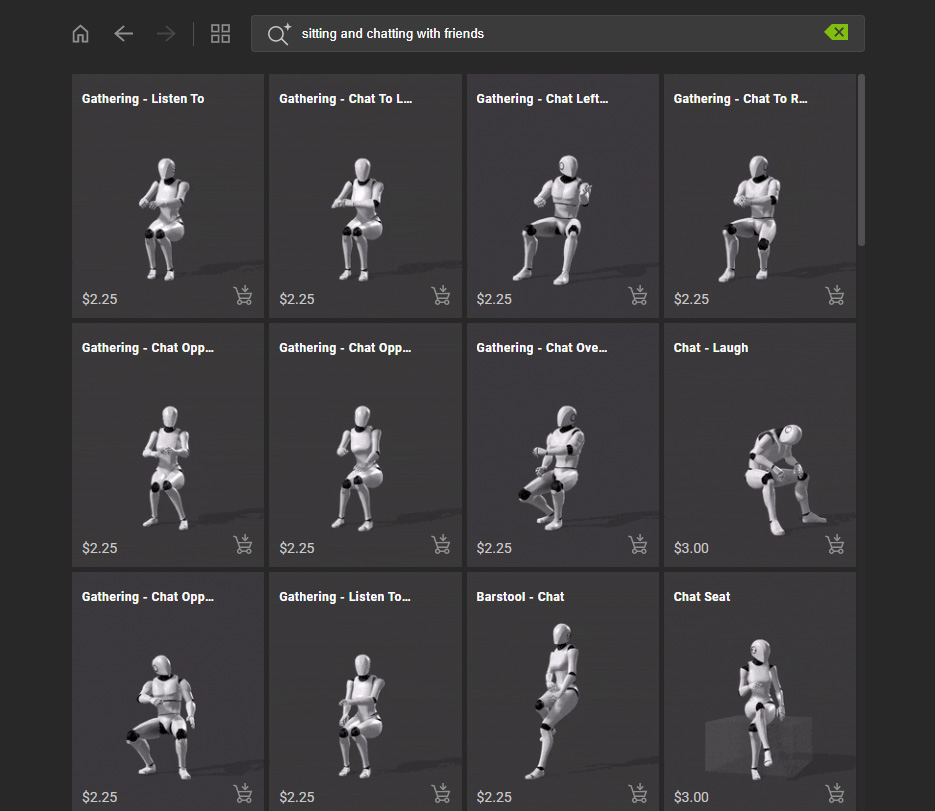
- Click X in the search field to remove the search condition and return to the home page of this tab.
- Displays the selected main and sub-categories you have chosen.
-
Categories
- Shows motions grouped in various categories, including hit count.
- Hover on a main category to display the available sub-categories.
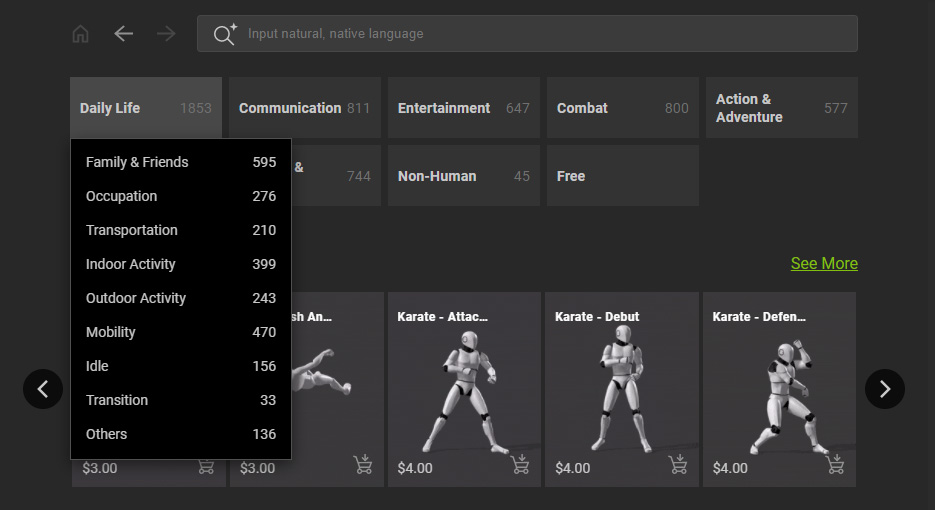
- Click on the main or subset categories to view corresponding motions.
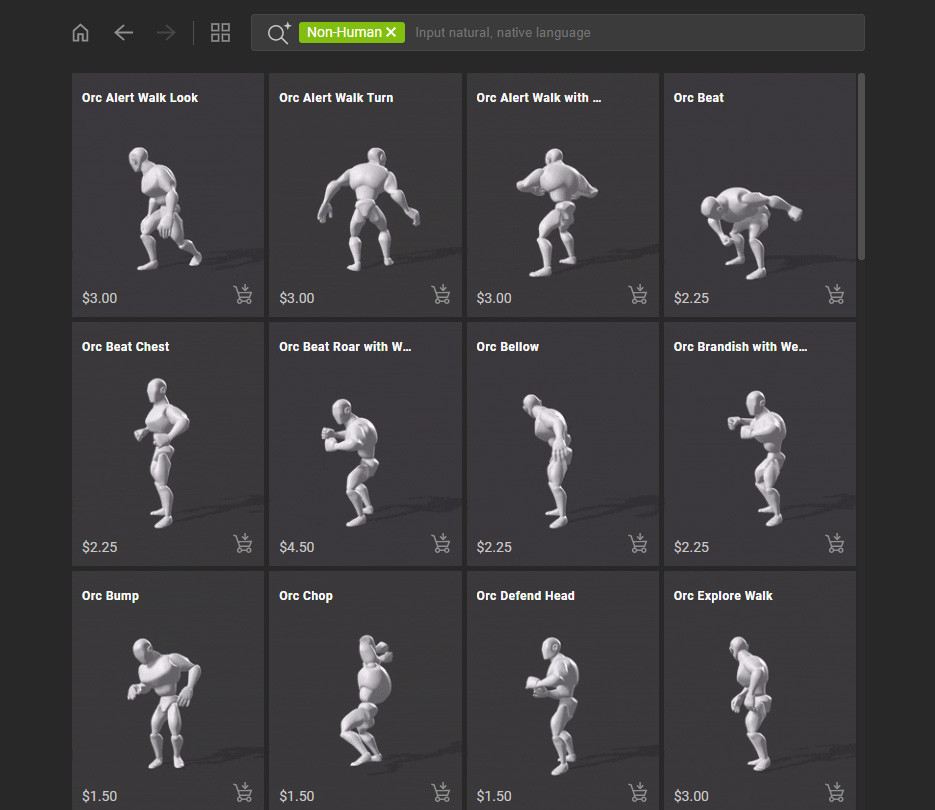
- Click X on the category label to remove the search condition and return to the home page of this tab.
-
New Releases
- Click the left or right arrow buttons, or drag the mouse left or right to display the previous or next motion.
- Click See More to refresh the page for more available motions.
-
Best Sellers
- Click the left or right arrow buttons, or drag the mouse left or right to display the previous or next motion.
- Click See More to refresh the page for more top-selling motions.
-
Content Thumbnails
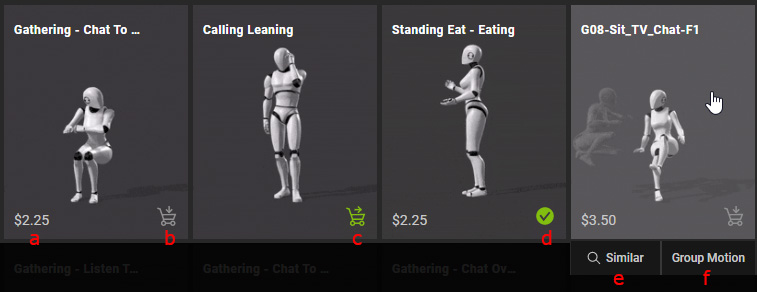
- Each pack item or single item comes with an item price on the bottom-left corner of the thumbnail.
- By clicking on the cart icon on the bottom-right, you can add the item to your shopping cart.
- The green cart icon indicates the item is already added in the shopping cart. You can click the cart icon (marked with a red dot) on the top menu bar to visit your shopping cart in your ActorCore account.
- Purchased motions are marked with a green checkmark, indicating that they’re ready for export.
- Find similar motions by clicking the Similar (Deep Search Similar) button below the thumbnail when hovering over an item.
- Find group interaction motions by clicking the Group Motion button below the thumbnail when hovering over an item.
