Generating Family Members of Similar Facial Features
By applying morphs before mixing, or reusing the same skin texture, you can generate characters that appear to be from the same family.
Preparation
- Create a character.
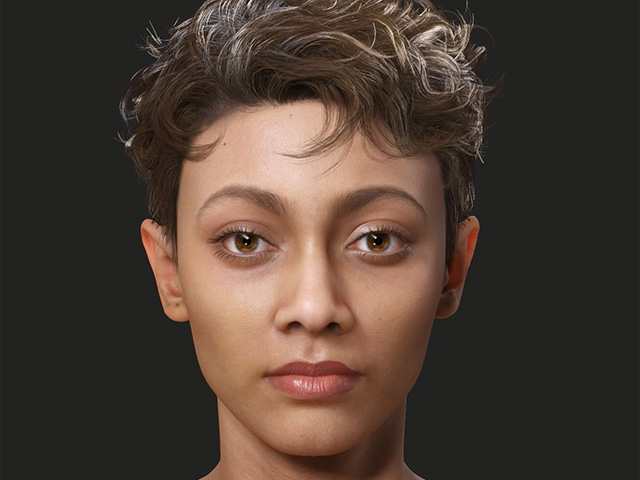
- Open the Create Mixer Assets panel.
- Convert the character's current shape to Mixer Sliders.
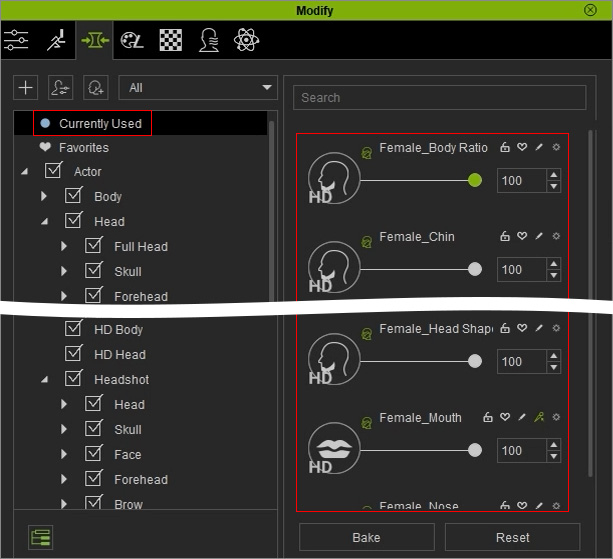
** Note that these Mixer Sliders values (form the real human in step 1) will be affected to increase or decrease during the Mixing mode. - Add the special characteristic of facial feature to the character by general or HD morph sliders. In this case, only big eyes.
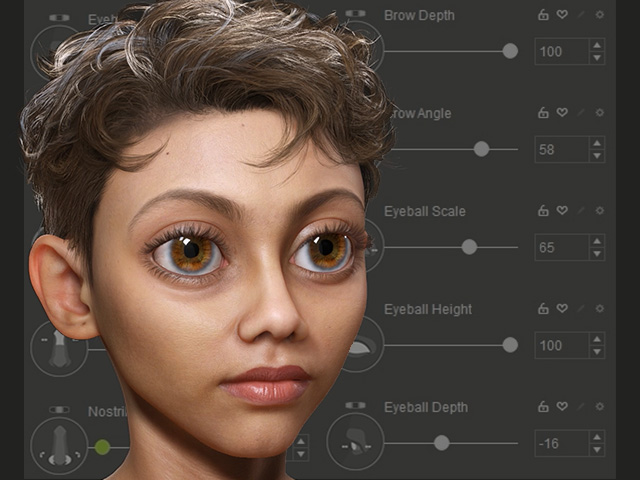
** Note that shapes created with the general morph sliders will be the family facial features and are not affected by mixing operations.
Using ActorMIXER to Reshape the Character
In this section, all facial features will be involved in the Mixing mode to transform, except the facial features by the regular or HD Slider.
- Launch ActorMIXER panel. Make sure you choose the Current mode and click the Start button.
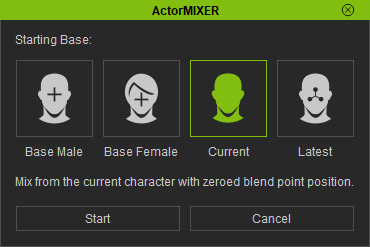
- Switch to the Head > Head wheel page. Click the Start Mixing button at the bottom of the panel.
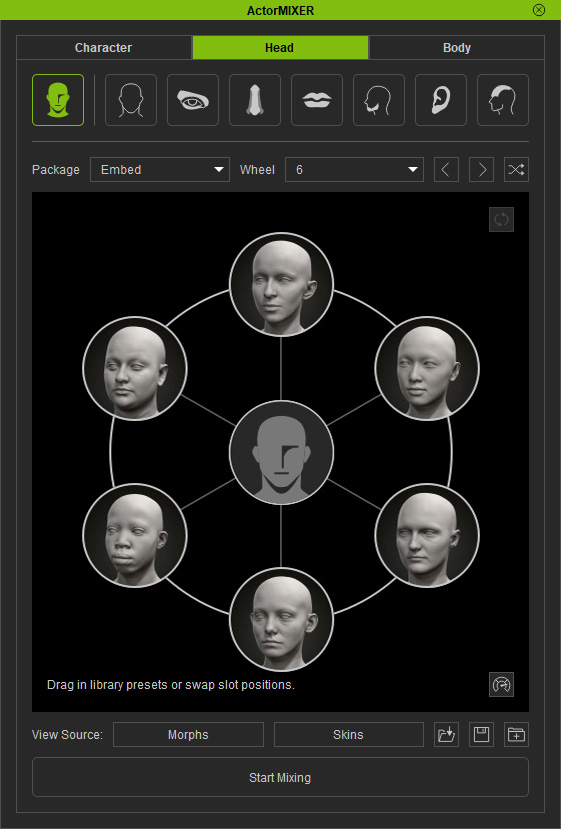
- Drag the green blend point around in the wheel.
- When you achieve a desired appearance, go to the Content Manager under Custom > Character, and click the Add... button to save the character.
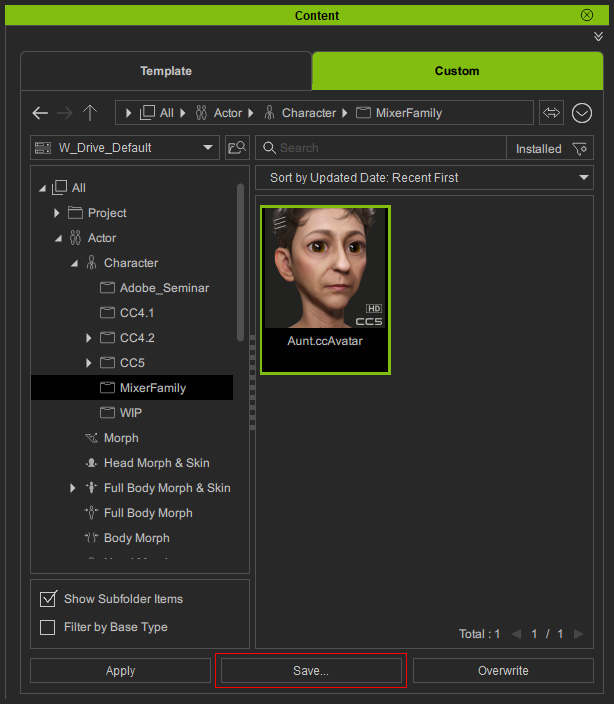
- Repeat step 8 and 9 to generate more characters of the family.
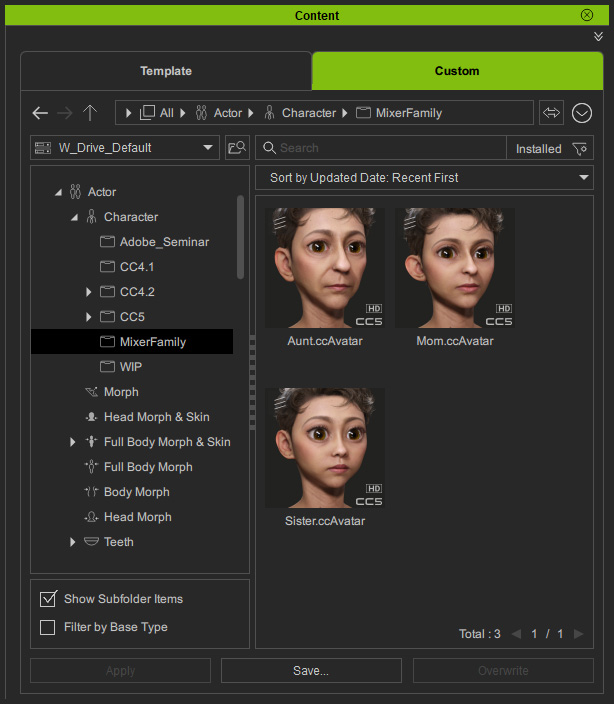
Note that you can also switch to the character's any other parts for individually mixing.
