|
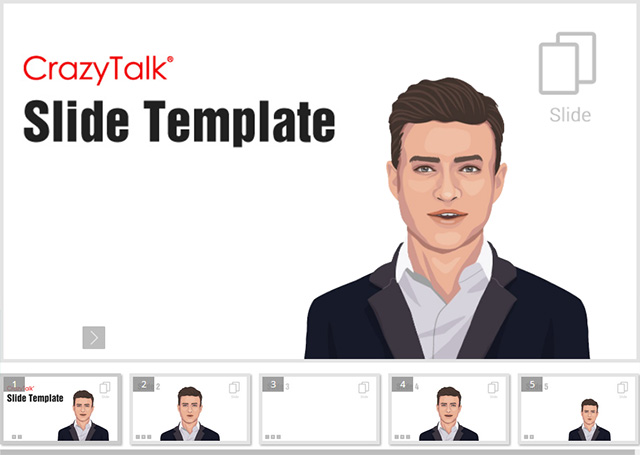
The Slides Playback template plays and shows your audience
what you want them to see with sequential scripts and images. It is like a
slide but with a vivid talking head. It is useful when you want to use it
to introduce your products or photos, or any similar scenario.
Please refer to the
Basic Workflow section to
create and build interactive assets before proceeding with the steps below.
After the assets are properly stored in the folder mentioned in the
Basic Workflow section,
then Open the UserSetting.js file with a text editing tool in order to
replace the embed assets with custom ones.
|
|
|
|
Modifications in the General Setting Section
|
|
The settings in the General Setting section of
the UserSetting.js are listed below. You need to adjust the
text within the quotation marks following the names of each setting:
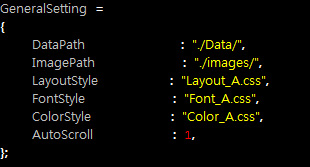
Additional General Settings in this Template
|
|
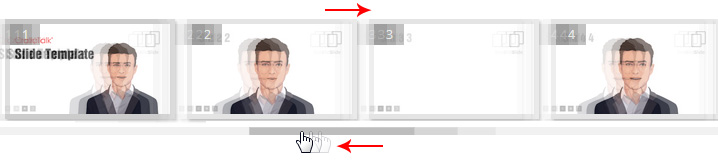
This value determines whether the auto scroll feature
is off
or on. When it is turned
off (value = 0), a scrollbar is shown
as the thumbnail list is more than one page, you
must drag the scrollbar to show the slides that are not
in the view; when the value is on (value = 1), the
scrollbar will be hidden and the slides will auto
scroll when you move the cursor to the right or left
side of the list edges.
|
|
Autoscroll = 0. Manually drag the slider
to scroll the slides.
|
|
|

|
|
Autoscroll = 1. Move the cursor to either side
of the list view to auto scroll the slides.
|
|
|
| |
|
Modifications in the Player Setting Section
|
|
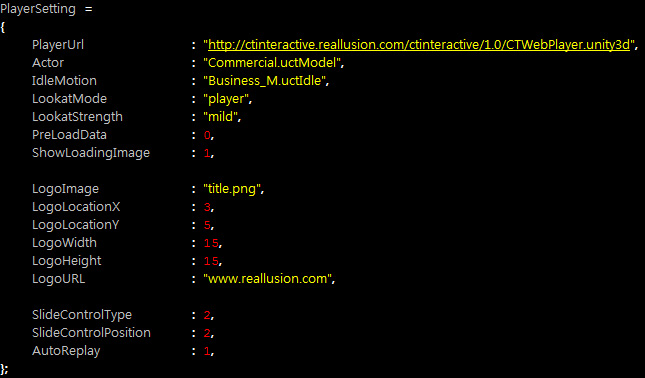
The settings in the Player Setting section of
the UserSetting.js are used for introducing desired
assets into the web player. Therefore, please make sure that each and every
asset you are about to use are already put into the path as described in the
General Setting Section as describe above.
The Player Setting section are as shown below:
|
Note:
|
|
Please refer to the Web Player Settings section for more information about the
common settings within this JavaScript section.
|
ShowLoadingImage
|
|
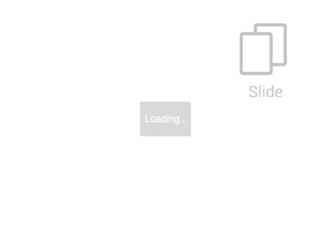
This value shows an image when the data is loading.
Please note that the image is prepared (Loading.png) and put
into the images folder prior to
using it as the data-loading prompt. The possible values are "1"
and "0".
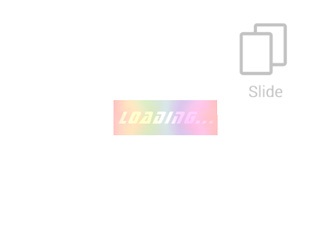
You are able to change the loading image by replacing the Loading.png
in the images folder of this template.
|
|
|
The default loading image (Loading.png)
|
A custom loading image
|
|
Logo Image Related Parameters
|
|
The logo image can be taken as the image layer on
top of the entire player like a sticker. You may use
it to highlight your company, product or logo and
direct your audience to a specific web site.
-
LogoImage
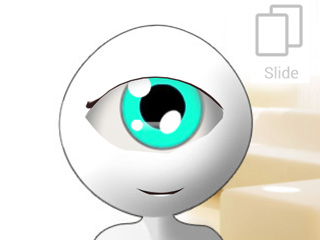
This parameter loads the desired logo image. You may change
the name of the image with a custom one. Please remember to put the custom
image into the images folder of this template.
|

|
|
The default logo image: LOGO.png
|
The custom logo image: UFO.png
|
|
Note:
|
|
It is highly recommended that you use
images in PNG format with alpha information.
|
-
Transformation of the Logo Image
(LogoLocationX, LogoLocationY, LogoWidth, LogoHeight)
You are able to transform the position and the size of the logo image
by setting values to these four parameters. The unit for them is
in percentage as shown below:
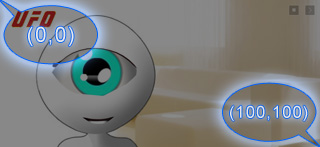
You may then transform the logo image elsewhere on the player.
|
|

|
|
(X, Y) = (3, 5)
(Width, Height) = (15, 15)
|
(X, Y) = (0, 75)
(Width, Height) = (25, 25)
|
-
LogoURL
You may use this parameter to direct the audience to a specific web site.
The default value is www.reallusion.com.
|
Slide Control Settings
|
|
The slide control is composed of three buttons, they are Previous,
Play/Pause, and Next buttons.

-
SlideControlType:
This value determines the styles of the slide control; by default,
they are from 1 to 5.

|

|
|
SlideControlType = 1
|
SlideControlType = 2
|

|

|
|
SlideControlType = 3
|
SlideControlType = 4
|

|
|
SlideControlType = 5
|
-
SlideControlPosition: The value locates
the slide controls to the four corners of the
player and if you do not want the audience to
control the slide, then you are allowed to hide
the controls. The possible values are "0",
"1", "2", "3", and "4".

|

|
|
SlideControlType = 1
(Left-bottom)
|
SlideControlType = 2
(Right-bottom)
|

|

|
|
SlideControlType = 3
(Top-right)
|
SlideControlType = 4
(Top-left)
|

|
|
|
SlideControlType = 0
(invisible)
|
|
|
AutoReplay
|
|
This value determines if you want the player to
start playing back from the first slide when the final
slide is finished playing. The possible values are "0"
(no auto-replay) and "1" (auto-replay).
|
|
| |
|
Modifications in the Slide Setting Section
|
|
In this section, you are able to set the individual slide with parameters, including the
thumbnails, the background images, the actor-related settings, and the scripts the actor will
perform for the slides.
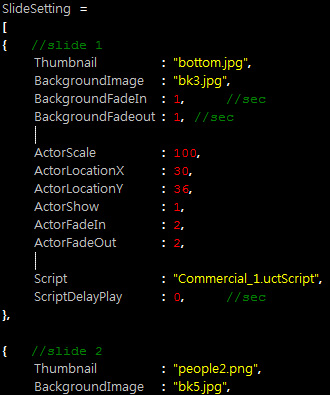
Modifying One of the Slides
|
|
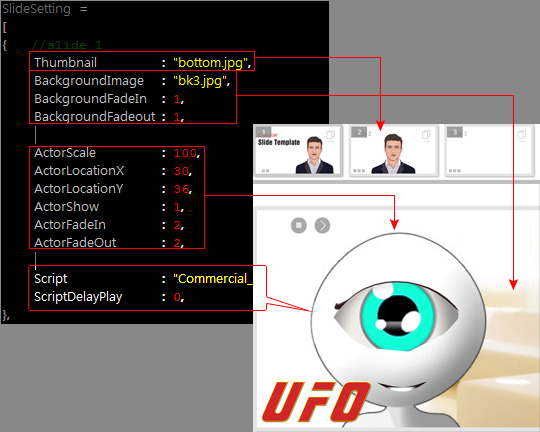
The SlideSetting section is actually an array, where all the
slides you want to show are
listed within. The relationship between the setting and the outcome are as shown in the illustration below:
-
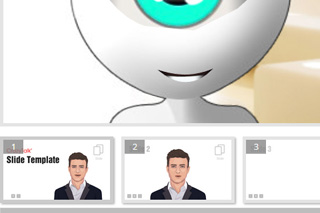
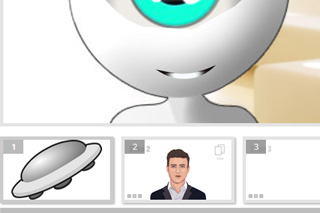
You are allowed to change the thumbnails of each slide by changing the
values, within the quotation marks, of the
parameter, Thumbnail.
|
|
|
The default name of the
thumbnail, thumbnail_slide1.png
|
The custom name of the thumbnail,
UFO_Saucer.png
|
-
Background Settings
You are able to use the background
image related settings to determine the behavior of the background images
for each slide.
-
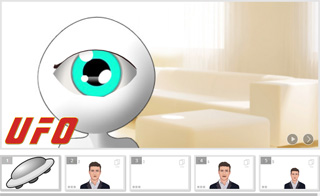
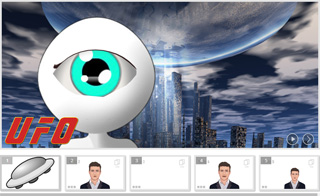
BackgroundImage: Set the value of this parameter to a custom
image file to change the background image for the specified slide
(in this case, the first slide).
|
|
|
The default background image
for the first slide
|
The custom background image
assigned to the first slide
|
-
BackgroundFadeIn and BackgroundFadeout:
These two values determine the fade in and fade out time for the
background and the unit is in second.
-
Actor Settings
-
Actor Transformation (Scale, Position X and Position Y)
The transformation of the actor can be defined by
the parameters, ActorScale,
ActorLocationX
and ActorLocationY.
The unit is a percentage.
-
ActorScale: This value determines the size of the character.
100 means 100%, which is the original size of the actor.

|

|
|
ActorScale = 100
|
ActorScale = 50
|
-
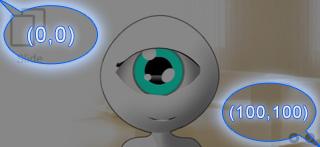
ActorLocationX and ActorLocationY: The (x, y) values
for setting the position of the actor. (0, 0) is the top-left corner,
while the (100, 100) is the bottom-right one. Please note that the
pivot of the actor is at the center of the head.
-
Showing or Hiding Actor: If you want the actor to be hidden from the
player while it keeps on narrating for better viewing of the entire background
image or product, then you may use the parameter, ActorShow, to hide it.
The possible values are "0" (hidden) or "1" (shown).
-
Fading In/Out Effects for Actor: If you want the actor to show up after
the slide is on, or to disappear before the slide is finished, then you may use
ActorFadeIn and ActorFadeOut to determine the time for the actor
to fade in or out. The unit is in second.
-
Change the value after the parameter Script
to introduce the asset script you want the actor
to perform when the audience clicks on a certain
slide.
-
ScriptDelayPlay: With this parameter, you are able to determine the
start time for the actor to talk after the slide is played. The unit is
in second.
|
Removing or Adding Slides
|
|
You are free to change the number of the slides.
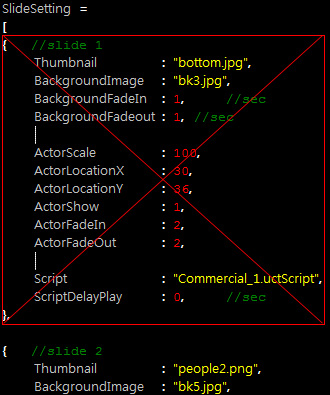
Removing an Slide
To remove a slide, simply delete the lines as shown below
from the UserSettings.js file.
Adding a Slide
To add a new slide, please follow the steps below:
-
Copy the lines as shown below:
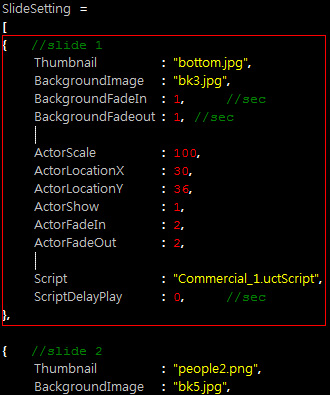
-
Paste to the position where you want to put the new slide
within the section.
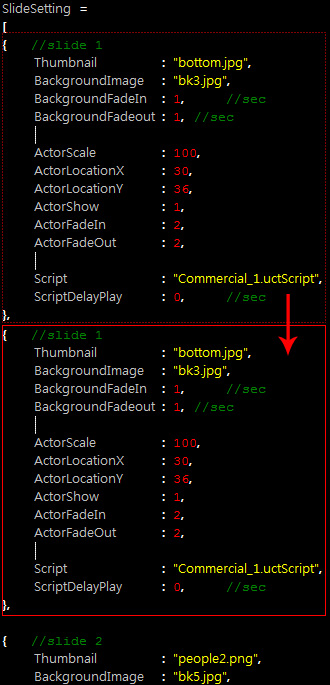
-
Modify the content as described in the previous section.
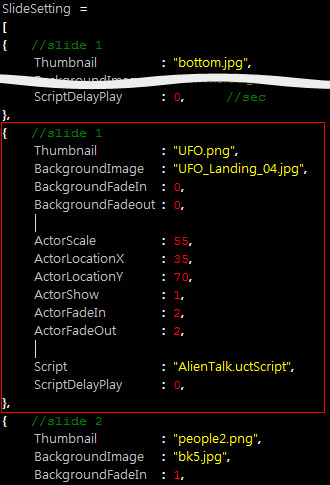
|
Note:
|
|
Please note that every slide must end with a
comma except for the last one.
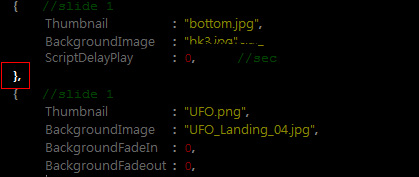
|
-
You will see a new slide inserted into the list.
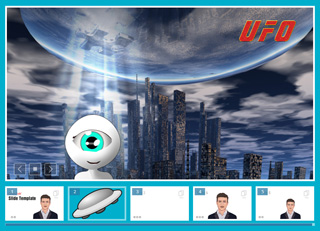
|
|