


Composer User Interface Introduction – Actor
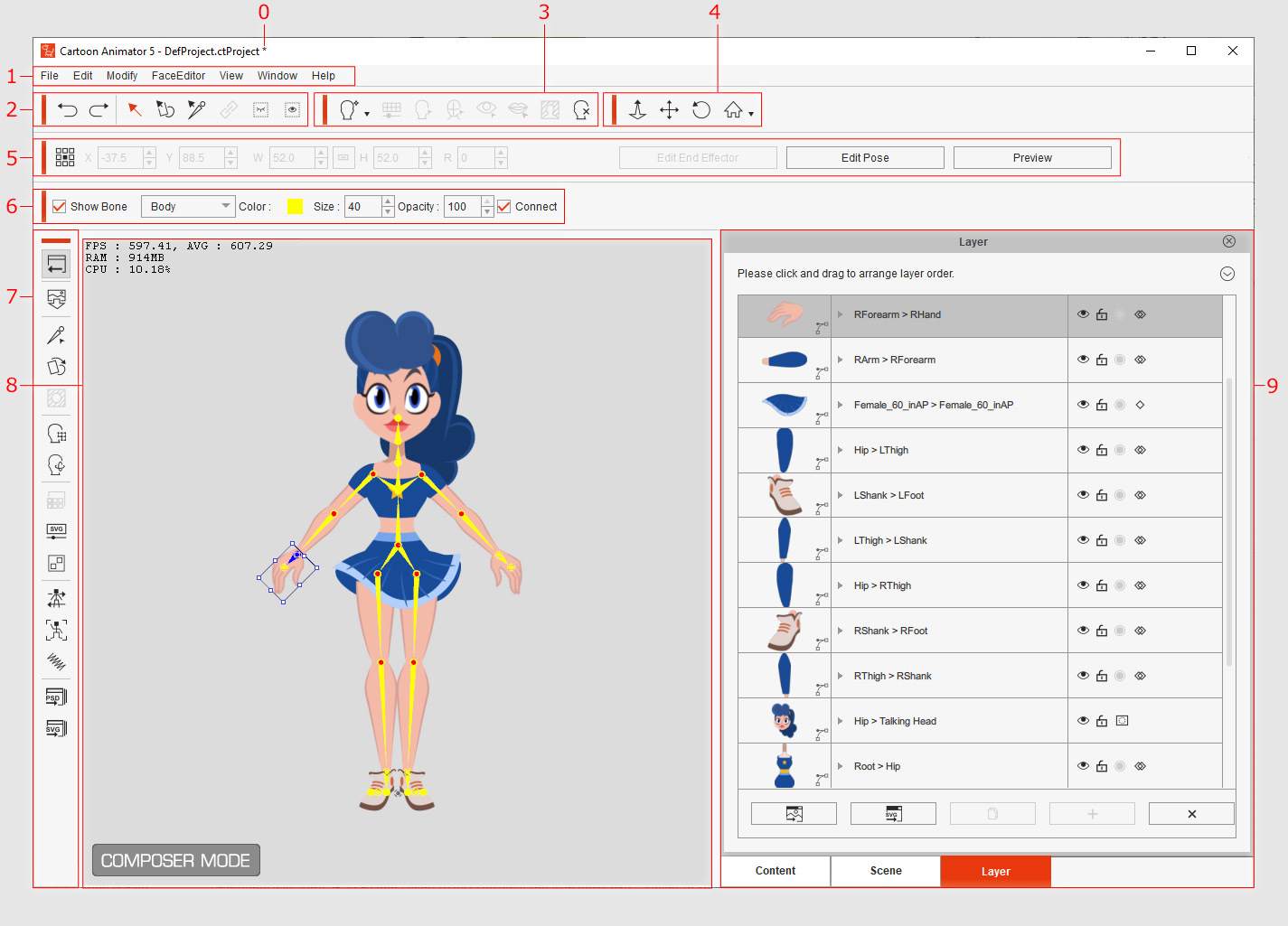
The composer user interface for actors is divided into 9 parts. Please refer to the sections below for more details about each part.
|
Name |
Description |
|
|
0 |
Asterisk |
The Asterisk sign means that the current project is modified but hasn't yet been saved. Save the project and the sign will disappear. |
|
1 |
The menu contains each command in the Composer Mode. |
|
|
2 |
The tool bar is able to undo and redo actions, select sprites, attach props to sprites, show / hide connect points, or modify joint masks. |
|
|
3 |
Create Morph-based Head Toolbar |
The tool bar can load an image to create a new face for the current actor, or customize the eyes and teeth of your actor. |
|
4 |
The tool bar contains buttons to zoom in and out, pan or rotate the camera, or switch to different view modes. |
|
|
5 |
Property tools for transforming the selected sprites to enhance the details of the 2D animation result. |
|
|
6 |
Bone Toolbar |
The tool bar can show / hide face or body bones, or change the color, size and opacity of bones. |
|
7 |
The left-side tool bar can bring you back to the Stage Mode, load an actor image file, optimize the actor details, change the actor proportion and render style, and invoke the Bone Editor, Mask Editor , Facial Animation Setup, Render Style, and Sprite Editor panels. |
|
|
8 |
Preview Window (Working Area) |
The modification to the actor can be observed in the Preview Window. You may select the angle switch to view and adjust the sprite in each angle. |
|
9 |
Content Manager (F4), |
The Content Manager contains embedded and custom templates, the Scene Manager displays all the sprites included in the current actor, and the Layer Manager shows all the image layers that belong to each body part. |
