Right-click Menu for Layer
If you right-click on either one of the layers, then the context menu will open.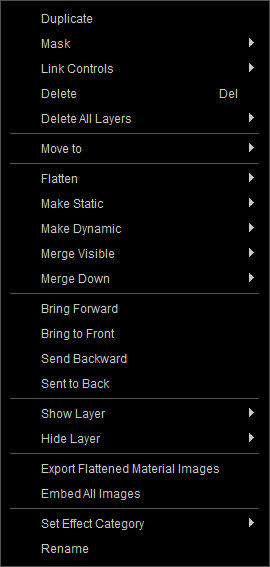
|
Duplicate |
Duplicate the currently selected layer. |
|
Mask out the layer with a custom grayscale image. |
|
|
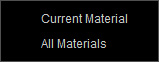
This drop down list can be used to pick the desired material with the settings you want adjusted. |
|
|
Delete the selected layer. |
|
|
|
|
Move the selected layer to another material. Notice that the layers whose Link Controls are activated can not be moved. |
|
|
Temporarily flatten the settings if there is no need for further adjustments of the layer. |
|
|
Un-flatten the layer's settings for further adjustments. |
|
|
Merge down all or all shown layers to the skin base layer in the Skin pane. |
|
|
Re-ordering Layers |
Refer to the Re-Ordering Layers section for more information about drag-n-dropping method to re-order the layer stack. |
|
Show or hide the selected layer, all layers in the current material or layers in all materials. |
|
|
If a layer's settings are frozen or flattened to channel textures, you can export the textures to a desired folder. |
|
|
The external textures (linked) in the channels of the selected layer can be embedded into the layer by executing this command. |
|
|
You can determine the category to which the layer belongs. |
|
|
Rename |
Rename the selected layer. |
