SkinGen Editor in Appearance Editor
The user interfaces related to SkinGen can be found in Content Manager and Appearance Editor of the Modify Panel.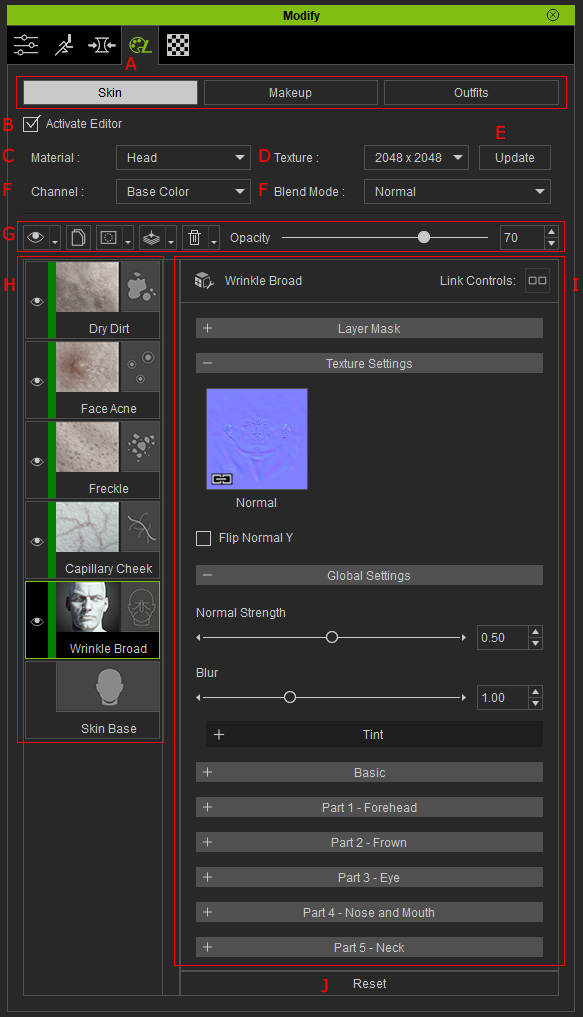
|
A |
Page Switch |
Switch to Skin, Makeup or Outfits page. You can adjust the character's skin or makeup through the Layer Based technique or modify the settings for the actor's parts. |
|
B |
Activate Editor |
Activate this checkbox to enable all the layers and settings. |
|
C |
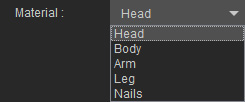
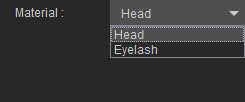
This drop-down list can be used to pick the desired material for adjustment.
|
|
|
D |
Texture |
This drop-down list displays the maximum real-time rendering resolution. A higher value renders the materials with more detailing by using more system resources. |
|
E |
Click this button to unify the settings of the linked layers across different materials. |
|
|
F |
Channel and Blend Mode |
Use the Blend mode drop-down list to determine the blending method for the Channel of the selected layer. |
|
G |
Layer Basic Settings |
Use the controls in this group to adjust the overall settings for the selected layer (multi-layer selection is not supported).
|
|
H |
Layer Stack |
This pane shows all the applied layers, and the effects of the layers are overlapped from the bottom to the top layer. Notice that there is a non-removable layer, 0 Skin Base, in the Skin page; which is the basic outlook of the skin. |
|
I |
Layer Advanced Settings |
In this pane, all the advanced settings of the selected layer will be displayed. |
|
J |
Reset |
Discard the modification and reset all settings in the Layer Advanced Settings pane. |