User interface Introduction for Asset Import Status Report Panel
The Asset Import Status Report panel appears after selecting BASIC or ADVANCED conversion mode. It allows configuration of textures, mesh details, and asset categorization.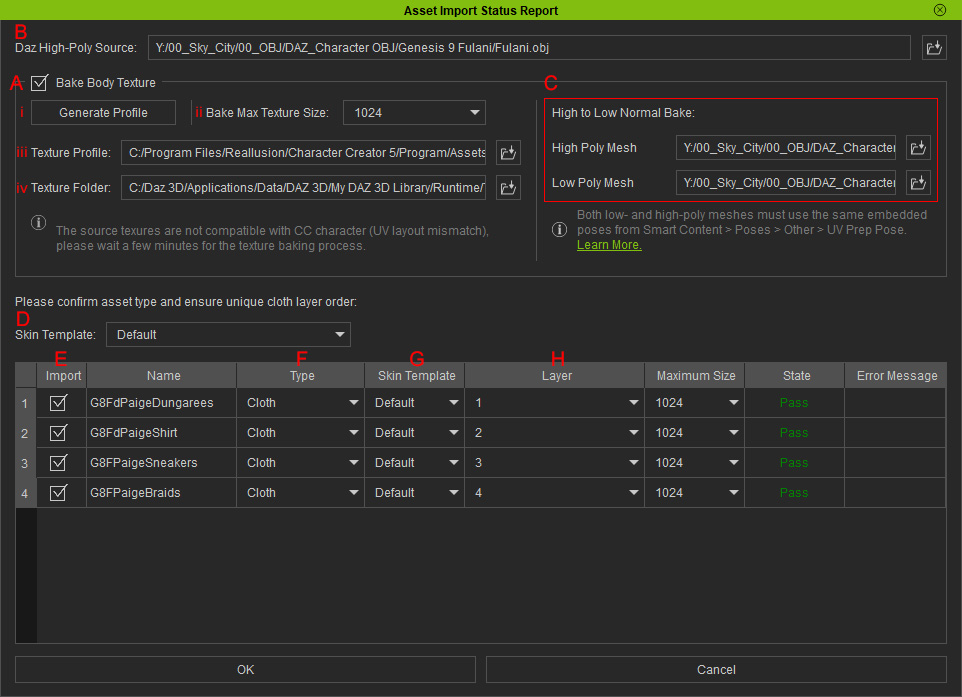
- Bake Body Texture:
- Enables baking of DAZ Studio textures to the converted character's Body skin, Eyes, Eyelashes, Teeth, and Nails materials.
- Sub-options (i - iv):
- Generate Profile:
Saves an INI file that maps the textures to their corresponding texture channels within Character Creator.
- Bake Max Texture Size: Specifies the resolution for baked textures by selecting a value from the drop-down list.
- Texture Profile: Indicates the path to the INI file used for mapping textures and texture channels in Character Creator.
- Texture Folder: Designates the specific directory where all character textures are stored.
- Generate Profile:
Saves an INI file that maps the textures to their corresponding texture channels within Character Creator.
- Daz High-poly Source: Imports OBJ models to add high-resolution surface details to the FBX character mesh processed by Transformer. When switching to higher subdivision levels, surface bumps and reliefs will be displayed as actual geometry instead of being simulated by normal maps.
- High to Low Normal Bake: Loads both high-resolution and low-resolution OBJ models to allow the software to calculate surface differences. These differences are then converted into a normal map and baked onto the existing normal map imported from DAZ Studio.
- Overall Skin Template: Globally assign skin templates to all items in the list. Options include Use Original, Default, and Custom.

- Import: Selects which items should be included in the import process.
- Type: Defines the asset category (e.g., Cloth, Hair, Accessory) for each item after import.
- Skin Template: Pre-define skin-weight templates before import, or modify them for specific items after the import process is complete.
- Layer: Defines the layering order for clothing items.
- Get T-Pose for CC3+, Get A-Pose for CC3+: Opens the folder containing compatible T-pose or A-pose DUF files. Apply these files to the source character in DAZ Studio to ensure correct alignment during conversion.
