Task Queue Panel (New for v5.2)
The AI Mesh Task Queue provides a centralized view of AI tasks for generating images and 3D meshes. Use it to monitor task status, access generated files, and manage tasks by reworking or deleting them.
|
|
|
Image page |
Mesh page |
|
Feature |
Description |
|
|
A |
Type Filter |
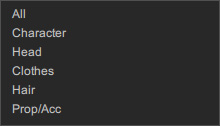
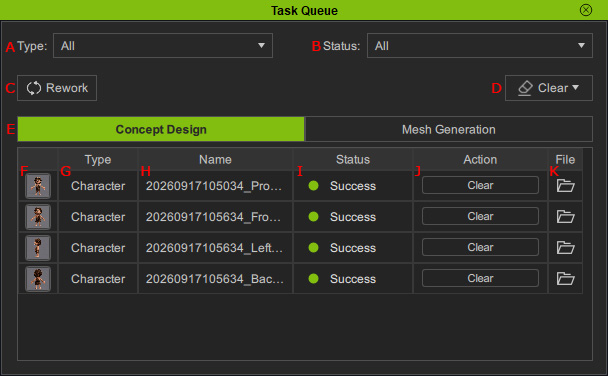
Filters the task list by task type. Available options are All, Character, Head, Clothes, Hair and Prop / Accessory. |
|
B |
Status Filter |
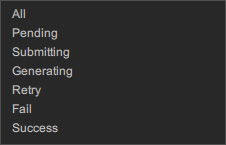
Filters the task list by task status. Available options are All, Pending, Submitting, Generating, Retry, Fail, and Success. |
|
C |
Rework |
Reworks the selected task. This option is available only for tasks with a Fail or Success status. |
|
D |
Clear |
Clears the selected task from the task list. Use the drop-down menu to clear tasks with a specific status (Success, Failed) at once. |
|
E |
Concept Design / Mesh Generation Tab Switch |
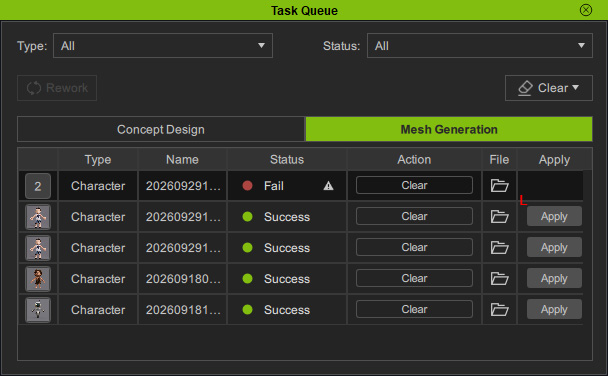
Switches between the Concept Design and Mesh Generation task queue to view AI-generated image or mesh tasks. |
|
F |
Thumbnail |
Displays a thumbnail of the generated result. Hover over the thumbnail to display a larger preview. |
|
G |
Type |
Displays the type of each task. Task types include Mesh, Decimate, Texture, and Image. |
|
H |
Name |
Displays the system-assigned name of the task. |
|
I |
Status |
Displays the current status of the task: Pending, Submitting, Generating, Retry, Fail, or Success. |
|
J |
Action |
Provides actions based on the current task status.
|
|
K |
File |
Click Find File to open the folder containing the task's generated files. The folder location depends on the selected tab.
|
|
L |
Apply (Mesh page only) |
Completed Tasks display an Apply button. Click it to proceed with the subsequent actions. |