Storing Template Content in Multiple Drives
The content packs that are installed in the C drive by default, may take up valuable storage space, especially on SSD.
If your default hard drive on which the contents have been installed is almost full, you can specify a new drive for installing new content, or move installed content to another hard drive.
( Watch iClone 8 / Character Creator 5 and 4 Tutorial - Multi-drive & Workgroup: Template )
( Watch Cartoon Animation 5 Tutorial - Multi-drive & Workgroup: Template )
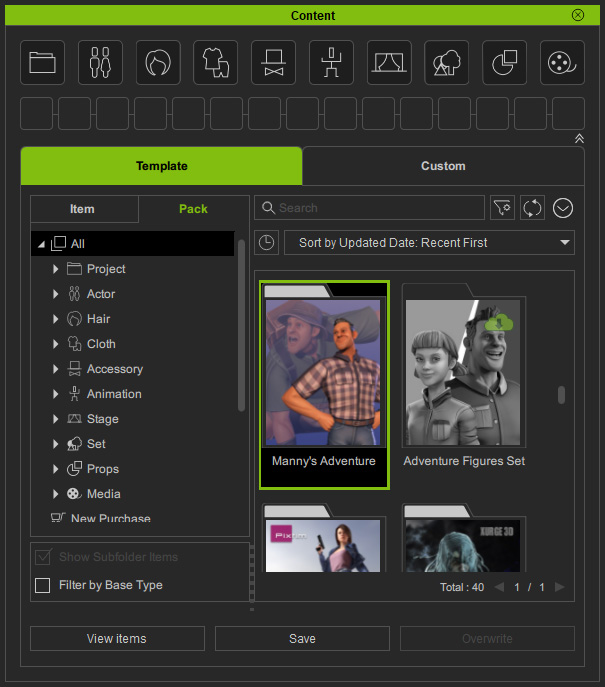
- Double-click on a pack in the Pack view.
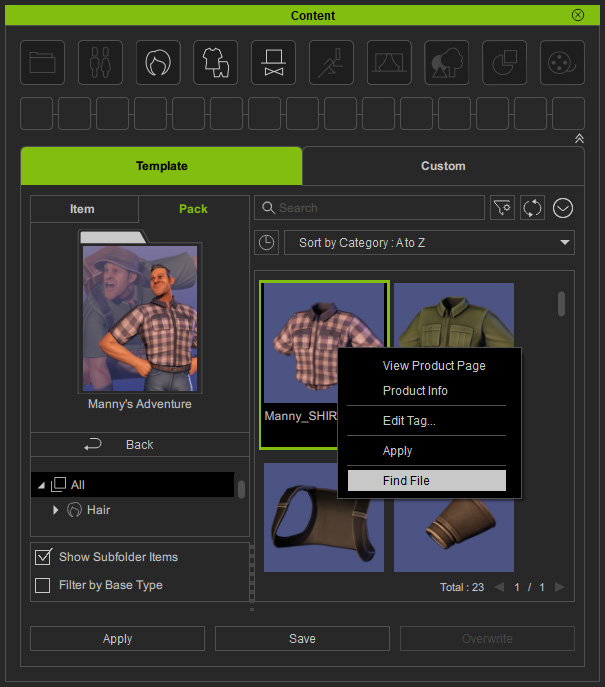
- Inside the pack, right-click on either one of the template in the pack and choose the Find File command from the context menu.
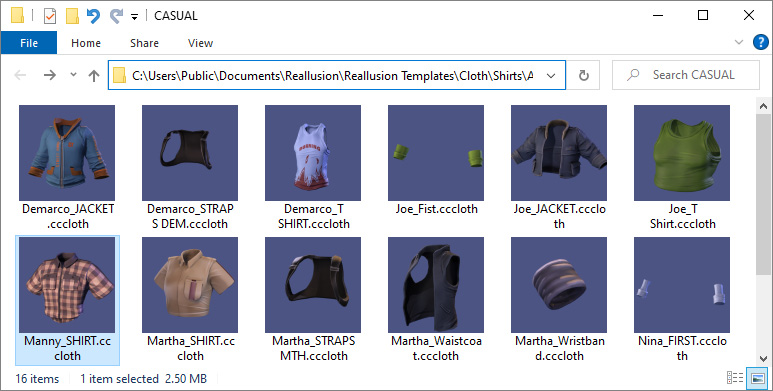
* Make sure the Show Subfolder Items checkbox is enabled to show all items at once. - You will find the pack is installed on the C drive, which is the default template folder for storing packs or items.
- In order to save the valuable C storage space, you can refer to the following sections to specify a new path for installing upcoming content, or move installed contents.
 Specifying a New Path for installing Upcoming Content
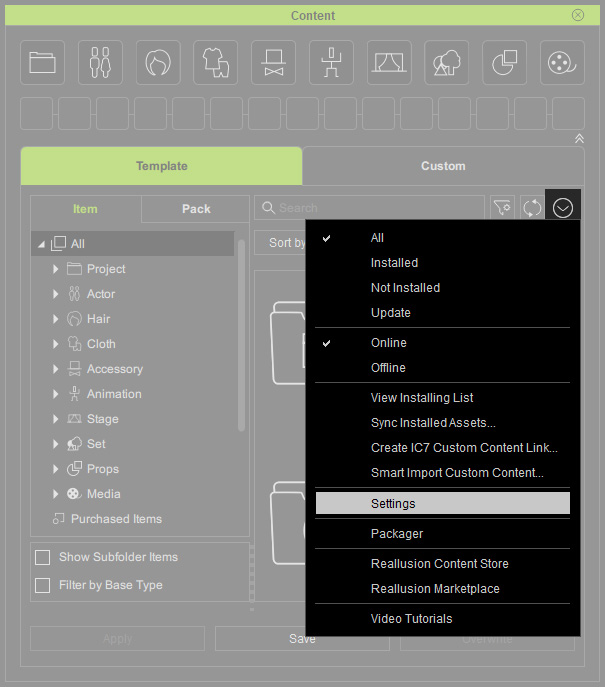
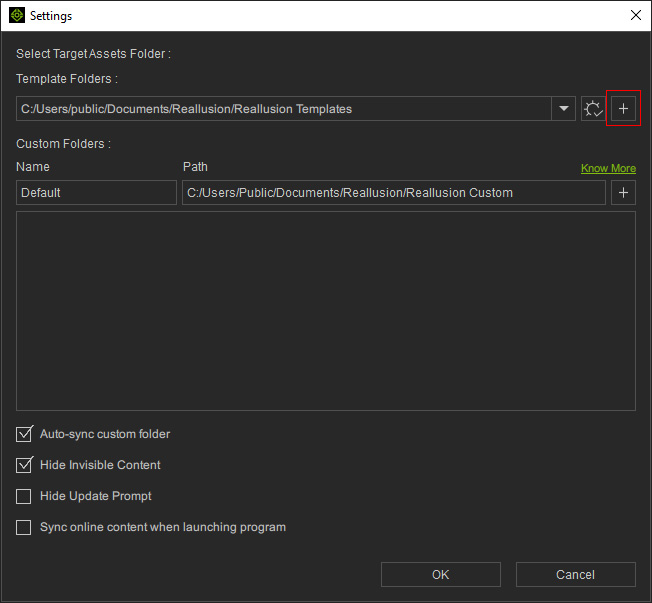
- Execute the Content Manager Menu > Settings command.
- Add a new drive or folder into the Template Folders list by clicking the + button.
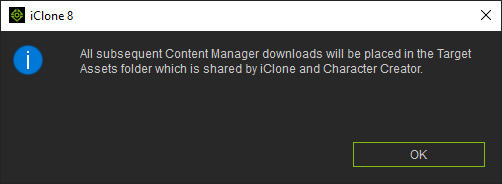
- A message will appear saying the asset folder is shared between programs.
Click the OK button.
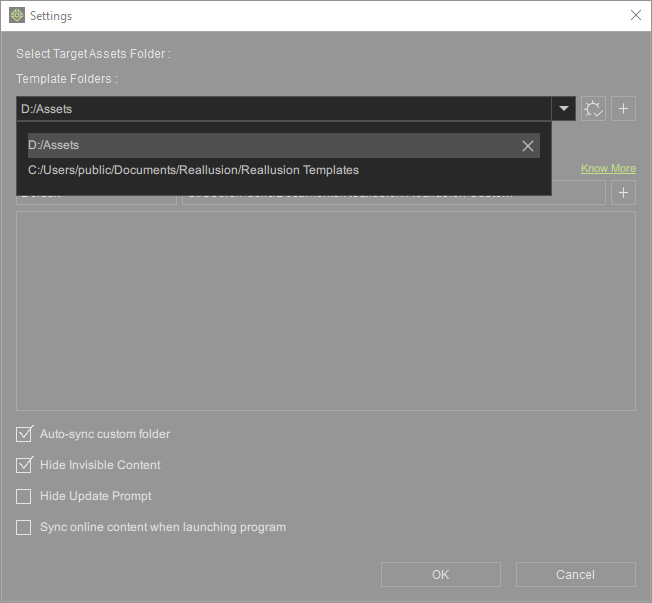
- Open the drop-down list and choose the newly added drive or folder as the assets installation folder.
Click the OK button.
 Note:
Note:You can click the "x" icon to remove the specified folder.

- Install a new pack.
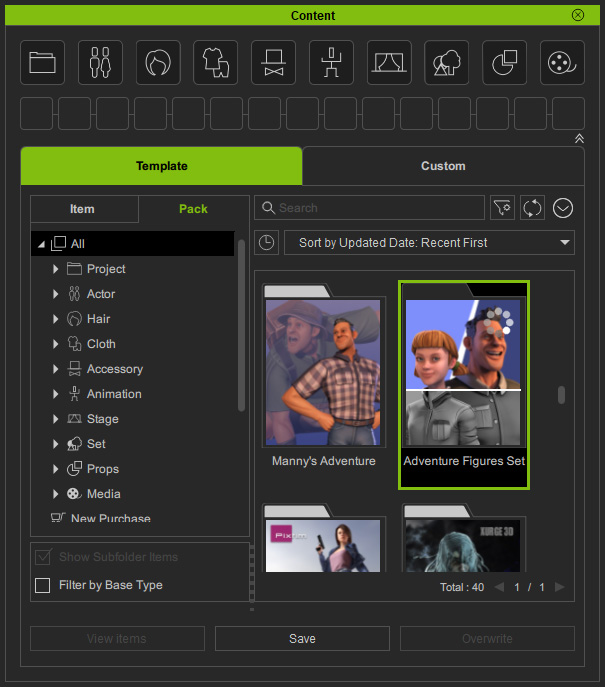
- After the installation, double-click on the pack to open it.
Right-click on either one of the template in the pack and choose the Find File command from the context menu.
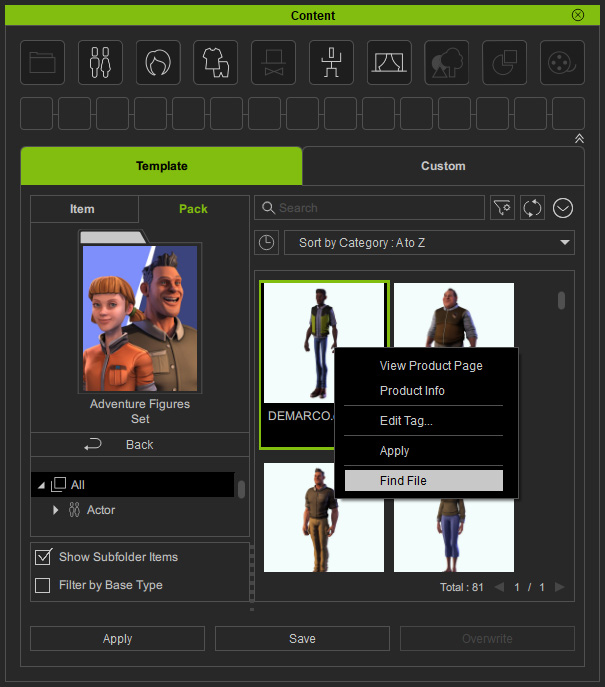
* Make sure the Show Subfolder Items checkbox is enabled to show all items at once. - As you can see the pack is installed to the specified folder.
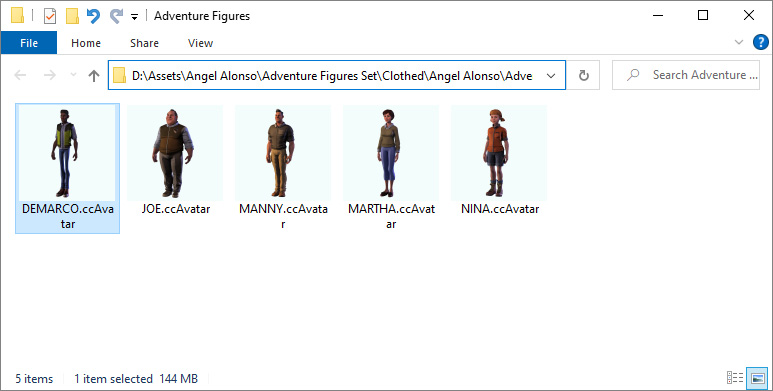 Note:
Note:The new path will be: [specified folder] \ [Author Name] \ [Pack Name] \ [structure in pack]
- Exit the pack.
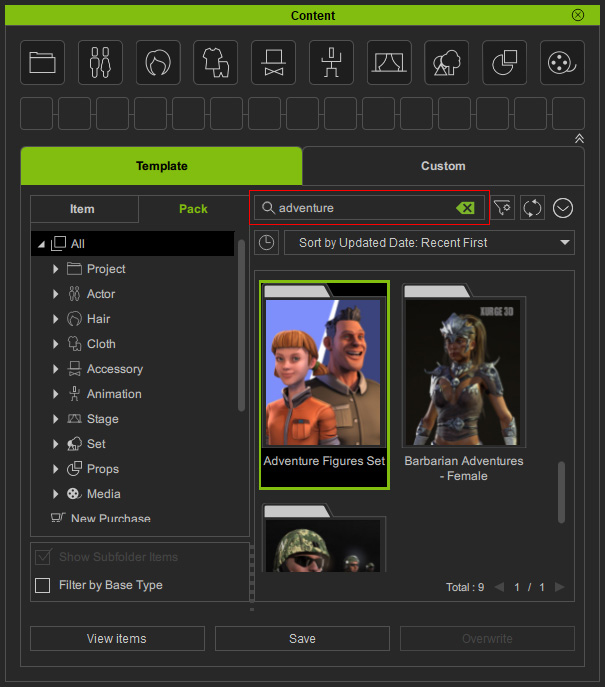
Type the keyword in the Search field.
You can find the pack item even if it is installed on a different template folder.
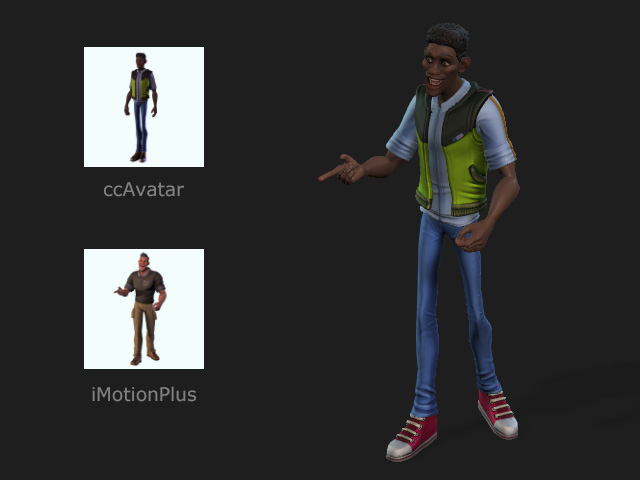
- You can apply template contents from this pack.
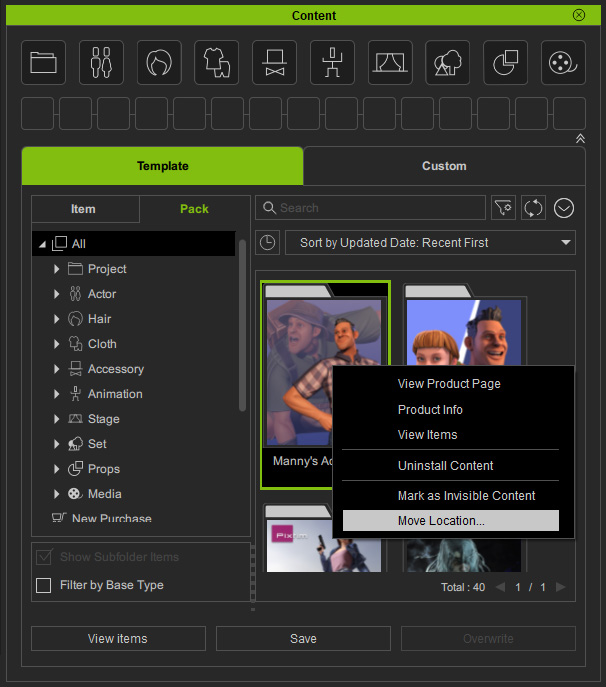
Moving Installed Contents- Right-click on a pack installed on default drive which is almost full and choose the Move Location... command from the context menu.
- Select a target directory from the drop-down list.
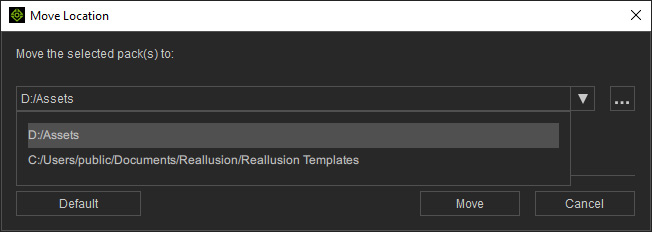
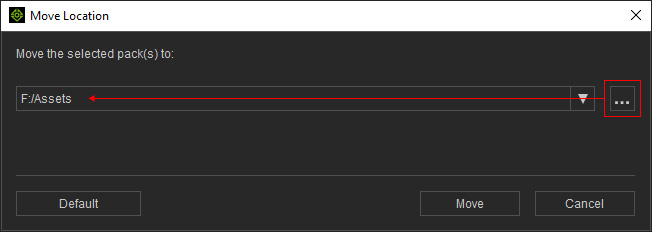
The list can be edited by the Settings panel. - Alternatively, you can click the ... button and specify a desired folder as the target.
- Click the Move button to start moving the pack.
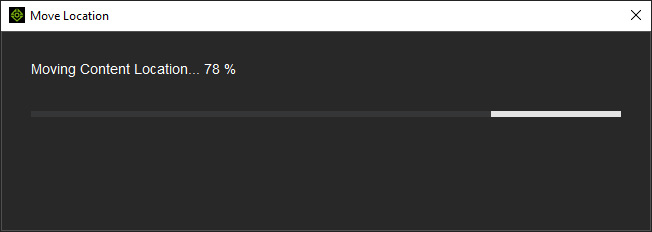
- When the procedure is done, click the Find File button on the information dialog.
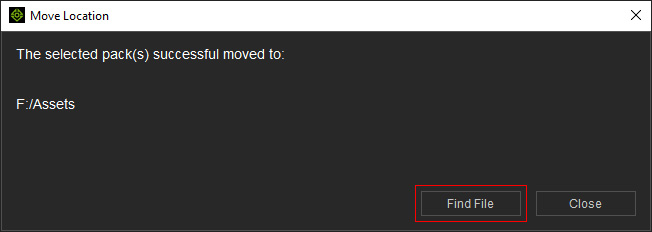
- The pack in the default drive will be moved to another drive.
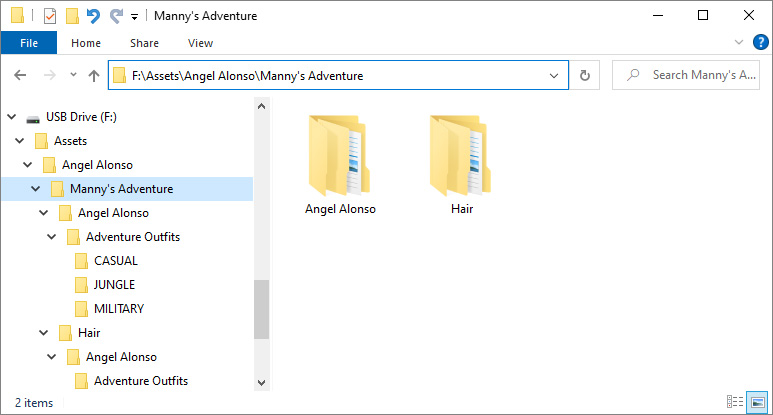 Note:
Note:The new path will be: [specified folder] \ [Author Name] \ [Pack Name] \ [structure in pack]
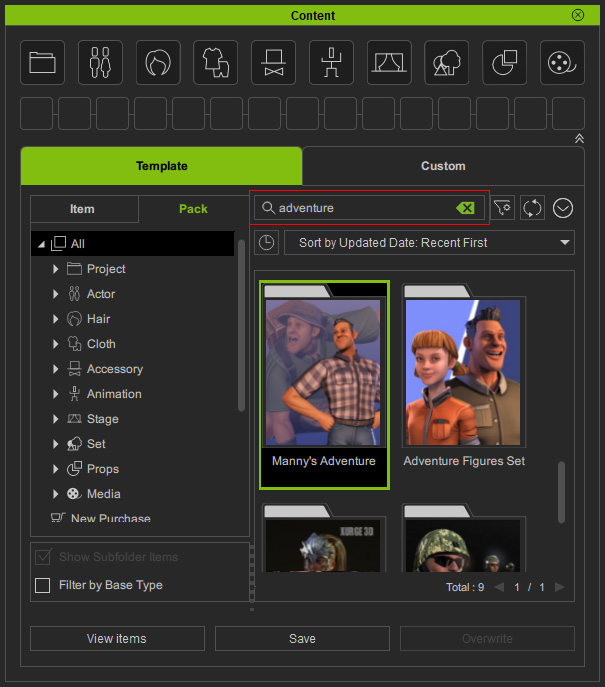
- Type the keyword in the Search field.
You can find the pack item even if it is moved to another location.
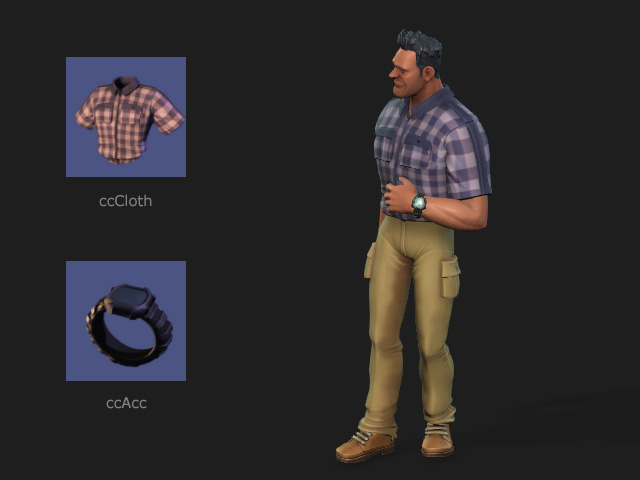
- You can apply template contents from this pack as usual.
Note that if you set the default template folder to the one on a USB drive or the one on a network drive, you may need to manually retrieve installed contents before you can access these contents on another computer.
- Execute the Content Manager Menu > Settings command.
