
|
Name |
Description |
|
|
1 |
Undo/Redo |
Click these two buttons to undo (Ctrl + Z) or redo (Ctrl + Y) the last operation. |
|
2 |
Select |
Activate this button to multi-select characters, or objects, in the working area. It will automatically pop up after the selection is done.
|
|
3 |
Duplicate |
Click this button (Ctrl + Drag Item) to duplicate the selected object or objects, as well as motions and animations. |
|
4 |
Apply Selected Render Style |
Click this button to quickly transfer the predefined Render Style presets to other objects (characters or props) in the scene. |
|
5 |
Flip |
Click this button to set a Flip key to the selected object or objects. |
|
6 |
Link/Unlink |
Click this button to set a Link/Unlink key for the selected object or objects. |
|
7 |
Visible/Invisible |
Click this button to set a Visible/Invisible key for the selected object or objects. |
|
8 |
Opacity |
Adjust the value to set an Opacity key for the selected object or objects. |

|
Name |
Description |
|
|
1 |
Undo/Redo |
Click these two buttons to undo (Ctrl + Z) or redo (Ctrl + Y) the last operation. |
|
2 |
Select |
Toggle this button to select sprites or joint masks in the working area. |
|
3 |
Mirror |
Click this button to quickly duplicate and copy one side to the other. The mirror creation method can be applied to individual body parts or to symmetrical facial features. |
|
4 |
Attach |
Click this button to attach accessories to the selected actor sprite. Please refer to the Attaching Accessories to a Character section for more information. |
|
5 |
Show/Hide Connecting Points |
Toggle this button to show connection points (displayed as green lines). Please refer to the Setting Connection Points section for more information. |
|
6 |
Snap Connecting Points |
Click this button to snap the head back to the neck, upper torso to the lower torso, hands to the forearms, and feet to the shins. Please refer to the Setting Connection Points section for more information. |
|
7 |
Add Joint Mask |
Click this button to add a joint mask to the selected sprite. |
|
8 |
Switch Joint Mask Color |
Click this button to cycle through different joint mask colors for better observation. It will automatically pop up after the color is changed. |
|
Name |
Description |
|
|
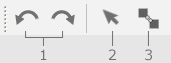
1 |
Undo/Redo |
Click these two buttons to undo (Ctrl + Z) or redo (Ctrl + Y) the last operation. |
|
2 |
Select |
Activate this button to select props in the working area. |
|
3 |
Attach |
Click this button to attach extra props to the current prop. |