Refining Face
After generating your character with Headshot, It is recommended to use On-Screen Sculpt Morph to modify the character’s mesh in a broader view, then use Refine Face to further enhance the definition of contour lines. For targeted facial feature adjustment, refer to Preset Morph Sliders.
- Create a character with Image mode.
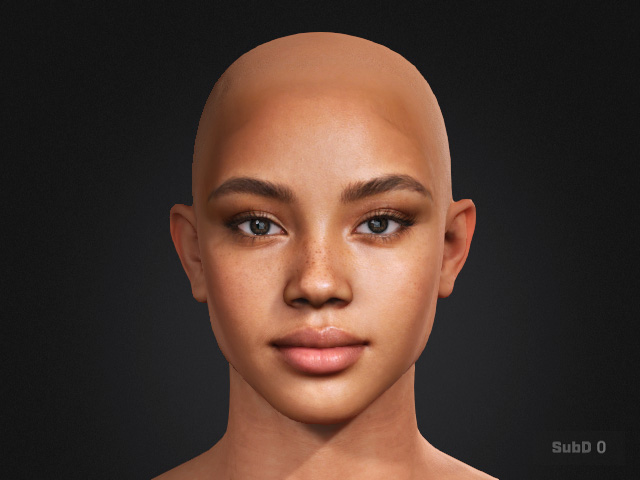
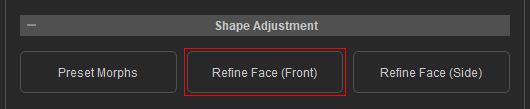
- Go to Headshot 3 > Shape Adjustment > Refine Face.
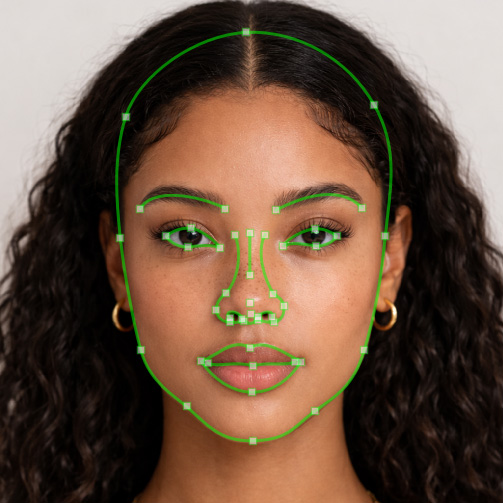
- Headshot will detect and auto generate control points to their coarse corresponding placement.
- Adjust the placement of the control points according to the control point tips that show up when selecting a control point.
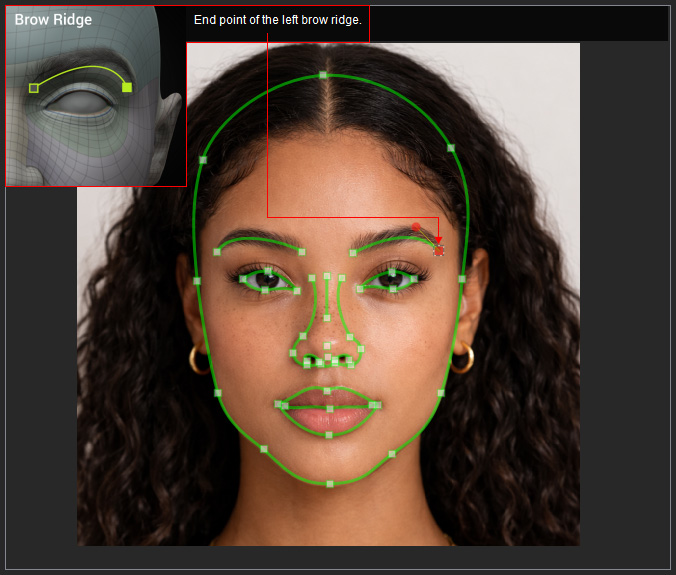
For detailed information on where the control points should be placed, please refer to the Front Face Control Point Placement Guide. - Press Preview All to compare the shape of the head mesh to the reference photo.
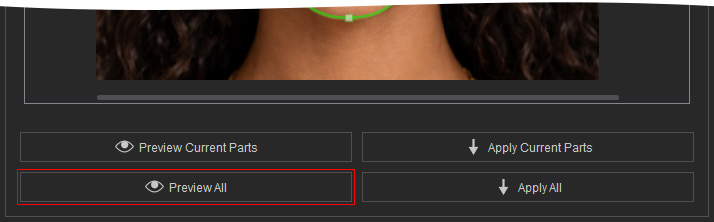
- Compare the generated mesh with the source image using the On-Screen Visibility Area slider
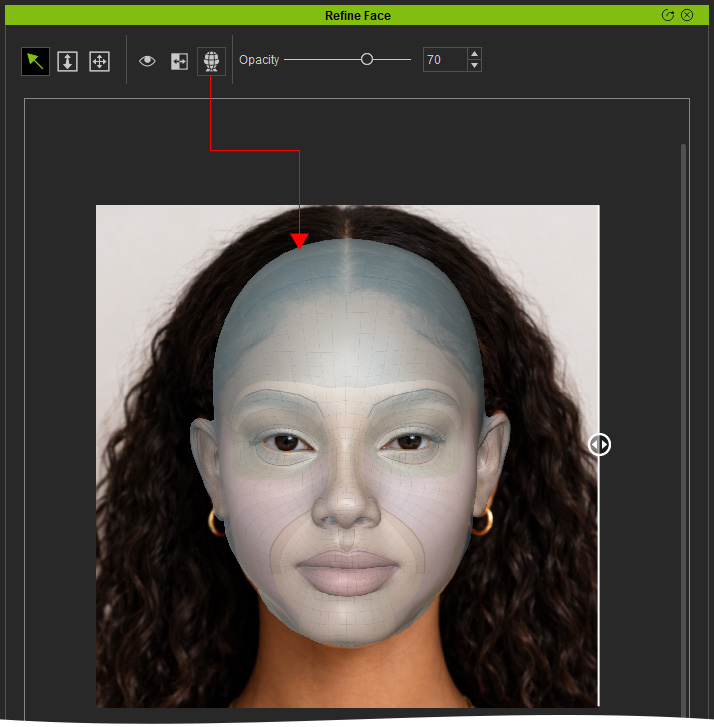
- Turn on Topology Render to better align the control points and ensure the mesh follows the facial structure correctly.
 Note:
Note:- Toggle the topology render button to enable topology view for better alignment.
- It is important to keep the topology clean and correct in order to ensure stable facial deformation and proper morph compatibility. For detailed information about the correct Topology, please refer to this page (PDF).
- Click the Edit button to switch back to the Edit mode for further adjustments.

- Repeat Step 3 to Step 8 until the head mesh matches the reference front image.
- Click the Apply All button in the Edit mode.
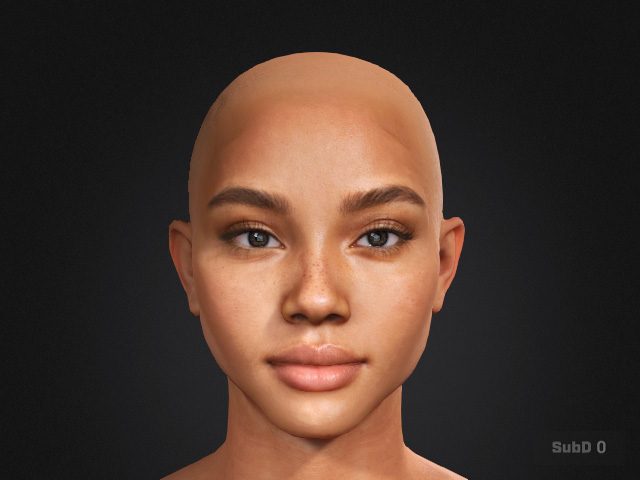
- After applying the refined face, inspect the head in the viewport to ensure the facial contours match the reference image.
For other refining tools, See Also:
- Preset Morph Sliders: Enhance the Unique Facial Features with numerous Preset Morph Sliders.
- Refine Face (Side): Depth only modification to give the character a more defined look without breaking the front view.
- On-Screen Sculpt Morph: Modify broad facial areas directly in the viewport for coarse contour adjustment.
- Image Matching Tool: Enable Image Matching Tool to compare the generated mesh with the Source Image Side by Side for easier observation.
