User Interface for REFINE MESH Step
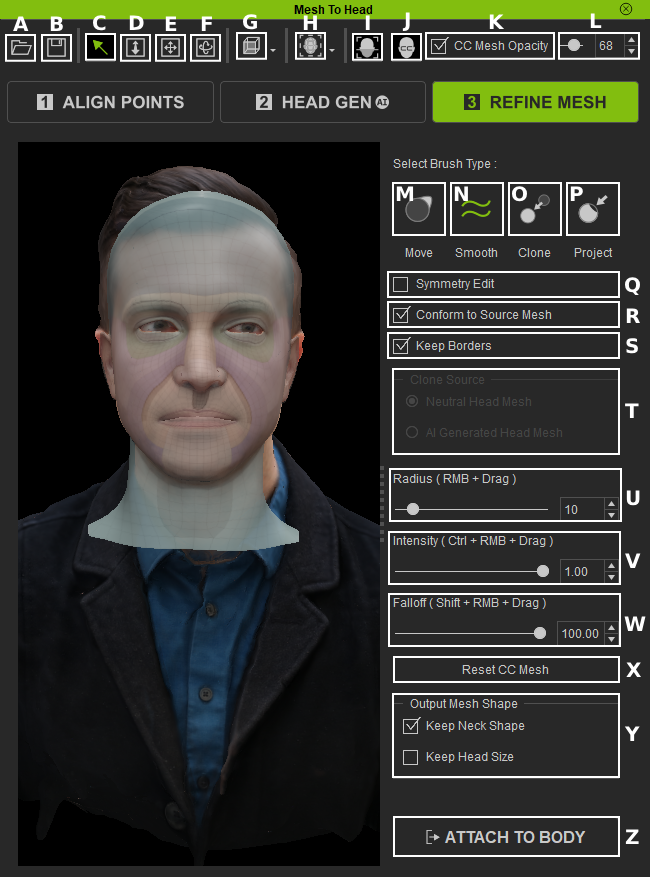
|
A |
Load |
Load custom preset of alignment points created for specific meshes. |
|
B |
Save |
Save the alignment points created for the mesh. |
|
C |
Select (Q) |
Used for selecting, removing, adding, and moving in the viewport. |
|
D |
Zoom (Z) |
Zoom the camera in and out. |
|
E |
Move (X) |
Move the camera. |
|
F |
Orbit (C) |
Orbit the camera around the model. |
|
G |
Multi Angles |
Quick access to multiple angles in the viewport. Left (A), Right (S), Back (D), Front (F), Top (G). |
|
H |
Topology Guide (1-6) |
Apply multiple types of textures representing different aspects of the model. |
|
I |
Toggle Source Mesh |
Toggle the visibility of the source mesh in the viewport. |
|
J |
Toggle CC Mesh (V) |
Toggle the visibility of the CC mesh in the viewport. |
|
K |
CC Mesh Opacity |
Toggle CC Mesh Opacity Adjustment value on or off. When turned off, the opacity reverts to 100%. Turning it on enables you to adjust the opacity as desired. |
|
L |
Opacity Adjustment |
Adjust the target mesh opacity value from 0 to 100. |
|
M |
Move (Shift+1) |
Brush for moving and modifying the shape of selected surfaces. |
|
N |
Smooth (Shift+2) |
Brush for smoothing and modifying the shape of selected surfaces, resulting in a more even topology. |
|
O |
Clone (Shift+3) |
Brush for cloning and modifying the shape of selected surfaces based on two different sources. |
|
P |
Project (Shift+4) |
Brush for projecting and modifying the shape of selected surfaces using the imported source mesh. |
|
Q |
Symmetry Edit |
Toggle the ability to edit lateral sides of the mesh simultaneously. |
|
R |
Conform to Source Mesh |
When activated, mesh modifications will adhere to the surface of the source. |
|
S |
Keep Borders |
When activated, keeps the edges of the mesh fixed in place, preventing them from being affected by the brushes. |
|
T |
Clone Source |
Selectable sources are available for the Clone brush as references. |
|
U |
Radius (RMB + Drag) |
Adjust the size of the brush strokes. |
|
V |
Intensity (Ctrl + RMB + Drag) |
Adjust the strength of the brush strokes. |
|
W |
Falloff (Shift + RMB + Drag) |
Adjust the amount of blending for the brush strokes. |
|
X |
Reset CC Mesh |
Restore the modified CC head Mesh to its original unedited form. |
|
Y |
Modify the head and neck mesh shapes when generating your character model. |
|
|
Z |
Initiate the final step before generating the CC4 character. |
