Using Tracking Data Inspector after Version 1.1
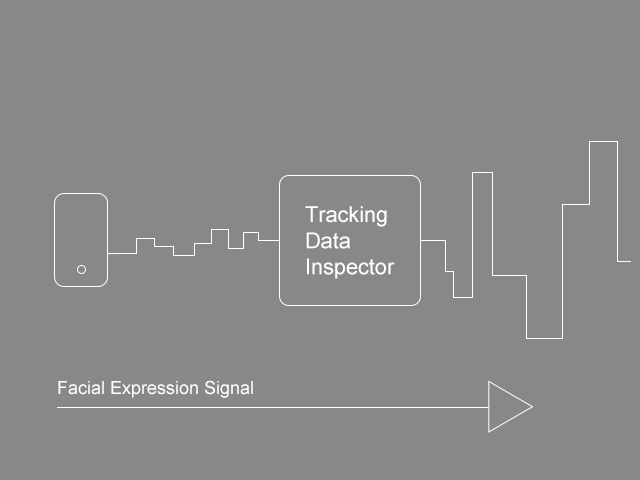
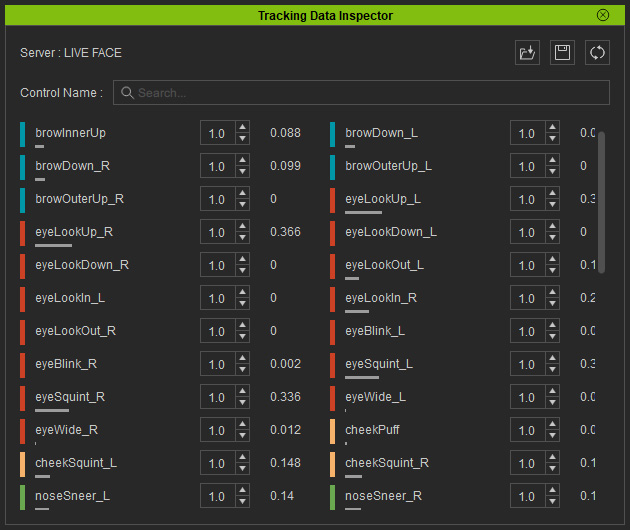
Motion LIVE plug-in provides Tracking Data Inspector to display 42 Control Names (Face IDs) received from Faceware, or 58 Control Names (Face IDs) received from iPhone. For the following purposes:
- No need to adjust expressions to compensate for bad data - adjust the data itself with the multiplier.
- Make your own multiplier profiles for your own iPhone setup, as well as for individual subject's faces and individual characters.
- You can get instant feedback over tracked data from these dynamic parameters.
- Observe the relation between facial performance, analyzed Face ID stream and turn up or down the mapping sliders in kind.
- Use the meters to determine whether to increase or decrease the data strength from the mo-cap devices.
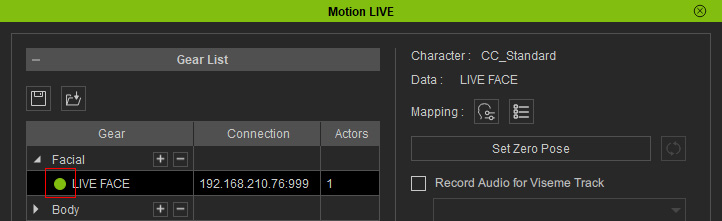
- Make sure the default or added gears are launched and connected (green light) with Motion LIVE plugin.
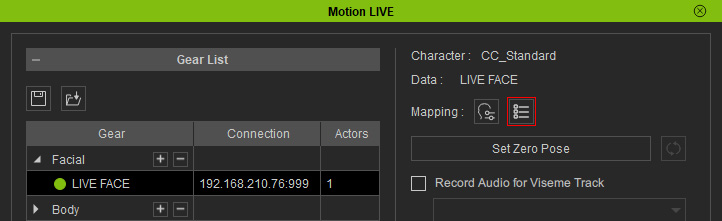
- Click the Tracking Data Inspector button on the Motion LIVE panel.
- The Tracking Data Inspector panel will display on the screen. On the panel,
Control Name Stream receiving status are shown and constantly changing.
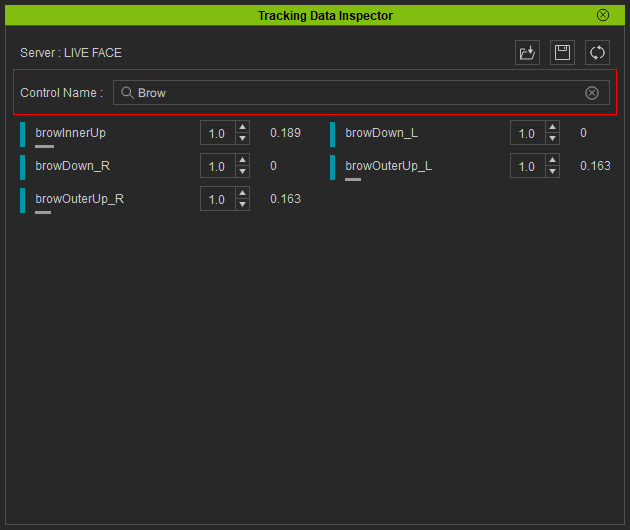
- Type into the Control Name field to display a specific facial feature.
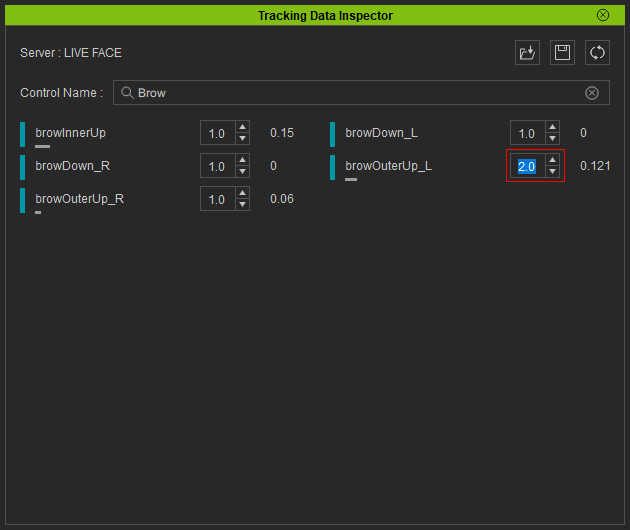
- Perform Signal-Multiplying by setting the values for the facial feature signals that are too strong or weak.
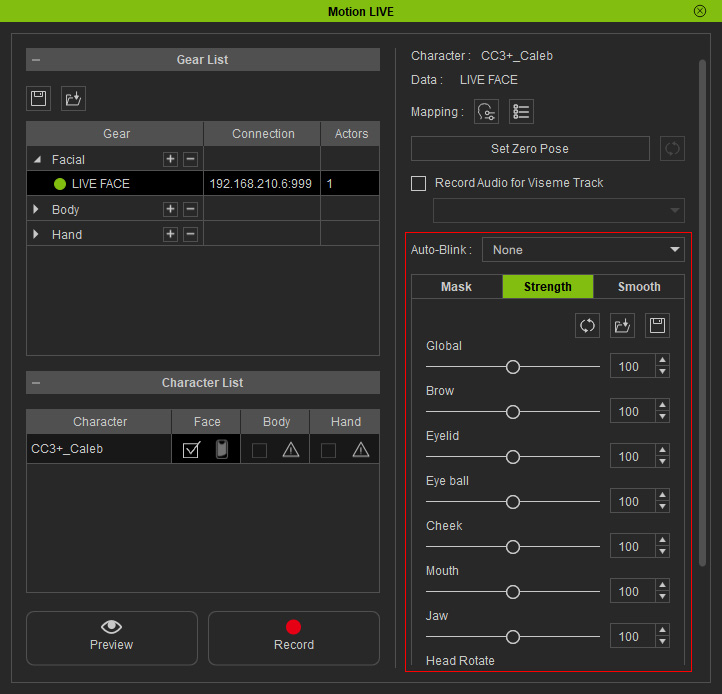
- In the Facial Motion LIVE panel, adjust the sliders in the Strength
section to change the captured result in real-time.
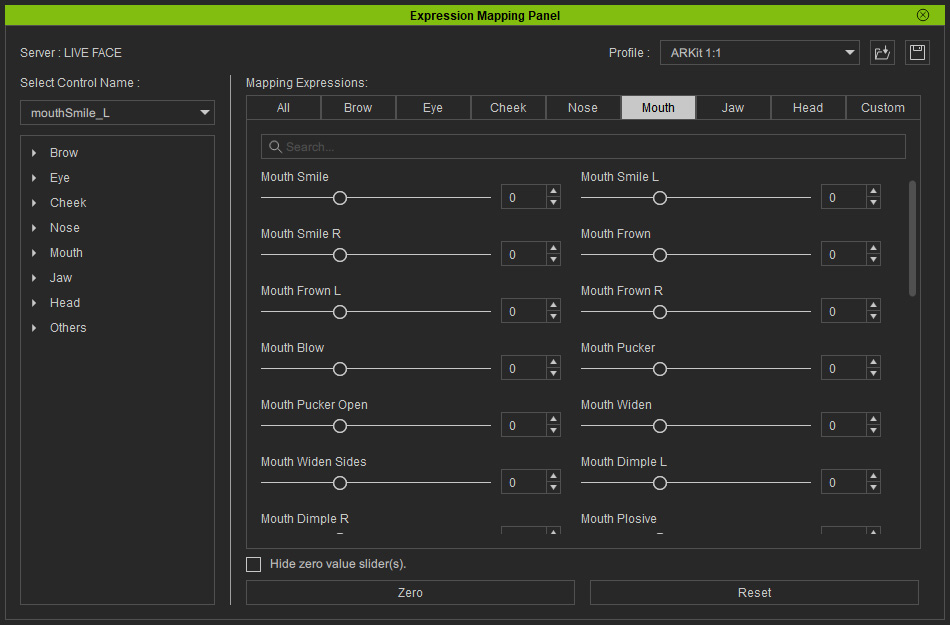
- Alternatively, open the Expression Mapping Panel (updated after version 1.1) to exaggerate or ease the mapping result in accordance with the data status list in the Track Data Inspector.