Exporting Animated Props to Omniverse
(New for iC v. 7.93)
Aside from exporting static props from Character Creator, you are also able to export animated props from iClone to Omniverse Create or View. The scene in Omniverse Create or View will come alive as more props are added.
*Notice that prop morphs are not currently supported.
- Create a project in iClone with animated props. The transferable animated data can be Transform Keys or Animation Clips.
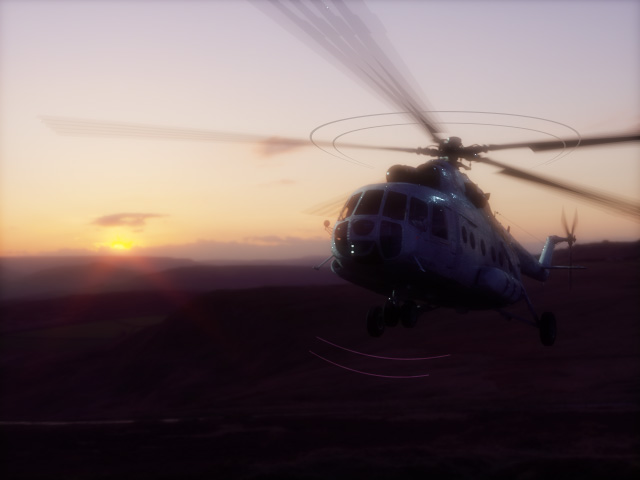
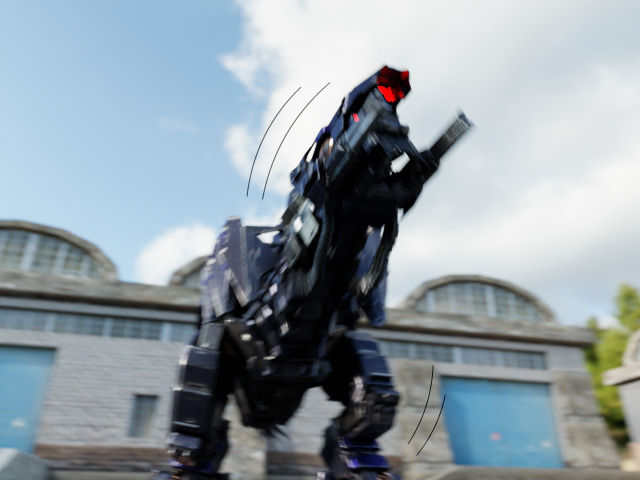
Playback to view the animation:

Prop animated with transform keys.
Bone-skinned prop animated with keys and clips.
- Launch the Export USD panel and adjust the settings.
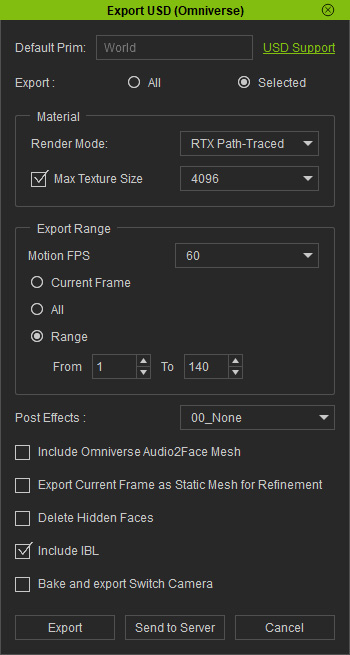
- Export: Choose to export All or Selected objects. The currently supported objects are Characters, Props, Lights and Cameras.
- Render Mode: Since the character's shader type is Digital Human Shader, which contains SSS (sub-surface scattering) settings, this setting should be set to RTX Path-Traced.
- Export Range: Export a range of the entire project in order to export the motion and expressions of the character.
- Include IBL: Activate this checkbox to export the IBL in the project, since the lights in the projects are not exported.
- Click the Export or Send to Server button to export USD file (in this case, Send to Server).
Adjusting and Rendering via Omniverse Applications
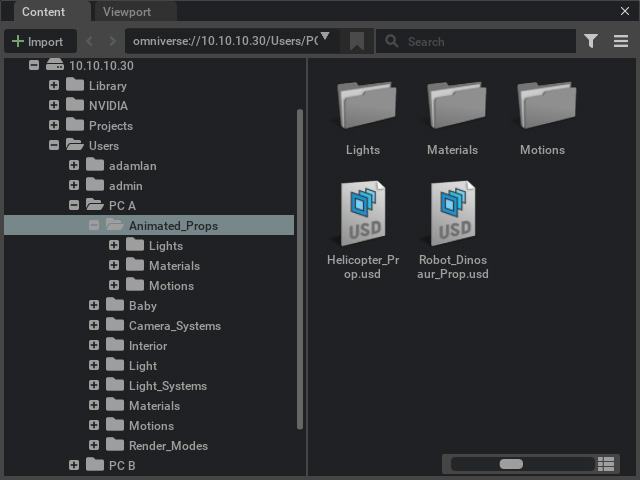
- Launch Omniverse Create or View. Open the USD file exported from iClone previously.
- You can also adjust the DomeLight to show the IBL image at the background and change
its strength.
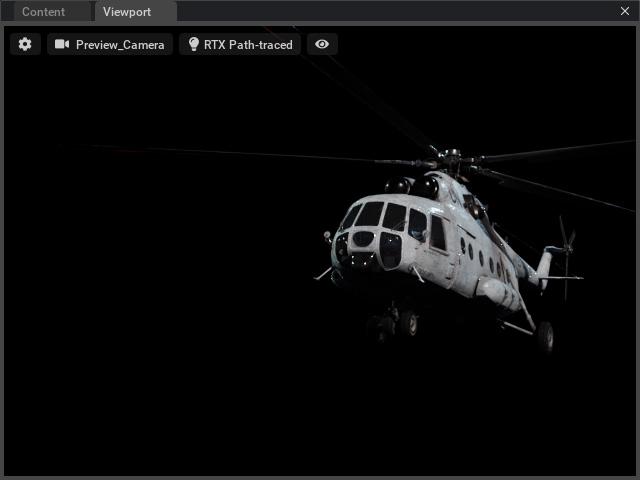
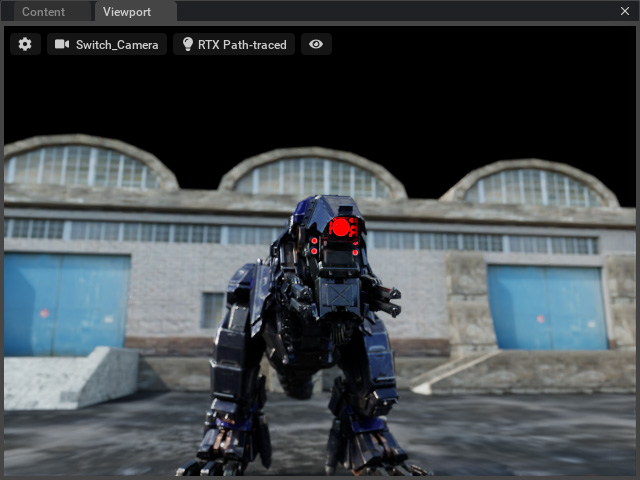
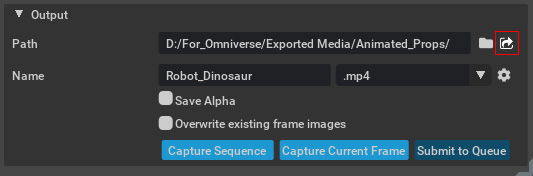
- Open the Rendering > Movie Capture panel and adjust the settings for final rendering.
- Click the arrow button.
You can find the rendered file in the pop-up explorer.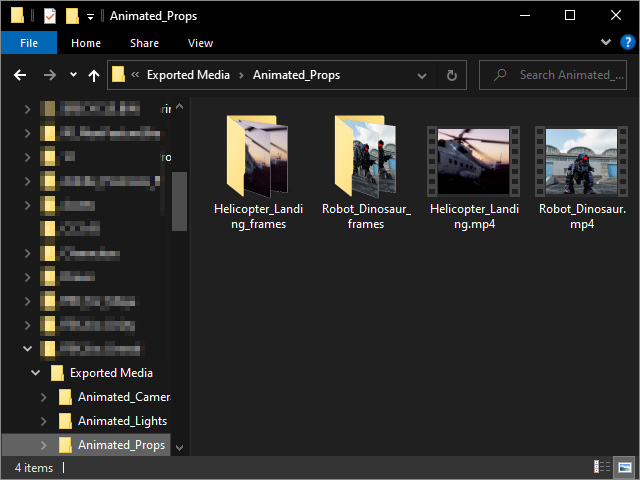
- Open the media to view the result.
Playback to view the animation: