Tips for Live Sync (New for iClone V.8.3)
Live Sync in the Omniverse plugin lets you author objects in both application for real-time collaboration.
 Setting Z-up Project in Omniverse
Each Omniverse project for Live Sync must be aligned to Z-up coordinates.
- Verifying the Coordinate System of the Omniverse
Project
- Select "Root Layer" in the Layer
panel.
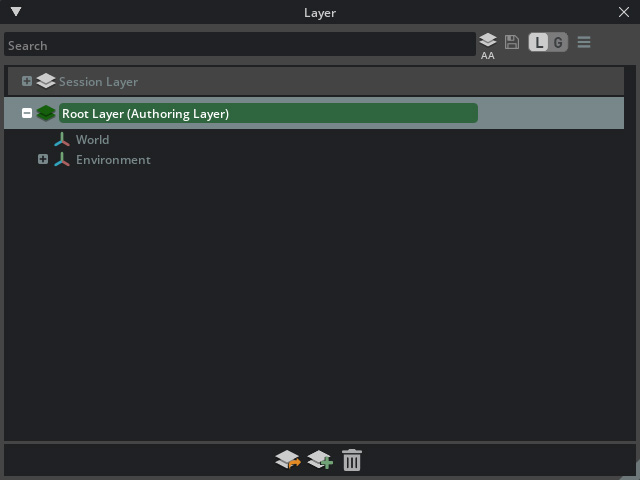
- Check the World Axis settings
in the Properties panel to discover
the direction of the coordinate system.
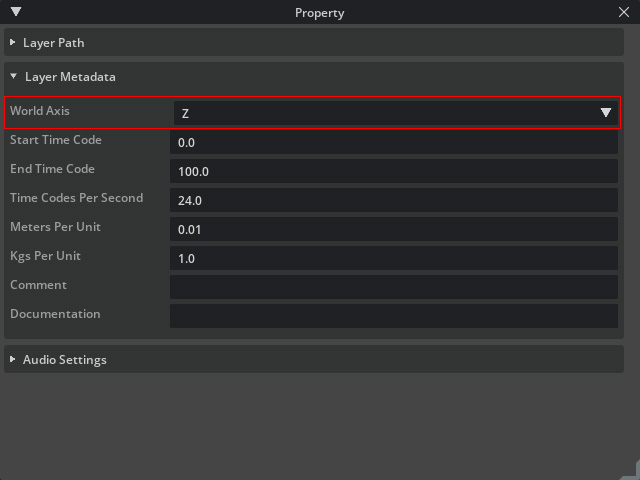
- Select "Root Layer" in the Layer
panel.
- Setting Z-up Coordinate for Omniverse Project
In Omniverse, open the Edit > Preference panel and set Default Up Axis to "Z".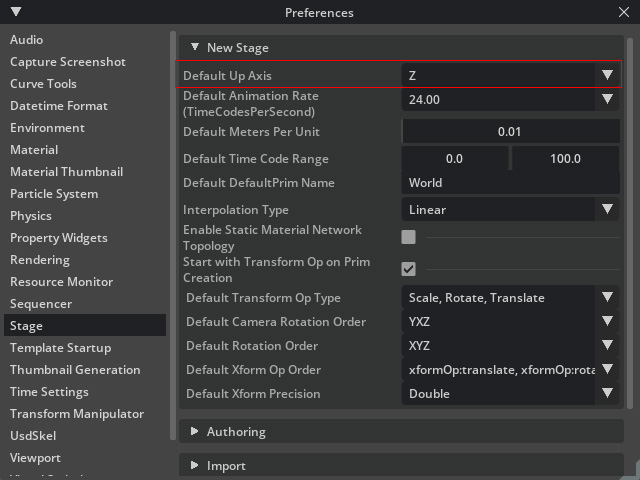
Setting Identical FPS for iClone and Omniverse
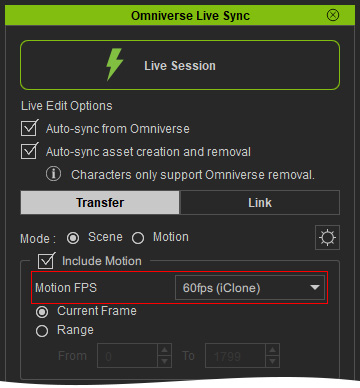
When you want to transfer animations from iClone to Omniverse, make sure the FPS for both applications are identical.
- In iClone:
- In iClone, open the Omniverse Live Sync panel and make sure you have connected iClone with Omniverse.
- Check the
Include Motion > Motion FPS value.
- In Omniverse:
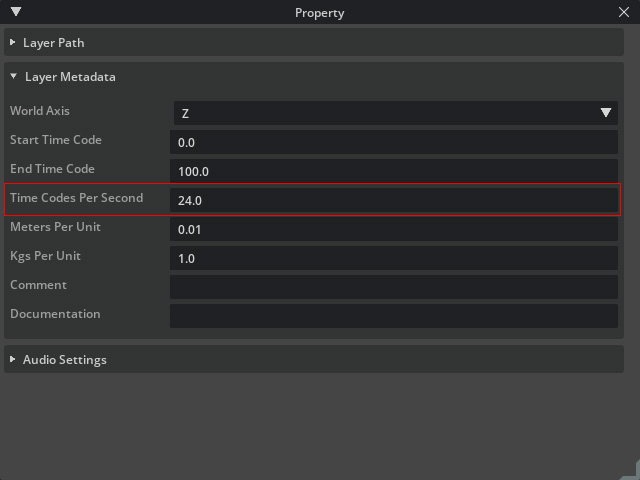
- Select "Root Layer" in the
Layer panel.
-
Set Property > Time Codes per Second to
the same fps value in iClone's Omniverse Live
Sync panel.
-
You can also set the fps below the timeline.

- Select "Root Layer" in the
Layer panel.
Failing to Adjust
Animated Objects
Sometimes, if you encounter difficulties animating linked
objects in Omniverse, it might be due to the presence of
transferred animations from iClone on those objects.
You can check out the Transform section in the Property panel of Omniverse. As you can see the icons implies that the object is locked due to the applied animations. Hence any manually adjustments will be ignore.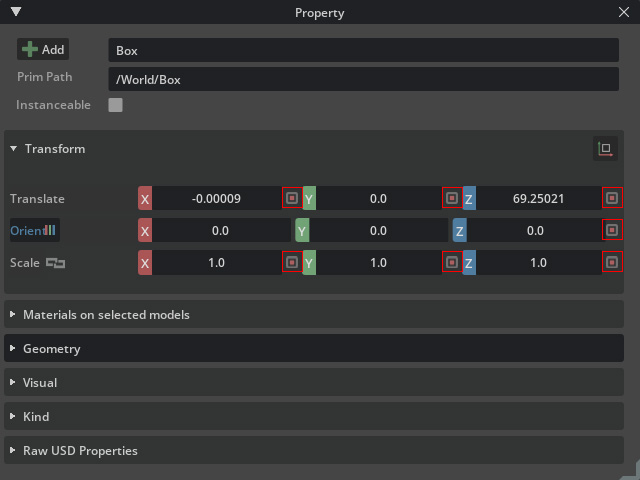
You can select the asset in iClone and click the Remove selected animation from Omniverse button on the toolbar to unlock the object.
The Omniverse object can then be previewed for animation and
manually edited.
Gamepad Controls for iClone Motion Director
Both iClone Motion Director and Omniverse Camera Controls are compatible with Gamepad Control. Consequently, if you are utilizing iClone Motion Director to oversee your characters, ensure that you deactivate the gamepad camera control feature within Omniverse USD Composer. This step is crucial to avoid any conflicts in animation data during the Live Syncing process.
First, disable Gamepad Camera Control: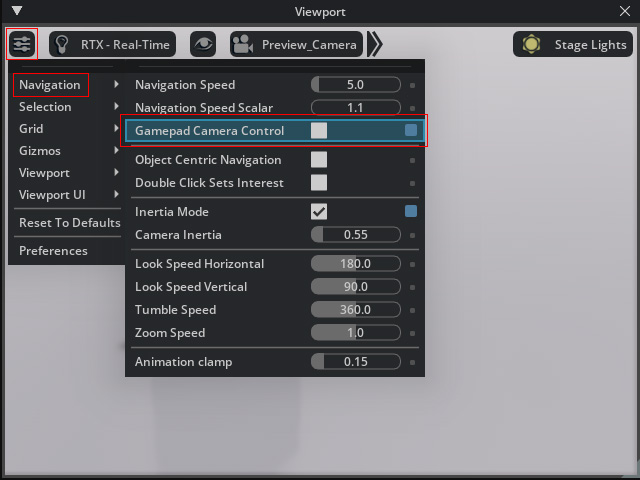
Toggling "Path Traced Material" for
Thin Meshes
Rendering thin meshes with SSS shader may fall short of expectations in Omniverse USD Composer:
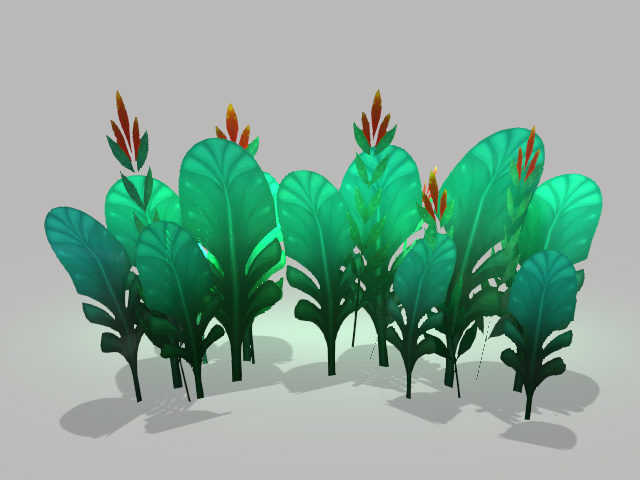
|
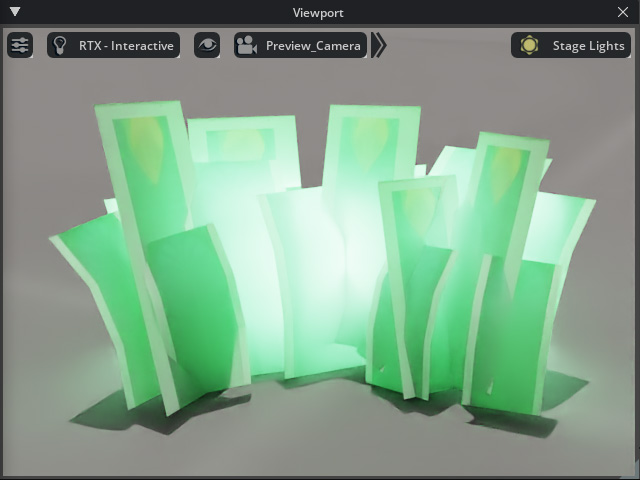
|
|
Thin meshes with SSS shader in iClone. |
When rendered in Omniverse USD Composer. |
To solve this issue, you must turn off the Path Traced Material setting in the
Transfer File Settings of the Omniverse Live Sync panel.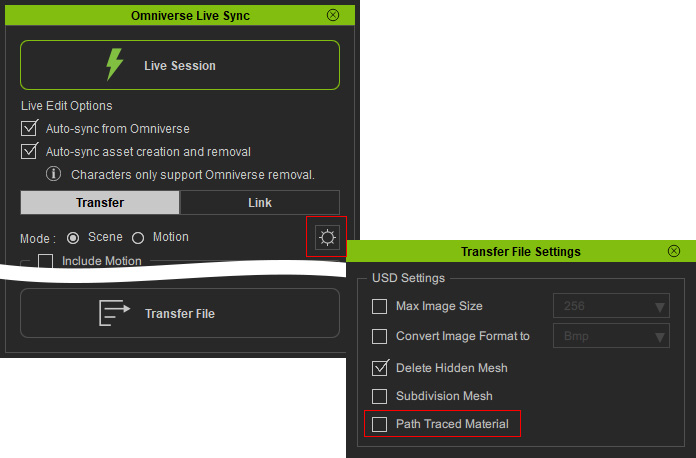
Retransfer the asset to Omniverse to see that the rendering
has been fixed.