Loading Timecoded FBX Files into iClone
Loading an FBX animation with embedded timecode data allows it to align with the timing of other media assets.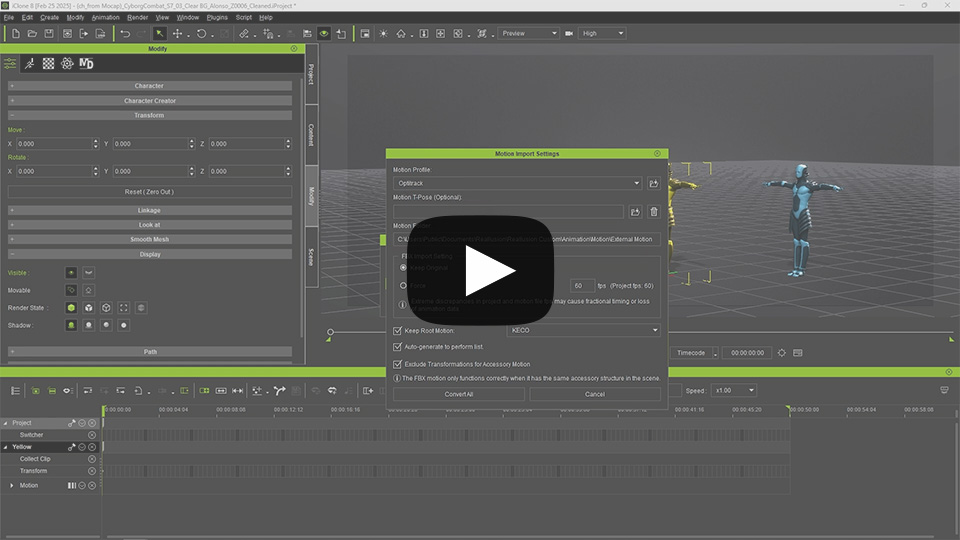
- In iClone, create a new project and set the scene with one or more characters.
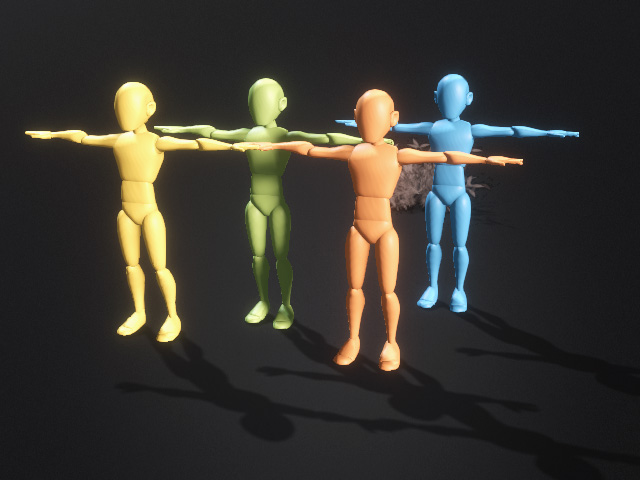
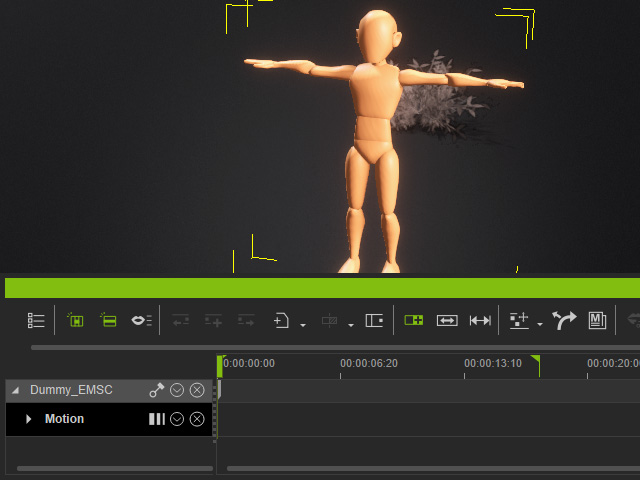
- Select one of the characters and open its motion track (other characters are hidden for better observation).
- Right click on the track and choose the Import command to load a timecoded FBX animation file.
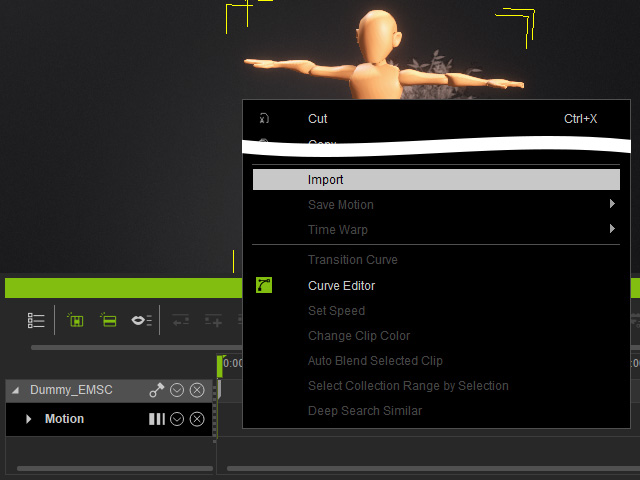
Remember to change the file type to "External Motion Files (*.fbx *.bvh)".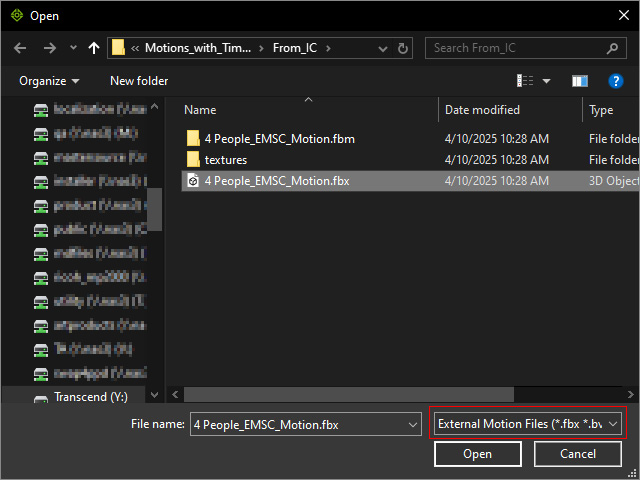
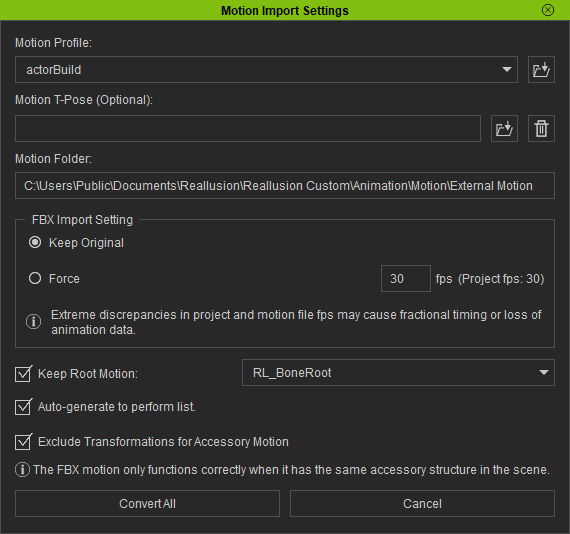
- Choose the Motion Profile from the drop-down list for the source FBX file. Click the Convert All button.
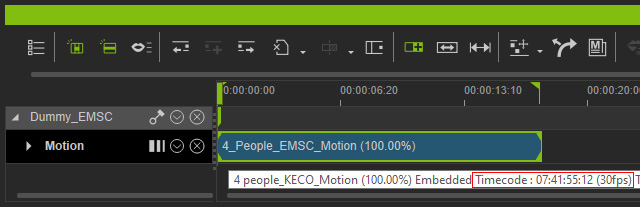
- The clip containing the timecode will be housed within the motion track of the character.
- To re-position the clip to correct timeframe and synchronize the project start frame to the clip, right click on the clip and choose Align Clip and First Frame to Embedded Timecode.
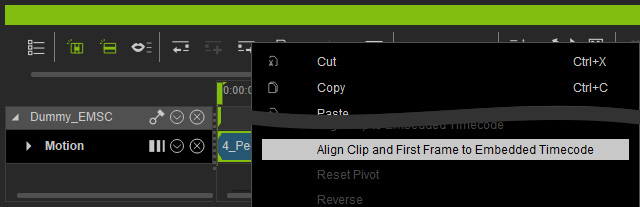
The project's first frame will be aligned to the clip's timecode.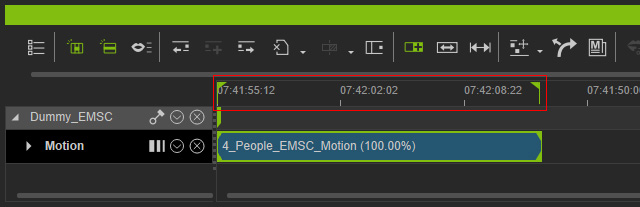
- Repeat the same steps to import more timecoded FBX files for the other characters.
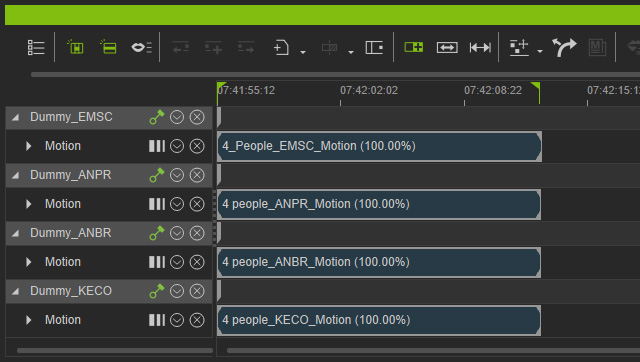
Playback to view the result. - Go to another timeframe and load another FBX motion file with timecode data.
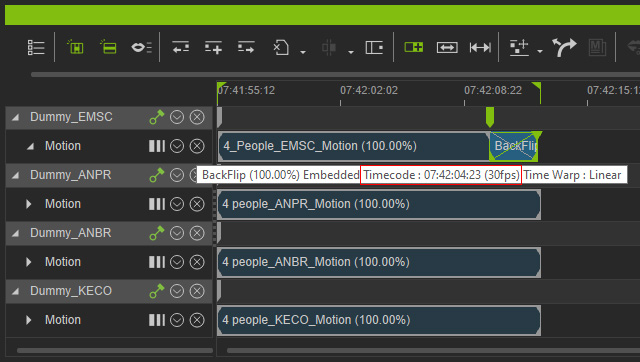
- Right click on the clip and choose Align Clip to Embedded Timecode command from the Context Menu.
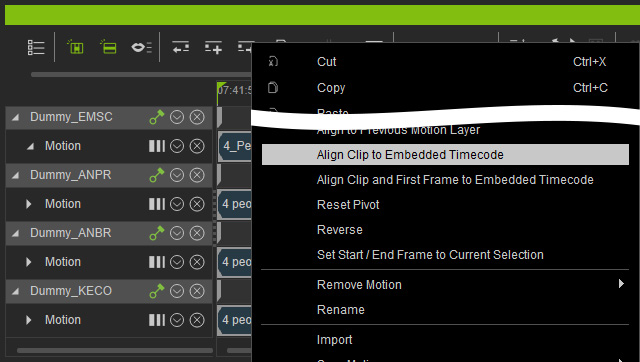
As you can see the clip will be synchronized to correct timeframe.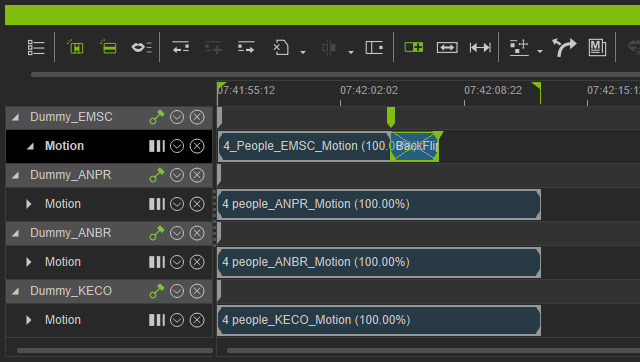
- Playback to view the result.
See Also:
