Creating AI Actor – Basic Mode: Custom Character Sheet (v1.1.1)
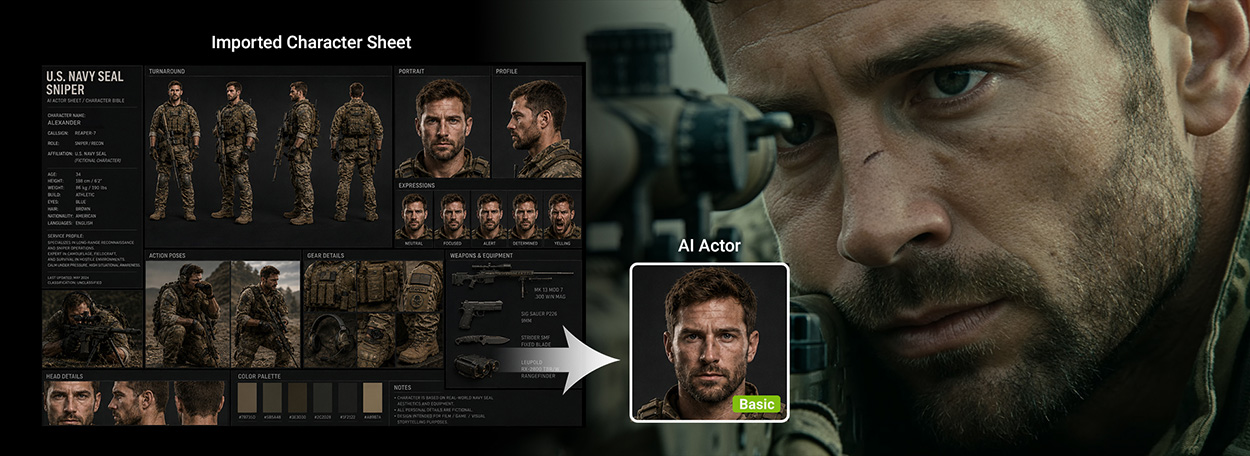
With Basic mode in the Create Actor workflow, you can quickly create an AI Actor by loading a custom character sheet for consistent character appearance across shots.
Required Elements
- Character Sheet: Upload a character sheet to create the AI Actor.
- Actor Settings: Specify the actor name, thumbnail, and appearance prompt.
Creation Workflow
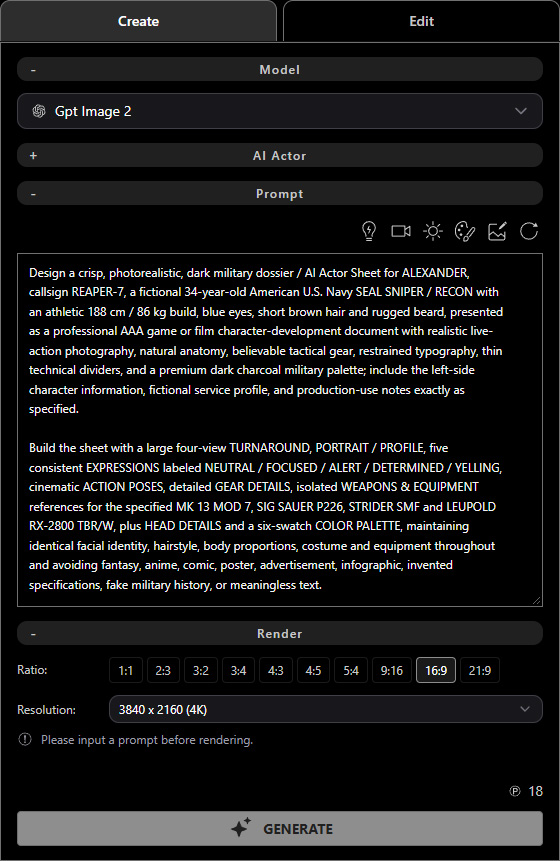
- Use a Large Language Model (LLM), such as ChatGPT, to create a custom character sheet.
Alternatively, select Image Gen
 from the left AI Toolbar and enter a prompt to generate one.
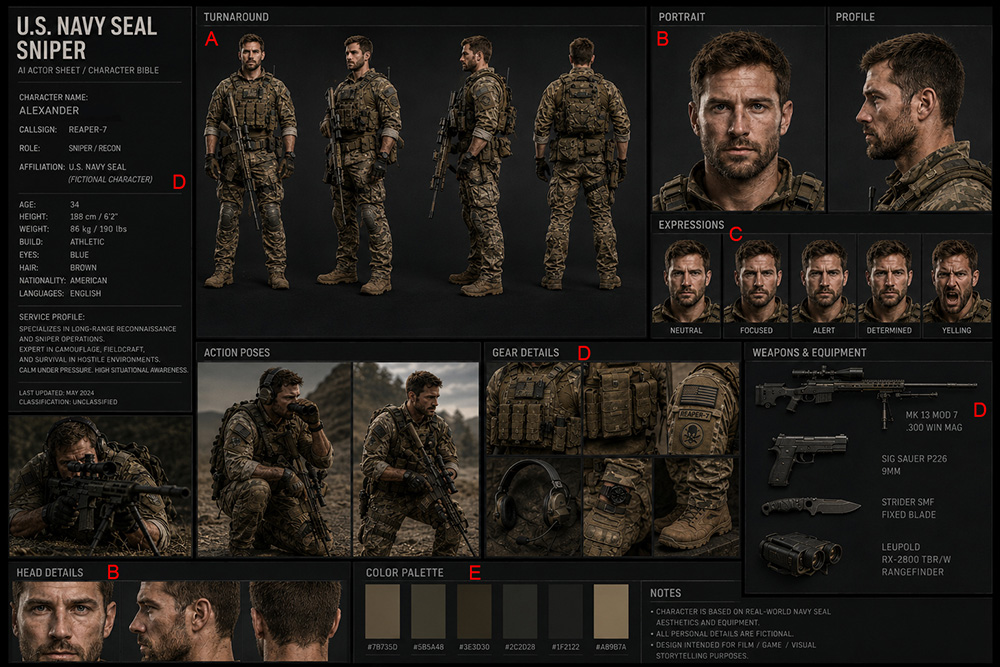
A recommended character sheet includes:- Full-body views from multiple angles (front, side, rear, etc.).
- Close-ups of the face and head details.
- A range of facial expressions.
- Key characteristics, such as ethnicity, age, gender, skin tone, clothing, and accessories.
- Consistent art style and color palette.
For example, "Design a crisp, photorealistic, dark military dossier / AI Actor Sheet for ALEXANDER, callsign REAPER-7, a fictional 34-year-old American U.S. Navy SEAL SNIPER / RECON with an athletic 188 cm / 86 kg build, blue eyes, short brown hair and rugged beard, presented as a professional AAA game or film character-development document with realistic live-action photography, natural anatomy, believable tactical gear, restrained typography, thin technical dividers, and a premium dark charcoal military palette; include the left-side character information, fictional service profile, and production-use notes exactly as specified.
Build the sheet with a large four-view TURNAROUND, PORTRAIT / PROFILE, five consistent EXPRESSIONS labeled NEUTRAL / FOCUSED / ALERT / DETERMINED / YELLING, cinematic ACTION POSES, detailed GEAR DETAILS, isolated WEAPONS & EQUIPMENT references for the specified MK 13 MOD 7, SIG SAUER P226, STRIDER SMF and LEUPOLD RX-2800 TBR/W, plus HEAD DETAILS and a six-swatch COLOR PALETTE, maintaining identical facial identity, hairstyle, body proportions, costume and equipment throughout and avoiding fantasy, anime, comic, poster, advertisement, infographic, invented specifications, fake military history, or meaningless text." - Select Create Actor
 from the left AI Toolbar, then switch to the Basic tab.
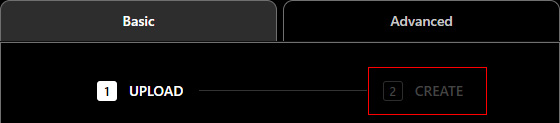
 - Click 2 CREATE to open the creation settings.
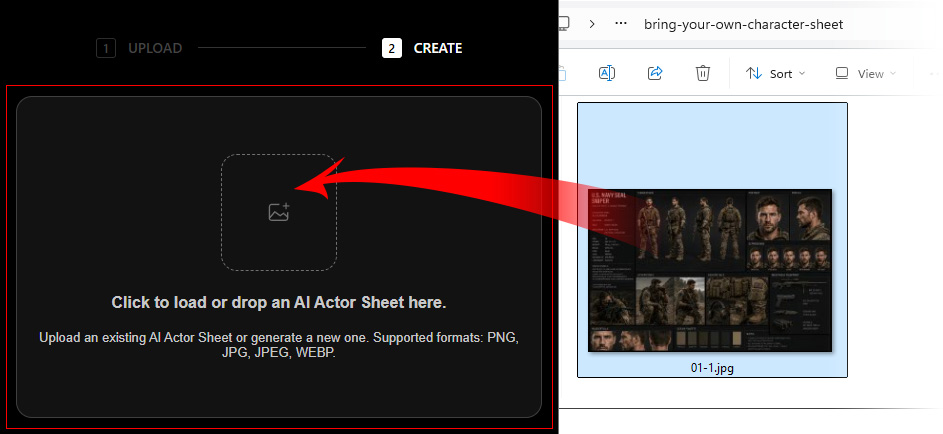
- Click the Image slot to load the custom character sheet created in Step 1, or drag an image from Windows File Explorer into the slot.
Supported image formats include .png, .jpg, .jpeg, and .webp.
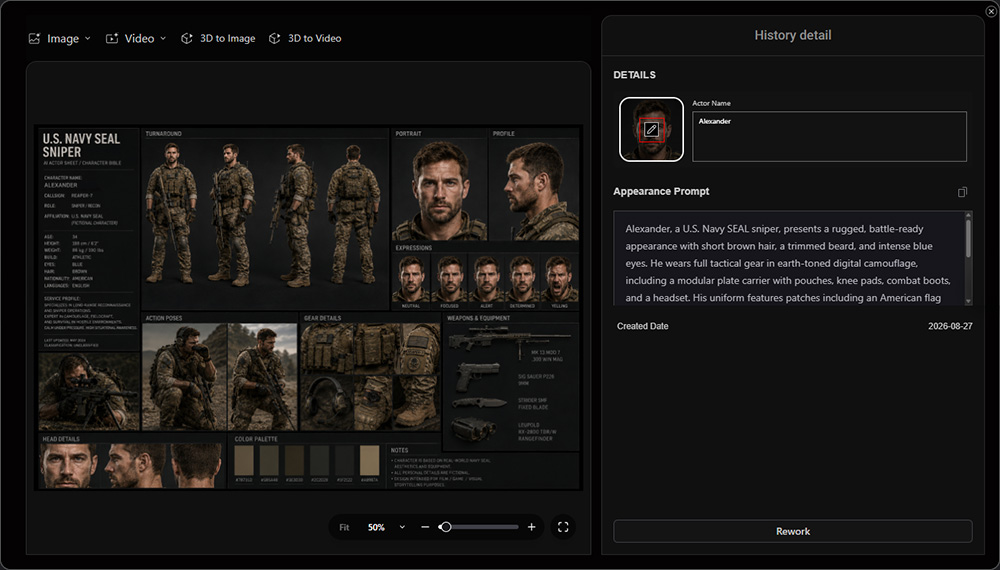
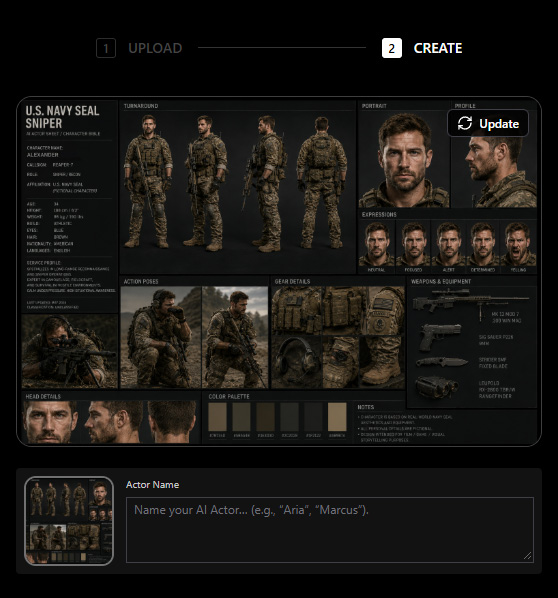
- The character sheet is loaded into the Image slot and used as the AI Actor's thumbnail by default.
- Click the thumbnail to select another image, or drag an image from Windows File Explorer to replace it.
Supported formats include .png, .jpg, .jpeg, and .webp.
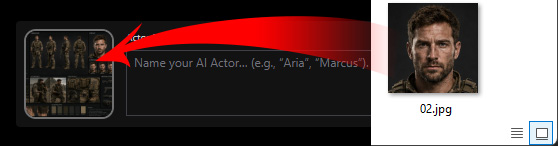
The image is resized to 720 pixels and cropped to a 1:1 aspect ratio. - Enter the AI Actor's name and appearance prompt.
If the character sheet provides sufficient visual information, click GENERATE PROMPT to generate an appearance description based on the character sheet.
Drag the bottom-right corner to expand the text field for longer descriptions.
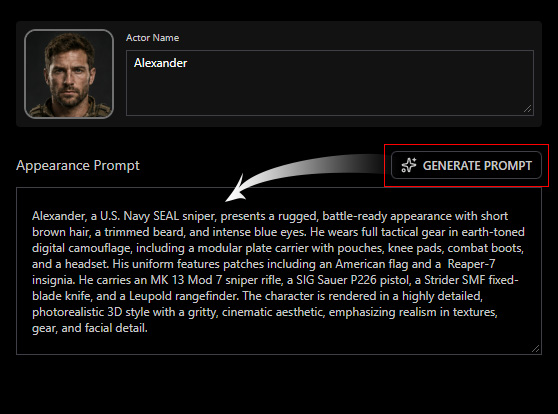
For optimized AI generation results, refer to Defining AI Actor Appearance to refine the prompt with key characteristics such as gender, skin tone, accessories, clothing, and other distinctive visual features. - Make sure the actor name and appearance prompt are provided, then click CREATE ACTOR to create the AI Actor using the character sheet, thumbnail, name, and appearance prompt.
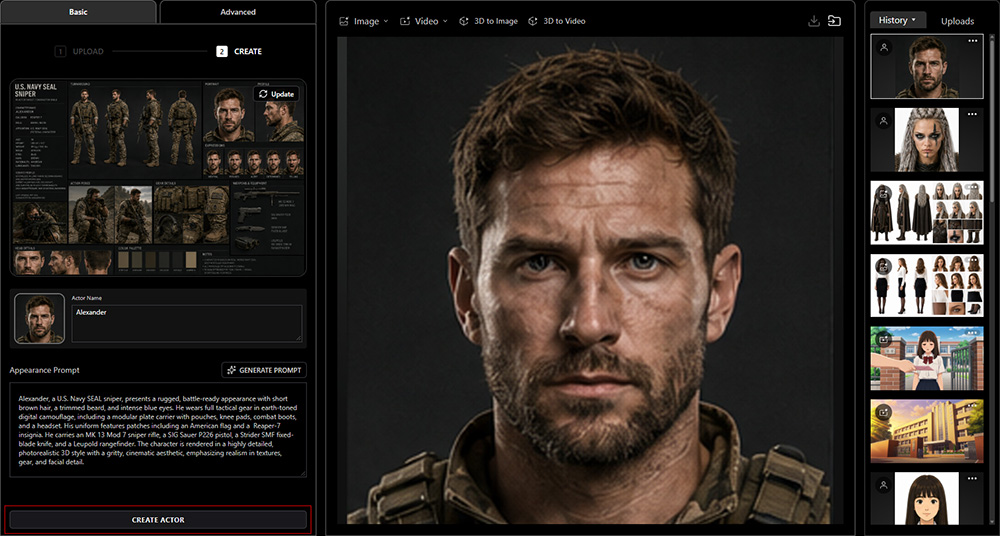
After creation, the AI Actor is displayed in AI Render View and added to the History panel on the right.
AI Actor Library
The newly created AI Actor appears in the My AI Actors tab of the AI Actor Library (A) and the History panel (B) on the right.
It is marked with the AI Actor icon  in the top-left corner of the thumbnail for easy identification.
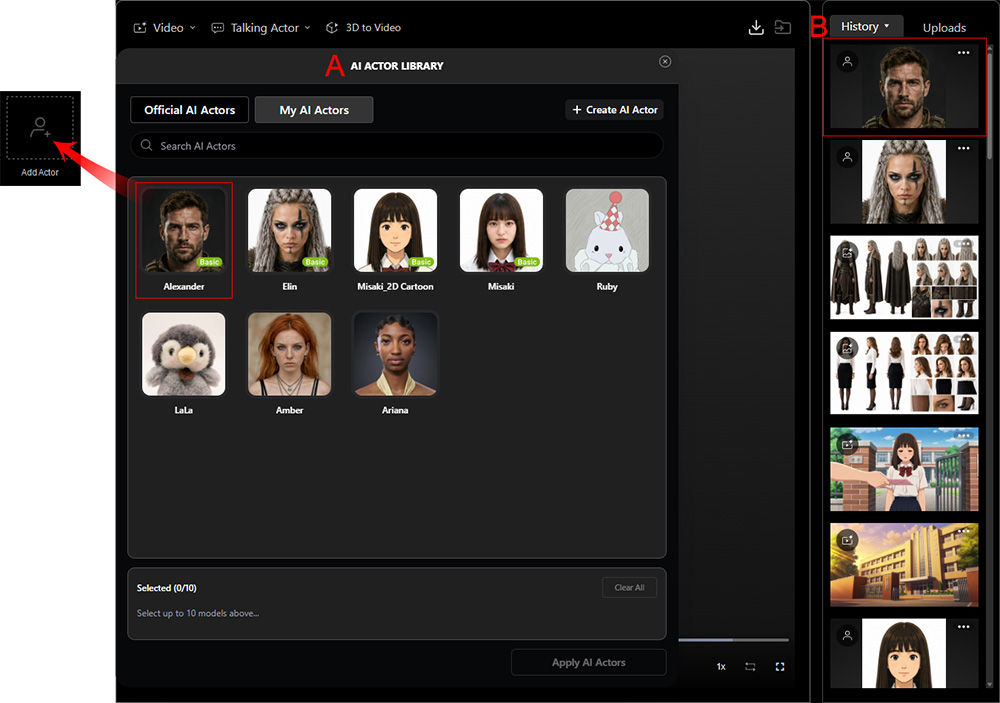
 Changing AI Actor Thumbnail (v1.1.1)
Click ... > View Details for the generated AI Actor in the History panel on the right, or click the AI Actor's History item on the full History page to open the History Detail pop-up window.
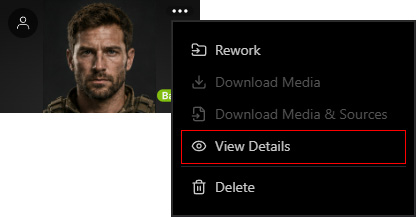
Click Change Thumbnail on the actor thumbnail, then browse for and select an image to replace the current thumbnail.