AI Render View (v1.1.1)
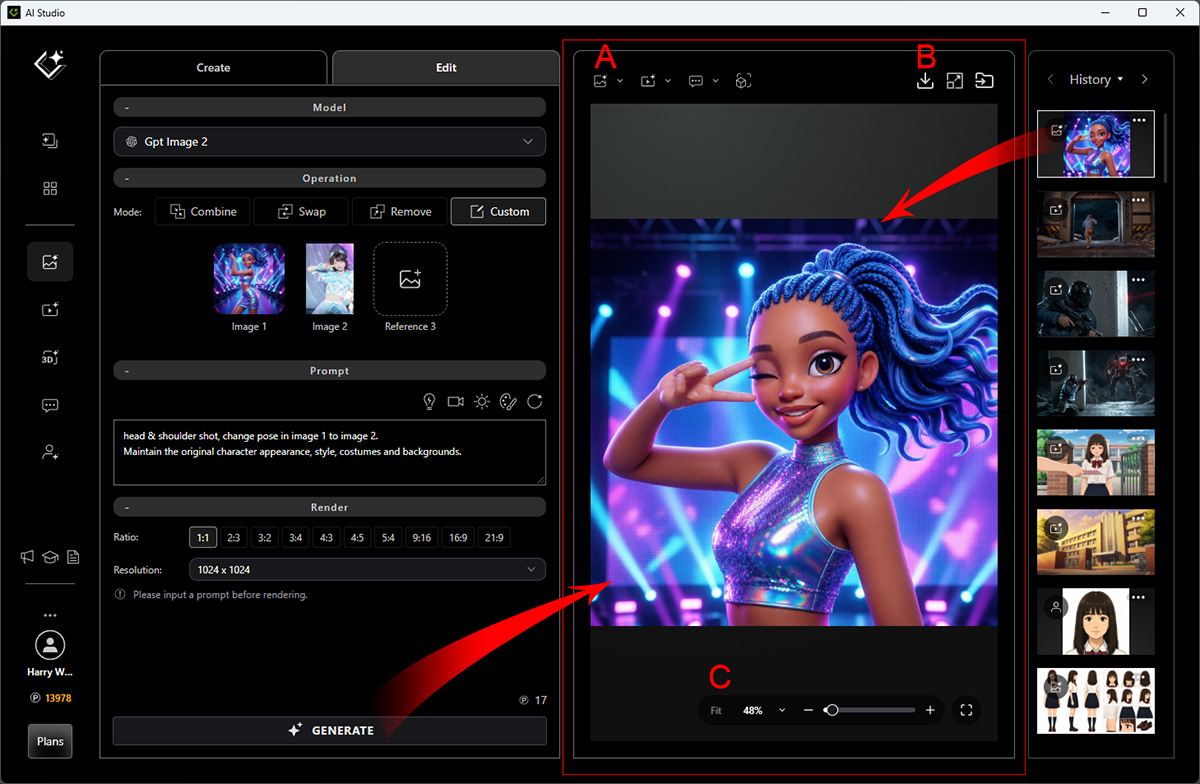
The AI Render View shows media from the current generation and the side History panel, and provides quick access to AI tools for follow-up actions.
Upon successful submission, the AI Render View displays the generated media, including actors, images, videos, and audio.
| Actor | Image | Video | Audio |
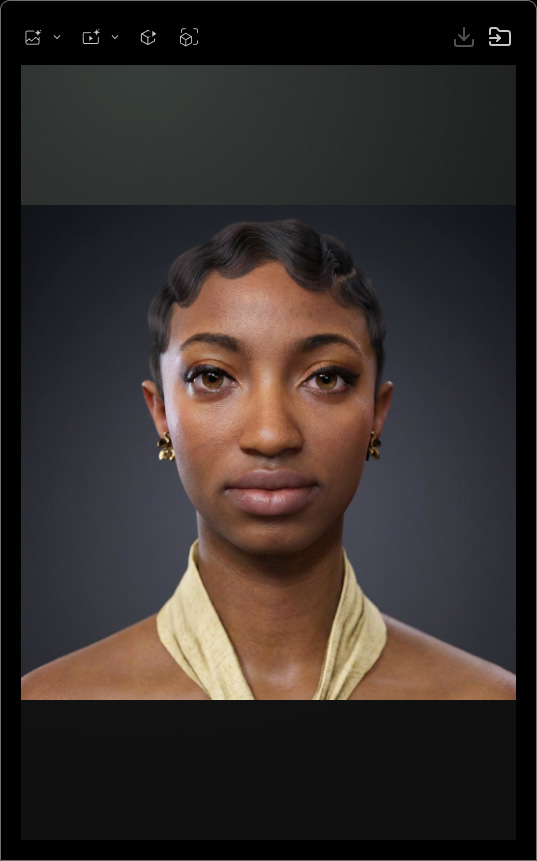 | 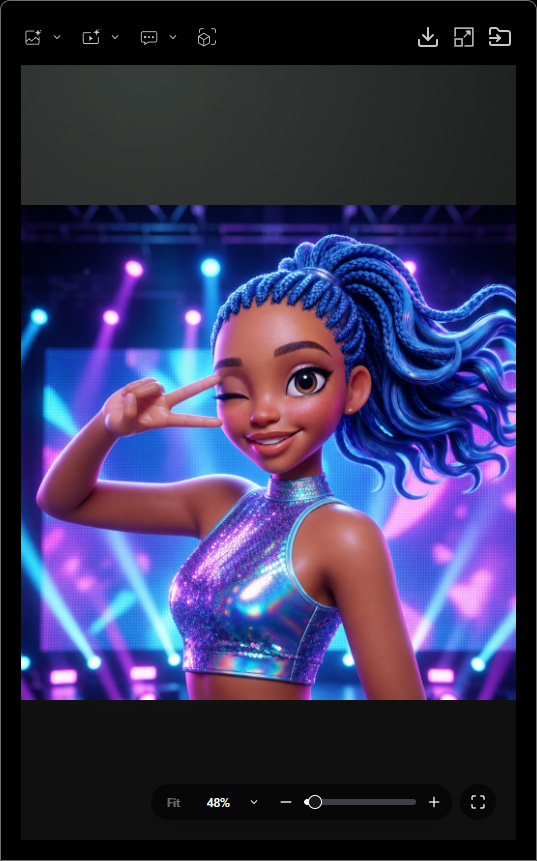 | 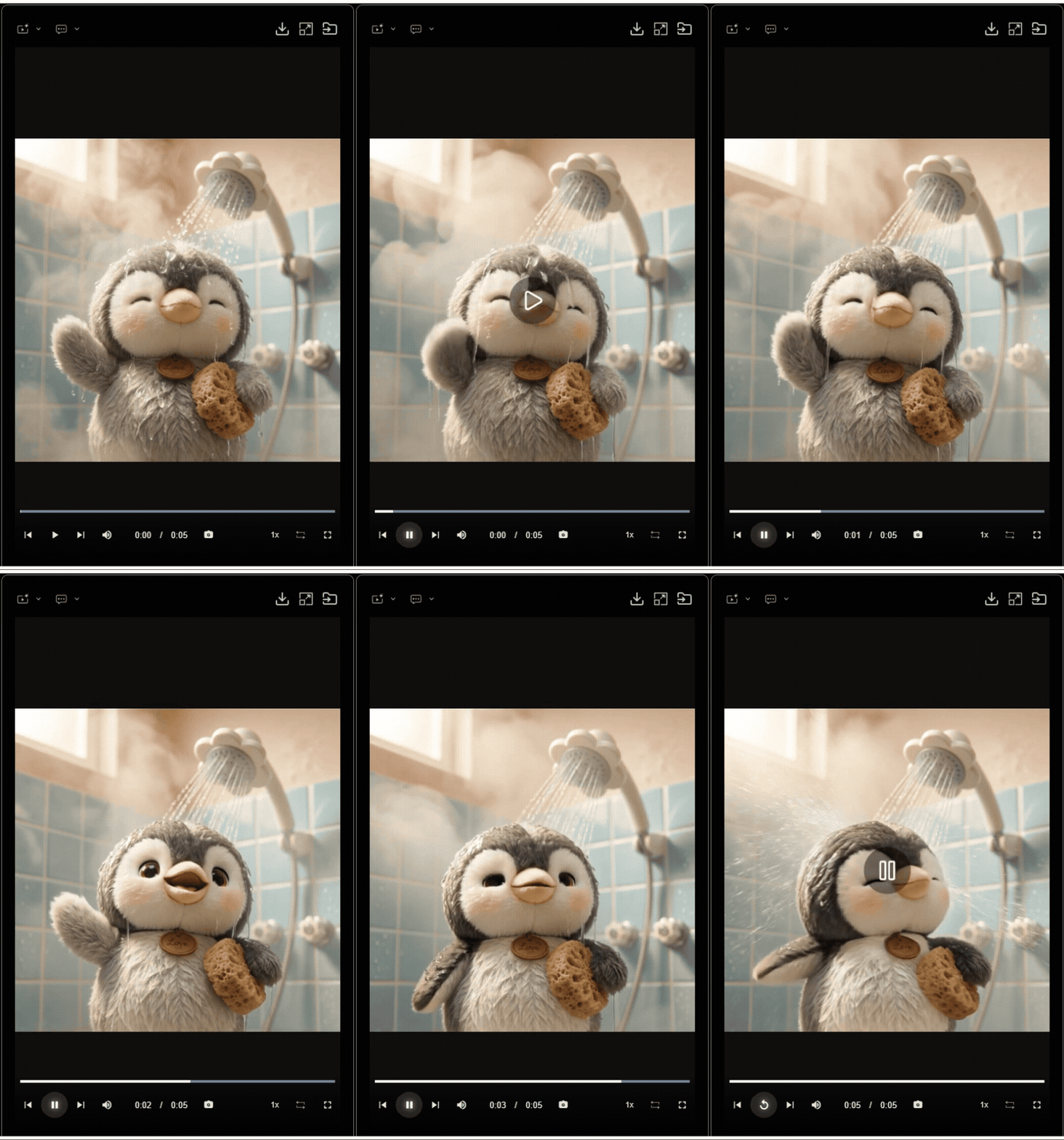 | 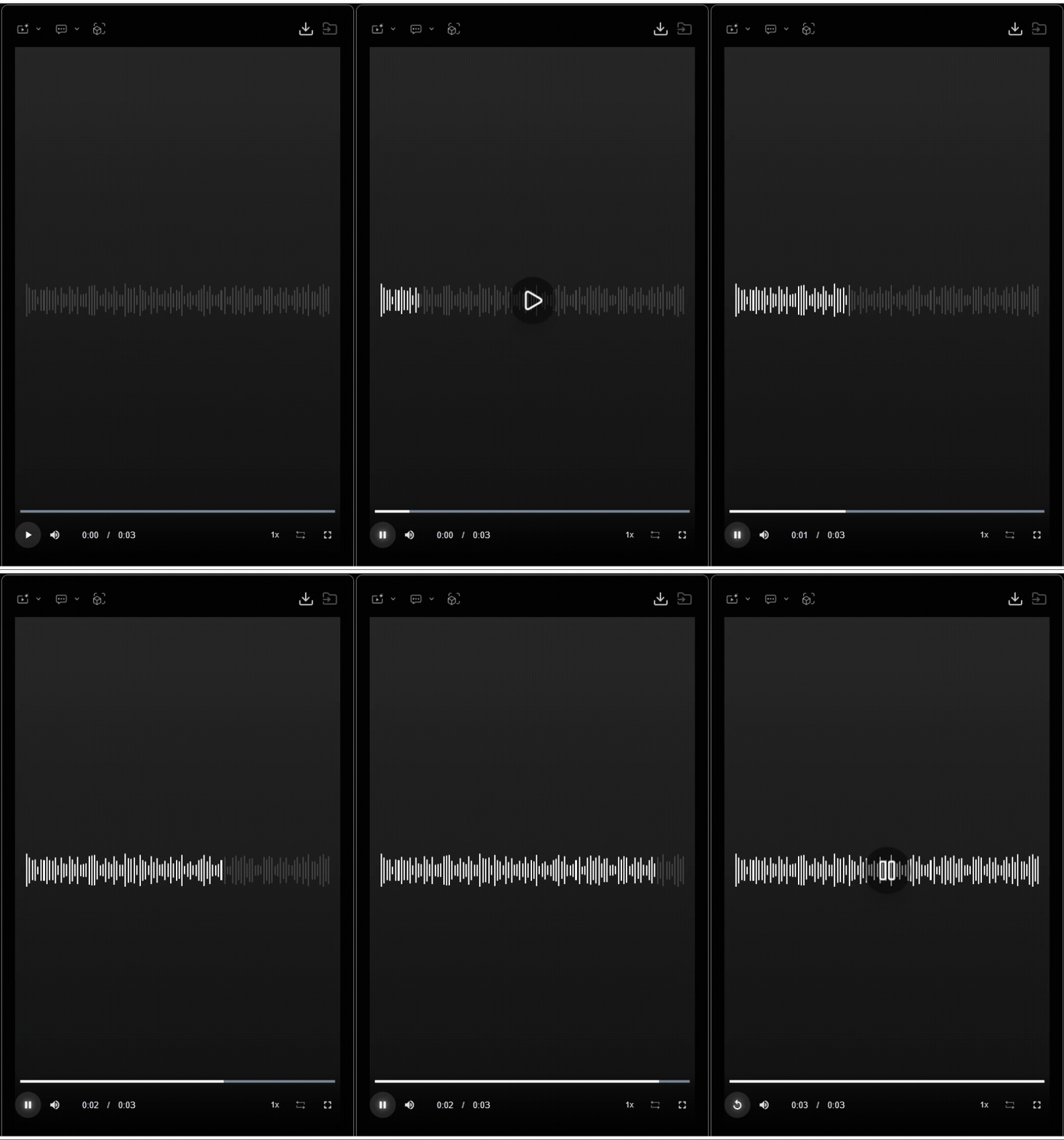 |
A. Quick Access Menu (v1.1.1)
Via the top Quick Access Menu, AI-generated media can be reused in other AI tools, with drop-down options depending on the media type.
| Quick Access Menu | Image ▼ | Video ▼ | Talking Actor ▼ | 3D to Image ▼ | 3D to Video ▼ |
For Actors |
| Create (v1.01) | -- | Add Actor | Add Reference (v1.01) |
For Images |
|
|
| -- | First Frame |
For Videos | -- |
|
| -- | -- |
For Audio (v1.1) | -- |
|
| -- | Add Reference |




B. Edit Tools (v1.1)
The function buttons in the top-right of the AI Render View allow you to locate AI-generated media, upscale resolution, and rework results.
| Button | Description | Supported for Actor | Supported for Image | Supported for Video | Supported for Audio |
Download Media | Downloads the AI-generated result to the download directory specified in Account Settings. | -- | V | V | V |
Upscale | Enables scaling options to increase the resolution of AI-generated images and videos. | -- | V | V | -- |
Rework | Reuses the references, prompts, and details from previous AI-generated outputs by loading elements such as AI Actors, images, and videos, enabling easier refinement and modification for subsequent creations. | V | V | V | -- |
C-1. Scaling Tools (for Images) (v1.1)
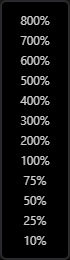
The controls beneath the AI Render View allow you to zoom in or out of the image preview.

1 | Fits the image to the window. |
2 | Selects a view option from the drop-down list to set a specific zoom level.
|
3 | Uses the + and − buttons, zoom slider, or mouse wheel to adjust the zoom level. |
4 | Switches between fullscreen and windowed modes. |
C-2. Playbar (for Videos and Audio) (v1.1)
The Playbar beneath the AI Render View controls video and audio playback and captures frames for further editing.

| Control | Description | Supported for Video | Supported for Audio | |
1 | Playhead | Drags the playhead to scrub through the timeline. | V | V |
2 | Back to Start Frame | Jumps to the first frame of the entire clip. | V | -- |
3 | Play | Plays, pauses, or replays the current video. | V | V |
4 | Skip to End Frame | Jumps to the last frame of the entire clip. | V | -- |
5 | Mute | Unmute | Mutes or unmutes the audio and adjusts the volume with the slider. | V | V |
6 | Time | Displays the current playback time and the total duration of the video. | V | V |
7 | Capture Frame |
Captures the current frame at the playhead position.
| V | -- |
8 | Playback Rate |
Adjusts the playback speed.
| V | V |
9 | Loop | Enables or disables loop playback. | V | V |
10 | Fullscreen | Enters or exits fullscreen mode. | V | V |