AI Actor Library (v1.1.1)
The AI Actor Library provides access to 200+ AI Actor assets for creating characters with consistent appearances. The library is available in AI image and video generation tools, such as Image Gen, 3D Guided Gen, and Video Gen.
Click Add Actor or AI Actor option in these tools to open the AI Actor Library pop-up window.
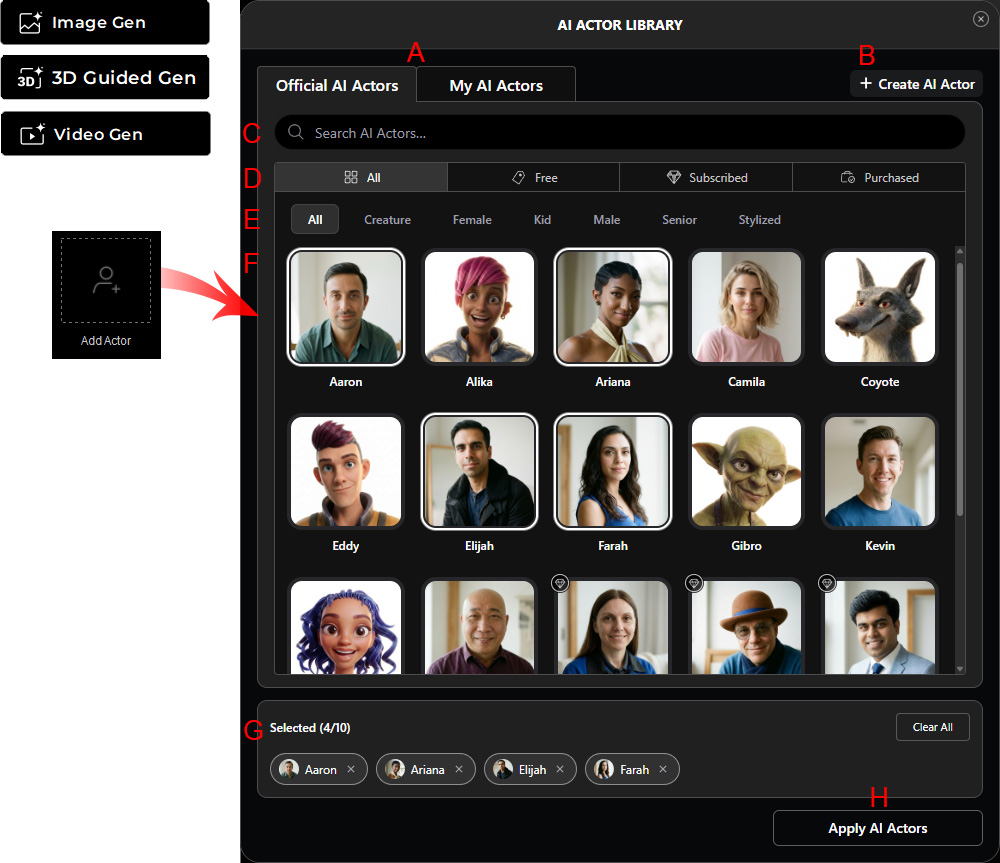
A. Tab
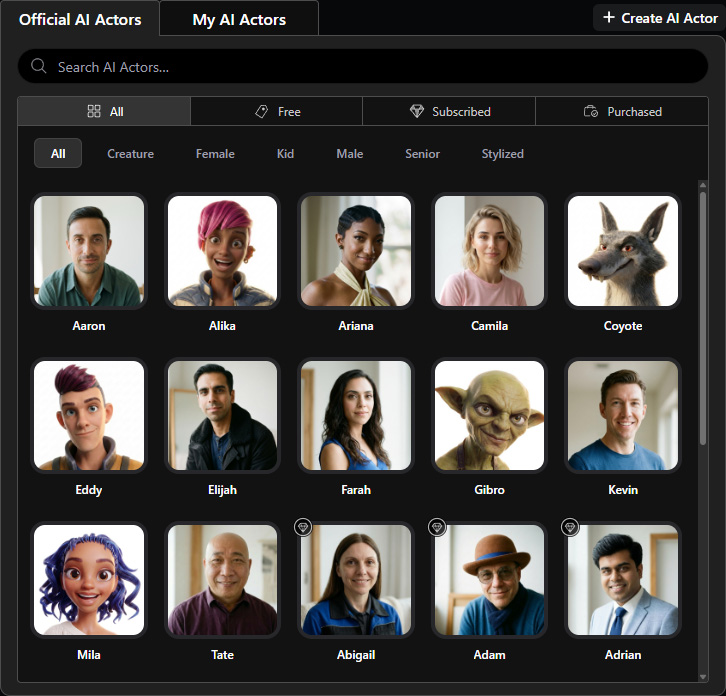
The panel consists of two tabs — Official AI Actors and My AI Actors. Click a tab to switch between them.
Official AI Actors | Displays AI Actors provided by Reallusion, filterable by source and category. Actors are sorted alphabetically by name (A–Z).
|
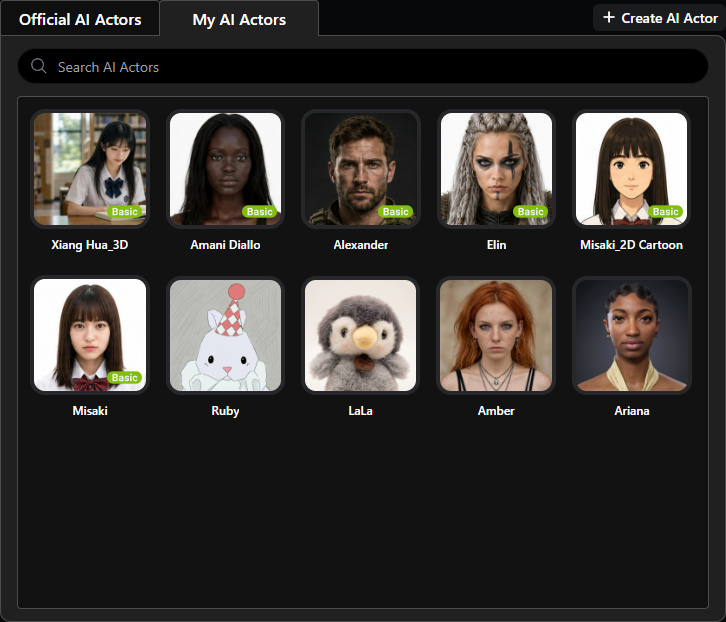
My AI Actors | Displays AI Actors created through Create Actor under the currently logged-in account.
AI Actors created in Basic mode are marked with a Basic label in the bottom-right corner of their thumbnails.
Actors are sorted by creation time, with the most recently created listed first.
|
B. Create AI Actor
Provides quick access to the Create Actor workflow for creating your own AI Actor in Basic mode.
C. Search Field
Enter a partial or exact actor name to search for AI Actors. Click X to clear the search.
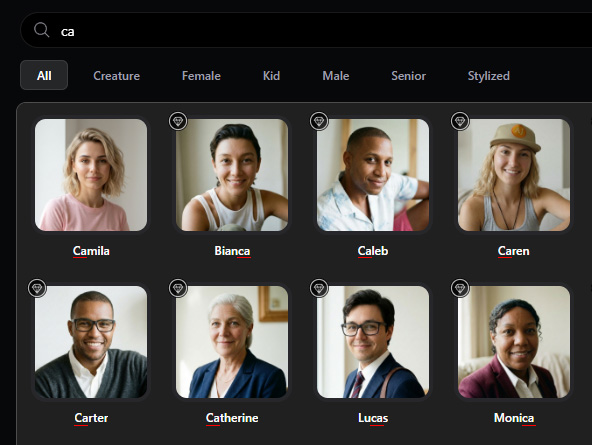
Partial Word Search | Returns AI Actors whose names contain the entered letters.
For example, entering “ca” may return AI Actors such as Camila, Bianca, and Lucas.
|
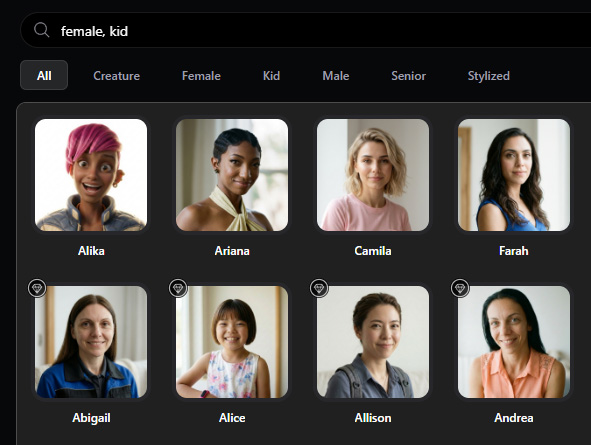
Multiple Keyword Search | Separate keywords with commas to perform a union search.
For example, entering “female, kid” returns AI Actors matching either keyword.
|
Exact Phrase Search | Spaces are treated as part of the search phrase. For example, entering “Alex Junior” returns only AI Actors matching Alex Junior, excluding Alex Senior. |
D. AI Actor Source (v1.1.1)
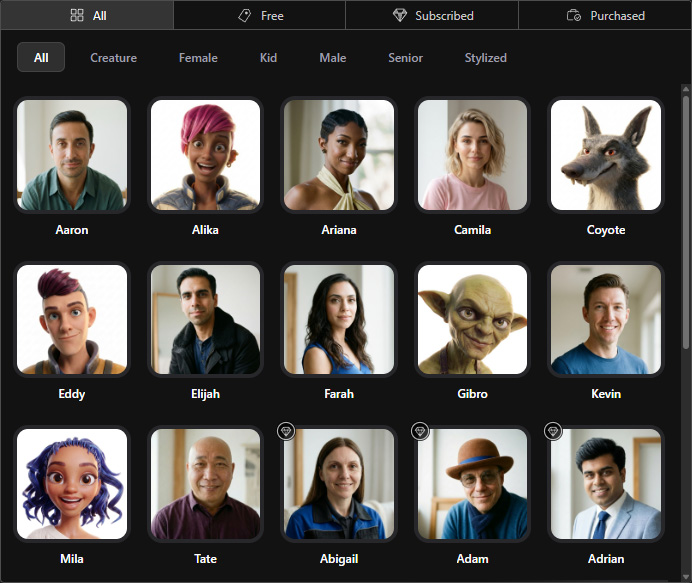
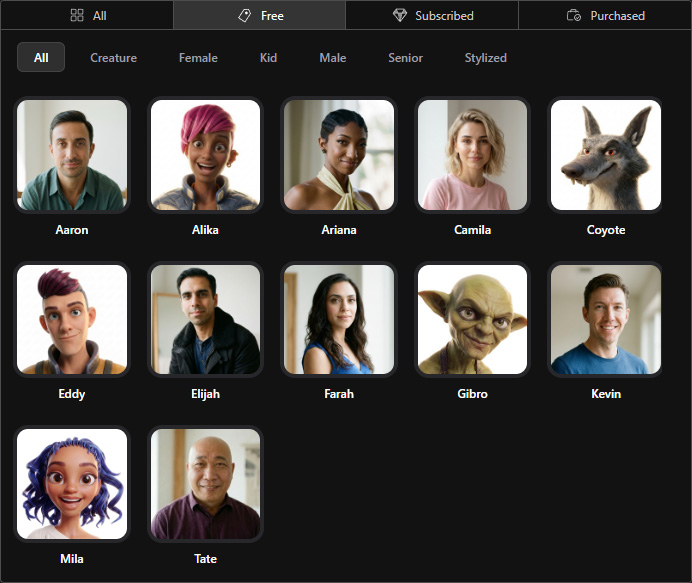
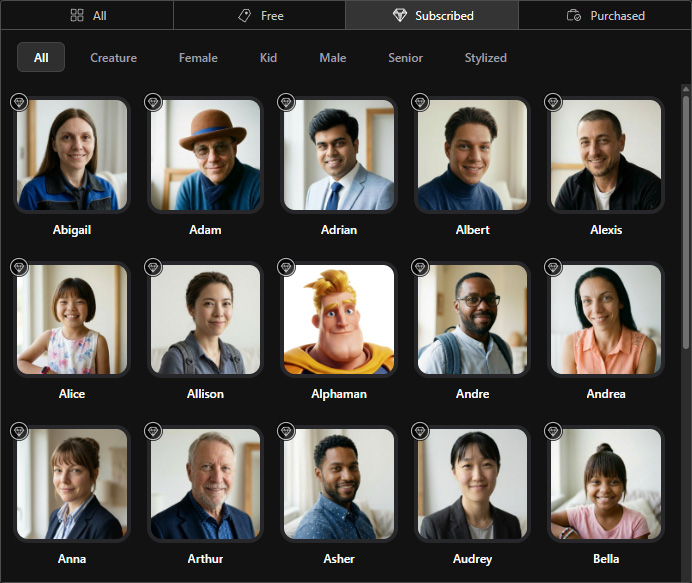
Filters Official AI Actor content by Free, Subscribed, or Purchased. All is selected by default.
All | Displays all available official AI Actors.
|
Free | Displays free AI Actors available without an AI Service subscription.
|
Subscribed | Displays AI Actors available during the AI Service Plan subscription period.
These actors are marked with a diamond icon in the top-left corner of their thumbnails.
|
Purchased | Displays AI Actors included with purchased 3D characters for permanent use.
These actors are marked with a briefcase icon in the top-left corner of their thumbnails.
|
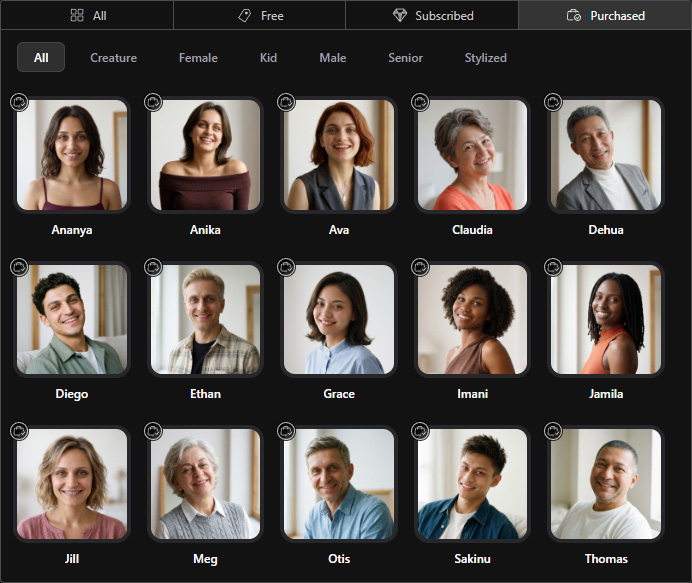
 appears on the Actor slot, the AI Actor Reference option, and the Purchased filter tab caption.
Click any of these to view the new AI Actors under the Purchased filter.
appears on the Actor slot, the AI Actor Reference option, and the Purchased filter tab caption.
Click any of these to view the new AI Actors under the Purchased filter.E. AI Actor Category
Filters Official AI Actor content by Female, Male, Senior, Kid, Stylized, or Creature. See Using AI Actors for details. All is selected by default.
Single Filter | Select one filter to display Official AI Actors in that category only.
|
Multiple Filters | Select multiple filters to display Official AI Actors from any of the selected categories.
|
Search + Filter | Applies the search keyword and selected filter together.
Only AI Actors matching both criteria are displayed.
|
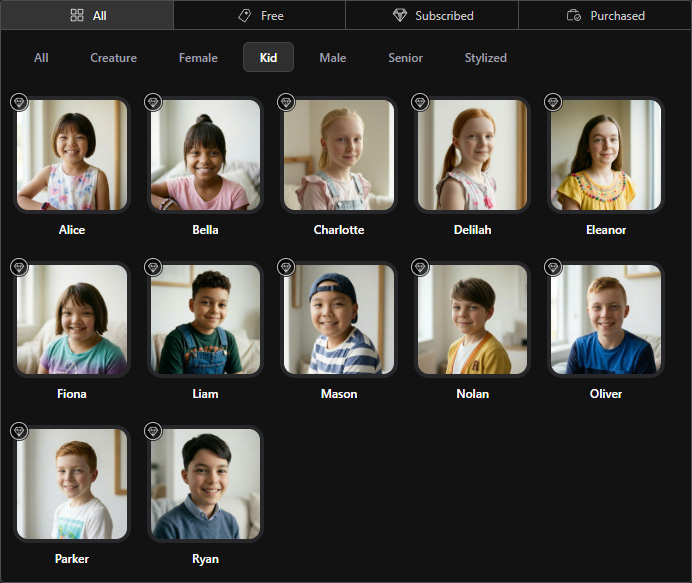
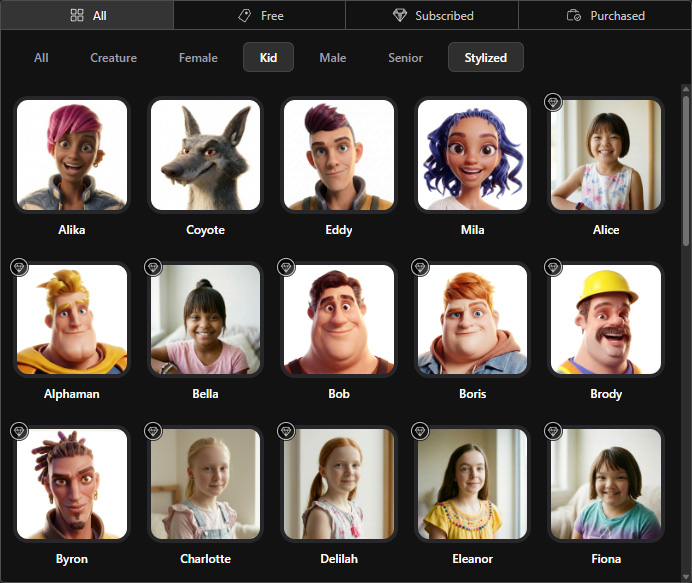
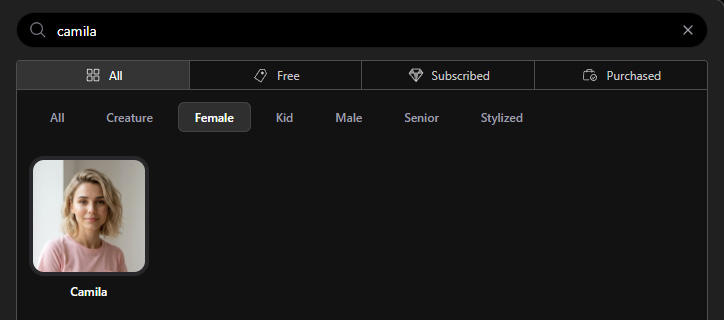
F. Content Thumbnail (v1.1.1)
Displays AI Actors that match the selected filters or search results for preview and selection. The icons and labels displayed on the thumbnails are described below:
 | The diamond icon in the top-left corner indicates that the AI Actor is available for use while an AI Service Plan is active. |
 | The briefcase icon in the top-left corner indicates that the AI Actor is included with a purchased 3D character and can be used permanently. |
 | The Basic label in the bottom-right corner indicates that the custom AI Actor was created in Basic mode. |
G. Selected
Displays the number of selected AI Actors and the maximum number supported by the selected AI model. Selected AI Actors appear in this area.
Selection | Click an AI Actor thumbnail to select or deselect it. |
Cancel Selection | Click X beside a selected AI Actor to remove it, or click Clear All to remove all selections. When 4 AI Actors are selected, other AI Actors are disabled until one is deselected. |
H. Apply Al Actors
Clicks to insert the selected AI Actors into the AI Tool slot.
