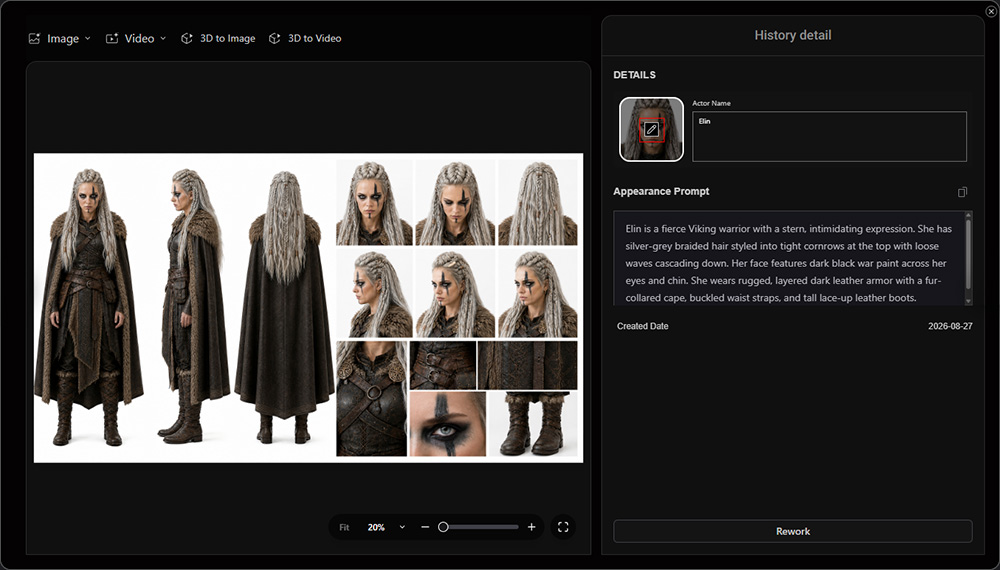
Creating AI Actor – Basic Mode: Update AI Actor Sheet (v1.1.1)
After generating the AI Actor Sheet in Basic mode of the Create Actor workflow, you can edit it using the Image Editing tool.
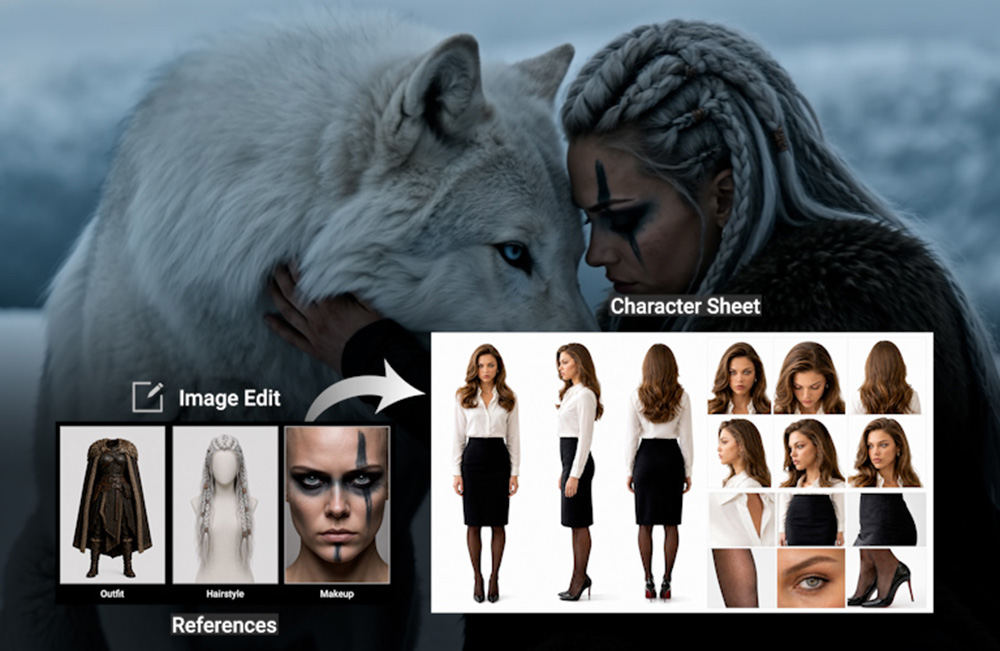
Follow the steps below to update the AI-generated AI Actor Sheet using the Image Editing tool.
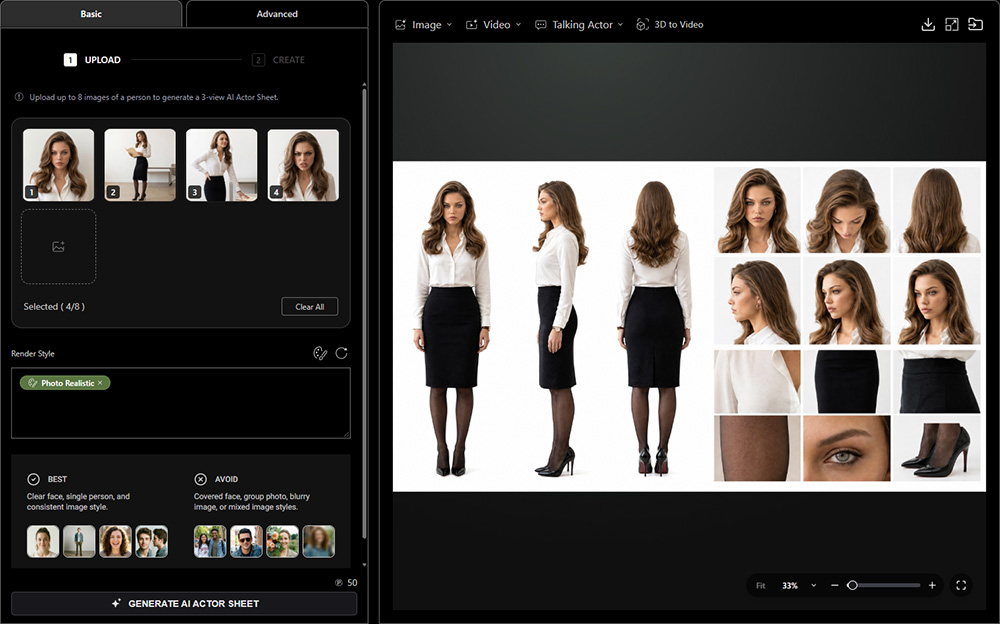
- Select Create Actor
 from the left AI Toolbar, then complete Step 1. Uploading Actor Images under the Basic tab to generate an AI Actor Sheet.
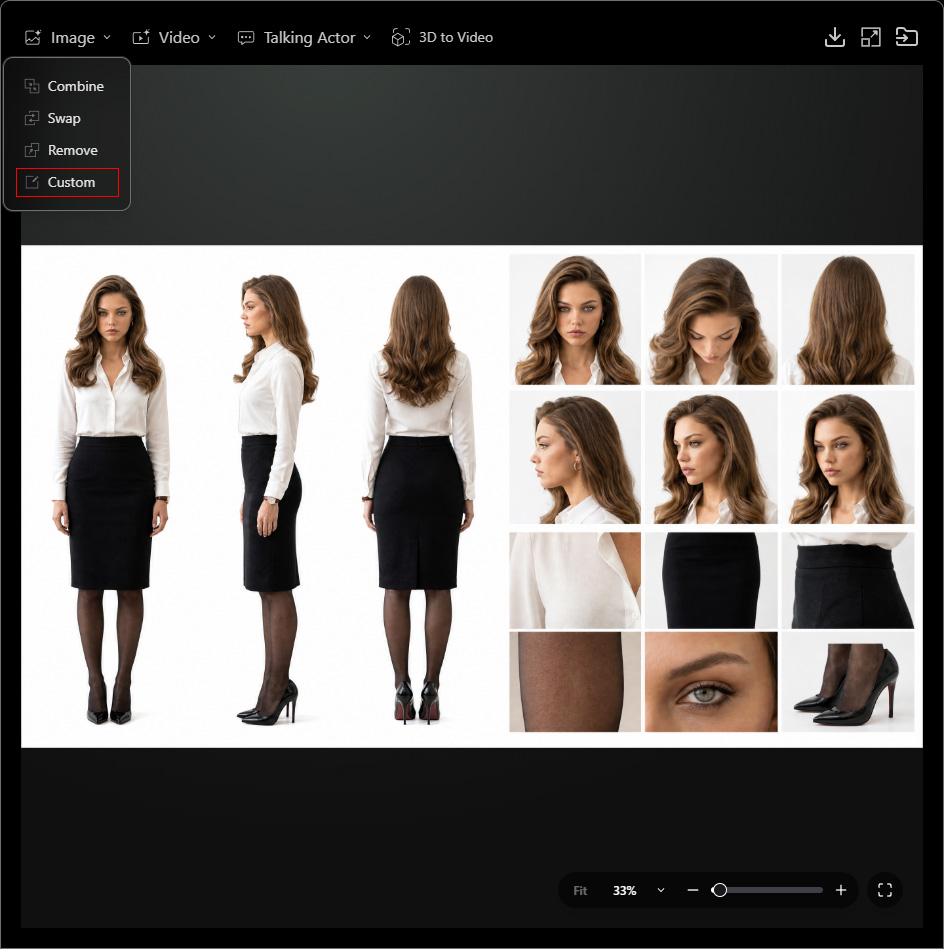
- Select Image > Custom from the Quick Access Menu at the top to open the Image Editing tool.
- The generated AI Actor Sheet is automatically loaded into the Image slot.
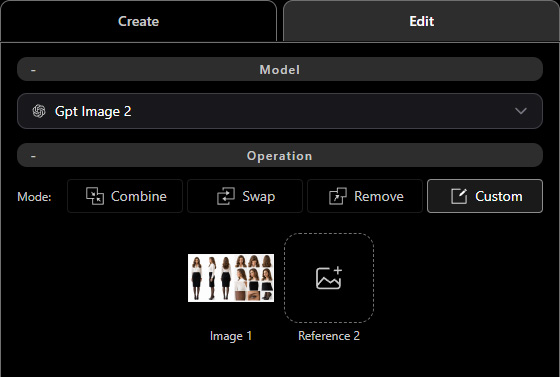
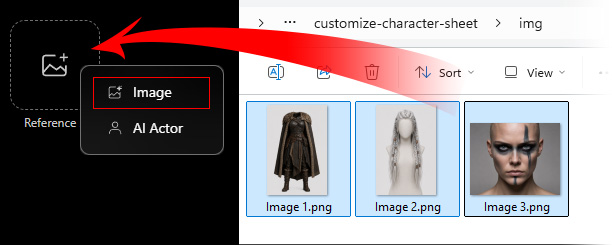
- Click a Reference slot and select Image to browse and load reference images for modifying the character sheet.
You can also drag reference images directly from Windows File Explorer into the Reference slots.
Supported formats include .png, .jpg, .jpeg, and .webp.
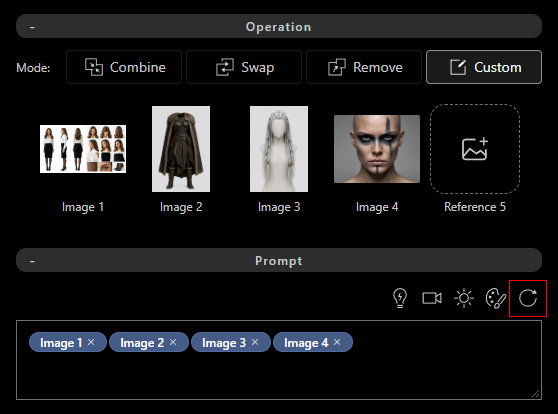
- Each input image appears as a name tag in the Prompt section for quick prompt editing.
Click Reset Prompt to clear the prompt field and start over.
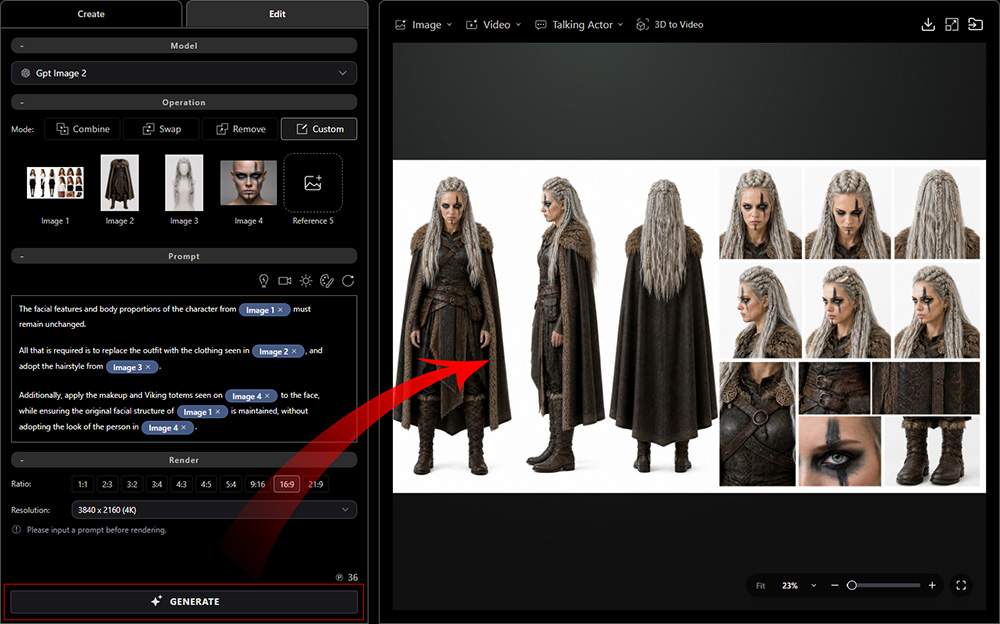
- Enter a prompt describing the desired changes to the character's appearance, then type @ to insert a reference tag from the context menu.
Refer to Editing Images — Customizing for more information.
For example, replace the outfit (A), hairstyle (B), and makeup (C).
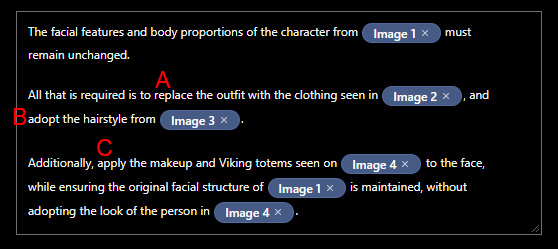
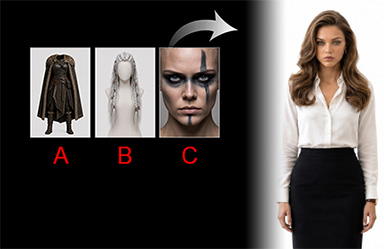
"The facial features and body proportions of the character from Image 1 must remain unchanged.
All that is required is to replace the outfit with the clothing seen in Image 2, and adopt the hairstyle from Image 3.
Additionally, apply the makeup and Viking totems seen on Image 4 to the face, while ensuring the original facial structure of Image 1 is maintained, without adopting the look of the person in Image 4." - Set the image ratio and resolution in the Render section.
Then, click GENERATE at the bottom to generate the updated character sheet.
Check the task price displayed above the button before generating.
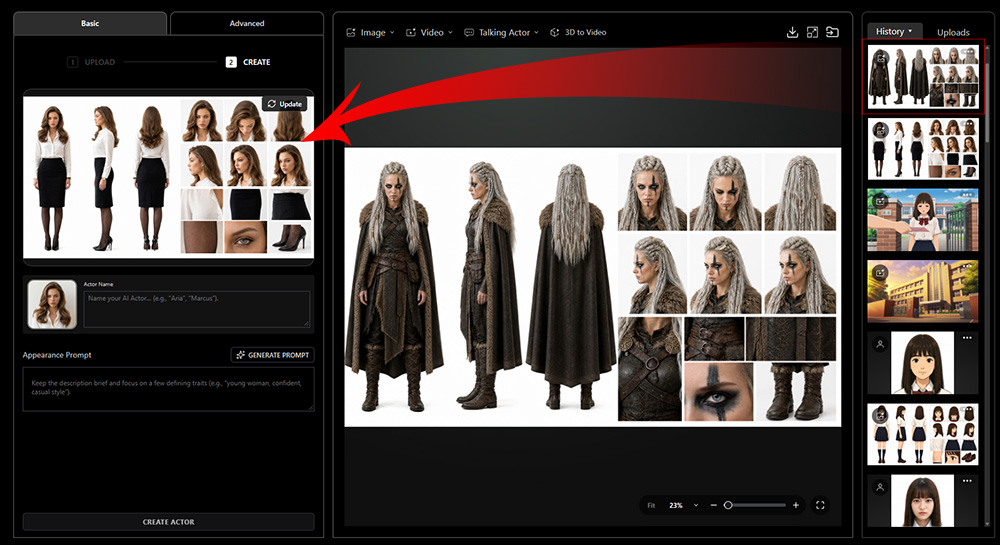
- Select Create Actor from the left AI Toolbar, then drag the newly generated image from the History panel on the right to replace the original AI Actor Sheet in Step 2. Creating AI Actor.
- Complete the remaining steps to create the AI Actor.
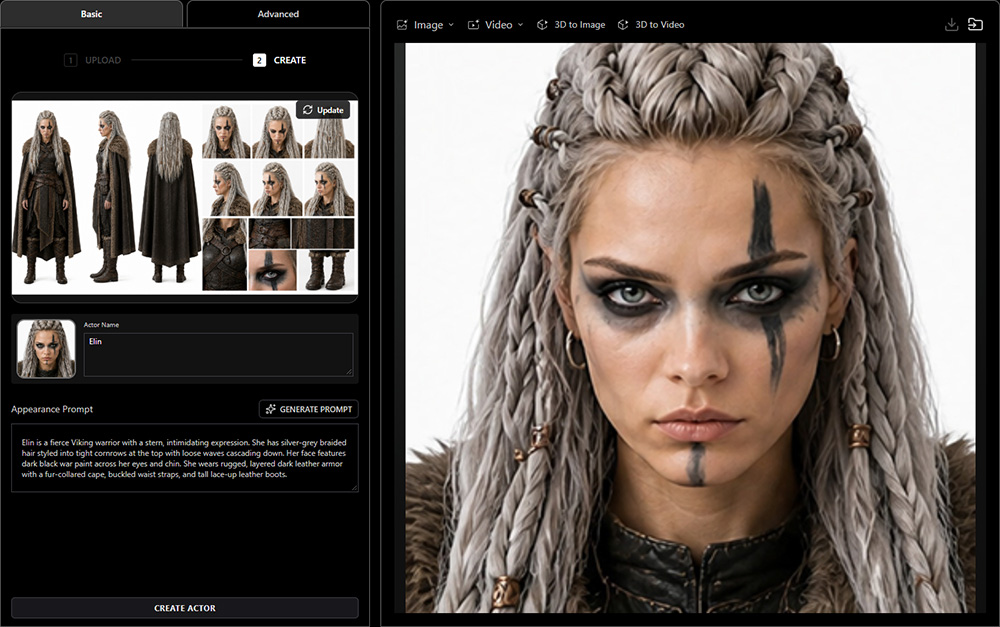
AI Actor Library
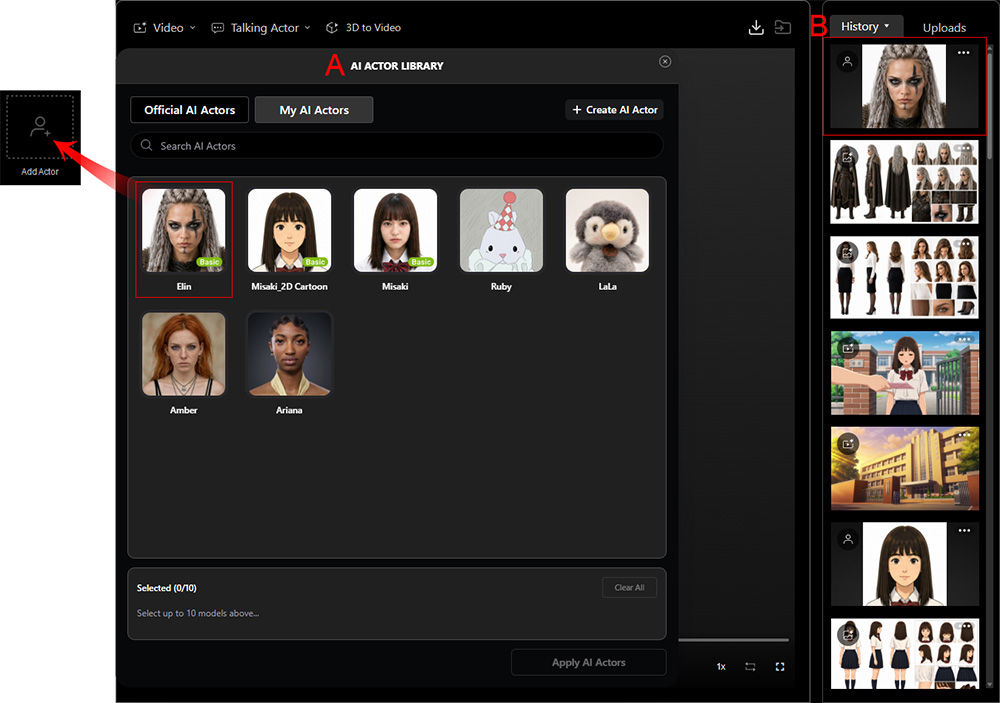
The newly created AI Actor appears in the My AI Actors tab of the AI Actor Library (A) and the History panel (B) on the right, marked with the AI Actor icon  in the top-left corner of the thumbnail for easy identification.
 Changing AI Actor Thumbnail (v1.1.1)
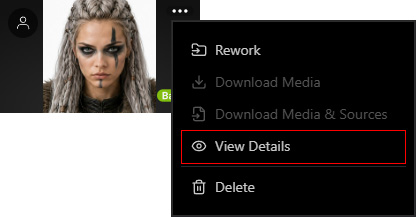
Click ... > View Details for the generated AI Actor in the History panel on the right, or click the AI Actor's History item on the full History page to open the History Detail pop-up window.
Click Change Thumbnail on the actor thumbnail, then browse for and select an image to replace the current thumbnail.