Using Reference Image - Distribution
Using prompts with Distribution reference images guides the AI to follow the reference’s direction, composition, and color. This allows controlled texture flow across seams, maintains continuity, and produces natural, seamless patterns (even if some details vary slightly).
In the Reference Image section under the AI Generation > Pattern tab, either drag an image directly into the Distribution channel or click the Load Image button to browse for one.
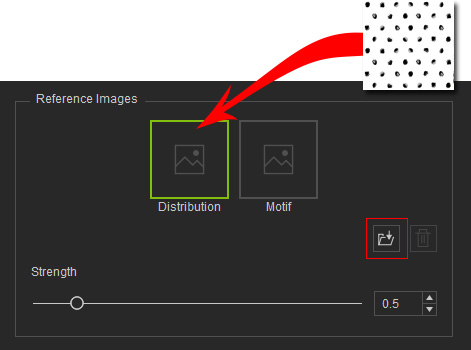
- Select an input image that is as clear as possible; avoid large text areas or logos.
- Maintain the Distribution image at an aspect ratio similar to the desired final output.
- Select an image that can tile seamlessly (or at least does not deviate significantly) because if the Distribution strength is set high and the image cannot tile properly, the generated result may exhibit visible seams or hard edges.
You can adjust the AI’s influence by dragging the Strength slider near the bottom of the section.
- A range of 0.6–0.8 is commonly used.
- Lower values provide more flexibility, but it is not recommended to go below 0.3.
- The maximum recommended value should not exceed 1.6.
Click Generate Pattern to view the AI output. The AI output will follow the texture layout of the Distribution image.
Prompts |
|
| ||
Reference | Distribution | 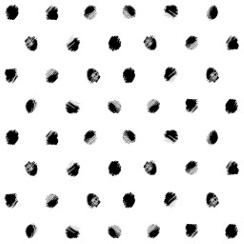 | Distribution | |
AI Output | 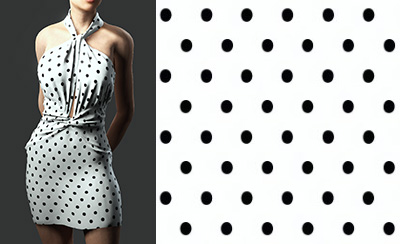 | 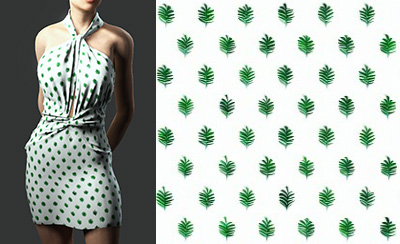 | ||
See also:
