Using Reference Image - Motif
When using both prompts and Motif reference images, the AI generates textures that reflect the Motif’s theme, patterns, and overall design. It analyzes the reference to extract key visual elements (such as color themes, composition, and stylistic features) and applies them to the output. This lets you can guide the AI to maintain consistent colors, pattern behavior, and overall thematic style.
- Replicating textures, compositions, color palettes, and photographic aesthetics.
- Achieving visual consistency across assets.
- Extending and continuing seamless clothing patterns.
- Unifying design themes across a series of related items.
In the Reference Image section under the AI Generation > Pattern tab, either drag an image directly into the Motif channel or click the Load Image button to browse for one.
Keep the input image as clean as possible and avoid large text or logos.
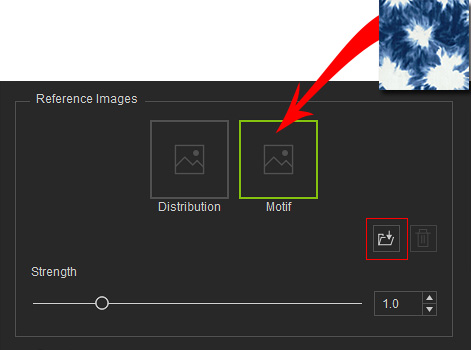
You can adjust the AI’s influence by dragging the Strength slider near the bottom of the section.
- A range of 0.6–0.8 is commonly used.
- Lower values provide more flexibility, while values above 1.2 make the output adhere too closely to the reference.
- Do not exceed 2.
Click Generate Pattern to view the AI output. The AI output will follow the flower-themed pattern from the Motif reference image.
Prompts |
| |||
Reference | Motif | 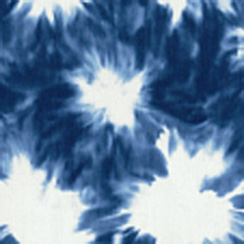 | Motif |  |
AI Output | 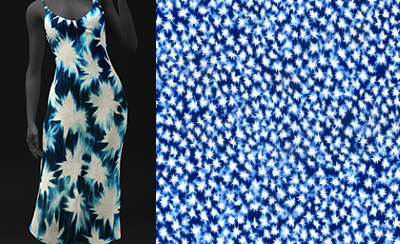 | 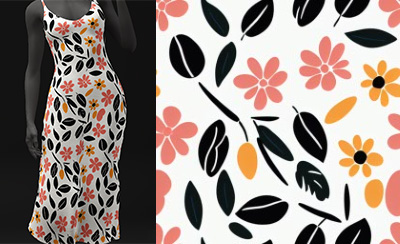 | ||
See also:
