User Interface for AI Detail Generation

Select the Detailing tab in the AI Generation panel to access AI-based detail generation features.
Function

Description

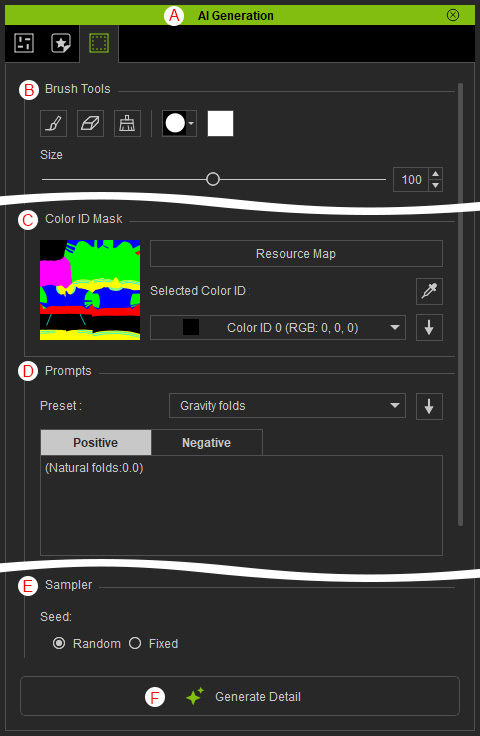
A

Dock / Undock

Double-clicking the panel caption anchors the panel to the docking area or undocks it, allowing it to float above the main window.

B

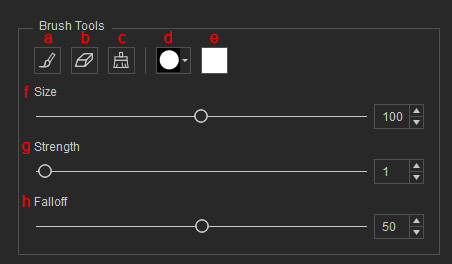
Brush Tools

Create a masking area on the texture to guide AI in generating details within that area using the following tools:

  1. Mask Brush: Paints a mask over an area to define the region influenced by AI-generated details.
  2. Mask Eraser: Removes a portion of the mask.
  3. Clear Mask: Removes the entire mask.
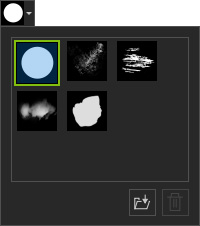
  4. Brush Shape: Selects a brush shape from the drop-down list, and loads or deletes custom images (*.png) to use as brush shapes.
  5. Mask Color: Changes the color of the mask painted on the texture.
  6. Size: Adjusts the brush size for painting the mask.
  7. Strength: Adjusts the opacity or intensity of the brush stroke.
  8. Falloff: Controls how the brush strength decreases from the center toward the edges.

C

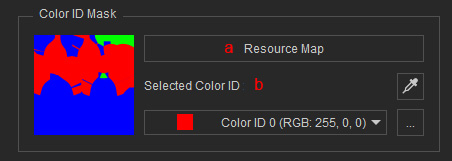
Color ID Mask

Defines the influence area for AI-generated details.

  1. Resource Map: Loads a Color ID mask from the Resource Map panel.
  2. Selected Color ID: Use the color picker button or the drop-down list to select a color mask region for applying AI-generated details.

D

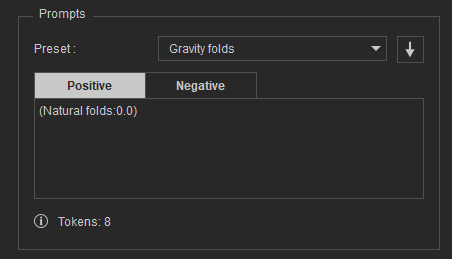
Prompts

Here you can enter positive and negative prompts to generate desired texture details. You can select prompt presets from the drop-down list and click the down-arrow button to insert the preset into the prompt field.

E

Sampler

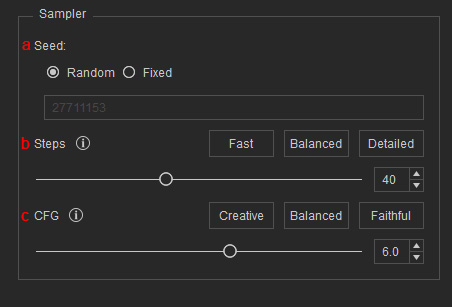
Controls AI-generated results based on the following values:

  1. Seed: Controls the randomness of AI generation. Select “Fixed” to use the same seed and reproduce identical or similar image results.
  2. Steps: Controls how many iterations the AI runs to generate an image.
  3. CFG: Controls how strictly the AI follows your prompt.

F

Generate Detail

Generates texture details based on the provided prompts, Color ID map, and sampler settings.