


Selecting Entities
Selectable entities in iClone include Actors, Props, Accessories, Cameras, Lights, etc. There are several methods to select them. You may select one, or multiple entities to facilitate further editing instead of just one at a time.
Selecting on Preview Window
Selecting Parent or Child Objects
- Single-click (LMB or RMB): for selecting the parent object directly.
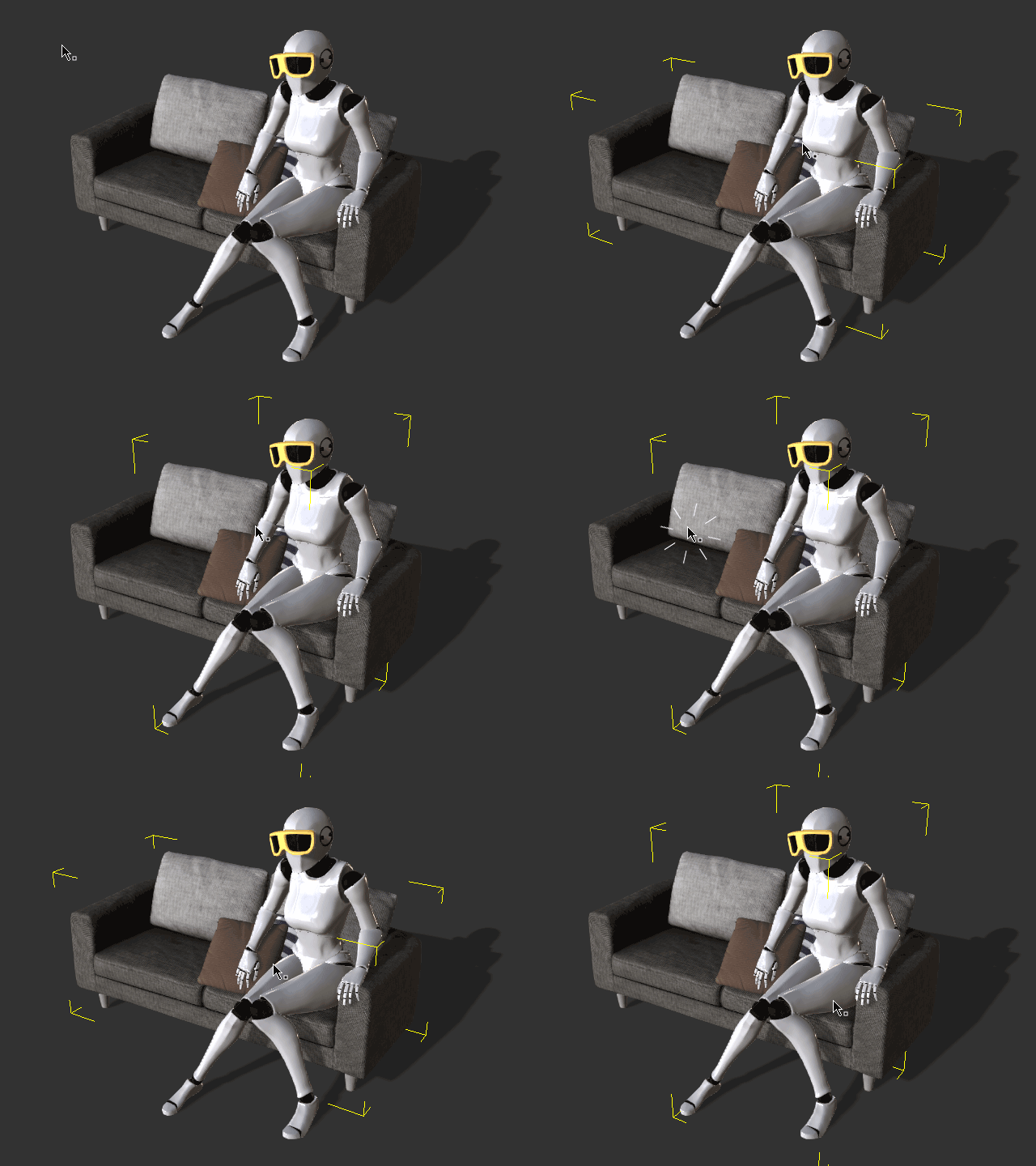
- Double-click (LMB) or Single-Click (MMB): for selecting the child node of the target object.
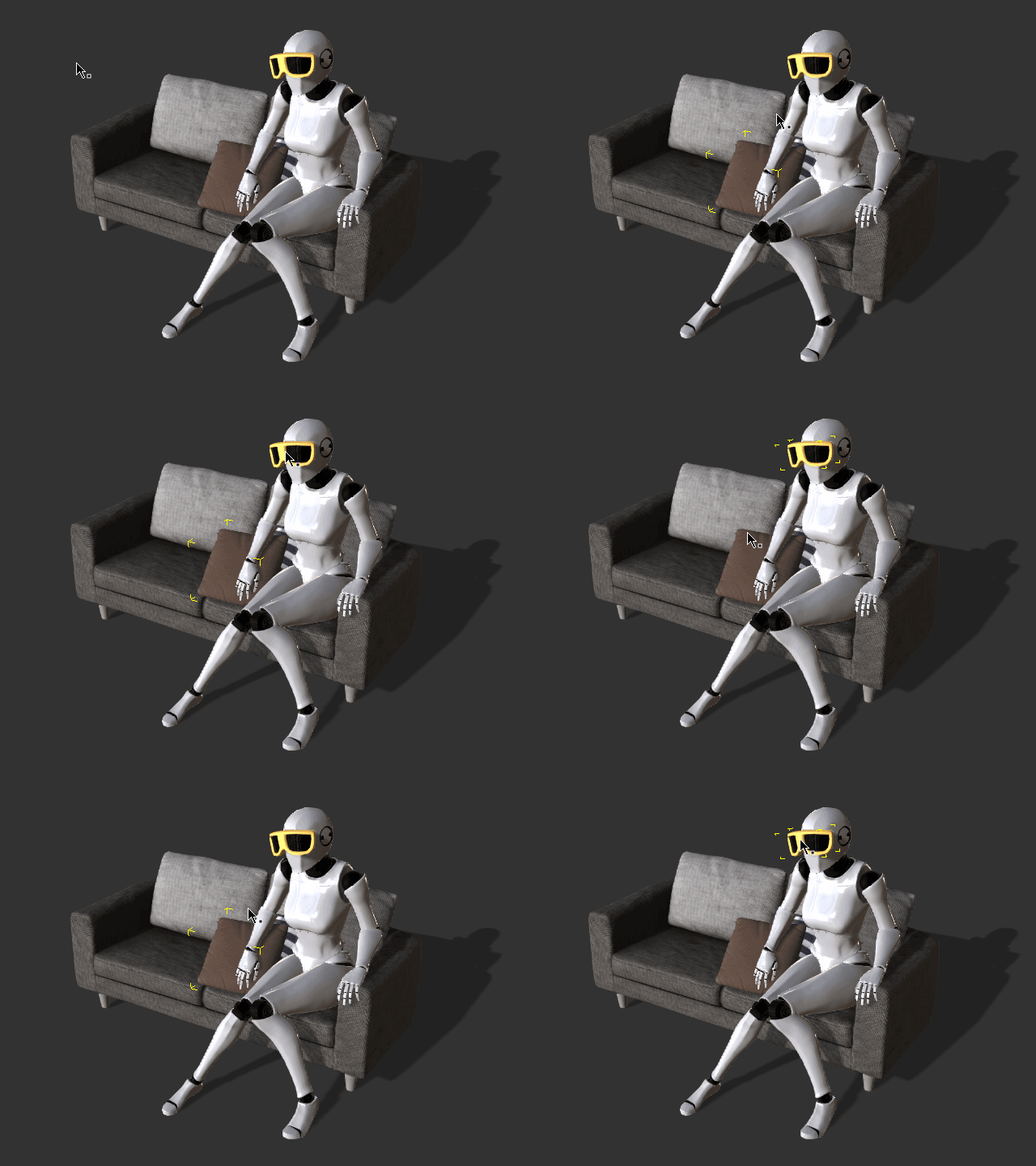
- Double-click (MMB): for selecting the root node of a child objct.
Selecting Single Objects
- If you are initially using the camera tools like pan, zoom and others, then Double-Click on the target object to select it.
- If you are using object tools like Select (Shortcut: Q), Move (Shortcut: W), Rotate (Shortcut: E) or Scale (Shortcut: R), then Single-Click on the target object to select it.
Selecting Multiple Objects
- If you are using the Select, Move, Rotate or Scale tools, then hold the Ctrl key and Single Click on the target objects to select them.
-
You may use the Select tool to:
-
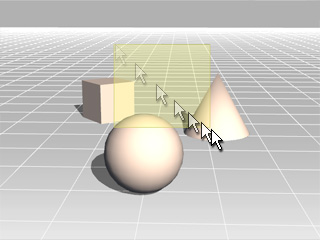
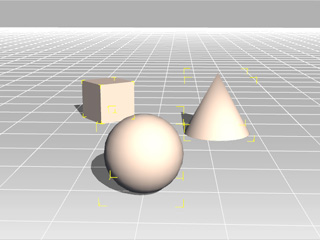
Drag from left to right (LMB): Any object partially contacting the rectangle will be selected.

-
Drag from right to left (LMB): Only objects covered entirely by the rectangle will be selected.
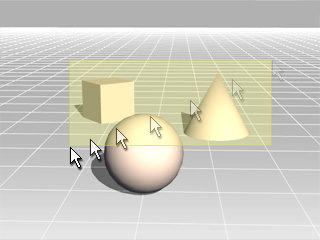
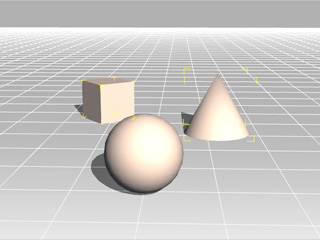
- Drag from left to right (MMB): Any sub-object partially contacting the rectangle will be selected.
-
Drag from left to right (LMB): Any object partially contacting the rectangle will be selected.
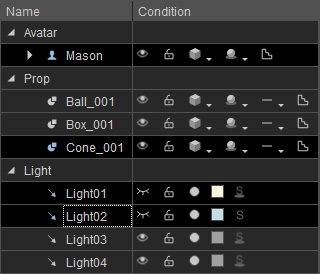
Selecting with the Scene Manager
This is useful when the entities you wish to select are too small, too far away from the camera, scattered around the scene or somewhere out of view.
Selecting Single Objects
- Simply Single-Click on the target object to select it.
Selecting Multiple Objects
-
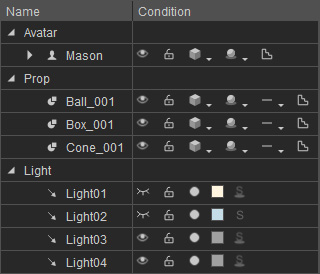
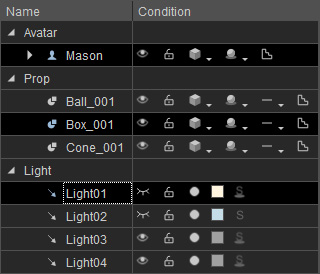
Hold the Ctrl key and Click on the target objects to select them.
-
Hold the Shift key and Click two objects to select
continuous objects in between.
Using the Search Feature
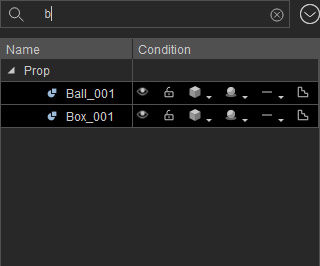
You may also use the Search feature when you need to find objects by typing full or partial names.
- Type in a string in the search field on the top of the Scene Manager for searching the name. This string can be the full name of the object or a part of the name.
-
The object whose name contains this string will show.
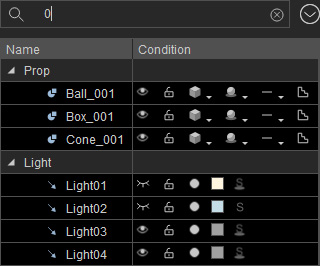
All the entities whose names containing "0" are selected.
The Props whose names containing "b" are selected.
-
You may click the Menu button and select the Filter command to show/hide specific categories. You may then use the Search feature to select the objects you want.
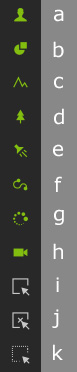
- Click the All button to show all the categories in the Scene Manager.
- Click the None button to hide all the categories in the Scene Manager.
- Click the Invert button to show the hidden categories, and hide the shown categories in the Scene Manager.
- You may click the Name caption first to re-arrange the order in the Scene Manager. Then you may use the Search feature for fast searching.
