Setting Wait State
When the Idle state switches to Wait (no interaction after a long period), you can design an auto look-around animation for the character. Make sure you have imported the embedded profile by loading default project.
Follow the instruction below to add a Look-At animation for the character in the Wait state.
- Remove the Wait Time node created in the Deploying Test Tasks section, as we're going to replace with the Look-At nodes.
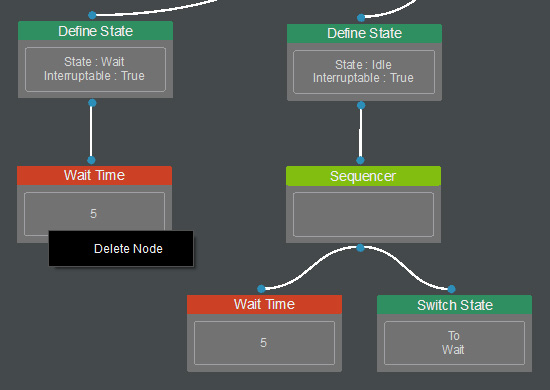
- Right-click on the empty area and select Leaf > Look-At > Look-At Auto.
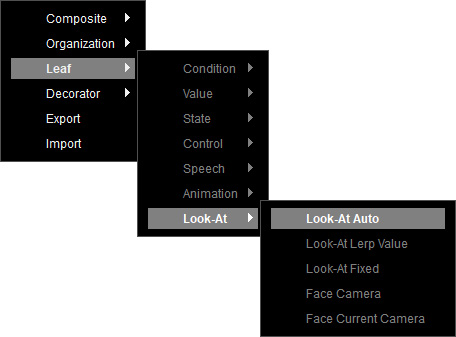
- A Look-At Auto node is created.
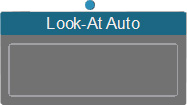
Select the node to show its corresponding settings in the Parameters section on the right.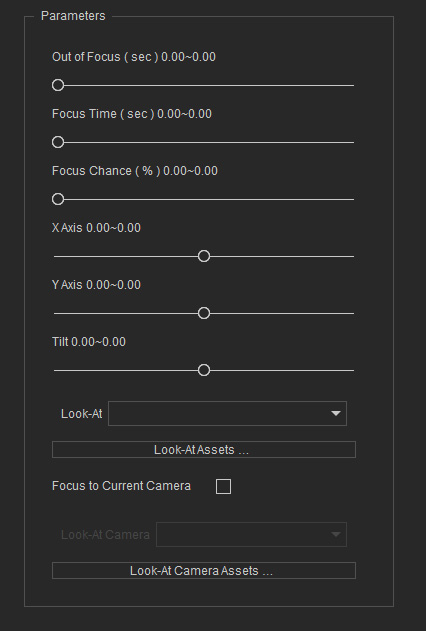
- Select the loaded "Default" profile from the drop-down list, and start to design the head and eye movement for look-at animation.
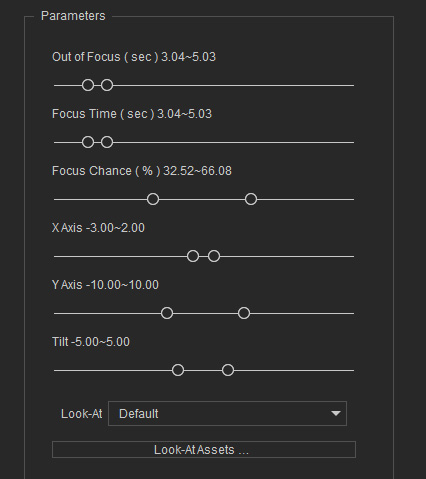
- Determine how often the character performs the look-at animation.
- Out of Focus:: Time the character maintains focus on the specified coordinate (in seconds).
- Focus Time:: Time the character stays at a neutral (zero-angle) state after resetting (in seconds).
- Focus Chance: The probability that the character resets to a neutral angle after each look.
- Decide the how much the character' head rotates, where the X and Y axes can be affected by the selected Look-At asset .
- X Axis: Vertical rotation of the head (negative = up, positive = down).
- Y Axis: Horizontal rotation of the head (negative = left, positive = right).
- Tilt: Head tilt (negative = tilt left, positive = tilt right).
- Determine how often the character performs the look-at animation.
- Connect the Look-At Auto node to the Wait state (Define State node).
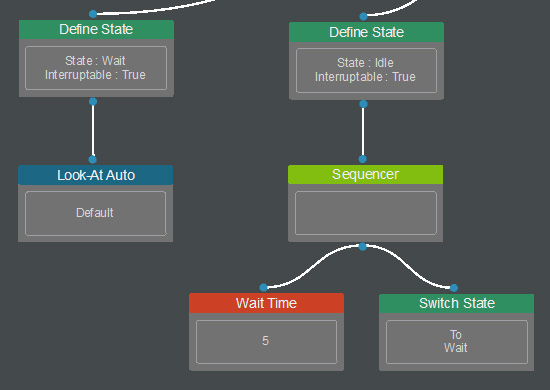
- After combining the State Machine and Conditional Mechanism with the Starter Setting, the character can look around in a Wait state.
