Monitoring Processing Progress
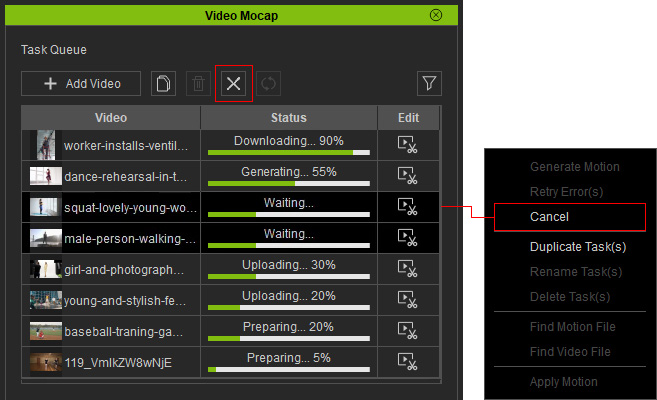
You can monitor the task progress in the Video Mocap panel while motions are being generated.
|
Status |
Description |
Actions |
|
Preparing... 0% ~ 20% |
The video is being gathered. |
Waiting tasks can be canceled using the X button above the task list or from the right-click context menu.
|
|
Uploading... 20% ~ 30% |
Uploading the videos to the server. |
|
|
Waiting... |
Waiting in standby before processing. |
|
|
Generating... 30% ~ 80% |
Converting videos to motions (QuickMagic service). |
Tasks already in the generation process cannot be canceled. |
|
Downloading... 80% ~ 90% |
Downloading the generated motions. |
|
|
Finalizing... 90% ~ 100% |
Finalizing the download of the generated motions. |
Understanding and Handling Errors
Your handling of any errors that occur depends on the status message you receive.
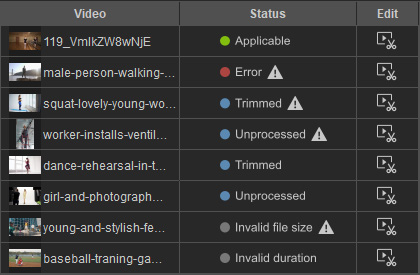
The alert sign affixed to the status indicates there's an issue with the task. You can hover over the sign to receive a hint or refer to the table below to find a solution.
Status | Description | Follow-up Actions | |
Import Results | Invalid duration | Video length over 60 seconds. | Videos that exceed this length will be trimmed to the first 60 seconds, otherwise the video cannot be submitted for motion generation. Trim the video with an external video editor and try again, or trim the video to a length under 60 seconds using the built-in Edit Video panel. |
Invalid file size | The video file size is too large (over 400 MB). | Oversized files will have their bitrates reduced. If the file size is still over 400 MB after reduction, you can rescale, compress, or trim the video and try again. | |
Unprocessed | The video has imported successfully, but remains unedited. | Preview and trim the video for motion generation with the Edit Video panel. | |
Editing Result | Trimmed | The video has imported successfully and has been edited with the Edit Video panel. | Submit the task for motion generation if the processing region has been configured in the Edit Video panel. |
Processing Results | Unprocessed | Failed to process the task. No points were deducted and your video was restored to a prior status. | Check your internet connection and try again. |
Trimmed | Failed to process the task. No points were deducted and your video was restored to a prior status. | Check your internet connection and try again. | |
Error | Failed to process the task. Subsequent retries will not charge additional points. |
Click the Retry Error(s) command from the right-click context menu to resubmit the selected tasks.
Or, click the Retry All Errors | |
Applicable | A motion has successfully generated from the video, ready for application. | Apply the generated motion to the selected character. |

 button above the task list to resubmit all failed tasks at once.
If the issue persists, please contact Reallusion customer support.
button above the task list to resubmit all failed tasks at once.
If the issue persists, please contact Reallusion customer support.
