Hand Mocap User Interface
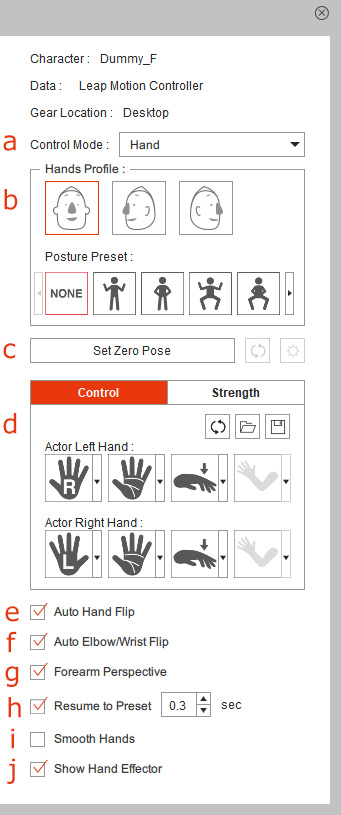
 a. Control Mode
Use the drop-down list to determine the start bone of the hand for controlling. Please refer to the Allocating Controlling Range section for more information.
b. Hand Profiles
Click the profiles to assign the character facing angle according to your character facing. Optionally, you can assign a preset for the initial posture of your character.
c. Zero Pose Settings
Click the Set Zero Pose button to toggle between the gear and custom initial pose in the Preview or Record mode.
When Set Zero Pose is activated,
you can click the Reset Zero Pose  button to resume to the original hand pose received from the device.
 |  |
Set Zero Pose is deactivated. | Set Zero Pose is activated. |
The Zero Pose settings work for the current character only, and therefore you may have to configure the Zero Pose settings for each character on the Character List.
d. Character Hand Mapping
Click these buttons to cycle through the mapping methods to map real human actor's hands to the character. The Strength tab switches the pane to show sliders for setting movement strength for different directions. Please refer to the Character Hand Mapping Methods section for more information.
e. Auto Hand Flip
You can determine whether to control the hand flipping of the character by the real actor's performance.
f. Auto Elbow / Wrist Flip
In the Upper Arm IK controlling mode, you can bend the character's elbow or wrist according to IK directions automatically. When this checkbox is deactivated, the elbow / wrist flipping is controlled by the Elbow Facing mapping method.
g. Forearm Perspective
In the Forearm IK controlling mode, you can create a 3D-like visual result by stretching or squashing the forearms.
h. Resume to Preset
When the hand-tracking signal is lost, you can resume the character's hand gestures to the natural Posture Preset within a countdown period.
If the Posture Preset is set to NONE, the hand motion will blend to the motion on the timeline or the default hand pose of the character.
i. Smooth Hands
Activate this checkbox to make the captured hand gestures even smoother.
j. Show Hand Effectors
In the Upper Arm IK and Forearm IK controlling modes,
you can show / hide the Hand Effectors  on the character's wrists,
which indicate the controlling positions by the mocap device.
on the character's wrists,
which indicate the controlling positions by the mocap device.
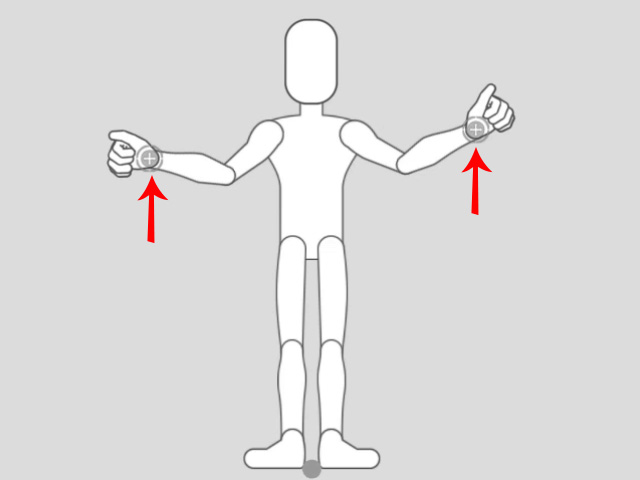
If you find the Hand Effectors are far off the wrists of the character, click the Set Zero Pose button to calibrate the initial position.
