The UI Structure of PBR Substance
If you are using PBR Substance Presets (for skin, cloth or accessories), you should understand the interface structure of these presets.
UI Structure of PBR Substance for Clothes and Accessories
When you click the Select Substance Material button before launching the Appearance Editor for clothes and accessories,
you will see three different PBR Substance Preset as shown below.
They have identical UI structures only that the materials provided vary in
amount.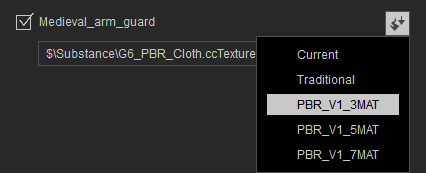
-
Each PBR Substance Preset includes Mesh Data, Materials, Patterns, Decals, Global FX and Diagnostics items.
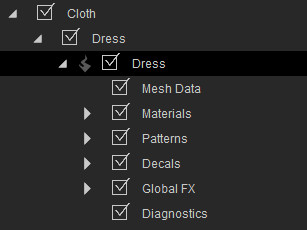
Item Name
Function of the Item
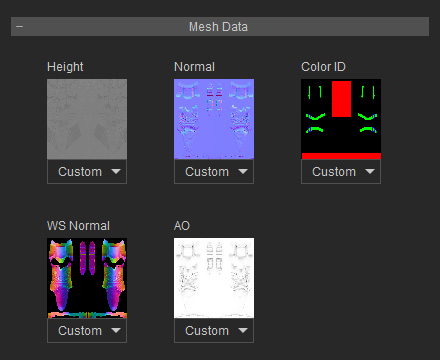
It contains the Height, Normal, World Space Normal, AO and Color ID channels for the object. Please refer to the About Channels in Mesh Data section for more information.
It contains up to 7 different base materials.
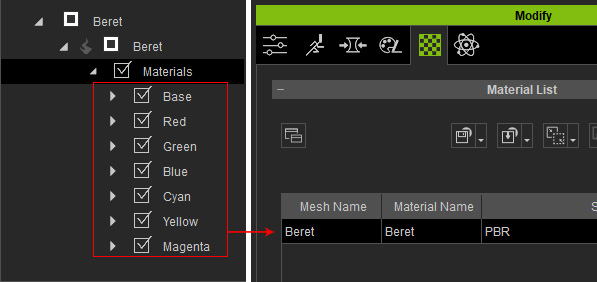
The deployments of these materials are determined by the textures loaded in the Color ID channel in the Mesh Data section.Use the settings under this item to create repetitive prints on the entire object.
patterns are allowed to be applied and span across the entire object.
Use the settings under this item to create prints on the object.
You are allowed to add up to three decals on the object.
Note that the decals can be flat or embossed.
Global FX
In order to add more overall effects, you can adjust the settings in the Rips, Tweaks, Dust, Dirt and Fabric Holes sections under this item.
The Diagnostics item is used to individually preview the maps and effects applied on the mesh of the object, such as the channels in the Mesh Data and the textures in different Materials.
-
By layering the effects from the items (Mesh Data,
Materials, Patterns, Decals,
Global FX), you are able
to generate realistic PBR appearance material for the object.
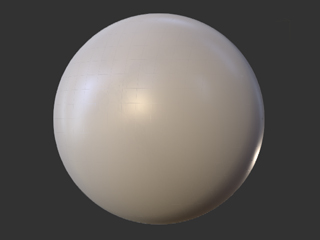
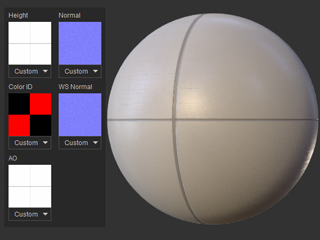
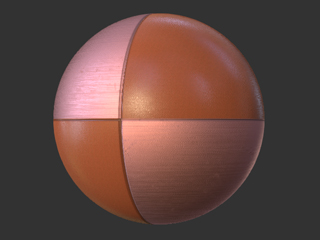
Initial Object
Mesh Data Applied
Material Applied
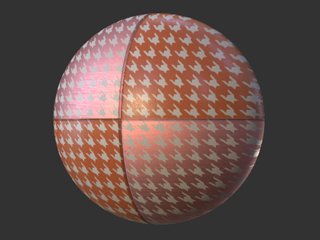
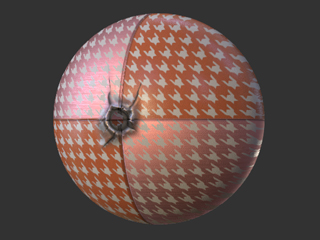
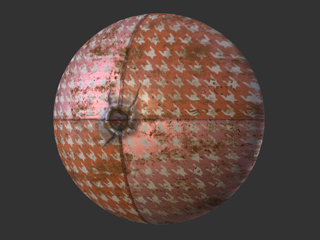
Pattern Applied
Decal Applied
Global FX Applied
UI Structure of PBR Substance for Character
When you click the Select Substance Material button before launching the Appearance Editor for
character's skins, eyeballs, finger and toe nails, teeth, tongue, and
eyelashes, you will see PBR Substance Preset as shown below. The UI
structures are different for different body parts and are described in this section.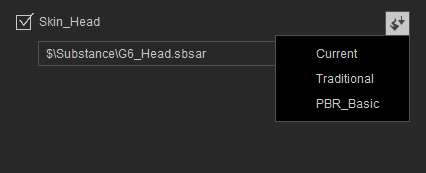
Actor Head Skin (for CC1 characters only)
-
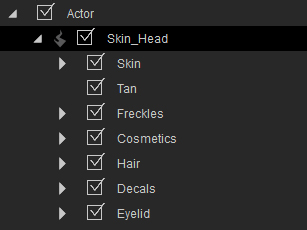
The PBR Substance Preset includes Skin, Tan, Freckles, Cosmetics, Hair, Decals and Eyelid.
Item Name
Function of the Item
Skin
It contains the Normals sub-item for adjusting the wrinkles, pores and textures, and Tweak sub-item for modifying the color tone on the face skin.
Tan
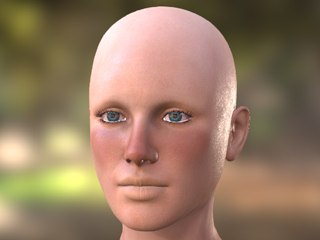
It can be used to simulate the suntan effect on the face skin.
Freckles
Use the settings in the Pattern sub-item to determine the scattering amount and density of the freckles on the skin and the ones in the Blend sub-item to blend the freckles to the original skin color tone.
Cosmetics
You can put cosmetics onto the character's face with the sub-items including the Blush, Lips, Eyeshadow and Eyeliner.
Hair
In the Scalp, Eyebrows, Mustache and Beard sub-items, you can have the character to put one different hairs on the face.
Decals
Use the settings under this item to create tattoos, paints, scars or wounds on the face skin.
You are allowed to add up to three decals.
Please note that the decals can be flat or embossed.
Eyelid
Use the settings in the Lacrimal and Eye Sac to determine the appearances of these two eye parts, including the color and the ability of reflecting the lights.
-
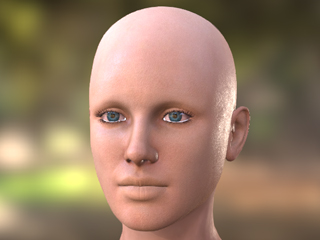
By layering the effects from the items (Skin, Tan, Freckles, Cosmetics, Hair, Decals and Eyelid), you are able
to generate realistic PBR appearance material for the skin.
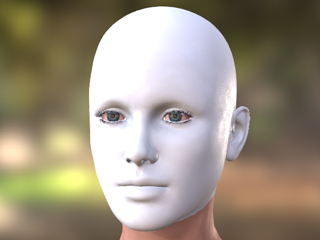
Initial Face
Skin Applied
Tan Applied
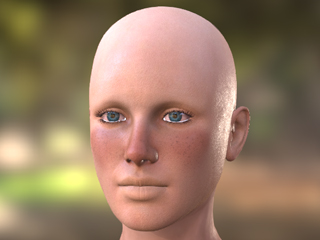
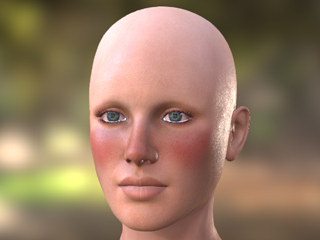
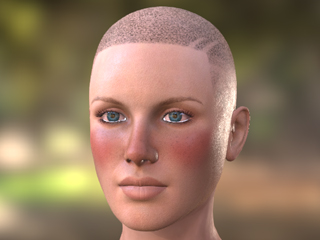
Freckles Applied
Cosmetics Applied
Hair Applied
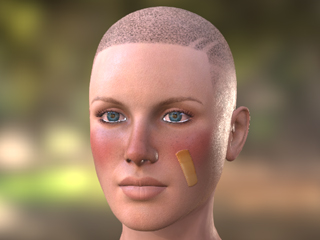
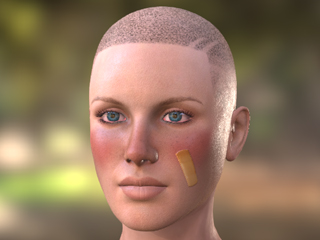
Decal Applied
Eyelid Applied
Actor Body Skin (for CC1 characters only)
-
The PBR Substance Preset includes Skin, Misc, and Decal items.
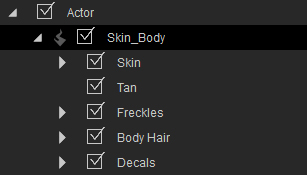
Item Name
Function of the Item
Skin
It contains the Body Base, , Body Surface Normals, Body Freckles, Body Tan and Body Ambient Occlusion sub-items.
These sub-items can be used to create different effect as described in the table above in the Head Skin section.
Tan
It can be used to simulate the suntan effect on the body skin.
Freckles
Use the settings in the Pattern sub-item to determine the scattering amount and density of the freckles on the skin and the ones in the Blend sub-item to blend the freckles to the original skin color tone.
Body Hair
In the Scalp, Eyebrows, Mustache and Beard sub-items, you can have the character to put one different hairs on the face.
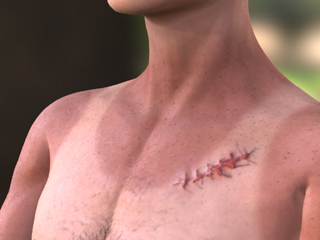
Decals
Use the settings under this item to create tattoos, paints, scars or wounds on the body skin.
You are allowed to add up to three decals.
Please note that the decals can be flat or embossed.
-
By layering the effects from the items (Skin, Misc, and Decal), you are able
to generate realistic PBR appearance material for the skin.
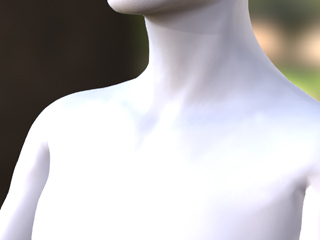
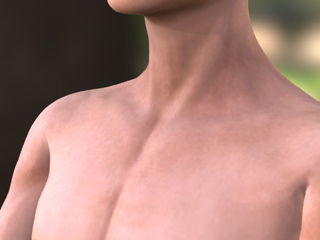
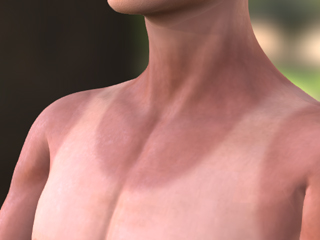
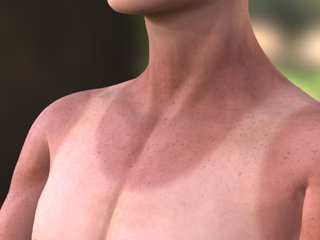
Initial Face
Skin Applied
Tan Applied
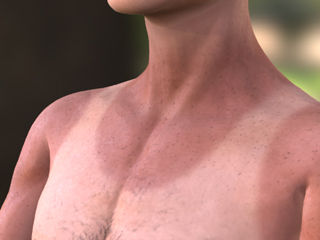
Freckles Applied
Body Hair Applied
Decal Applied
Actor Eyelash
-
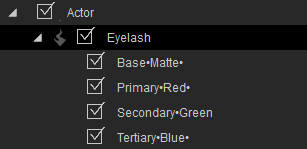
The PBR Substance Preset i includes Base.Matte, Primary.Red, Secondary.Green and Tertiary.Blue items.
Item Name
Function of the Item
Base.Matte
It can be used to determine the base color and reflection of the primary and secondary eyelash layers.
Primary.Red
It can be used to overlapping color and reflection on the root of the primary eyelash layer.
Secondary.Green
It can be used to overlapping color and reflection on the secondary eyelash layer.
Tertiary.Blue
It can be used to overlapping color and reflection on the tip of the primary eyelash layer.
-
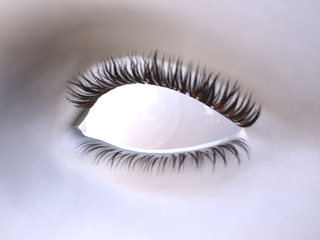
By layering the effects from the items (Base.Matte, Primary.Red, Secondary.Green and Tertiary.Blue), you are able
to generate realistic PBR appearance material for the eyelashes.
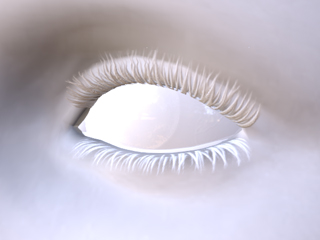
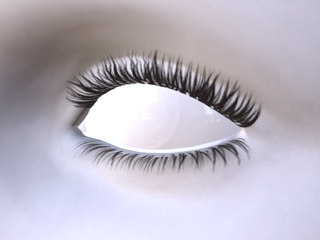
InInitial Eyelashes
Base.Matte Applied
Primary.Red Applied
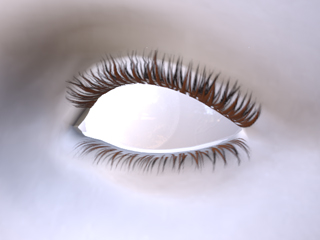
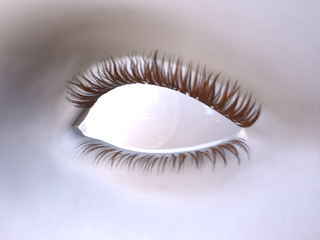
Secondary.Green Applied
Tertiary.Blue Applied
Actor Finger and Toe Nails (for CC1 characters only)
-
The PBR Substance Preset includes Nail, Polish and Custom Texture items.
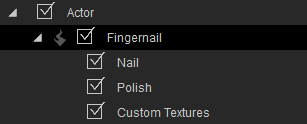
Item Name
Function of the Item
Polish
It is used to overlap different colors onto the nails.
Tweak
It can be used to determine the color and reflectivity for the nails.
-
By layering the effects from the items (Polish and Tweak), you are able
to generate realistic PBR appearance material for the nails.
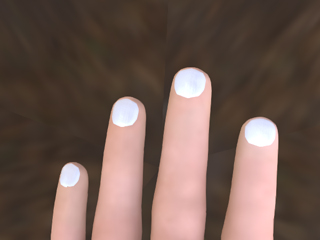
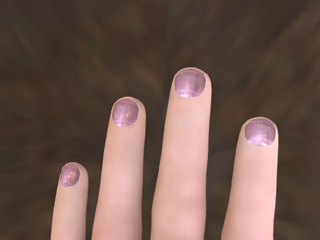
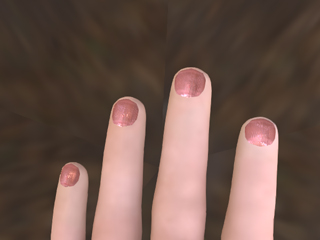
Initial nails
Tweak Applied
Polish Applied
Actor Tongue
-
The PBR Substance Preset includes Base Color and Apex items.
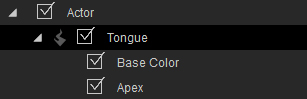
Item Name
Function of the Item
Base Color
Use the settings in this sub-item to apply overall color and reflectivity to the tongue.
Apex
You can cover the upper surface of the tongues with the settings in this sub-item.
Roughness
The settings under this sub-item are used to determine the roughness of the tongue.
-
By layering the effects from the items (Base Color and Apex), you are able
to generate realistic PBR appearance material for the tongue.
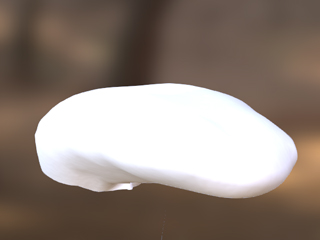
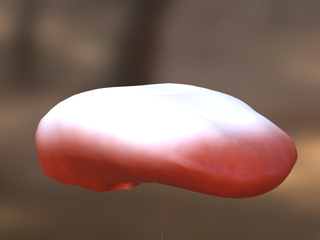
Initial Tongue
Base Color Applied
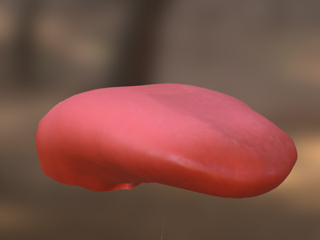
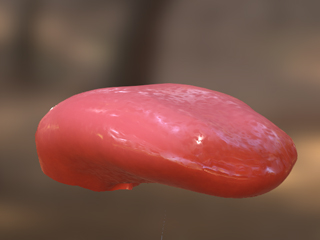
Apex Applied
Roughness Applied
