Mesh Generation (New for v5.2)
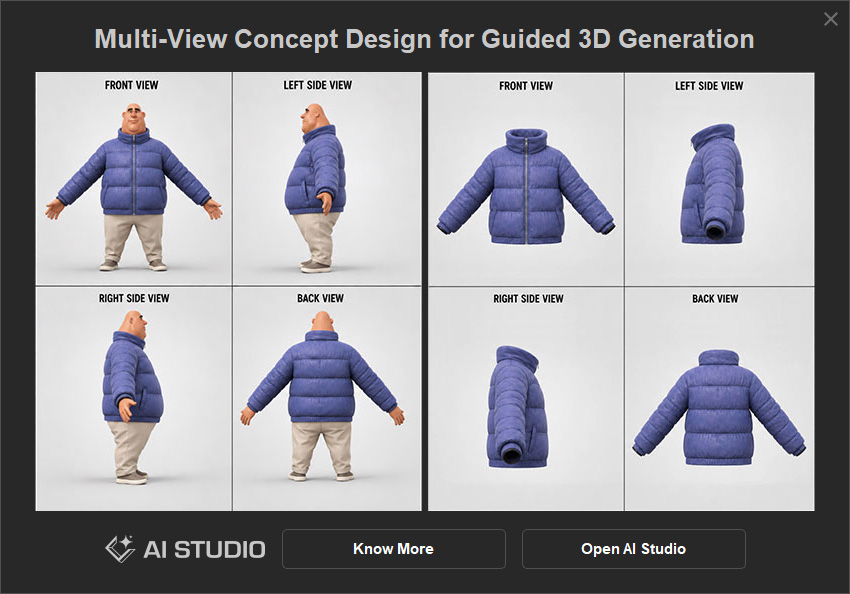
Images created in the Concept Design tab or AI Studio can be sent to the Mesh Generation tab, where AI generates a 3D mesh based on the images. You can also use the controls in the panel to reduce the mesh polygon count. Once the mesh is generated, you can proceed with post-processing to create a character, head, clothing, accessory, or prop.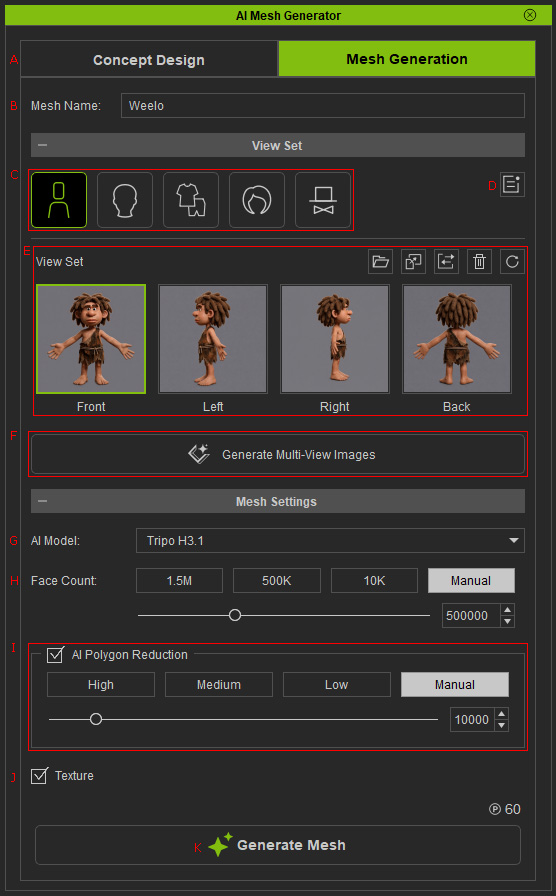
|
A |
Mode Tabs |
Switches between Concept Design and Mesh Generation modes.
|
|
B |
Mesh Name |
Enter a name for the generated 3D mesh. |
|
C |
|
|
|
D |
Open Task Queue Panel |
Opens the Mesh Task Queue panel, where you can view the AI processing history, retry or rework tasks, cancel or delete tasks, and locate the source files and view sets. |
|
E |
|
|
|
F |
Generate Multi-View Images |
Displays Generate Multi-View Images inquiry panel. |
|
G |
You can select the AI model for generating the 3D mesh (Tripo, Tripo 2.0 or Hunyuan). |
|
|
H |
Sets the face count of the AI-generated 3D mesh. |
|
|
I |
Reduces the polygon count using AI. |
|
|
J |
Texture |
Choose whether to generate the 3D mesh with or without textures. Generating textures consumes more credits. |
|
K |
Generate Mesh |
Generates the 3D mesh using the current settings. Please refer to the Actions after Mesh Generation section for more information. |