Quick Guide: Using High-to-Low Poly Baking (New for v5.2)
Follow these steps to transfer surface details from a high-poly model to its low-poly version.
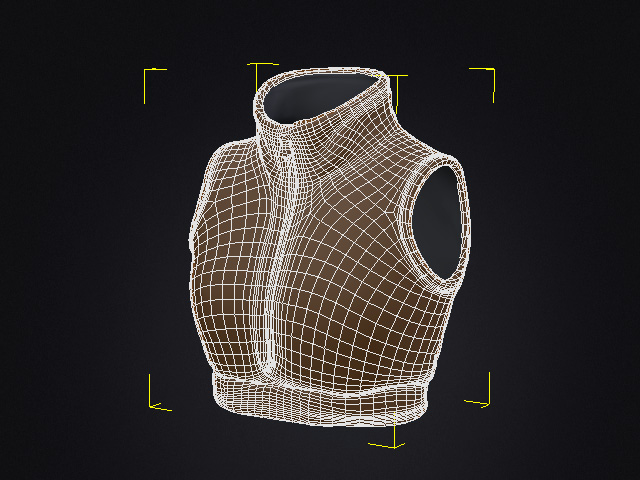
- Keep both the original high-poly model and its reduced low-poly version in the scene. Make sure they are positioned to overlap correctly.
- Open the High-to-Low Poly Baking panel.
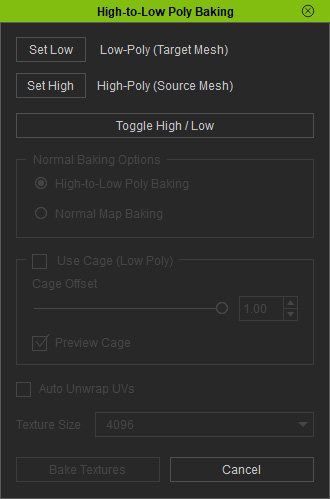
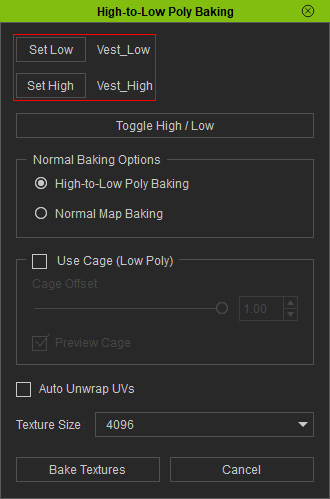
- Set the high-poly source and low-poly target mesh models.
- Select Normal Baking Options.
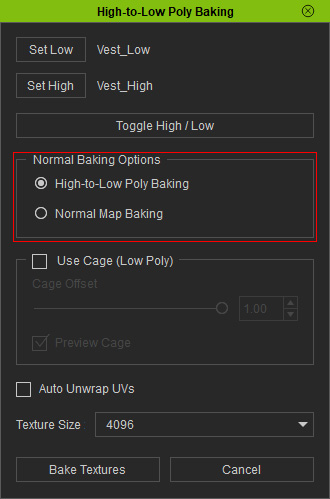
- High-to-Low Poly Baking: Bakes mesh bumps, folds, and the Normal map from the high-poly source together into the Normal channel of the low-poly target.
- Normal Map Baking: Bakes the Normal map from the high-poly source into the Normal channel of the low-poly target.
- Keep Use Cage (Low Poly) enabled. Adjust Cage Offset as needed to enclose the high-poly model. Enable Preview Cage to inspect the coverage.
- Enable Auto Unwrap UVs if you want the system to generate new UVs for the target. Set the desired Texture Size.
- Click Bake Textures button to start baking. The generated Normal Map will be automatically applied to the low-poly model.
 Tip:
