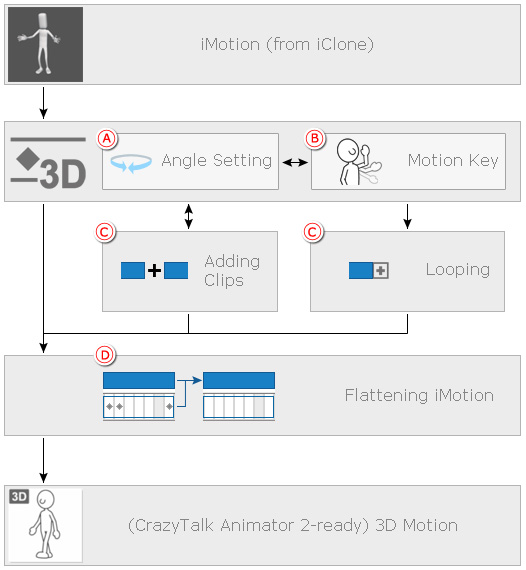
In CrazyTalk Animator, a character's motions are divided into 3D and 2D motions. However, since this product is a 2D animation application, there is a certain workflow (different phases as described below) for converting 3D motions to 2D ones for better 2D editing.
*Please note that it is one-way direction between these phases, you can edit the motion back and forth within a certain phase but do not return to the previous phase for further editing.
For Pipeline users, you are able to import iClone iMotions into CrazyTalk Animator Character.
However, some initial refinements must be made to adjust visual flaws.
|
Note: |
|
Please refer to the Using iMotions section for more information. |
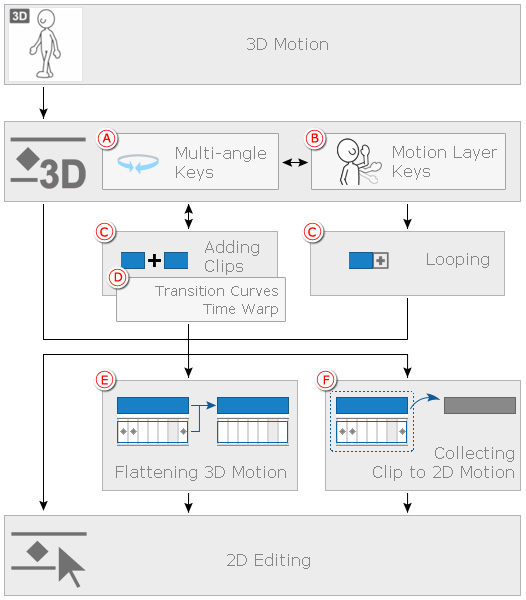
For Pipeline and Pro users, you can apply 3D Motions
to CrazyTalk Animator Character.
You are able to switch multiple angles in different time for the motion,
modify the motions by adding motion layer keys, using the layer order keys
for body parts, set time warp for clips, change the transition curve between
keys or clips and collect the entire motion data (clip and keys) as a 2D
motion for further 2D editing.
|
Note: |
|
Please refer to the Using 3D Motions section for more information. |
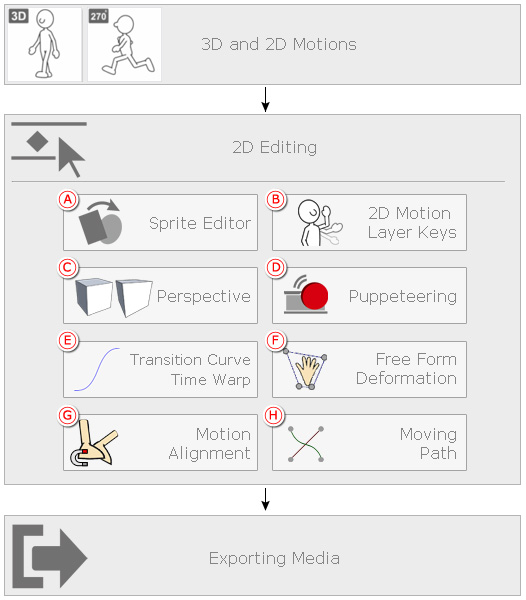
For Pipeline, Pro and Standard users, you can polish
modified 3D motions or 2D motions by certain skills. The skills help you to
increase the interests and drama of the animations.
|
Note: |
|
Please refer to the Using 2D Motions section for more information. |
By mix-using the 2D-editing features provided by CrazyTalk Animator, you are able to create more interesting and attractive animations obeying the basic principles.
|
Animation Principles |
Descriptions |
Corresponding Feature(s) |
|
Timing |
The length of time for an animation to complete. |
|
|
Spacing |
The distance between two key poses. |
|
|
Squash and Stretch |
The compression and extension of an object during the animation. |
|
|
Anticipation |
The animation of an opposite direction prior to the main animation, which
prepare the viewer that the latter animation is the main action. |
|
|
Staging |
The explicit animation that makes no ambiguity, simply see and know what
the animation is, also known as body language. |
|
|
Pose to Pose |
Setting the key poses, add breakdowns and then add in-betweens. |
|
|
Drag, Follow Through and Overlapping Action |
The flexibility of an object's animations, comparing to the main
action. |
|
|
Slow In and Slow Out |
The length of time for an animation to complete. |
|
|
Arcs |
The path of the action; usually in smooth flow without abrupt changes of
directions. |
|
|
Secondary Action |
Some animations that is secondary to the main action. The
animations can be related or irrelevant to the main actions. |
|
|
Exaggeration |
Push the action even further than you think it shall be. |
|
|
Secondary Action |
Some animations that is secondary to the main action. The
animations can be related or irrelevant to the main actions. |
You may use the combinations of the listed features: |
|
Solid Drawing |
Solid drawing means a good drawing and a good drawing is mostly
determined by the poses of the character. Therefore, a solid
drawing is to give good poses for a character to convince the
viewer. |
|
|
Appeal |
A pleasing quality that makes the animation enjoyable to look at. |
|
|
Weight |
Make the animation feel heavy with proper weight. |
|
 or
or 


