Connecting Motion Planning Sets
Motion Planning goes beyond simulating individual areas. With the Graph Editor, you can seamlessly connect multiple Planning Sets to create larger, more comprehensive simulations, from production lines and crowd flows to full-scale environments.
Note: On this page, the MP Sets from the paid Factor MP Set Pack are used as examples.
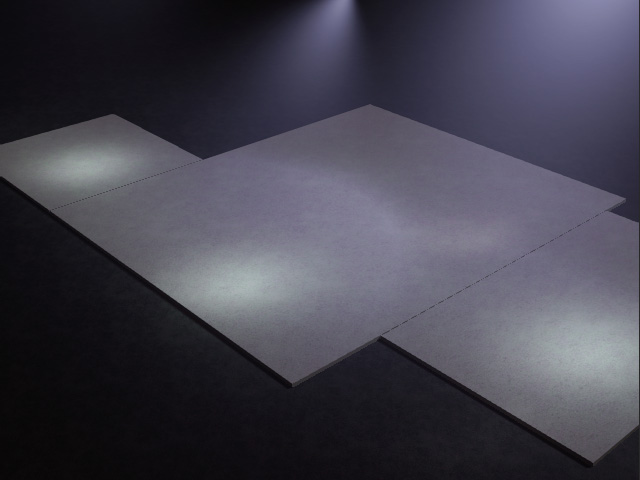
- Prepare a project.
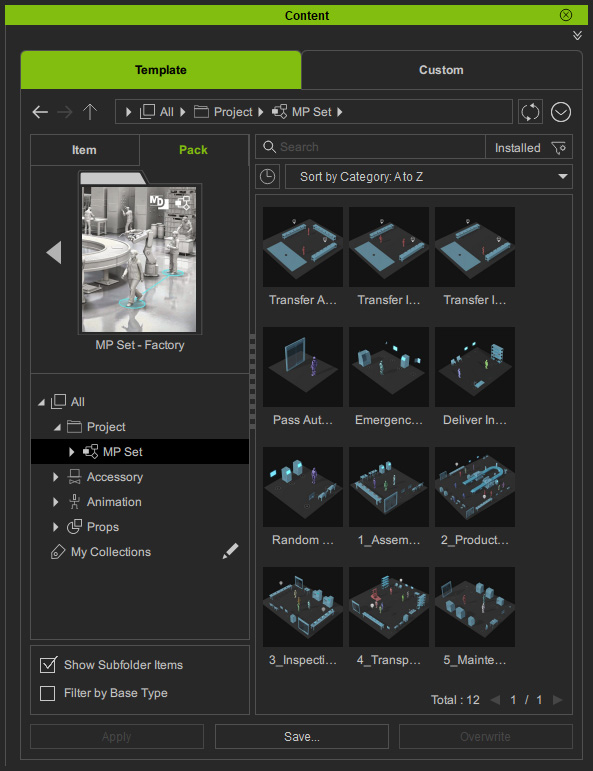
- In Content Manager > Pack view, open the MP Set – Factory pack (paid) and switch to the MP Set library.
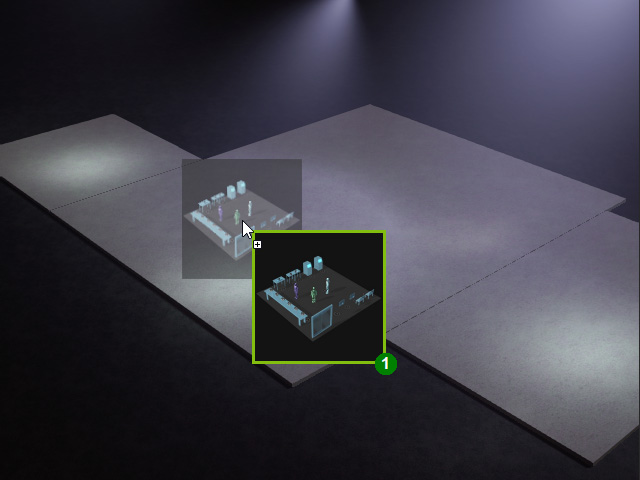
- Drag and drop a desired MP Set into the scene. This will be the first set.
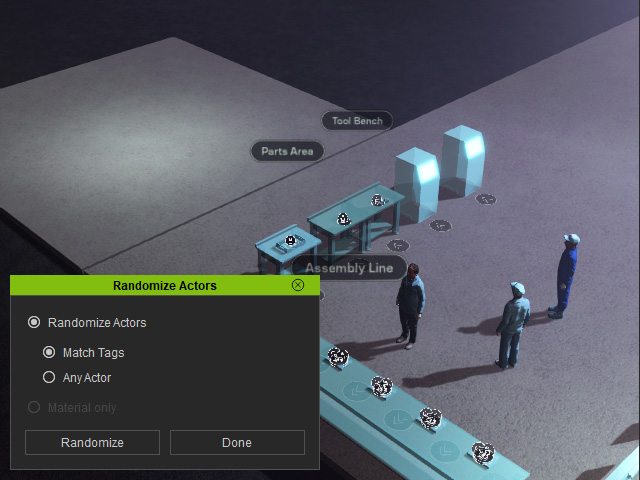
- Use the Randomize Actors panel to replace the dummy actors with suitable characters.
- In the Scene Manager, right-click the MP Set and choose Select Direct Descendants.
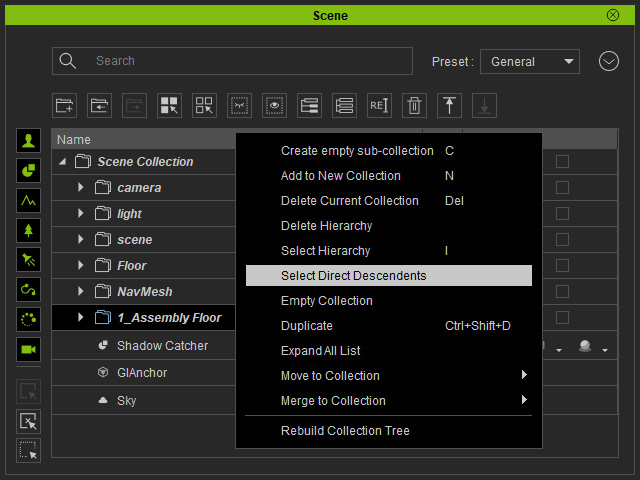
The objects in the collection will be selected together.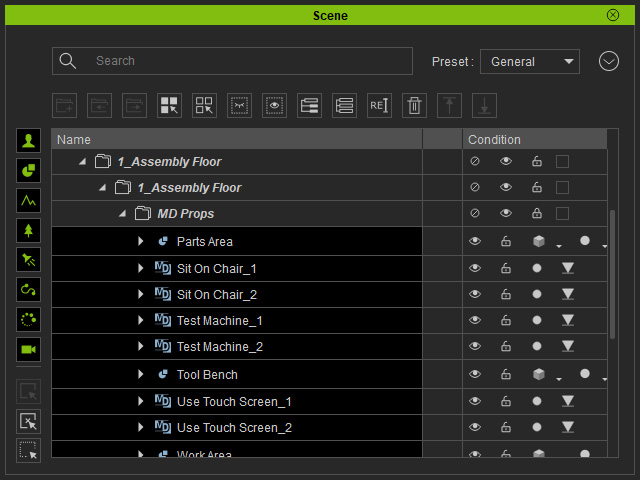
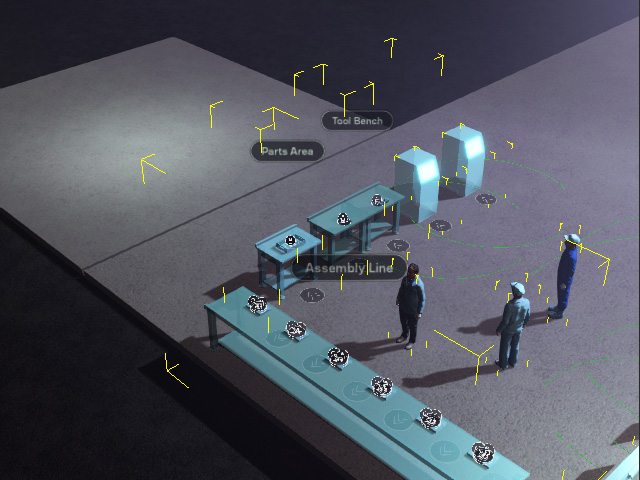
- Transform the selected objects.
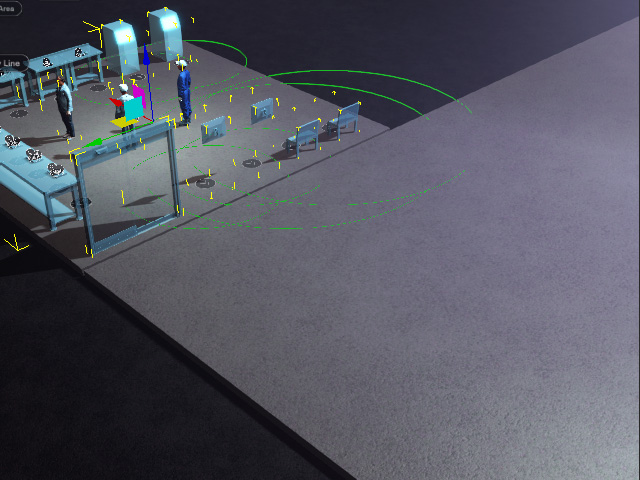
Open the MP Node Graph panel. You will see that the well-organized graph is imported along with the MP Set template.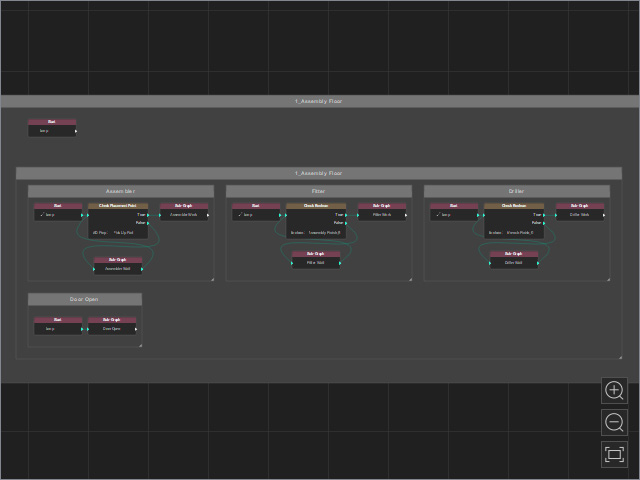
- Repeat the same steps to build the entire scene with the second set (middle) and the third set (right). At this stage, these three sets are not yet connected.
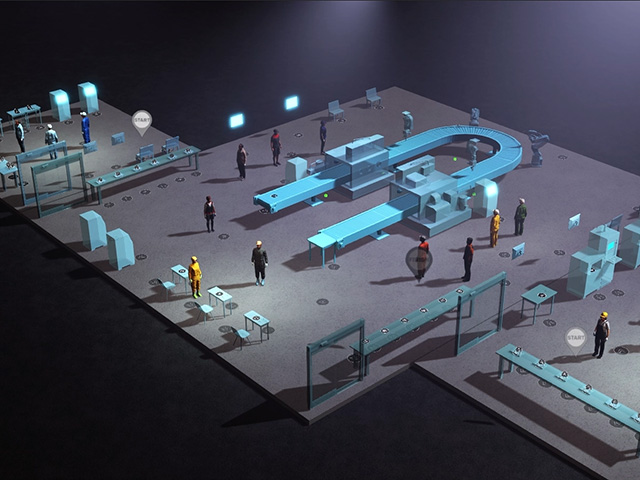
Start replacing the End object of one set with the Start object of another set in the MP Node Graph panel.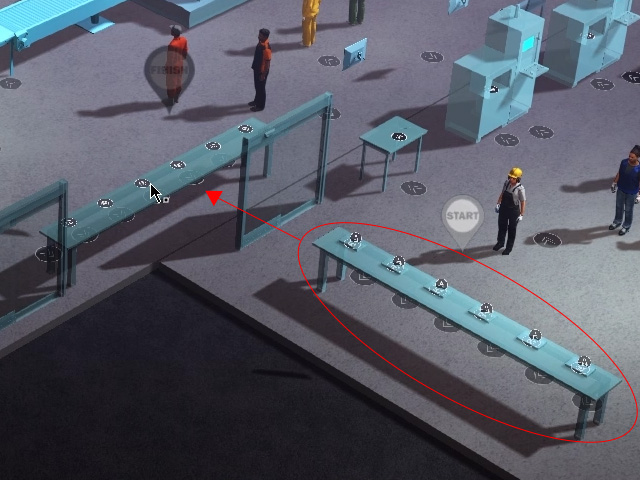
- Locate the end sub-graph in the second set and double-click it to open.
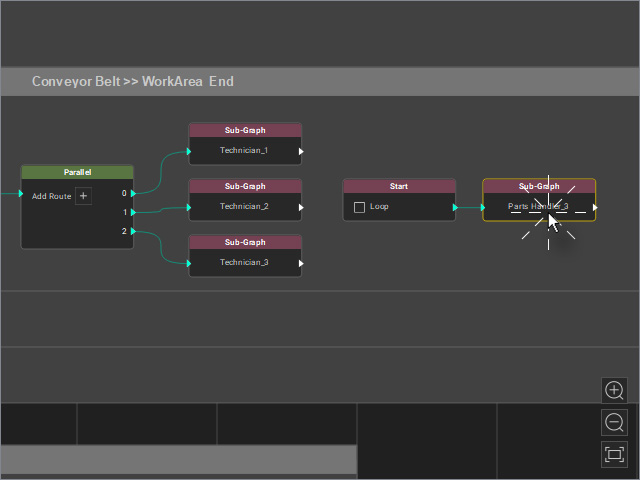
- Use the Swap MD Props feature to set up the MD Props for the nodes all at once by selecting the target MP Prop from the third set using the drop-down list or the dropper, then click Apply.
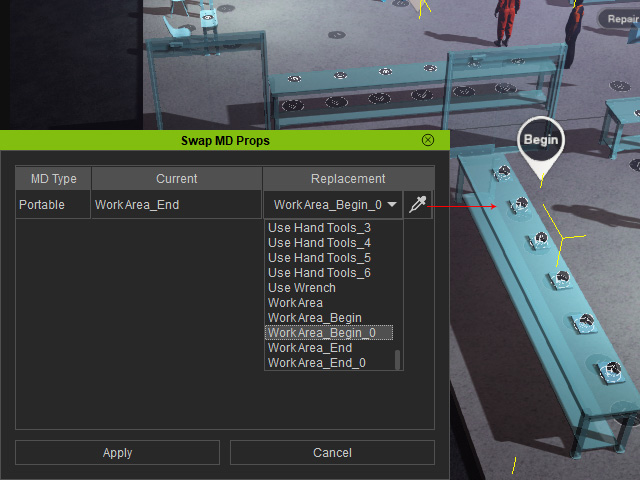
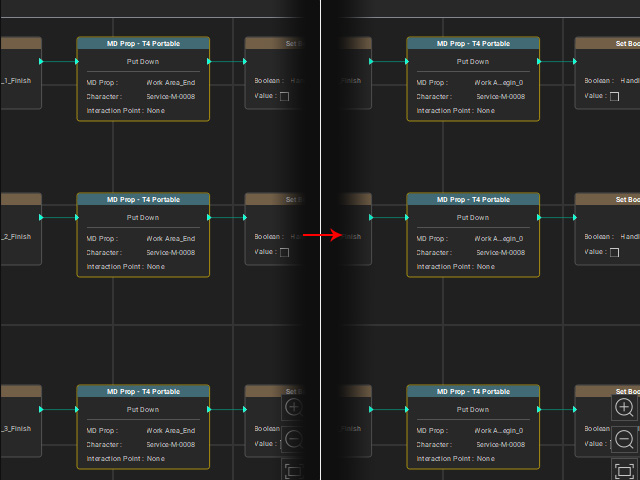
- Delete or hide unnecessary MD Props from the second set.
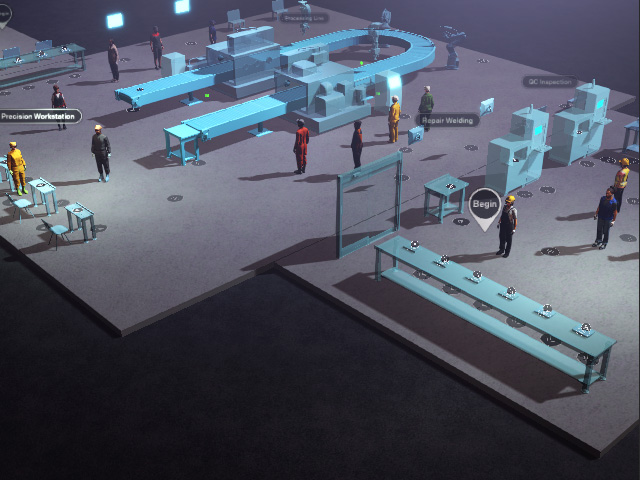
- Copy (Ctrl + C) the pick-up and put-down graph from the second set.
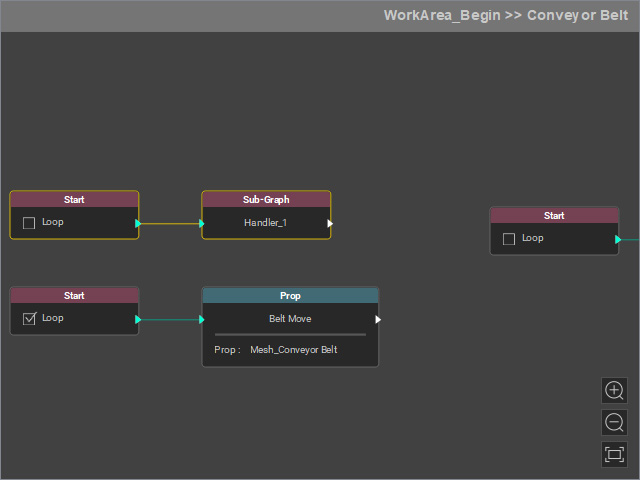
- Paste (Ctrl + V) it into the first set’s graph group and move it into place.
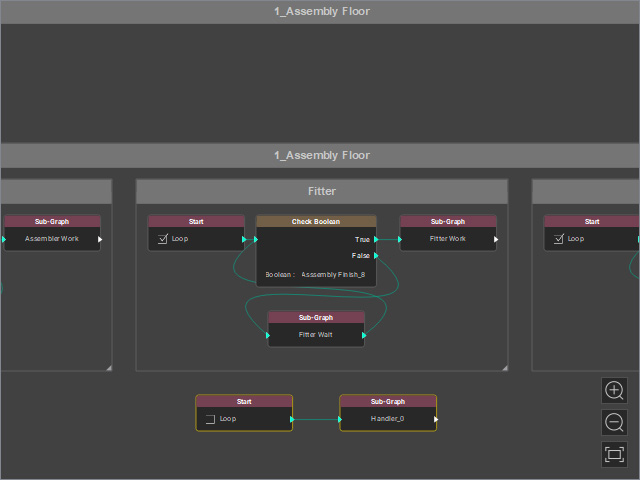
Double-click the sub-graph node to open it.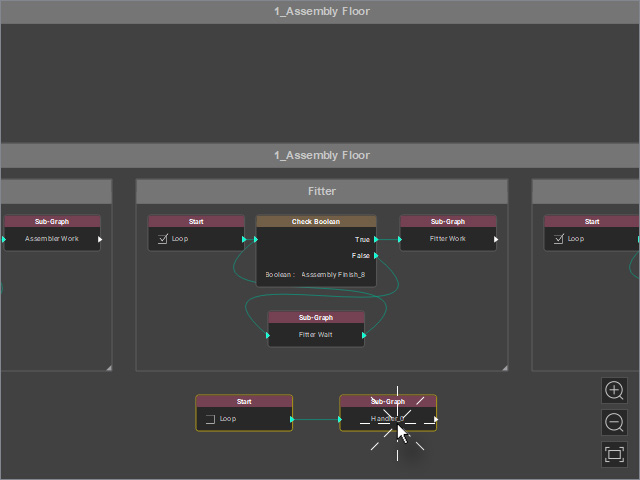
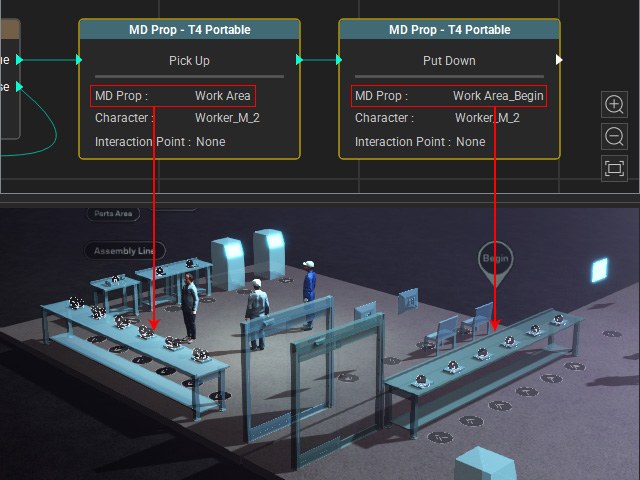
- Set the T4 Portable node for picking up from the first set and the T4 Portable node for putting down to the second set.
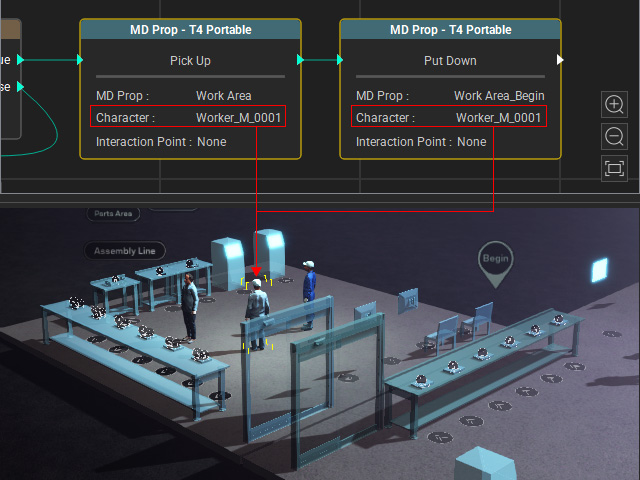
- Assign the character responsible for carrying and moving the MD Props.
- Double-click the sub-graph to open it.
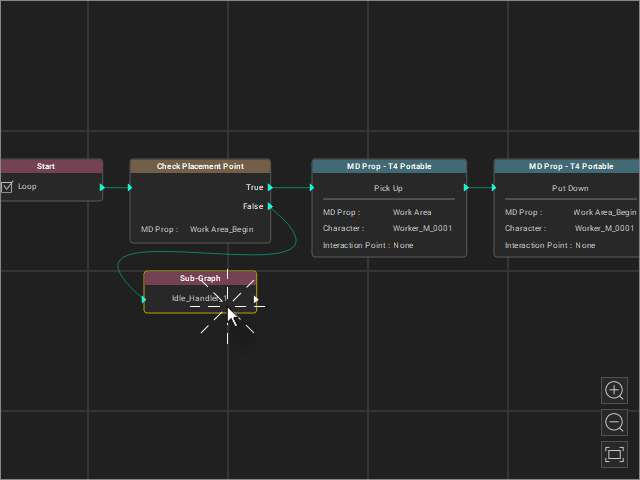
Use Swap Actors to assign the designated character to all nodes at once.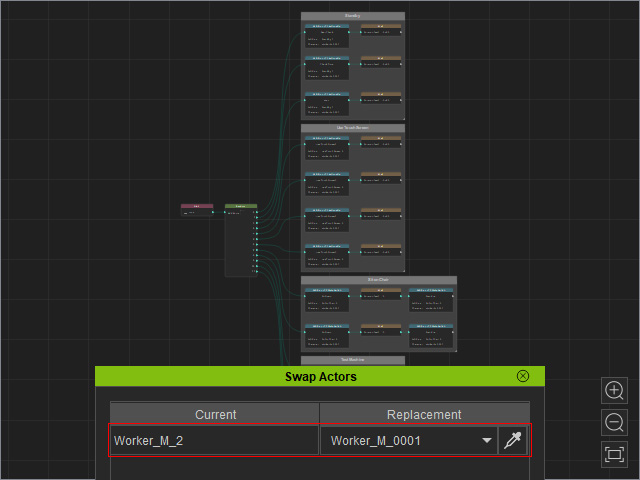
- Delete or hide unnecessary MD Props from the scene.
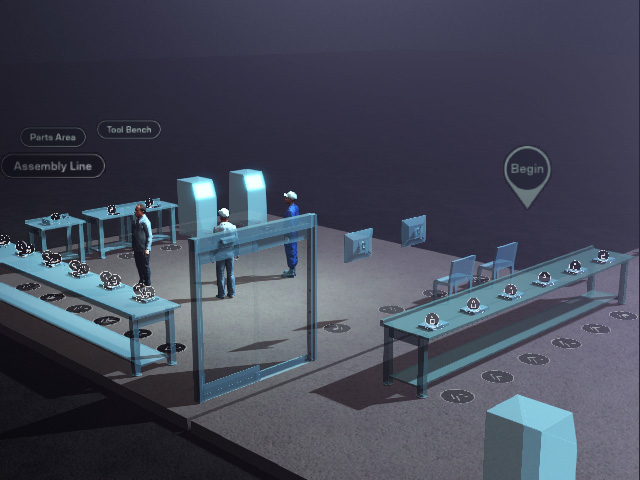
- Start Go MD mode to view the animation results.
Animation between the first and second sets
Animation between the second and third sets
