Using Check Distance Nodes
The Check Distance Node is used to check the XY distance between two objects (using the Root as the reference) to determine which event to execute.
** Please note that this node is best suited for scenarios involving interactions between multiple characters, or between characters and objects (props or MD Props).
- Create a project with a character, a prop with embedded animations and a path.
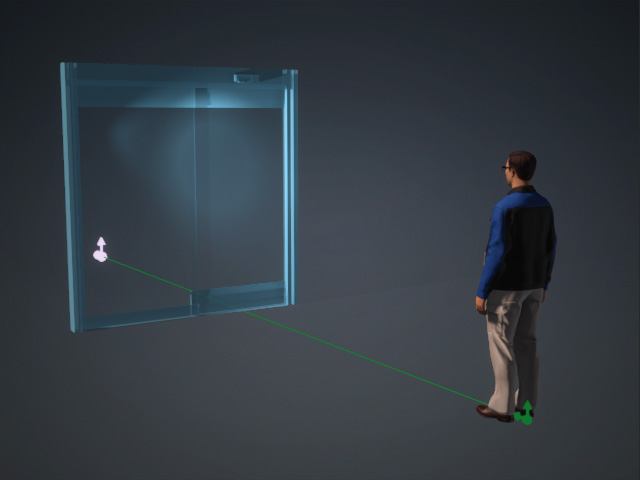
The embedded animation of the prop can be found in the Right-click menu > Perform item.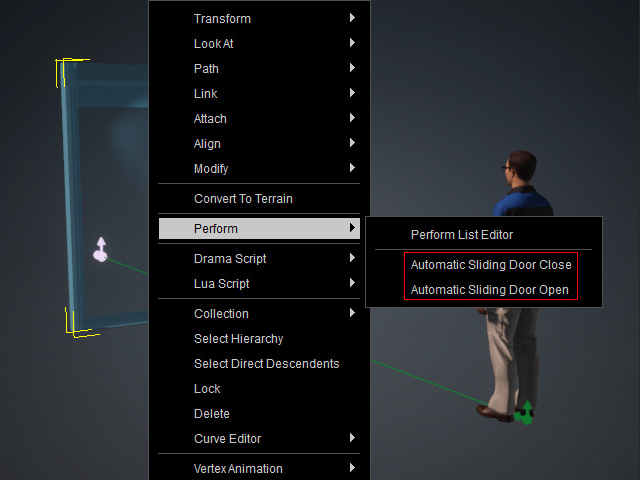
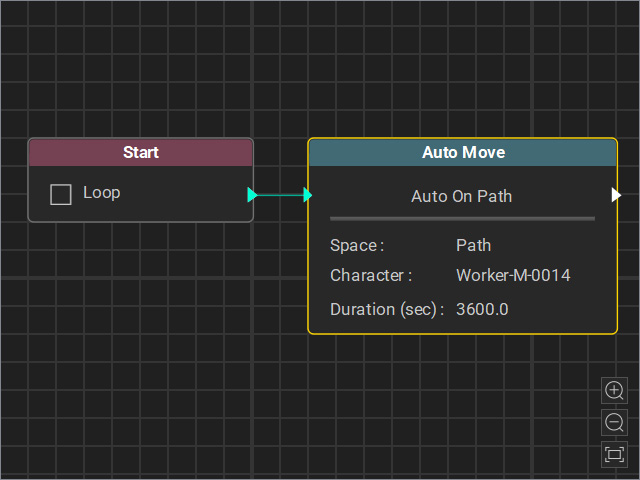
- Open the MP Node Graph panel. Create an Auto Move node to have the character walk on the path.
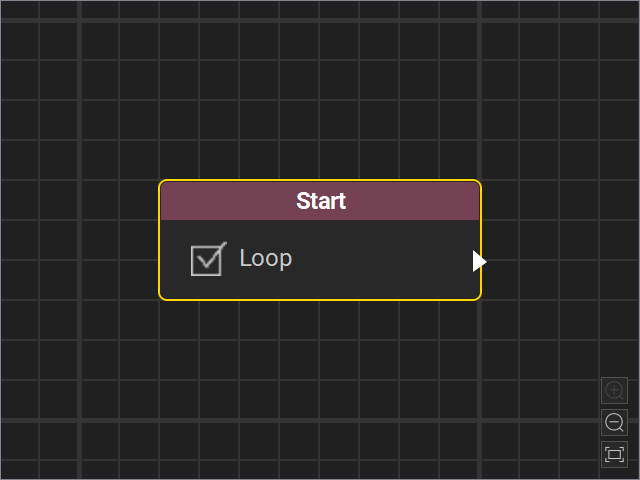
- Start a new thread by adding a Start node. Activate the Loop feature.
- Right-click on the viewport space and choose Condition Node > Check Distance.
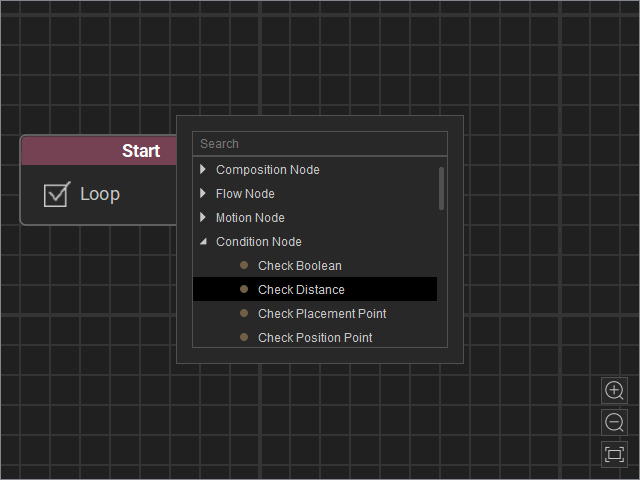
A new Check Distance node will be inserted on view.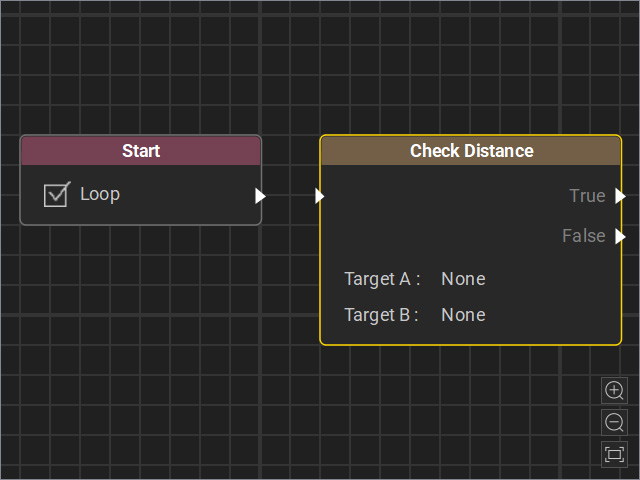
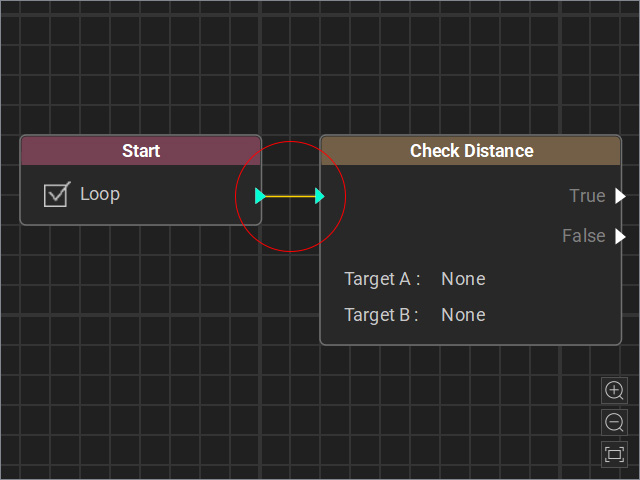
- Drag a flow line from the Start node’s output and connect it to the Check Distance node’s input.
- Select the node and adjust the settings in the Attributes page.
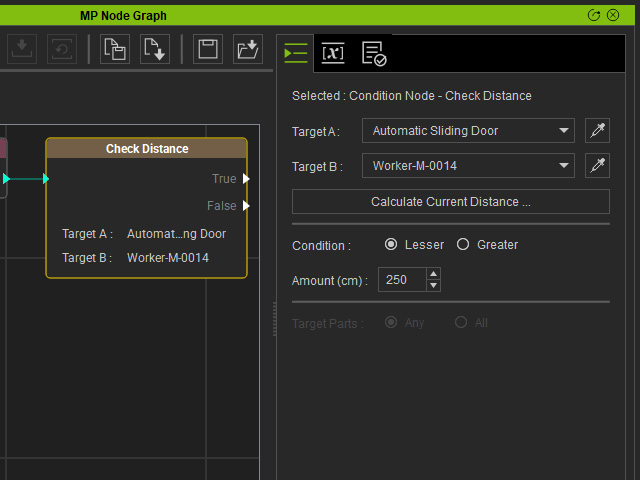
- Target A: Choose the desired object (character, prop or MD prop). You can use the drop-down list or the dropper to pick the object.
- Target B: Choose the other object (character, prop or MD Prop). You can use the drop-down list or the dropper to pick the object.
- Calculate Current Distance...: Measures the current distance between Target A and Target B. A information dialog box will appear.
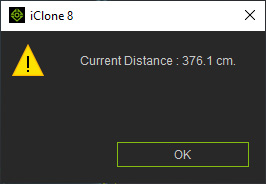
- Condition: Determines whether the measured distance is less than or greater than the Amount value.
- Amount (cm): Manually enter the desired distance to be used as the measurement threshold.
- Target Parts:
- Since the condition is “Less than 250,” connect the True output to a new Prop Node and set the Prop and its animation.
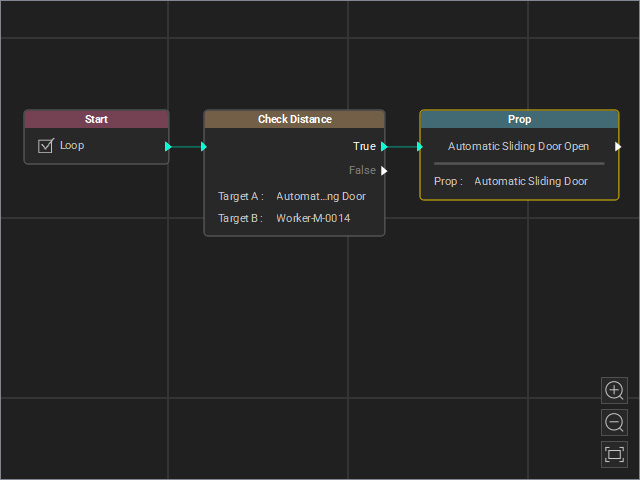
These three nodes represent the condition that when the distance between Target A and Target B is less than 250, the prop performs the open-door animation. - With the same logic, add two new nodes (Check Distance and Prop) to perform the close door animation. Connect the new Prop node to the False output of the new Check Distance node.
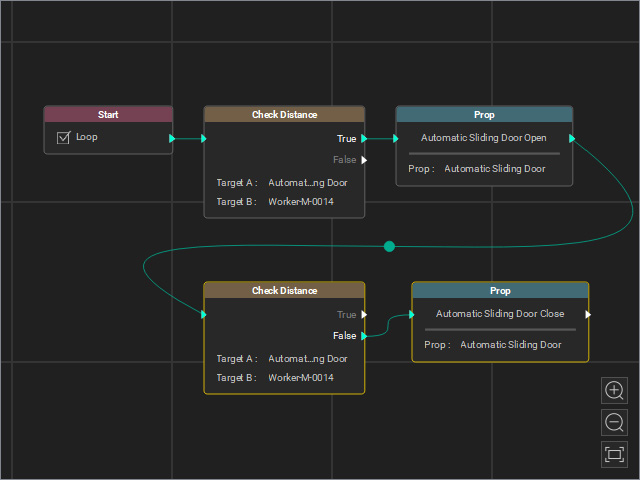
It represents the condition that when the distance between Target A and Target B is not less than 250, the prop performs the close-door animation. - Start Go MD mode. You will see the door keep either opening or closing repetitively because in either conditions, the True and False events are constantly executed.
- Add Wait nodes (Duration = 0.1 sec) to halt these condition nodes to prevent from this issue.
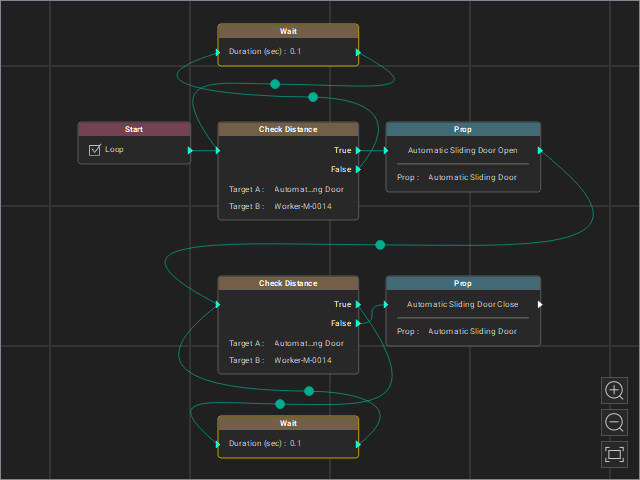
- Start the Go MD Mode to view the animation results.
