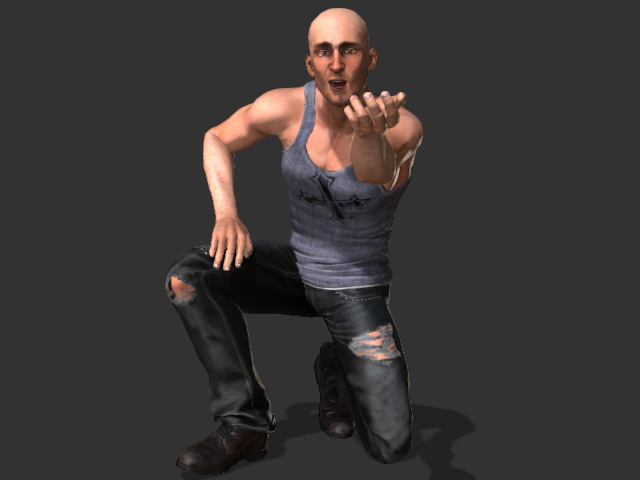
Multiple Gears Controlling One Character
With the flexibility of Motion LIVE plugin you can control one character with different gears for capturing facial, body, and hand motions.
- Mount different mocap gears or devices on your PC or any PC on the intranet
and make sure they are in proper working order.
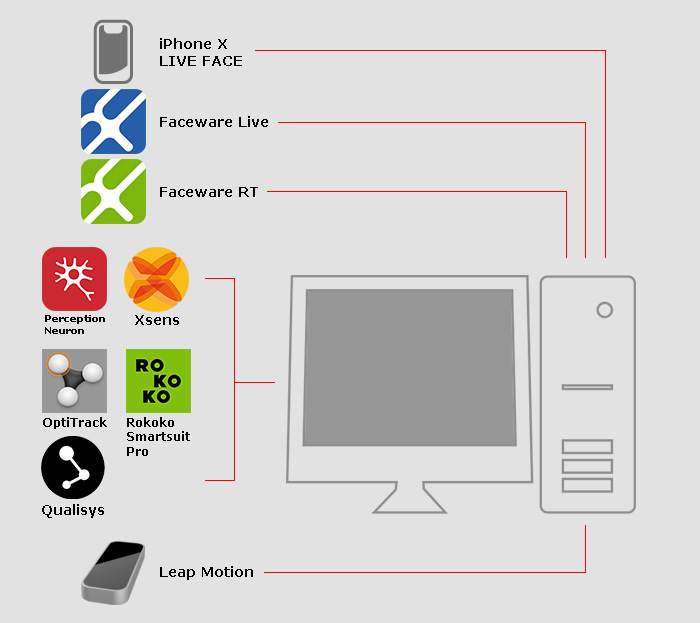
- Verify that these devices are capable of detecting and capturing the actor's facial expressions, motions and hand gestures.
- Apply a character in iClone.
You should Deactivate the Foot Contact feature of the characters in order to get the best foot motions from the body mocap devices or gears.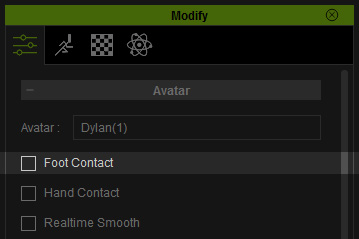
-
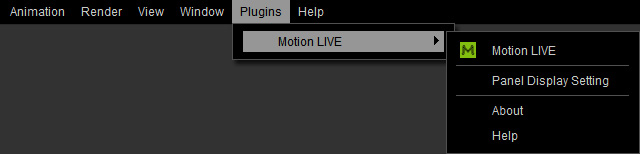
Go to Plugins >> Motion LIVE >> Motion LIVE.
The Motion LIVE panel will show.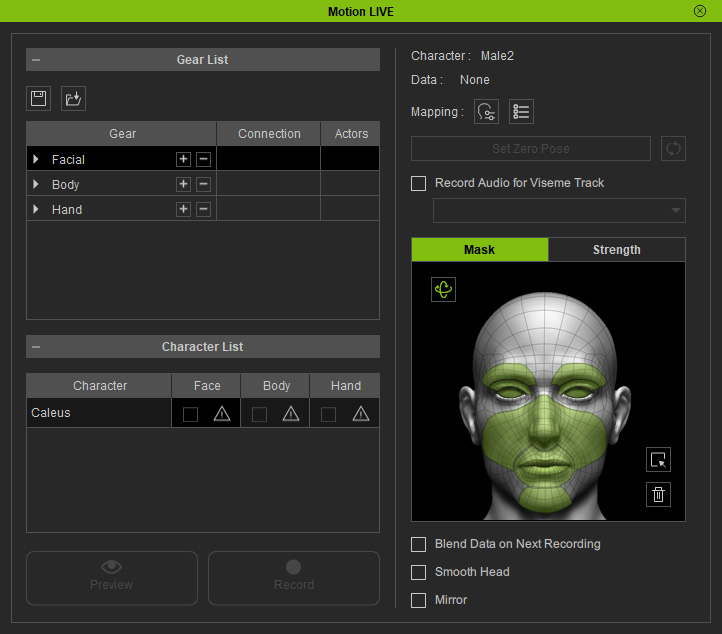
- Follow the standard steps (Facial Expressions, Body Motions, Hand Gestures) to connect the gear or device to the plug-in.
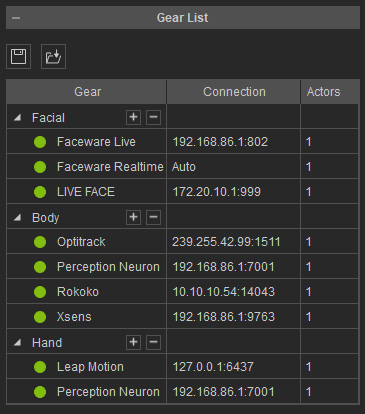
Notice that you must get and install the gear profiles before the gears can be added into the list. - In the Character List, click the Exclamation button in the Face column for one of the characters you want to control with the device.
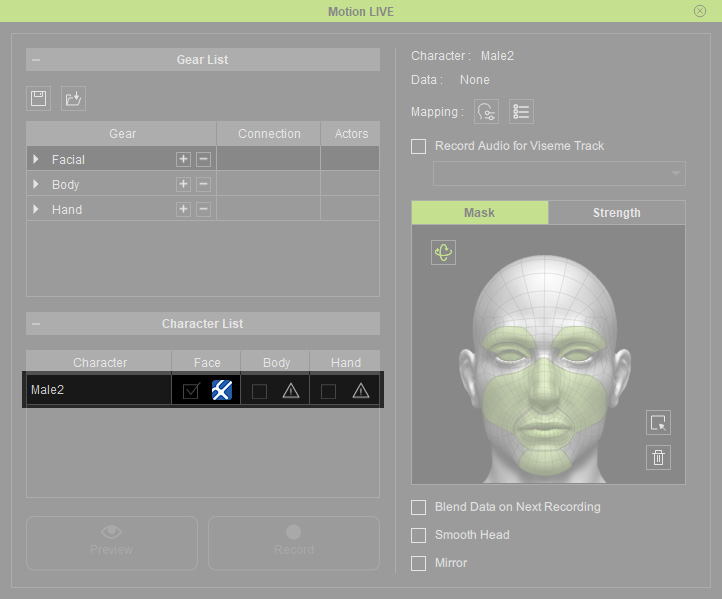
- Pick devices or gear in the Body and Hand cells for the character.
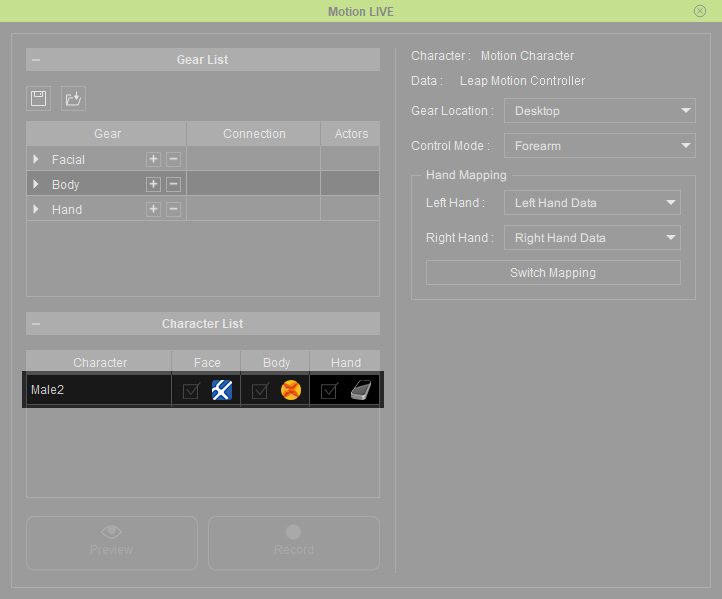
Now the picked gears are able to control this character.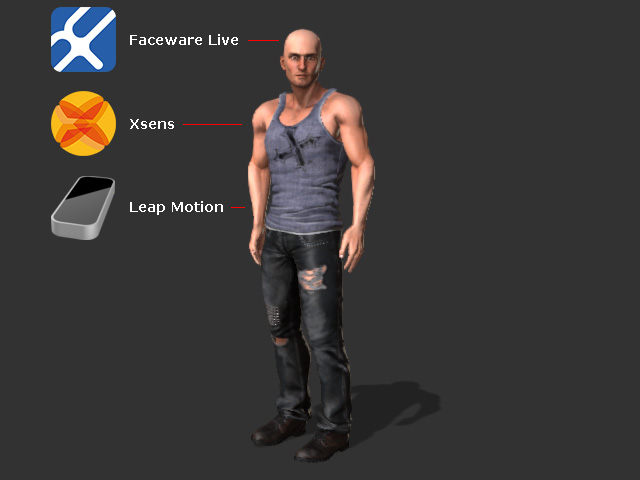
- Now the character is controlled by different gears and ready for previewing and recording.