Smart Gallery Panel
|
A |
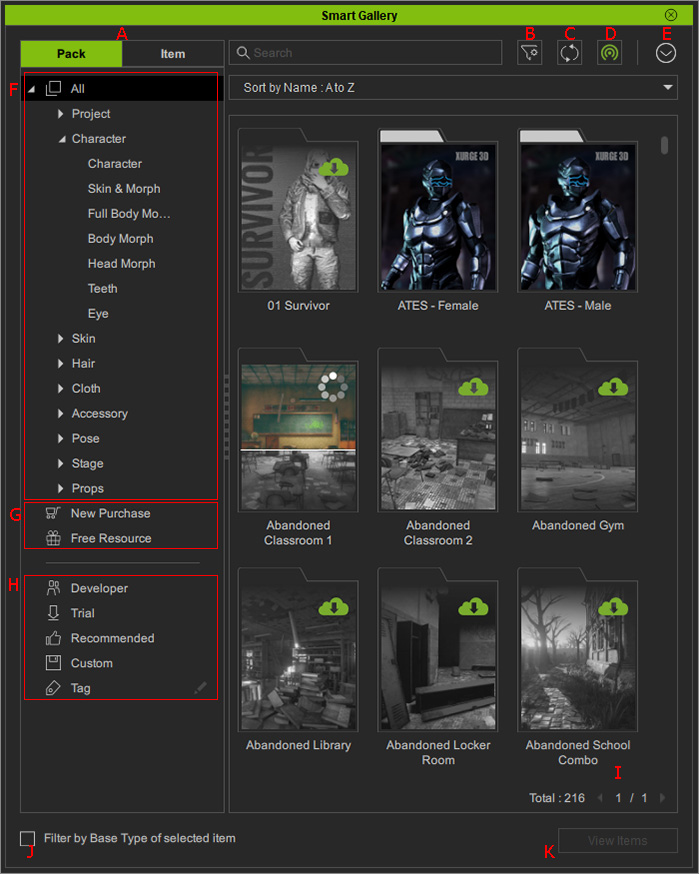
Click to switch to a different view to see all the purchased content packs and items. |
|
|
B |
Click this button to filter the contents by name, author or tag. |
|
|
C |
Refresh |
Click this button to synchronizing the purchased online contents and the local database. |
|
D |
Online / Offline Toggle |
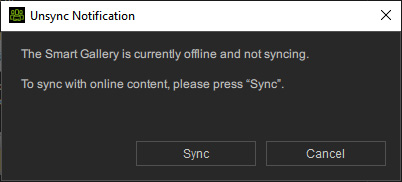
Click this button to set the Smart Gallery online or offline in order to connect or disconnect to the content server. When it is online, the content will be auto-synchronized whenever change happens. When the Smart Gallery is set to Offline, Smart Gallery pops up a message when you try to install, refresh, update or uninstall content.
|
|
E |
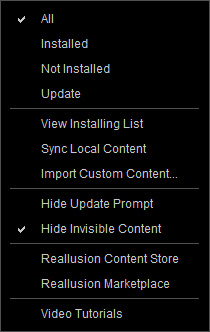
Click to pop-up the menu for filtering contents by
installion status, manipulating content, showing the content store
/ marketplace, and surfing the video tutorial web site. |
|
|
F |
Category Tree View |
Click to show all or a specific content category. |
|
G |
Select one of the nodes to show content with different filters. |
|
|
H |
Select either of the nodes to show content for different purposes. |
|
|
I |
Page Number Field |
Click on this number to enter the numeric edit mode for typing in the page number and quickly displaying the contents in the page. |
|
J |
Activate this checkbox to ensure the contents displayed are suitable and compatible for the current selected character. |
|
|
K |
Press this button to show all the items inside of an installed pack. |