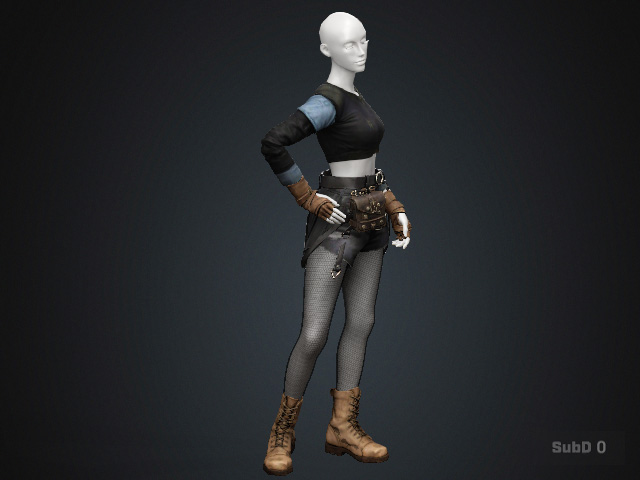
Creating Custom Shoes
In addition to use the embedded shoes templates, you are allowed to generate custom shoes with your favorite 3D tools in OBJ or FBX format. In addition, mesh models generated using AI Mesh Generator can also be used to create custom shoes following the same steps.
- Create a new project with a neutral CC5 HD character.
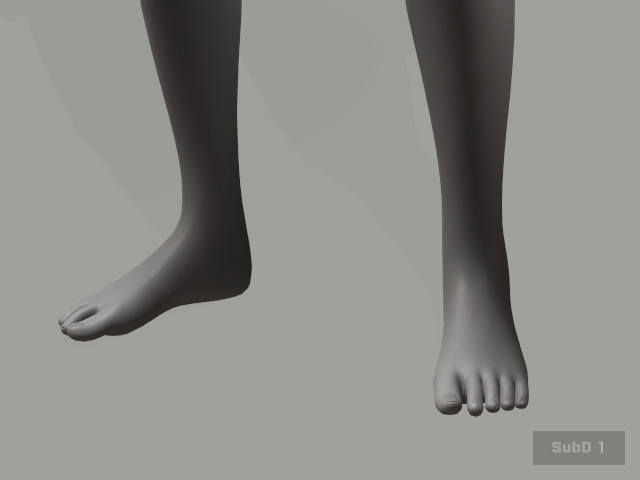
Applying T-Pose for AI Shoe and Glove to the character: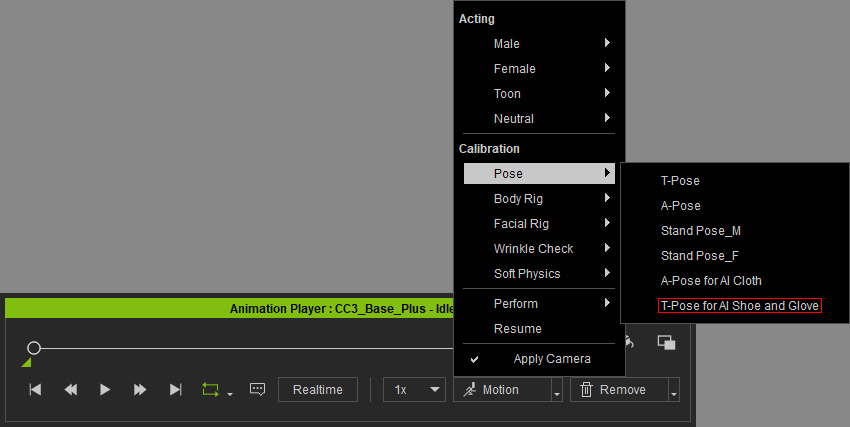
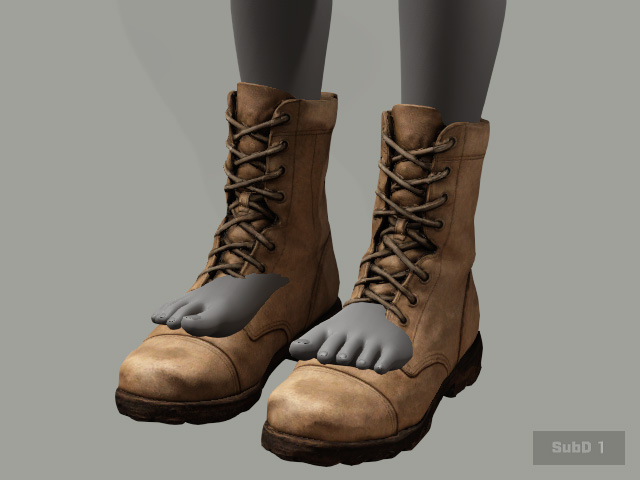
The character's feet are positioned in a pose suitable for footwear Transfer Skin Weight.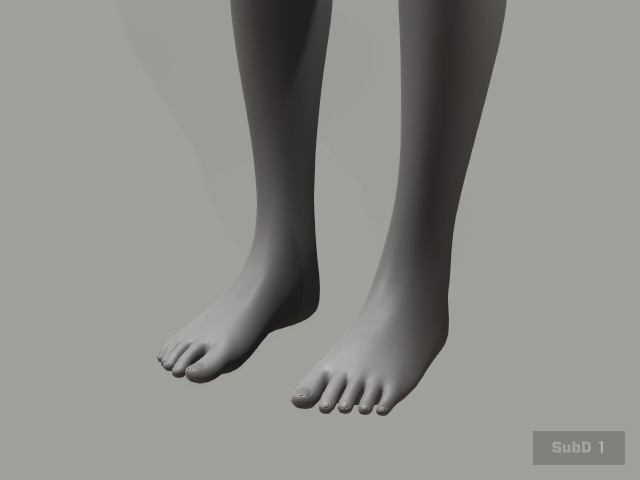
- Load a model file in OBJ or FBX format using Create >
Accessory.
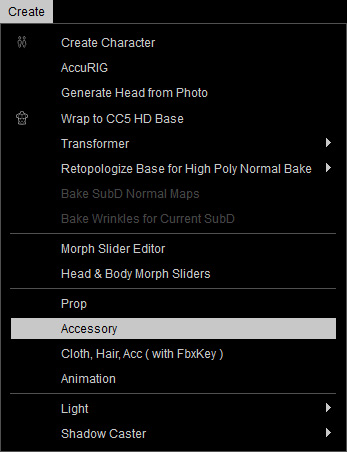
If the clothing model originates from the AI Mesh Generator's Task Queue panel, it will automatically become an Accessory, allowing you to skip to step 4. - Smooth the normals of the accessory if necessary.
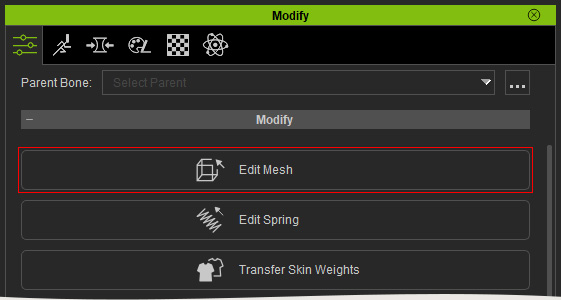
- Make sure the shoes (sneakers in this case) is selected. Click the Edit Mesh button in the Modify panel.
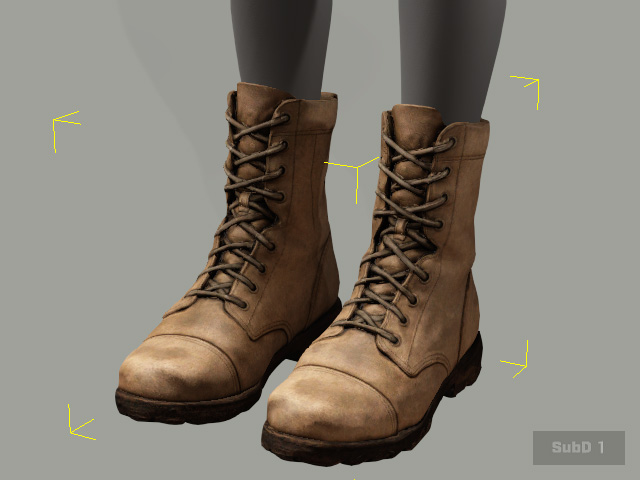
- Transform or rescale the accessory to a proper size. Angle and position it to
fit the feet.
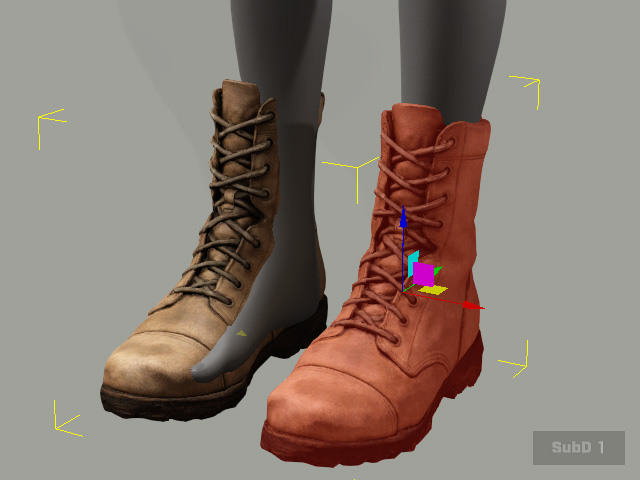
Before
After
 Note:
Note:If you now adjust the pose of the character, the imported accessory will not be move along with it because it has not been bone-skinned yet (no skin weights).
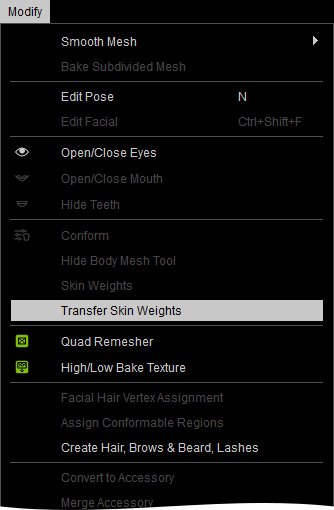
- In order to assign the skin weight to the accessory and turn it into a pair of shoes, select it and access Modify menu >> Transfer Skin Weights command.
Alternatively, go to the Modify panel >> Attribute tab >> Modify section and click the Transfer Skin Weights button.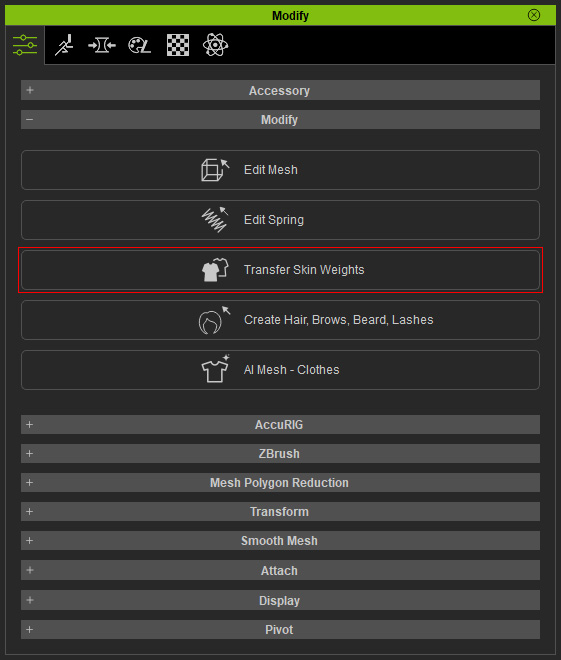
- In the Transfer Skin Weights panel, determine the template for the accessory to be turned to. This step not only assigns skin weights to the vertices and determines the type of the object.
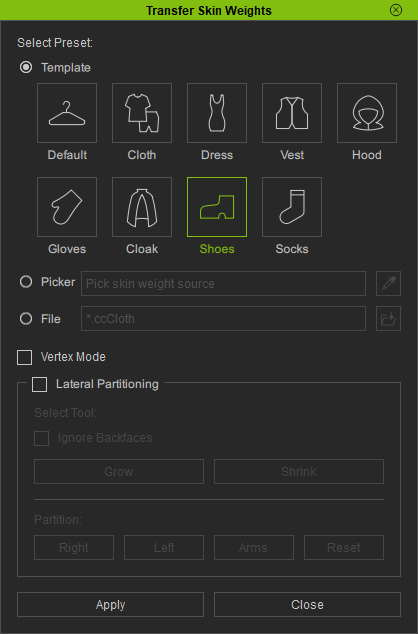
- Click the Apply button to set skin weight automatically for the shoes.
- Now when you pose the character, the shoes will move along.
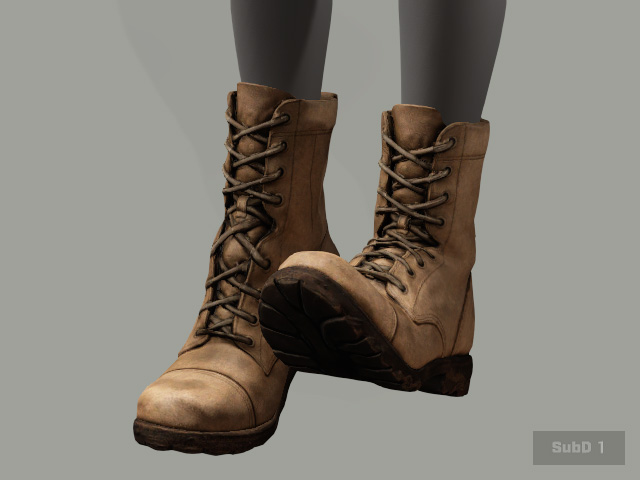
- Save it to the shoes library.
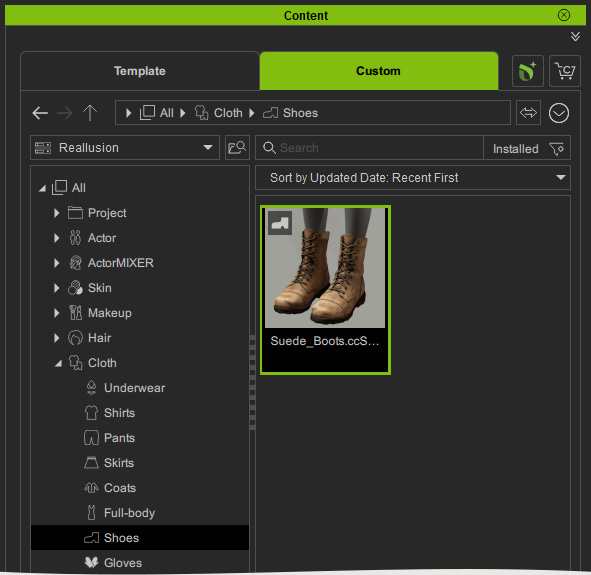
- You can then apply this pair of shoes to any other character.